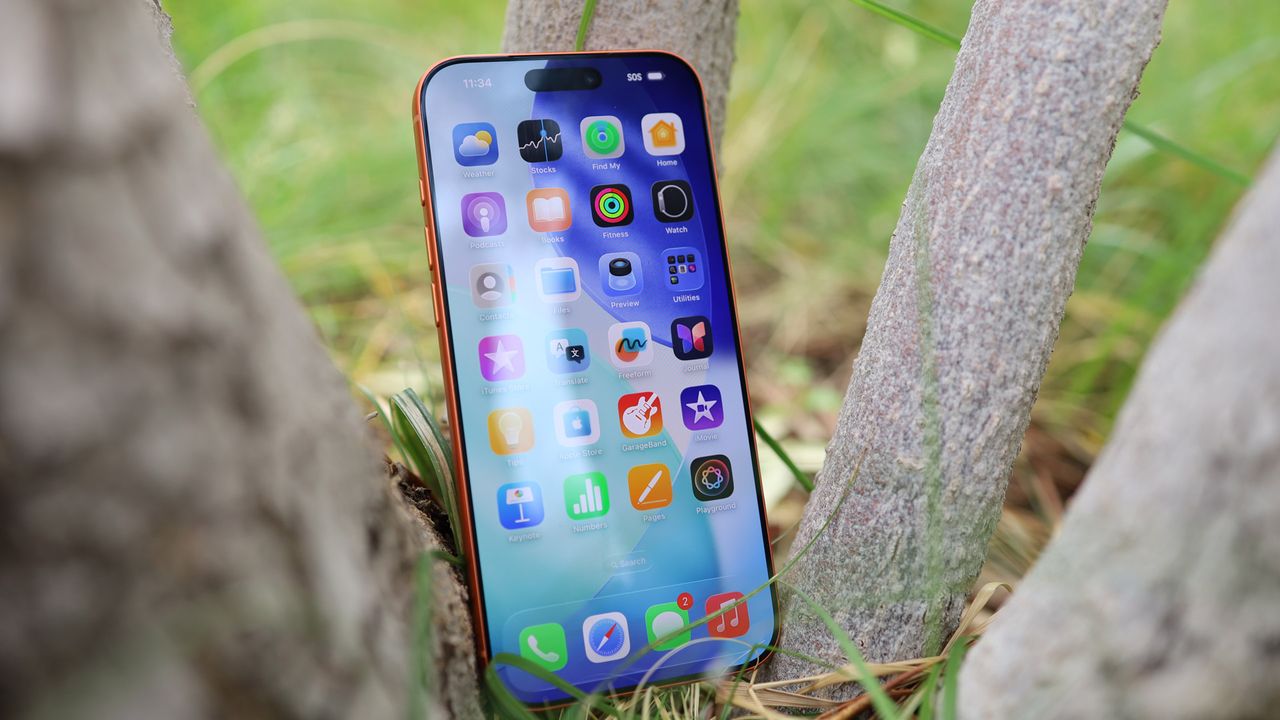
- iOS 26.1 changes the alarm interface by getting rid of the 'Stop' button
- While this is a useful alteration, not everyone will like it
- Thankfully, there's a setting that lets you bring the button back
If you’ve downloaded iOS 26.1, then you may have noticed that a few things have changed in Apple’s operating system, and perhaps the most noticeable of those changes is how you dismiss alarms.
Now, rather than just tapping a button, you have to slide your finger across the screen. The idea here is that, because this is an action that requires more intent and thought, you’re less likely to accidentally dismiss an alarm while half asleep.
So, for a lot of people, this will be a useful upgrade, but for those who don’t find themselves accidentally turning off their alarms, the 'slide to stop' gesture could be more of an annoyance, as it makes turning off alarms a slightly more involved process.
But there’s good news – while iPhones running iOS 26.1 will now default to using 'slide to stop', you can actually choose to switch it back to a button.
A simple toggle
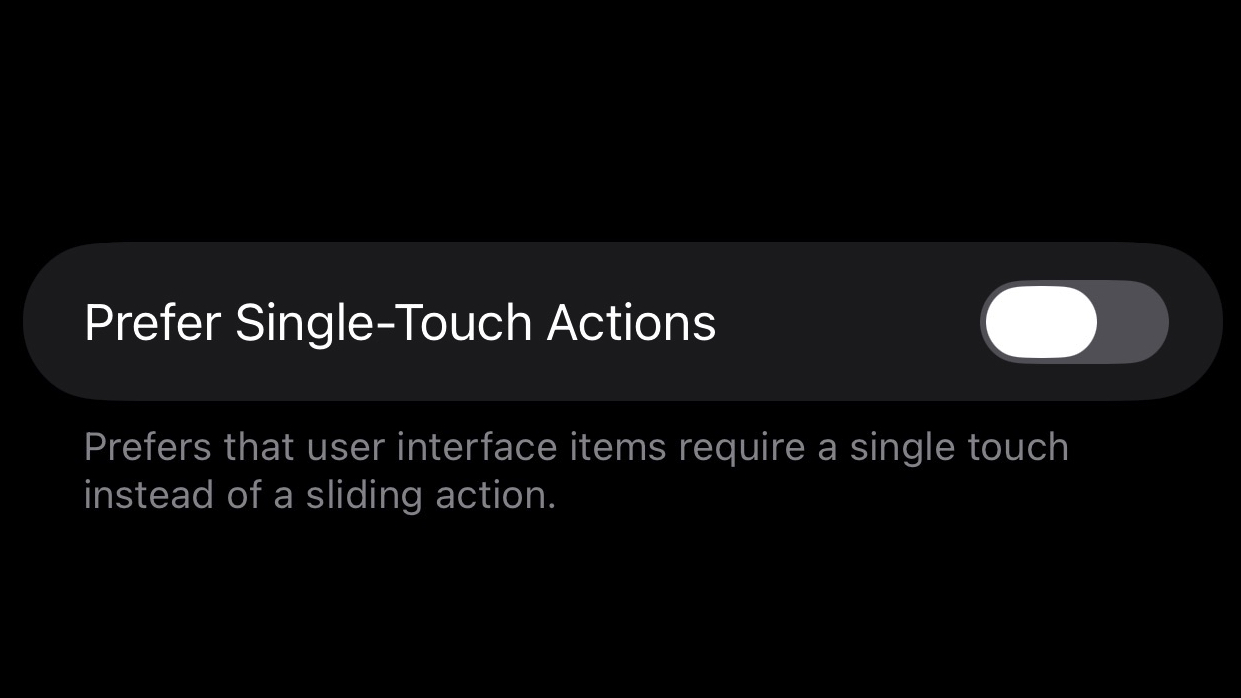
To do this, just head to Settings > Accessibility > Touch. From here, you’ll find a new ‘Prefer Single-Touch Actions’ toggle at the bottom.
Turn this on, and your alarm screen will switch back to showing a button, so you can just tap that to dismiss an alarm. Just don’t blame us (or Apple) if you accidentally do that and end up oversleeping.
And if you haven't downloaded iOS 26.1 yet, we'd recommend doing so even if you don't want the new alarm interface, as it also includes other changes, such as a way to tone down Liquid Glass, gesture controls for Apple Music, and more.
Follow TechRadar on Google News and add us as a preferred source to get our expert news, reviews, and opinion in your feeds. Make sure to click the Follow button!
And of course you can also follow TechRadar on TikTok for news, reviews, unboxings in video form, and get regular updates from us on WhatsApp too.