
A practical Windows and Android installation checklist for protecting files, formatting, defaults, and cloud access
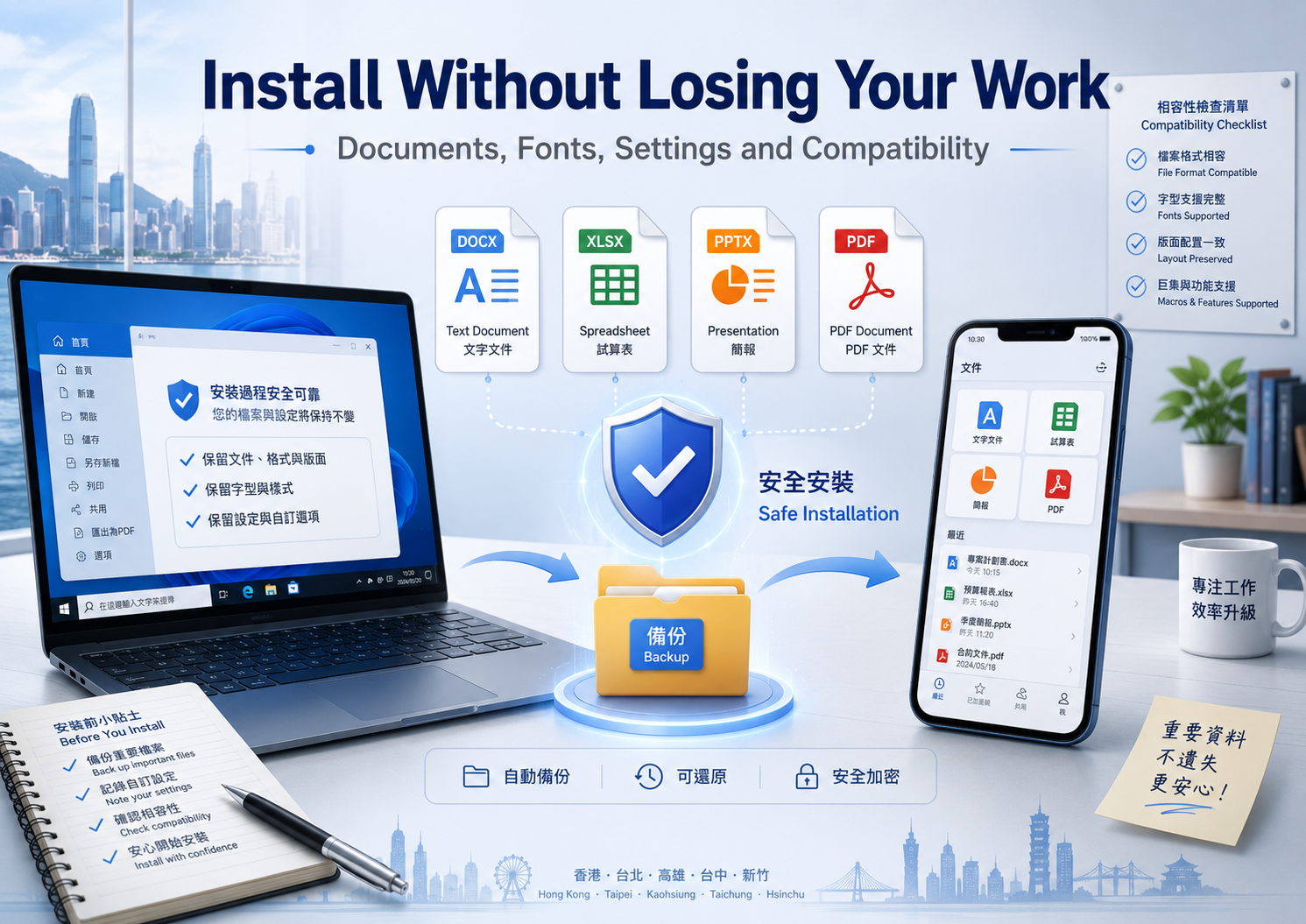
Installing office software is rarely as simple as downloading a file and clicking through a few setup screens. A new application can affect how documents open, which fonts are displayed, where files are saved, and whether cloud folders remain synchronized across devices.
These changes may not be obvious immediately. A document might open correctly but use a replacement font. A spreadsheet may preserve its data while changing a formula, chart, or print layout. A presentation can appear normal on a phone but show shifted images when opened on a desktop computer. An installer may also change the default applications for DOCX, XLSX, PPTX, or PDF files without the user noticing.
For individuals and teams working in both English and Traditional Chinese, installation planning is especially important. Font substitutions, punctuation differences, line wrapping, and page layout changes can affect business documents, contracts, presentations, and customer-facing materials.
A safer approach is to treat office software installation as a controlled migration. Files should be backed up, device requirements should be reviewed, download sources should be checked, and representative documents should be tested before the previous software is removed.
Audit Existing Documents Before Installing Anything
Before downloading a new office suite, identify the files and settings that could be affected.
Start with the folders used for active work. These may include:
- DOCX documents
- XLSX spreadsheets
- PPTX presentations
- PDF files
- Company templates
- Personal document templates
- Cloud-synchronized folders
- Browser download folders
- Email attachments
- Files received through messaging applications
- Scanned documents stored on mobile devices
Do not assume that everything important is already stored in one clearly labeled folder. Many users keep working documents across the desktop, Downloads folder, cloud storage, email, and multiple mobile applications.
Create a separate backup folder and copy the most important files into it. The backup should not rely entirely on the same cloud synchronization service used for daily work. A synchronization error, accidental deletion, or account problem could affect both the original folder and its synchronized copy.
It is also useful to select several representative files for compatibility testing. Choose documents that contain more than plain text.
A practical test set might include:
- A long document with page breaks, headers, footers, tables, and comments.
- A spreadsheet with formulas, filters, charts, and multiple worksheets.
- A presentation containing images, text boxes, transitions, and embedded fonts.
- A bilingual document containing English and Traditional Chinese.
- A PDF that will be used to compare export results.
Keep the previous office application installed until these files have been tested successfully in the new software.
Check the Operating System and Available Storage
Office applications for Windows and Android follow different installation processes. Each device should therefore be checked independently.
Windows preparation
On a Windows computer, review:
- The installed Windows version
- Whether the system is 32-bit or 64-bit
- Available disk space
- Current office software versions
- Administrator permissions
- Security software notifications
- The browser’s default download location
- Pending system updates
- Existing default applications
Do not calculate storage needs based only on the installer’s file size. The application may require additional space for temporary installation files, updates, fonts, templates, cached documents, and locally synchronized cloud content.
A nearly full system drive can cause an installation to fail or leave the application in an incomplete state.
Android preparation
On an Android phone or tablet, check:
- The Android version
- Available device storage
- Access to a trusted application store
- Existing versions of the application
- File and media permissions
- Camera permissions for document scanning
- Whether the device is managed by an employer
- Whether the same account will be used on multiple devices
A mobile office application may request access to files, photographs, the camera, or cloud accounts. Each permission should be considered separately. A document viewer may need file access, while a scanning feature may require camera access. Permissions that are not needed can often remain disabled until the relevant feature is used.
|
Software requirements can change as applications are updated. Review the current requirements on the relevant download page instead of relying on an old tutorial or permanently assuming that a particular operating system version is supported. |
Understand What the Office Suite Needs to Handle
Before selecting an application, define the actual work it needs to support. A user who occasionally reads documents on a phone has different requirements from someone producing financial reports or client presentations.
|
Work requirement |
Functions to review |
|---|---|
|
Everyday documents |
DOCX editing, styles, page breaks and font support |
|
Financial spreadsheets |
XLSX formulas, filters, charts and print areas |
|
Presentations |
PPTX layouts, images, animations and speaker notes |
|
Contracts and reports |
PDF viewing, annotation, conversion and signatures |
|
Mobile work |
File viewing, scanning, commenting and basic editing |
|
Team collaboration |
Shared documents, permissions, version history and synchronization |
|
Bilingual publishing |
Traditional Chinese fonts, punctuation and mixed-language layout |
Feature lists should be treated as a starting point rather than proof of complete compatibility. Two applications may both claim to support the same file format while displaying complex documents differently.
Users who regularly exchange files with clients, accountants, designers, schools, or government departments should test the exact formats used in those workflows.
Choose a Download That Matches the Device
Desktop and mobile versions of office software should not be treated as interchangeable.
Windows applications are generally more suitable for:
- Editing long documents
- Working with advanced spreadsheet formulas
- Preparing detailed presentations
- Managing multiple files at the same time
- Reviewing final page layouts
- Performing final PDF exports
- Using a physical keyboard and larger display
Android applications are usually better suited to:
- Viewing files while travelling
- Making minor corrections
- Scanning paper documents
- Adding comments
- Approving or reviewing drafts
- Entering short updates
- Sharing documents with colleagues
The primary editing environment should be selected according to the most complex task, not simply the most convenient device. A phone may be sufficient for reviewing a document, but it may not reveal every layout problem visible on a desktop screen.
Users who need to compare document, spreadsheet, presentation, PDF, and cross-device options can review a WPS Office download guide before deciding which device should be used for primary editing.
After choosing a platform, confirm that the download is specifically intended for that operating system. A Windows installer cannot be used as an Android application, and an Android package should never be opened on a Windows computer as though it were a desktop installer.
Verify the Download Page Before Opening the File
A familiar product name does not guarantee that every search result or download page is trustworthy. Sponsored advertisements, copied websites, misleading buttons, and third-party download managers can all appear during the search process.
Before downloading, inspect the page carefully.
- The spelling of the domain
- Whether the page clearly identifies the target operating system
- The name and extension of the downloaded file
- Whether several competing download buttons are displayed
- Whether an unrelated download manager is required
- Whether additional software is included
- Whether the browser displays a warning
- Whether the system identifies an unknown publisher
- Whether an Android link leads to a trusted application store
A Windows installer commonly uses an .exe or .msi extension, while Android applications are normally installed through a recognized application store or an approved package distribution process. A file with an unexpected extension should not be opened merely because its name contains the product name.
HTTPS is not proof of legitimacy
A padlock icon and HTTPS connection indicate that data exchanged between the browser and website is encrypted. They do not independently prove that:
- The website is operated by the software brand
- The installer is safe
- The page contains accurate information
- The file has not been replaced
- The software is free from unwanted components
|
Connection security and file trustworthiness are separate questions. Both must be evaluated. |
Protect Traditional Chinese Fonts and Document Formatting
Font compatibility is one of the most common causes of unexpected document changes. This is particularly important for users in Hong Kong and Taiwan who work with Traditional Chinese documents or mixed Chinese-English layouts.
Before installing new software, record the fonts used in important templates and frequently edited files.
Review:
- Default body fonts
- Heading fonts
- Traditional Chinese typefaces
- English typefaces
- Bold and italic variants
- Special symbols
- Line spacing
- Paragraph spacing
- Page margins
- Table widths
- Numbering styles
- PDF export settings
When the required font is unavailable, an office application may silently substitute another one. The replacement can change character width, line wrapping, page count, table alignment, and presentation layout.
A useful compatibility file should include:
- Traditional Chinese text
- English text
- Mixed-language paragraphs
- Punctuation and special characters
- Tables
- Images
- Page headers and footers
- Automatic numbering
- Comments
- Hyperlinks
- Footnotes or endnotes
- A PDF export test
Open a copy of the test file rather than the only original. Compare the new result with a previously exported PDF or a screenshot of the original layout.
Do not batch-convert important files immediately after installation. Test several documents first and confirm that the results are acceptable.
Review File Associations During Installation
File associations determine which application opens when a file is double-clicked. An installer may offer to become the default application for several formats, including:
- .docx
- .xlsx
- .pptx
- .txt
- Template formats
- Other supported document types
Changing these associations is not necessarily harmful, but it should be an intentional decision.
Before installation:
- Record the current default applications.
- Read each setup option instead of accepting every default.
- Avoid selecting all file types automatically unless that is genuinely required.
- Note whether PDF files will be reassigned.
- Test the result after installation.
After setup, double-click one sample file from each important format. Confirm that the expected application opens and that the file displays correctly.
Users who prefer different applications for different tasks can keep separate defaults. For example, one application may be used for editing documents while another remains the preferred PDF reader.
Install and Test Before Removing Previous Software
The safest migration sequence is:
|
Back Up Files → Check System Requirements → Verify the Download → Install the Correct Version → Open Test Documents → Check Fonts and Formulas → Export a PDF → Configure Synchronization → Decide Whether to Remove the Previous Software |
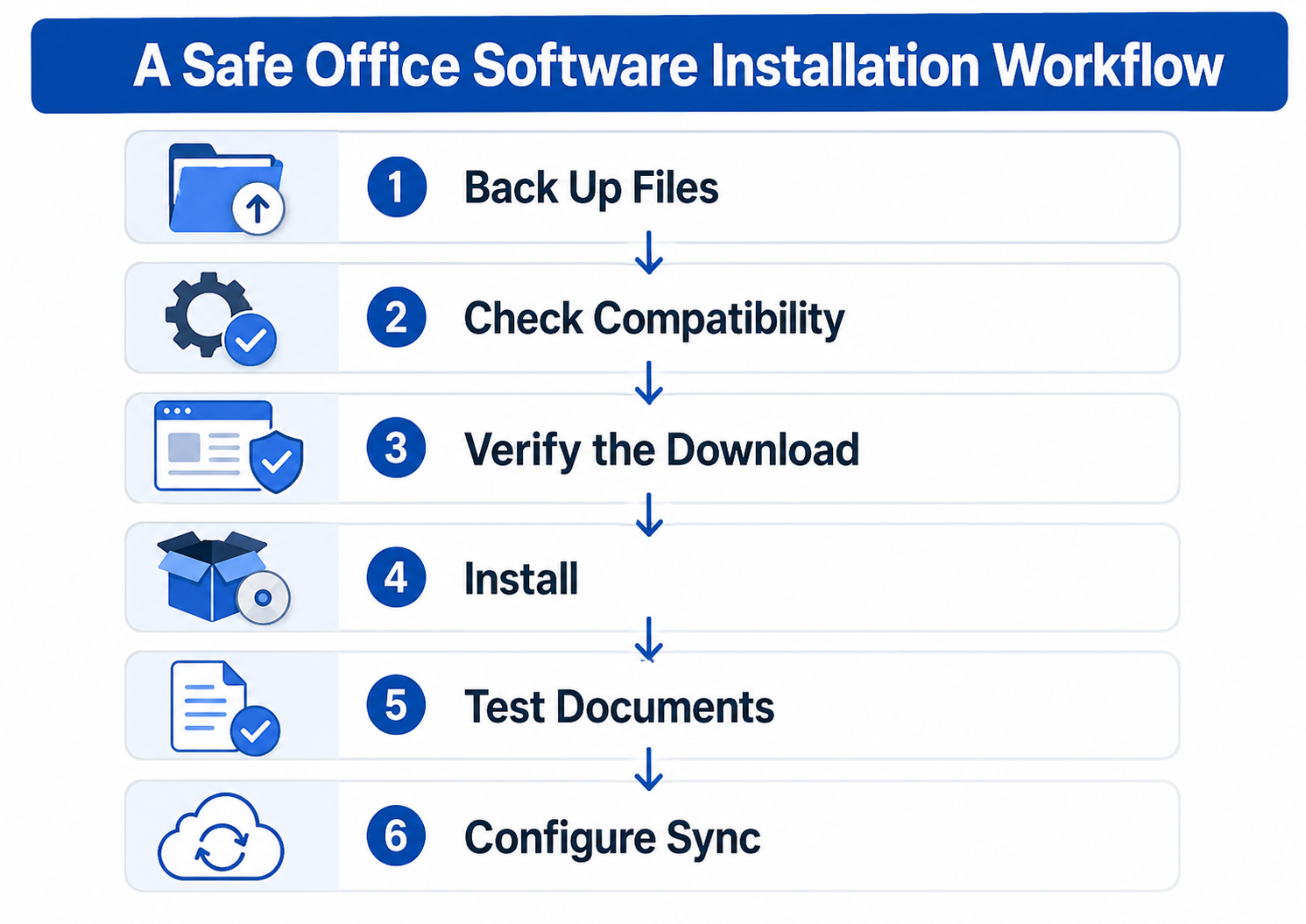
Once installation is complete, do not begin by opening the most valuable production document. Start with copies of the compatibility files prepared earlier.
Document tests
Check whether:
- Page breaks remain in the correct positions
- Headers and footers are preserved
- Numbered lists continue correctly
- Comments and tracked changes remain available
- Traditional Chinese characters display correctly
- Hyperlinks still work
Spreadsheet tests
Check whether:
- Formulas return the expected results
- Date and number formats remain unchanged
- Filters and hidden rows are preserved
- Charts still reference the correct data
- Conditional formatting remains visible
- Print areas and page scaling are correct
Presentation tests
Check whether:
- Images remain in position
- Text fits inside text boxes
- Embedded media still works
- Fonts have not been substituted
- Animations and transitions behave correctly
- Speaker notes are preserved
PDF tests
Export the same document to PDF using the old and new applications. Compare:
- Page count
- Font appearance
- Image quality
- Line wrapping
- Margins
- Hyperlinks
- File size
- Print appearance
Only after completing these tests should the user decide whether the previous office software can be removed.
Compare Windows and Android Installation Requirements
Desktop and mobile installations require different checks.
A Windows installation may involve administrator permissions, system security prompts, installation directories, file associations, and desktop shortcuts. An Android installation is more likely to involve application-store verification, device permissions, battery settings, file access, and mobile storage.
Users preparing both desktop and mobile devices can consult a WPS installation guide for Windows and Android before downloading or updating either version.
When preparing Windows:
- Verify the installer’s source
- Review browser and security warnings
- Leave enough space for installation and future updates
- Read optional installation settings
- Decide which file types should open by default
- Restart the application or computer if required
When preparing Android:
- Use a trusted application store or verified distribution channel
- Review file, camera, microphone, and media permissions
- Check whether the application will run in the background
- Confirm where downloaded and scanned files are stored
- Avoid granting unnecessary access
- Test synchronization over both Wi-Fi and mobile data where appropriate
The mobile version should not automatically be expected to reproduce every advanced desktop feature. Complex document formatting, spreadsheet automation, presentation editing, or batch file operations may still require a computer.
It is also prudent to leave additional storage beyond the stated minimum. Cached files, offline documents, scanned images, and application updates can consume significant space over time.
Configure Cloud Synchronization Carefully
Cloud synchronization makes files available across devices, but it also introduces account, permission, and version-management risks.
Before enabling automatic synchronization, determine:
- Whether the account is personal or work-related
- Which folders will be uploaded
- Whether sensitive files are included
- Whether local folders will be merged
- Whether deleted files are also removed from other devices
- Who can access shared links
- Whether version history is available
- Whether offline copies are stored on the device
- Whether the same account is active on old devices
A user may accidentally sign in with a personal account on one device and a work account on another. This can create duplicate folders or cause different versions of the same document to be edited separately.
Test synchronization with an unimportant document first. Edit the file on one device, allow it to synchronize, and then open it on the second device. Confirm that the newest version appears and that the file has not been duplicated or renamed unexpectedly.
Shared links also require careful review. A link intended for one colleague should not automatically be accessible to anyone who receives it. Use restricted access where possible and remove permissions when a project ends.
|
Cloud synchronization improves access, but it does not replace an independent backup. |
A Final Office Software Installation Checklist
Use this checklist before relying on the newly installed application for production work.
|
Check |
Status |
|---|---|
|
Important documents have been backed up |
☐ |
|
Representative test files have been selected |
☐ |
|
The operating system is supported |
☐ |
|
Sufficient storage is available |
☐ |
|
The download page has been verified |
☐ |
|
The correct device version has been selected |
☐ |
|
Existing fonts have been documented |
☐ |
|
File associations have been reviewed |
☐ |
|
DOCX files open correctly |
☐ |
|
XLSX formulas have been tested |
☐ |
|
PPTX layouts have been checked |
☐ |
|
Traditional Chinese text displays correctly |
☐ |
|
PDF export has been compared |
☐ |
|
Cloud folders and permissions are configured |
☐ |
|
Mobile and desktop versions show the same file |
☐ |
|
The previous software has not been removed prematurely |
☐ |
Conclusion
Installing office software should be treated as a document-protection task rather than a routine download. The installer can affect fonts, page layouts, formulas, default applications, cloud folders, and the way files move between desktop and mobile devices.
A reliable process begins with a separate backup and a small set of representative test documents. Users should verify device compatibility, inspect the download source, review file associations, and compare document and PDF output before removing their previous software.
Windows and Android devices can support the same broader workflow, but they usually serve different roles. Desktop software remains important for complex editing and final quality checks, while mobile applications are useful for viewing, scanning, commenting, and making smaller changes.
Cloud synchronization can improve access, but it cannot replace an independent backup. Careful testing before full adoption is the simplest way to protect existing work.