
I’ve noticed that Google’s AI Overviews show up on almost every search I make, automatically generating AI-written answers right at the top of the results page. Google says this makes finding information faster, but in my experience it’s not always accurate and massively hinders the browsing experience.
Unfortunately there’s no official switch to turn AI Overviews off completely, but I’ve found three reliable workarounds that can help you cut down or remove them from your searches. Some are quick fixes you can add on the fly, while others offer a more permanent setup in your browser.
Here’s how I’ve managed to dial back AI Overviews and get back to a cleaner, more traditional Google search experience.
1. Add "-AI" to your search query
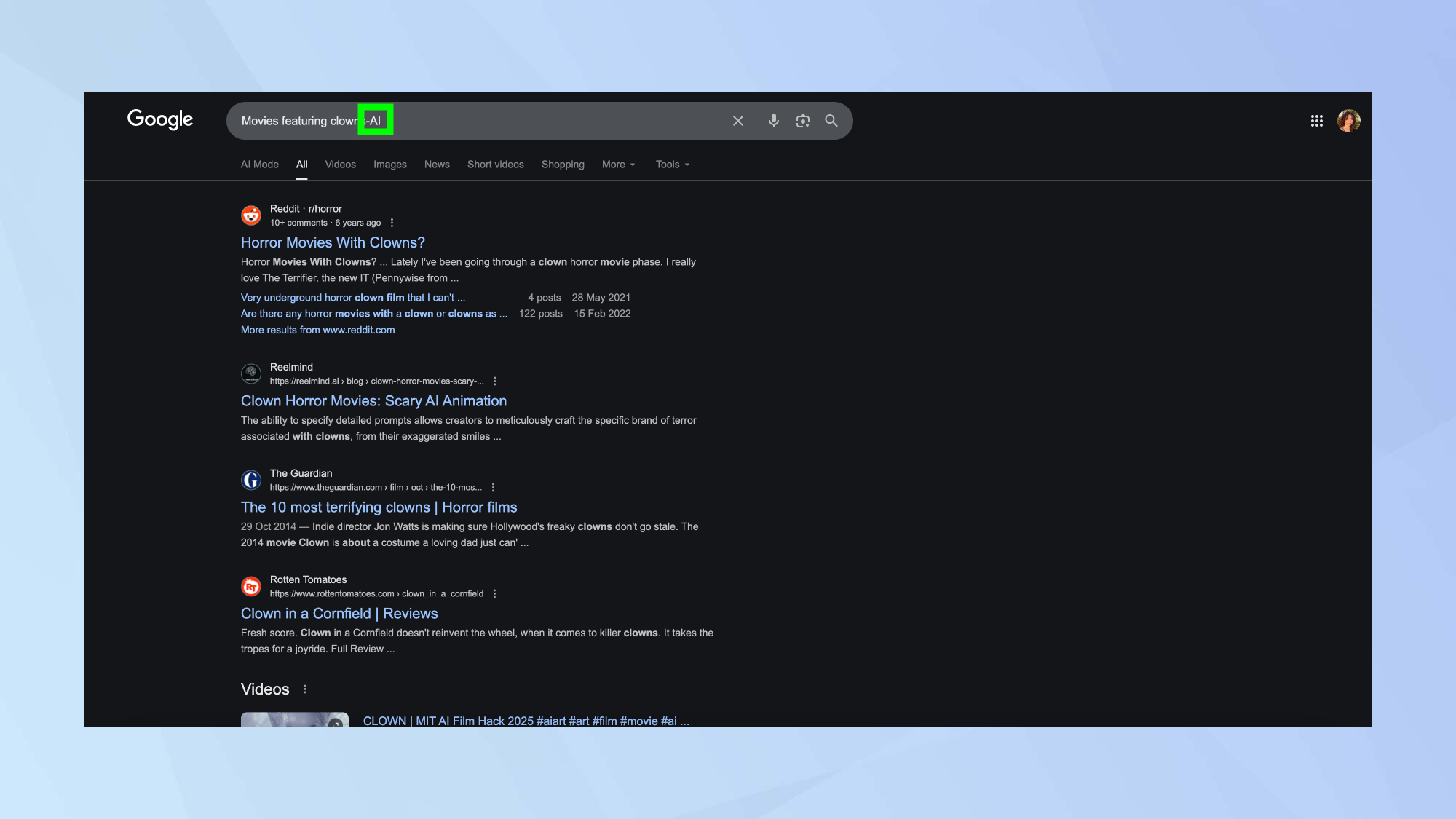
Type your search query normally, then add -AI at the end before hitting enter. This modifier tricks Google's algorithm into suppressing the AI Overview panel from appearing.
The minus sign acts as an exclusion operator that modifies search parameters. While you could technically use any random characters after the minus sign (-i or -xyz work too), using -AI makes the purpose obvious.
This method works immediately on any device without changing settings or installing anything. Just remember to add the modifier each time you search and want to avoid AI results.
2. Switch to the Web filter
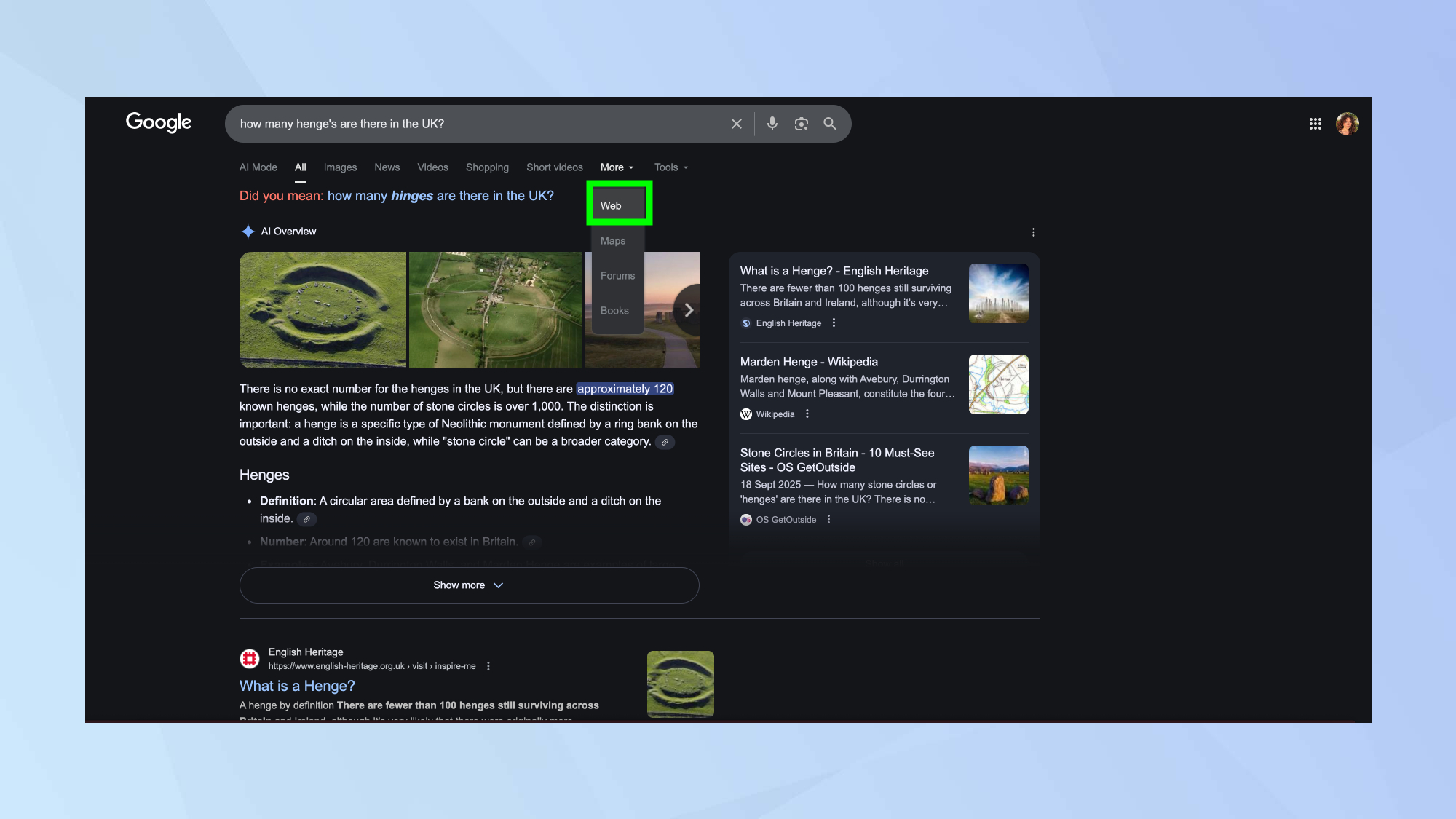
Look for the Web button underneath the search bar after getting results with an AI Overview. Click it to strip away the AI-generated content and show only traditional web links.
If you don't see the Web filter immediately, click More to reveal additional filter options, then select Web from the menu. The AI Overview disappears once this filter activates.
This returns you to link-only results similar to how Google worked before AI Overviews. However, it also removes video previews and other rich snippets — you get pure web links with no multimedia elements mixed in.
3. Set up Google Web as your default search
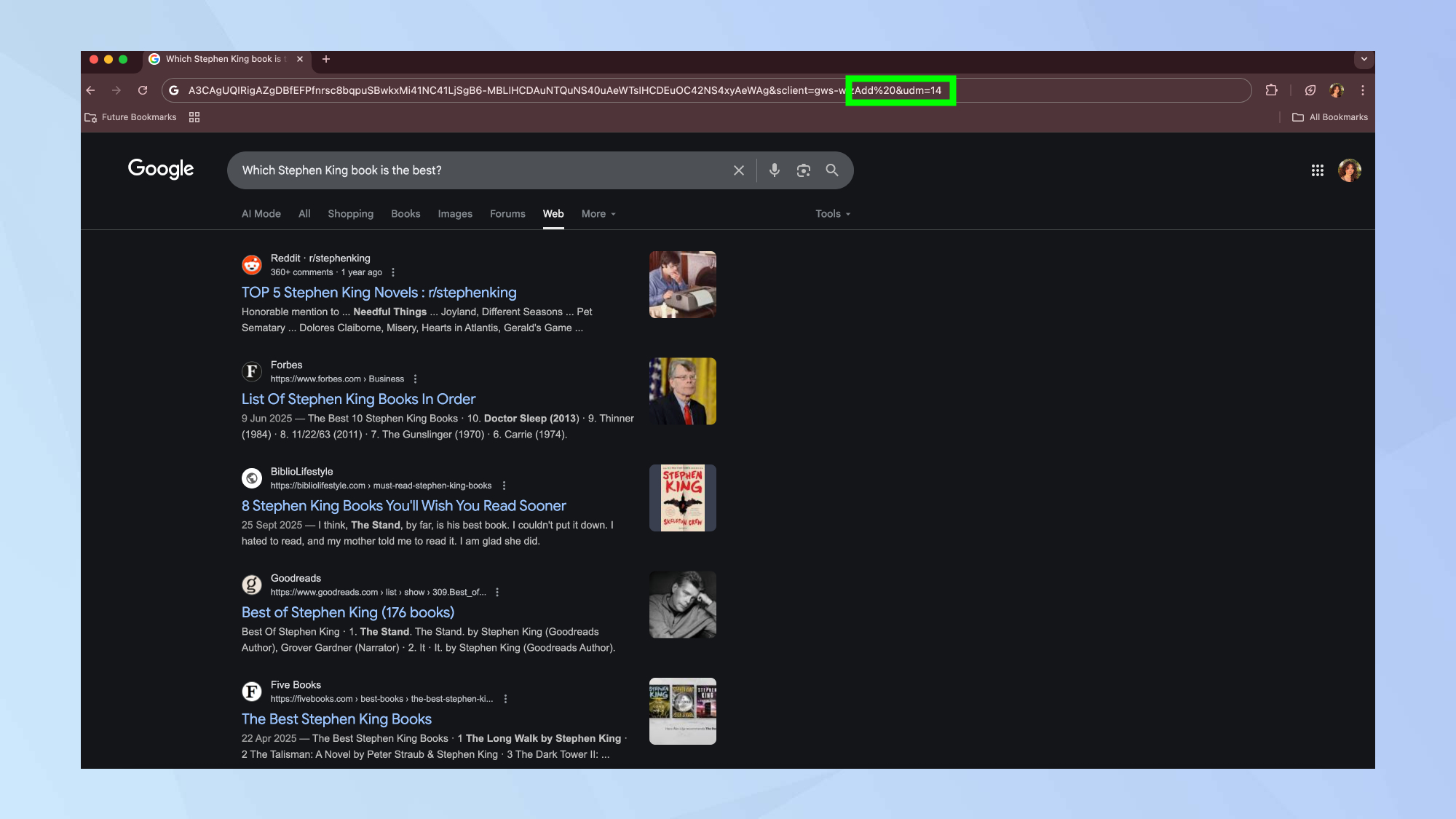
Search for anything on Google as you normally would. After the results appear, look at the URL in your browser's address bar. It will look something like: https://www.google.com/search?q=what+is+mfa.
Add &udm=14 to the very end of the URL and press Enter to reload the page. The AI Overview disappears and you're left with traditional blue links the classic Google search experience without any AI-generated content at the top.
This works for any search query by manually editing the URL each time. While more tedious than using the Web filter, it gives you the same result: pure web links without AI interference.
Follow Tom's Guide on Google News and add us as a preferred source to get our up-to-date news, analysis, and reviews in your feeds. Make sure to click the Follow button!