
A practical guide to choosing the correct version, verifying the download source, reviewing permissions, and securing active sessions across devices.
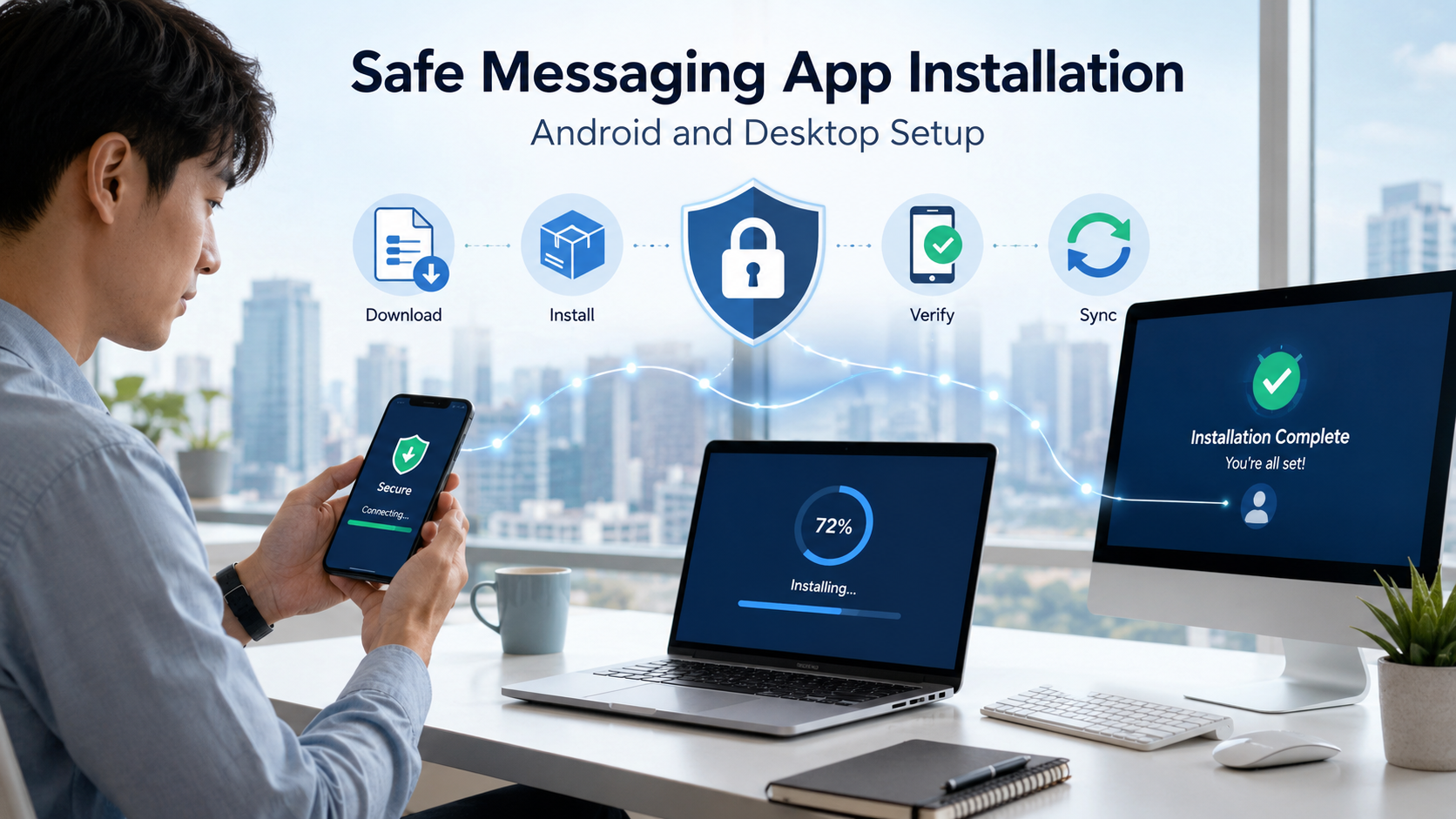
Messaging apps are no longer limited to smartphones. Many people now begin a conversation on an Android phone, continue it on a Windows computer, and review shared files later on a macOS device. This cross-device flexibility is useful for remote work, international communication, community management, and everyday conversations.
However, installing the same messaging service across several devices requires more care than simply clicking the first download button that appears in a search result. Users must select the correct version, verify the source, review permissions, protect their login credentials, and manage active sessions after installation.
These considerations are particularly relevant in multilingual markets such as Hong Kong and Taiwan, where users may switch between Traditional Chinese and English interfaces while communicating across different regions and devices.
Why Cross-Device Messaging Requires Careful Setup
A messaging account may contain private conversations, contact information, shared documents, photos, videos, and account recovery details. When the account is connected to several devices, each active session becomes another potential access point.
Cross-device installation can create problems when users:
- download an incompatible application version;
- install software from an imitation website;
- approve unnecessary permissions;
- leave an account active on a shared computer;
- use an outdated desktop client;
- expose verification codes to another person;
- confuse device synchronization with cloud backup.
A careful setup process helps users avoid these problems while keeping their mobile and desktop experiences consistent.
Before installing any application, users should determine which devices they plan to use and whether they need access on Android, iOS, Windows, macOS, or a combination of platforms. They should also confirm whether the service supports synchronized conversations, file transfers, group communication, and the language options they require.
People comparing cross-device communication platforms may encounter services such as Potato Chat, which can be reviewed alongside other messaging options when evaluating mobile and desktop access.
The important point is not to install an application simply because its name appears familiar. Users should first understand what the service provides, which platforms it supports, and how account access is managed across devices.
Choose the Correct Version for Your Device
Selecting the appropriate version is one of the most basic but important installation steps.
An Android application cannot be installed directly on Windows, and a Windows installer will not work on macOS. Even within the same operating system, users may encounter different versions or installation formats.
Before downloading, check:
- the operating system installed on the device;
- the system version and hardware requirements;
- whether the device uses a mobile or desktop platform;
- the file extension of the installer;
- the application version and release date;
- whether the download is intended for a new installation or an update.
Android users will generally install applications through an app marketplace or an Android package file. Desktop users may receive an executable installer, disk image, application package, or another platform-specific format.
Users should be cautious when a download page offers several buttons with unclear labels. Advertising banners can sometimes resemble genuine download controls. The correct button should clearly identify the operating system and application version.
Check the Download Source Before Installing
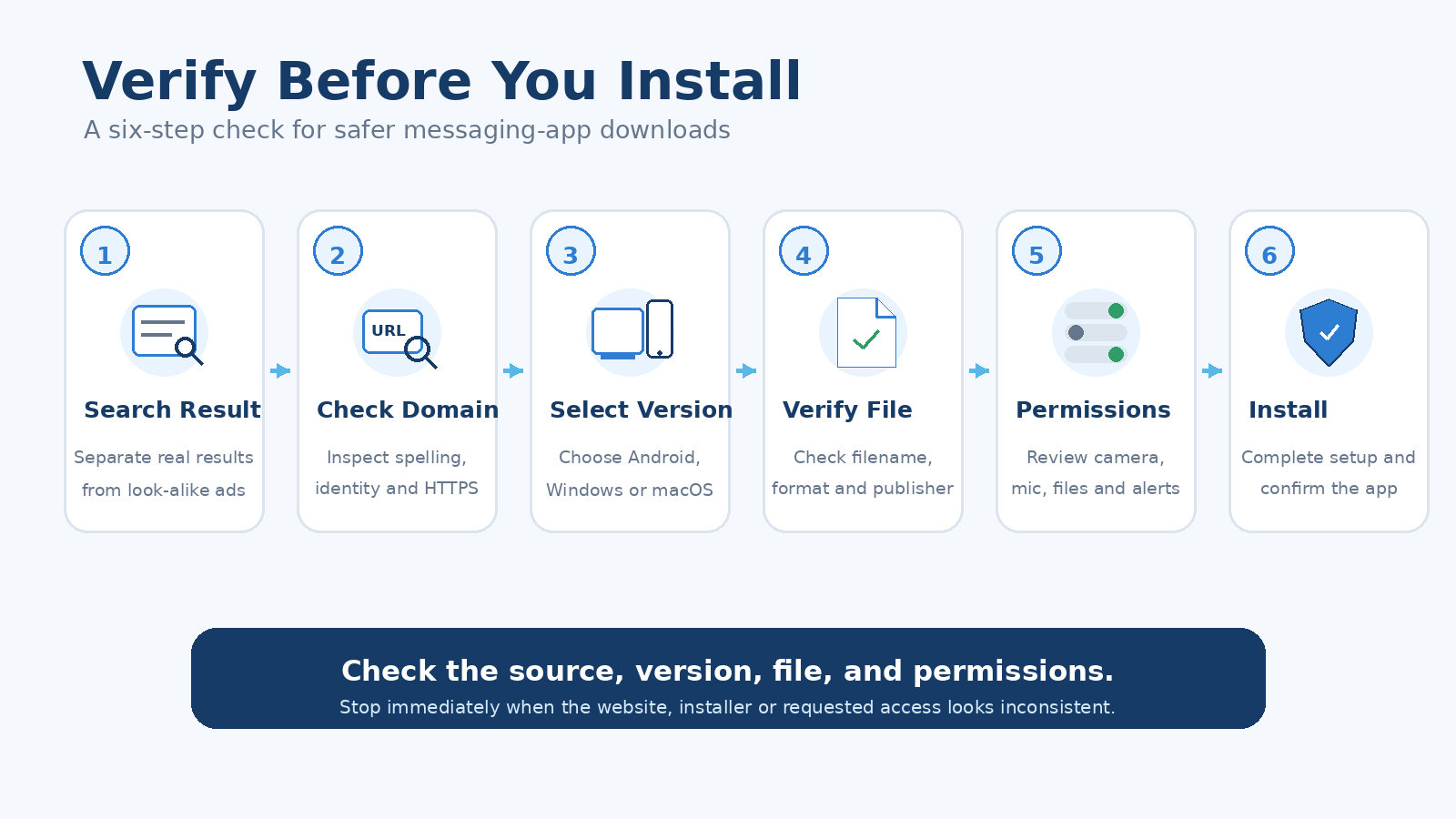
Search results can contain legitimate pages, advertisements, mirrors, outdated directories, and imitation websites. A professional-looking design alone does not prove that a page is trustworthy.
Before downloading a messaging application, review the full domain name carefully. Attackers may use small spelling changes, additional words, unusual subdomains, or misleading page titles to imitate a familiar service.
Users should also inspect:
- whether the page clearly identifies the application;
- whether the download corresponds to the selected operating system;
- whether multiple unrelated programs are being promoted;
- whether the installer name matches the expected application;
- whether the page contains excessive pop-ups or redirects;
- whether the browser displays a security warning;
- whether contact, privacy, or support information is available.
HTTPS is useful because it encrypts the connection between the browser and the website, but it does not guarantee that the website itself is genuine. A misleading site can also use HTTPS.
Before installing the application, users can review the available operating-system versions in a Potato download guide and select the package that corresponds to their device.
The selected file should then be checked again before it is opened. If the filename, publisher information, file type, or requested permissions appear unrelated to the expected application, the installation should be stopped.
Installing a Messaging App on Android
Android installation procedures can vary depending on the device manufacturer, operating-system version, and download method.
When installing through an established app marketplace, users should review the application name, publisher information, user feedback, update history, and requested permissions. They should avoid applications with copied descriptions, misleading screenshots, or developer information that does not match the expected service.
When installing an Android package file directly, additional caution is necessary. The device may ask the user to permit installation from an external source. This permission should only be enabled temporarily for a source the user has deliberately chosen.
After installation, review the application’s access to:
- contacts;
- camera;
- microphone;
- photos and media;
- notifications;
- files and storage;
- location information.
A messaging app may reasonably require access to the camera or microphone for calls and media sharing. However, users should consider whether every requested permission is necessary for the features they intend to use.
Permissions can usually be changed later through Android’s application settings.
Setting Up the Desktop Version
Desktop messaging applications are useful for longer conversations, document sharing, customer support, and work-related communication. They can also create additional security risks, especially on shared or workplace computers.
Before running a desktop installer, users should confirm that the file is intended for Windows or macOS. They should read any operating-system warnings and check whether the installer identifies a recognizable publisher.
During installation, avoid accepting optional software, browser extensions, or unrelated system changes. Users should also review whether the application is configured to launch automatically when the computer starts.
On a personal device, automatic startup may be convenient. On a shared computer, it may expose messages or account information to other users.
After signing in, check whether the desktop application displays:
- recent conversations;
- synchronized contacts;
- shared files;
- notification settings;
- connected devices;
- logout and session-management controls.
Users should never leave a messaging account signed in on a public computer, hotel business center, internet café, or device belonging to another person.
Review Permissions and Active Sessions
Installation is not complete when the application opens successfully. Users should also review the account’s privacy, security, and session settings.
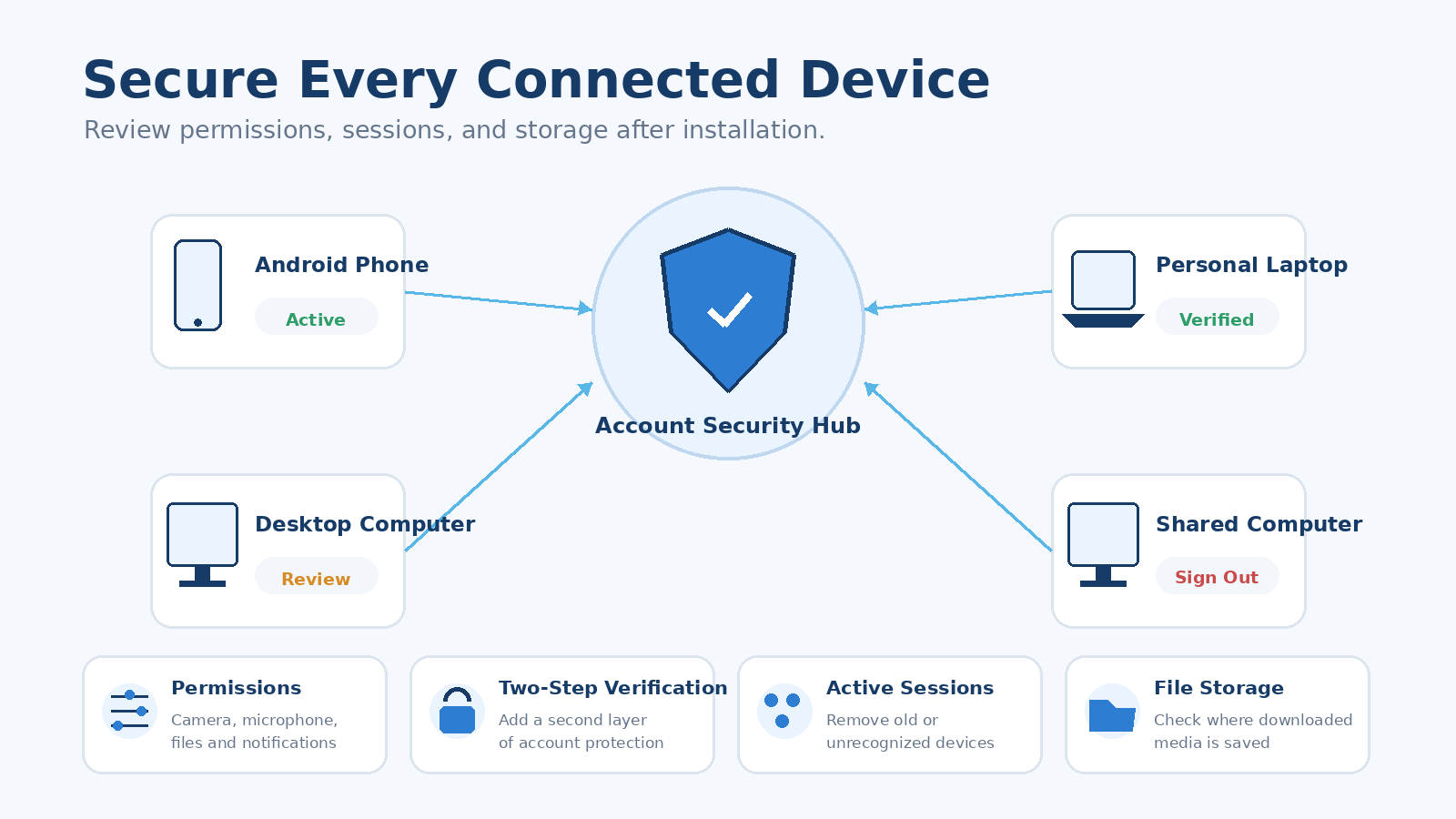
An active-session page may show the devices currently connected to the account. This can help identify an old phone, unused computer, or unfamiliar login.
Review the list of connected devices after every new installation. Remove any session that is no longer needed or cannot be recognized.
Additional protections may include:
- a strong account password;
- two-step verification;
- a recovery email address;
- screen-lock protection;
- biometric access;
- restricted message previews;
- automatic session expiration;
- login alerts.
Verification codes should never be shared through chat, email, or phone calls. A legitimate account setup process may require the code inside the application, but support representatives should not ask users to send the code directly to them.
Users in Hong Kong, Taiwan, and other regions where public Wi-Fi is widely available should be especially careful when signing in from airports, cafés, shopping centers, or shared workspaces. Sensitive account changes are better completed through a trusted private connection.
Keep Mobile and Desktop Accounts Synchronized
Cross-device synchronization can improve convenience, but users should understand what information is being synchronized and where it is stored.
Messages, contacts, settings, and files may behave differently depending on the service. Some information may appear automatically on every connected device, while other content may remain local to the device on which it was created or downloaded.
Users should test synchronization by sending a non-sensitive message and opening it on another device. They can also check whether language preferences, notification settings, muted conversations, and downloaded files are synchronized.
For multilingual users, interface consistency is particularly important. A phone may use Traditional Chinese while a desktop application remains in English. This is not necessarily an error, because application-language settings and operating-system language settings may be managed separately.
File handling should also be reviewed. Desktop applications may automatically save images, videos, and documents to a local folder. Users working with confidential information should confirm where these files are stored and whether they are included in device backups.
A Final Installation Checklist
Before considering the setup complete, confirm that:
- The application version matches the operating system.
- The domain and download page have been checked carefully.
- The installer does not include unrelated software.
- Application permissions have been reviewed.
- Two-step verification or another additional security control is enabled.
- All active devices and sessions are recognized.
- The account is not left open on a shared computer.
- Mobile and desktop synchronization has been tested.
- Downloaded files are stored in an appropriate location.
- The application can receive trusted updates.
Installing a messaging app across Android and desktop devices should be treated as an account-security process, not merely a software download. A few additional checks can reduce the risk of installing the wrong version, visiting a misleading page, or leaving private conversations exposed on an unmanaged device.
By selecting the correct platform version, verifying the download source, reviewing permissions, and regularly checking active sessions, users can benefit from cross-device communication without sacrificing control over their accounts and personal information.