
A practical framework for reducing notification overload without missing important private, group, channel, or security messages.
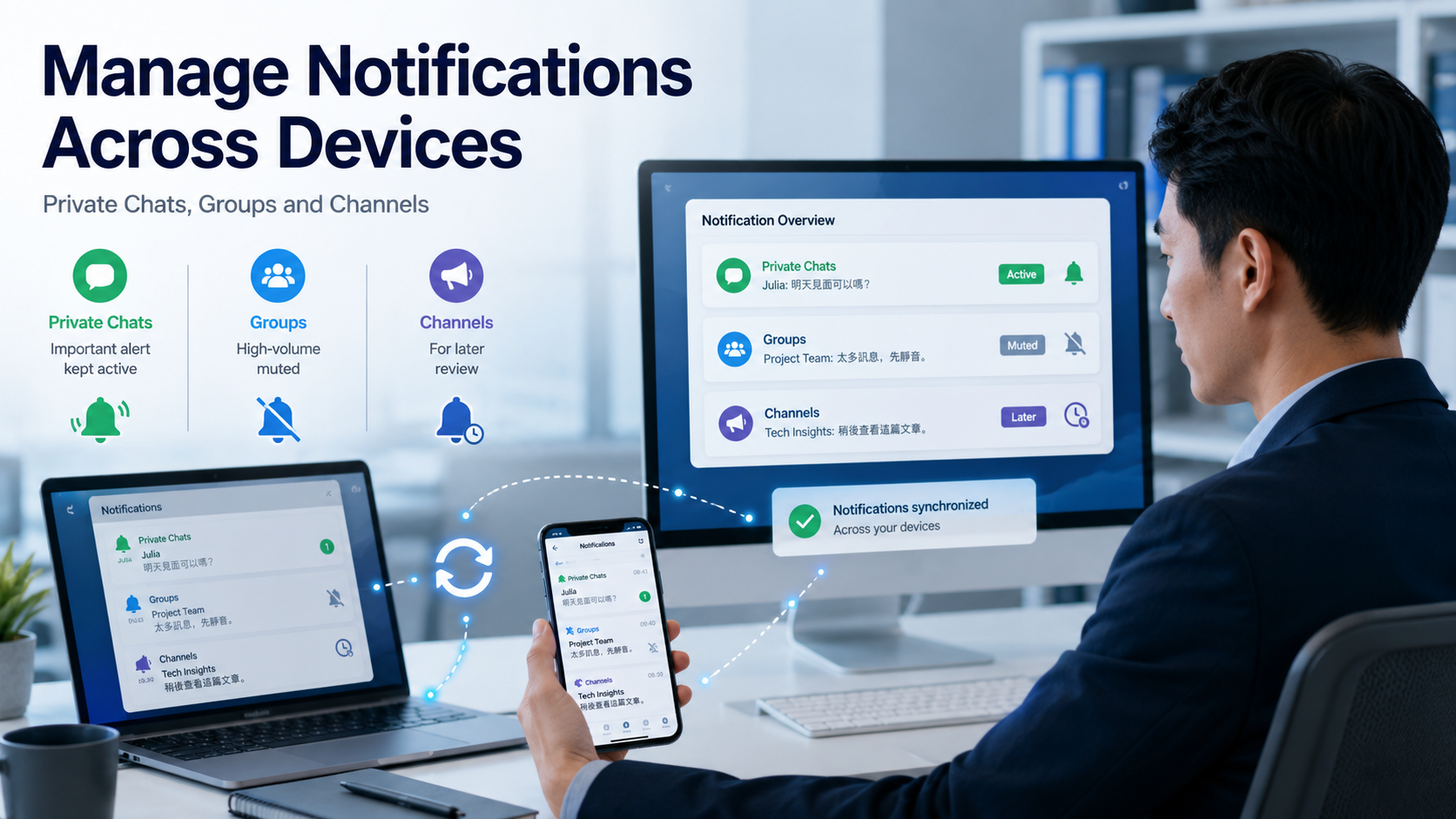
Messaging apps are designed to keep people connected, but the same notification can now appear on a phone, desktop computer, tablet, and browser at almost the same time. What begins as a useful reminder can quickly become a constant stream of sounds, banners, message previews, and repeated alerts.
For bilingual users, notification management can be even more complicated. Menu labels may differ between English and Traditional Chinese interfaces, while Android, iPhone, Windows, macOS, and browser versions may place the same controls in different locations.
The solution is not simply to disable every alert. Users need a notification system that distinguishes urgent conversations from messages that can be reviewed later. By separating private chats, groups, and channels - and checking settings on every active device - users can reduce interruptions without missing important communication.
Why Notification Overload Is a Cross-Device Problem
Notification overload is not caused only by receiving too many messages. It is also caused by the number of devices, applications, and system-level settings involved.
A single account may be active on a smartphone, work computer, personal laptop, and browser session. When all devices are allowed to display alerts, the same message may produce several notifications within seconds.
The problem becomes more noticeable when:
- mobile and desktop alerts are both enabled;
- browser notifications duplicate desktop-client alerts;
- private chats, groups, and channels use the same sound;
- high-volume community groups are never muted;
- work and personal conversations share the same notification rules;
- a user changes settings on one device but assumes they apply everywhere;
- operating-system focus modes override application settings.
Notification behavior may also depend on whether the application is running in the background, whether battery-saving controls are active, and whether the operating system has permission to display alerts.
A useful notification strategy must therefore consider the complete device environment rather than treating every message as an isolated event.
Understand the Different Notification Controls
Messaging applications usually offer several notification controls, but users often treat them as interchangeable. Each control serves a different purpose.
|
Notification control |
What it changes |
Best use |
|---|---|---|
|
Disable sound |
Removes the alert sound |
Offices, libraries and quiet environments |
|
Mute conversation |
Stops alerts from one chat |
High-volume groups or inactive conversations |
|
Disable group alerts |
Reduces alerts from group chats |
Large communities and interest groups |
|
Disable channel alerts |
Stops content-update notifications |
News, media and promotional channels |
|
System notification settings |
Controls alerts at device level |
Complete operating-system control |
|
Message preview |
Hides message content |
Shared screens and public environments |
Disabling sound does not necessarily stop a banner from appearing. Muting one group does not normally mute every group. Turning off system notifications may prevent all application alerts on that device, even when the application’s internal settings remain enabled.
Users who have difficulty locating translated menu labels can consult a Telegram Chinese-language guide before changing notification or privacy settings.
It is also important to understand that muting a conversation usually does not prevent new messages from arriving. The messages should remain available inside the chat list, but they will no longer demand immediate attention through sound or pop-up alerts.
Separate Private Chats, Groups and Channels
Private chats, groups, and channels serve different purposes and should not use identical notification rules.
Private Chats
Private-chat alerts are often more important because they may include messages from:
- family members;
- close contacts;
- clients;
- business partners;
- project leaders;
- account-security services.
Users do not need to keep every private conversation on immediate alert, but important contacts should remain easier to notice than general community traffic.
Groups
Group notifications should be managed according to purpose and urgency.
A project-management group, client group, or administrator group may require active alerts. A large hobby group, public community, or temporary event group can usually be muted and reviewed at scheduled times.
High-volume groups are especially disruptive because dozens of low-priority messages can create the impression that every update requires immediate attention.
Channels
Channels are generally more suitable for one-way publishing than active conversation. They may distribute news, announcements, software updates, articles, promotions, or community content.
For many users, channels work better when muted by default. Instead of responding to each alert, users can review selected channels once or twice a day.
The objective is to preserve immediate notifications for communication that may require a response, while moving informational content into a lower-priority review routine.
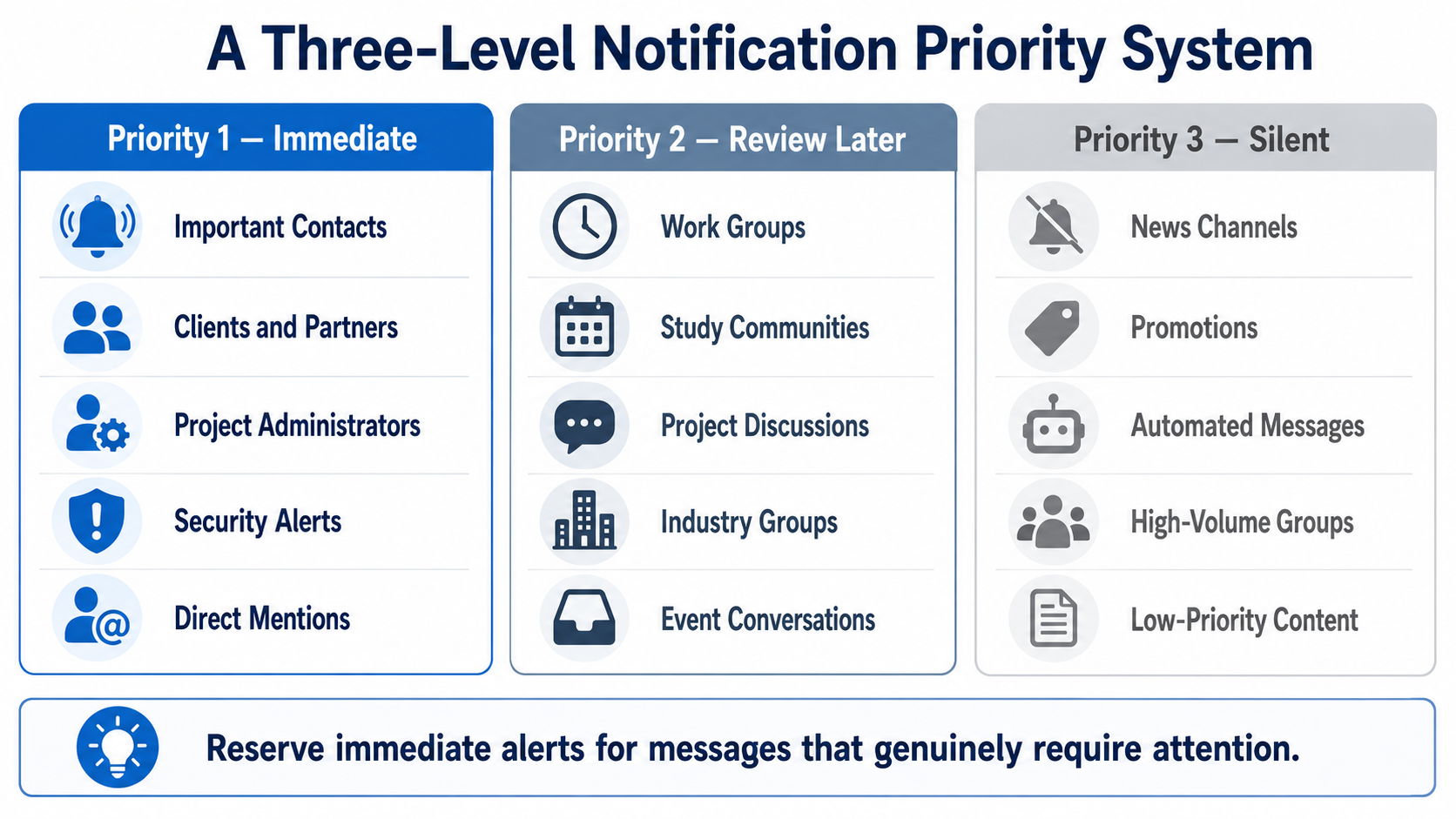
Create a Three-Level Notification Priority System
A simple three-level framework can help users decide which conversations deserve attention.
Priority 1: Immediate
These alerts should remain active because a delayed response may create a problem. Examples include:
- family and important personal contacts;
- key clients and business partners;
- project-management groups;
- administrator or moderation groups;
- account login and security messages;
- direct mentions and replies;
- urgent service or operational updates.
Priority 1 should remain small. When too many conversations are marked as urgent, the category loses its purpose.
Priority 2: Review Later
These conversations are useful but do not need an immediate response. Examples include:
- standard work groups;
- professional communities;
- study groups;
- project discussions without urgent deadlines;
- industry groups;
- event-planning conversations;
- routine team updates.
Priority 2 conversations can be reviewed at specific times during the day.
Priority 3: Silent
These chats and channels can be muted for longer periods. Examples include:
- news channels;
- promotional updates;
- software-update channels;
- entertainment communities;
- automated bot messages;
- inactive groups;
- high-volume discussions with limited relevance.
The goal is not to eliminate notifications. It is to reserve immediate alerts for conversations that genuinely require immediate attention.
Make Mobile and Desktop Settings Work Together
Mobile and desktop devices should not necessarily perform the same notification role.
Mobile Settings
Phones are usually the best place for urgent alerts because they remain with the user throughout the day. Mobile users can:
- keep important private chats active;
- mute large groups and content channels;
- limit lock-screen message previews;
- check application notification permissions;
- review focus, sleep, or do-not-disturb settings;
- adjust vibration and sound separately;
- check battery-saving restrictions on Android;
- allow background activity when important alerts are delayed.
Users should also consider whether sensitive message content should appear on the lock screen. Showing only the application name or sender may provide enough information without exposing the full message.
Desktop Settings
Desktop alerts are useful during work, but repeated banners can interrupt writing, meetings, analysis, and other concentration-heavy tasks. Desktop users can:
- disable nonessential sounds;
- reduce pop-up banners;
- hide message previews;
- mute channels that are not work-related;
- keep direct mentions active;
- review Windows or macOS notification settings;
- check browser permissions when using a web version.
A user who has both the desktop client and browser version open may receive duplicate alerts. In that situation, browser notifications can usually be disabled while the desktop client remains active.
Settings should be checked on each device because application controls, operating-system permissions, and browser permissions may operate separately.
Navigate English and Traditional Chinese Menu Labels
Bilingual users often understand the function they need but cannot locate it because the menu wording differs between devices or language versions.
The following terms can help users recognize common controls:
|
English interface |
Traditional Chinese reference |
|---|---|
|
Settings |
設定 |
|
Notifications and Sounds |
通知與音效 |
|
Private Chats |
私人聊天 |
|
Groups |
群組 |
|
Channels |
頻道 |
|
Mute |
靜音 |
|
Message Preview |
訊息預覽 |
|
Exceptions |
例外設定 |
|
Devices |
裝置 |
|
Privacy and Security |
隱私與安全 |
The exact wording may vary by platform and application version. Android, iPhone, Windows, macOS, and web interfaces may organize settings differently.
Simplified Chinese and Traditional Chinese translations may also use different terms. Users should focus on the meaning of the setting rather than memorizing one menu location from an old screenshot.
The phrase “Chinese version” can also create confusion. In many cases, it refers to using the standard application with a Chinese interface rather than installing a completely separate application.
For this reason, users should avoid downloading unfamiliar language packages or modified applications merely to change the interface language. Language selection should normally be handled through the application’s settings or a trusted language option.
Protect Privacy When Notifications Appear on Shared Screens
Notifications are not only a productivity issue. They can also expose private information.
A message preview may reveal:
- the sender’s name;
- part of a private conversation;
- client details;
- account information;
- verification codes;
- project names;
- internal business discussions.
Users should hide message previews before presenting a screen during a meeting, livestream, training session, or client call.
On shared computers, notifications should ideally show minimal information. The user may choose to display only the application name or disable desktop banners completely.
Before a presentation, users can activate focus mode or do-not-disturb mode. After using a shared device, they should sign out rather than merely close the browser window.
Active-device lists should also be reviewed regularly. Old computers, unused phones, and unfamiliar sessions should be removed.
Privacy protection depends not only on encryption or application design. It also depends on how notifications are displayed in physical environments where other people can see the screen.
Build Notification Rules for Different User Types
General Users
A general user may keep private-chat alerts active while muting high-volume groups and ordinary content channels. A simple setup could include:
- active alerts for family and close contacts;
- muted interest groups;
- silent news channels;
- hidden lock-screen previews;
- a daily review period for nonurgent messages.
Remote Workers
Remote workers often need to remain available without allowing every conversation to interrupt focused work. A practical setup may include:
- active mobile alerts for urgent clients;
- reduced desktop pop-ups;
- notifications for direct mentions;
- muted nonessential project discussions;
- work-hour focus rules;
- silent routine groups outside working hours.
Community Administrators
Administrators need to notice reports, moderation issues, and operational messages, but they do not need immediate alerts for every community conversation. They can:
- keep administrator groups active;
- preserve alerts for reports or member-support requests;
- mute general discussion;
- separate announcements from member chat;
- review unanswered questions at scheduled times.
Content Subscribers
Users who follow many channels should treat them as a reading list rather than an urgent inbox. They can:
- mute channels by default;
- review content at fixed times;
- leave inactive channels;
- remove promotional sources;
- keep alerts only for a small number of essential publishers.
Troubleshoot Notifications in the Correct Order
When notifications do not behave as expected, random setting changes can make the problem harder to identify.
Users who need platform-specific instructions can review a Telegram notification settings guide covering mobile, desktop, browser, and individual-chat controls.
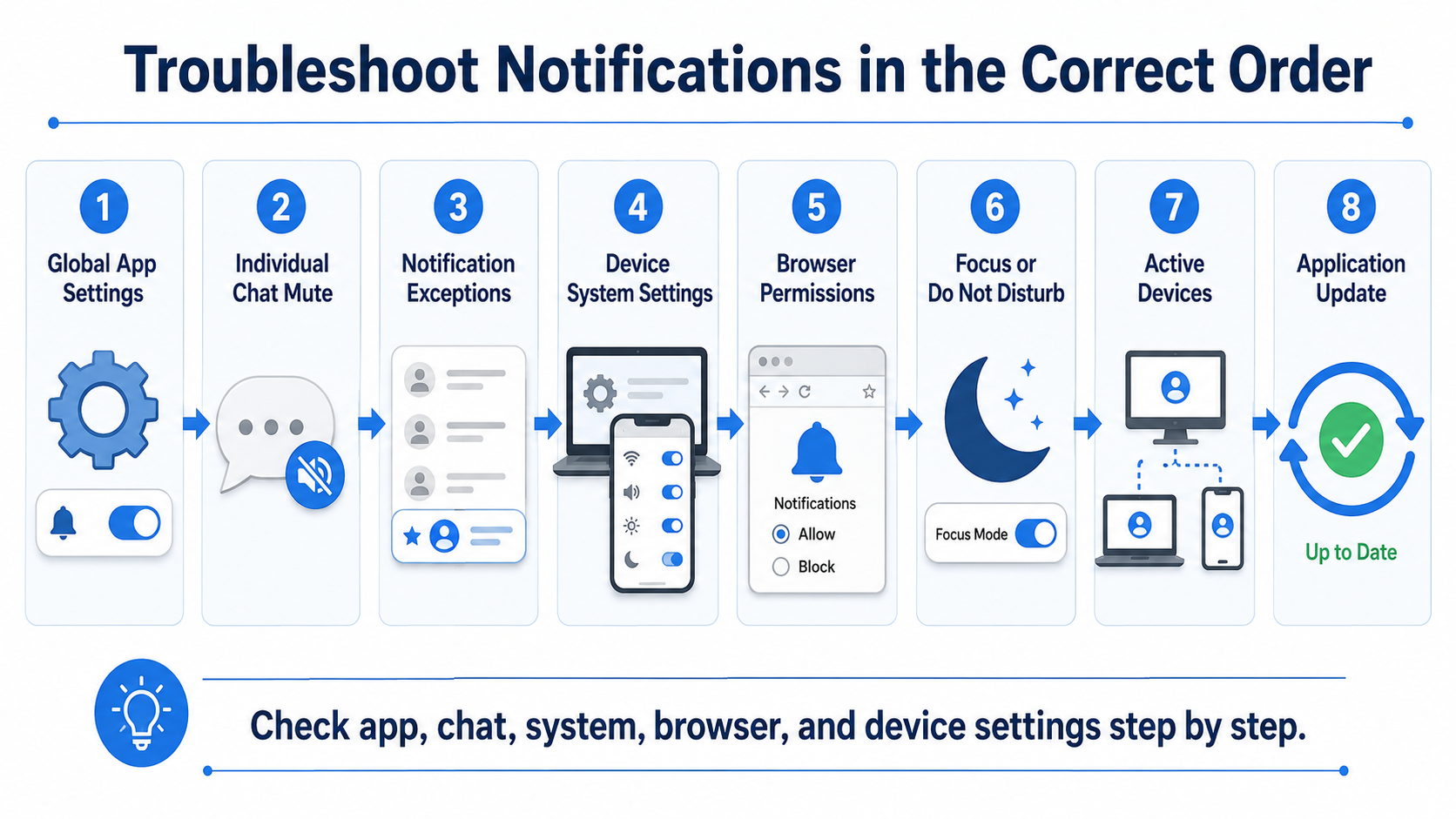
A practical troubleshooting order is:
- Check the application’s global notification settings.
- Check whether the individual conversation is muted.
- Review notification exceptions.
- Check the phone or desktop operating system.
- Check browser permissions for the web version.
- Review focus, sleep, or do-not-disturb modes.
- Check battery-saving and background-activity restrictions.
- Review other logged-in devices.
- Confirm that the application is updated.
- Restart the application or device after major changes.
This order moves from the most specific settings to broader device-level controls.
When only one chat is affected, the problem is more likely to be an individual mute or exception. When every alert is missing, the system permission or focus mode is more likely to be responsible.
A Five-Minute Notification Review Checklist
Users can improve notification control through a brief review:
- Keep alerts for priority private chats.
- Mute high-volume groups.
- Disable nonessential channel alerts.
- Reduce desktop pop-ups.
- Review message-preview settings.
- Check browser notification permissions.
- Check focus and do-not-disturb modes.
- Review active devices.
- Test notification behavior on each device.
- Repeat the review after changing phones or computers.
This process does not require every setting to be perfect. It creates a manageable starting point that can be adjusted as communication habits change.
Conclusion
Effective notification management is less about silencing every conversation and more about deciding which messages deserve immediate attention.
Private chats, groups, and channels should be assigned different priorities. Phones can preserve urgent communication, while desktop and browser alerts can be reduced to protect concentration. Bilingual users should understand the meaning of English and Traditional Chinese menu labels instead of relying only on screenshots or fixed button locations.
Because notification behavior can differ across applications, operating systems, browsers, and connected devices, settings should be reviewed regularly. A clear priority system allows users to reduce interruptions without losing access to important personal, professional, or security-related messages.