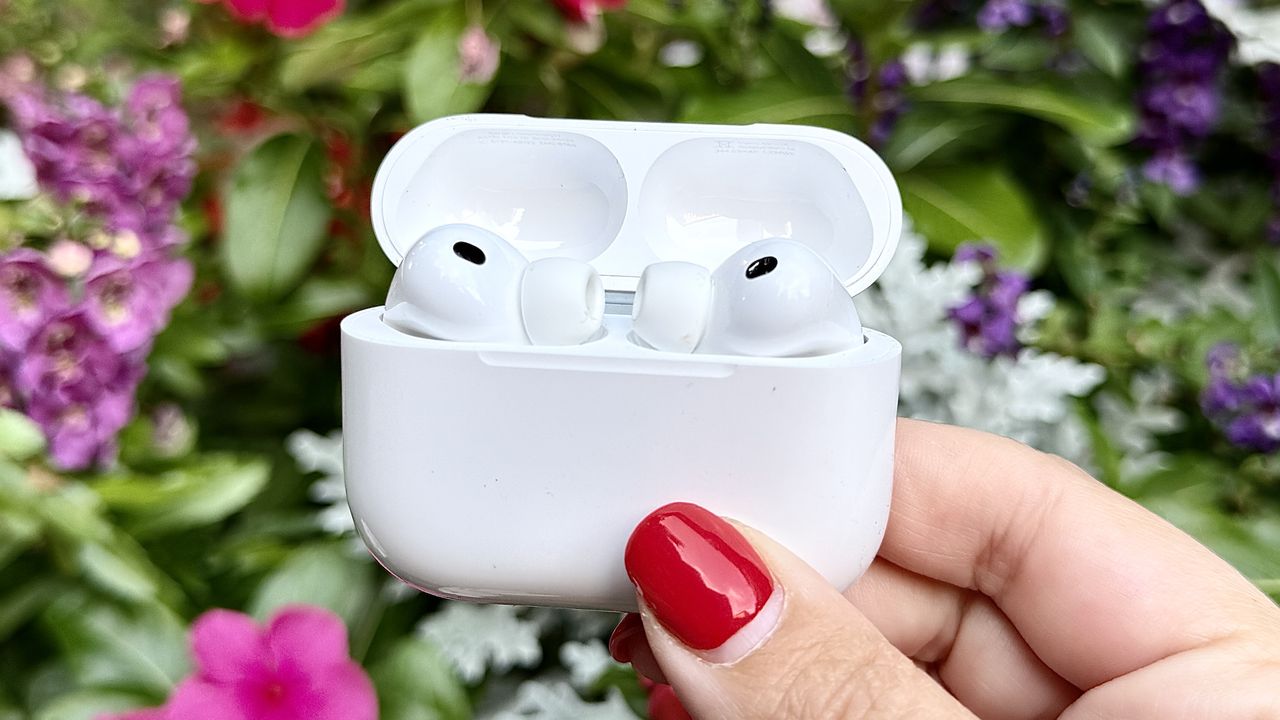
If you've ever wanted to watch a movie with someone on a plane or share a song with a friend, you've probably ended up passing one AirPod back and forth. It's awkward, uncomfortable, and you both get tangled in the same wire or deal with one ear going silent.
Your iPhone actually has a built-in solution called Audio Sharing that lets two people listen through separate pairs of headphones at the same time. The catch is it only works with Apple and Beats headphones, not just any old wireless pair. Here's how to set it up this feature on your iPhone.
1. Check device compatibility

Before you can share audio, make sure your iPhone and headphones support the feature. The good news is that most recent devices do. You'll need an iPhone 8 or later and as long as you're running a relatively recent version of iOS, you should be fine.
The headphone compatibility is more restrictive. Audio Sharing only works with Apple and Beats products, including the best AirPods models, AirPods Pro, and AirPods Max.
On the Beats side, it supports Beats Fit Pro, Beats Flex, Beats Solo Pro, Beats Solo3 Wireless, Beats Studio3 Wireless, BeatsX, Powerbeats, Powerbeats Pro, and Powerbeats3 Wireless.
2. Connect your AirPods and start playing audio

Put your AirPods (or Beats) in your ears and make sure they're connected to your iPhone. Next, Open any app that plays audio — Music, Spotify, YouTube, Netflix, or anything else — and start playing something.
You'll see the audio playback controls appear either in the app you're using or in Control Center. This is where you'll access Audio Sharing.
3. Access Audio Sharing from playback controls
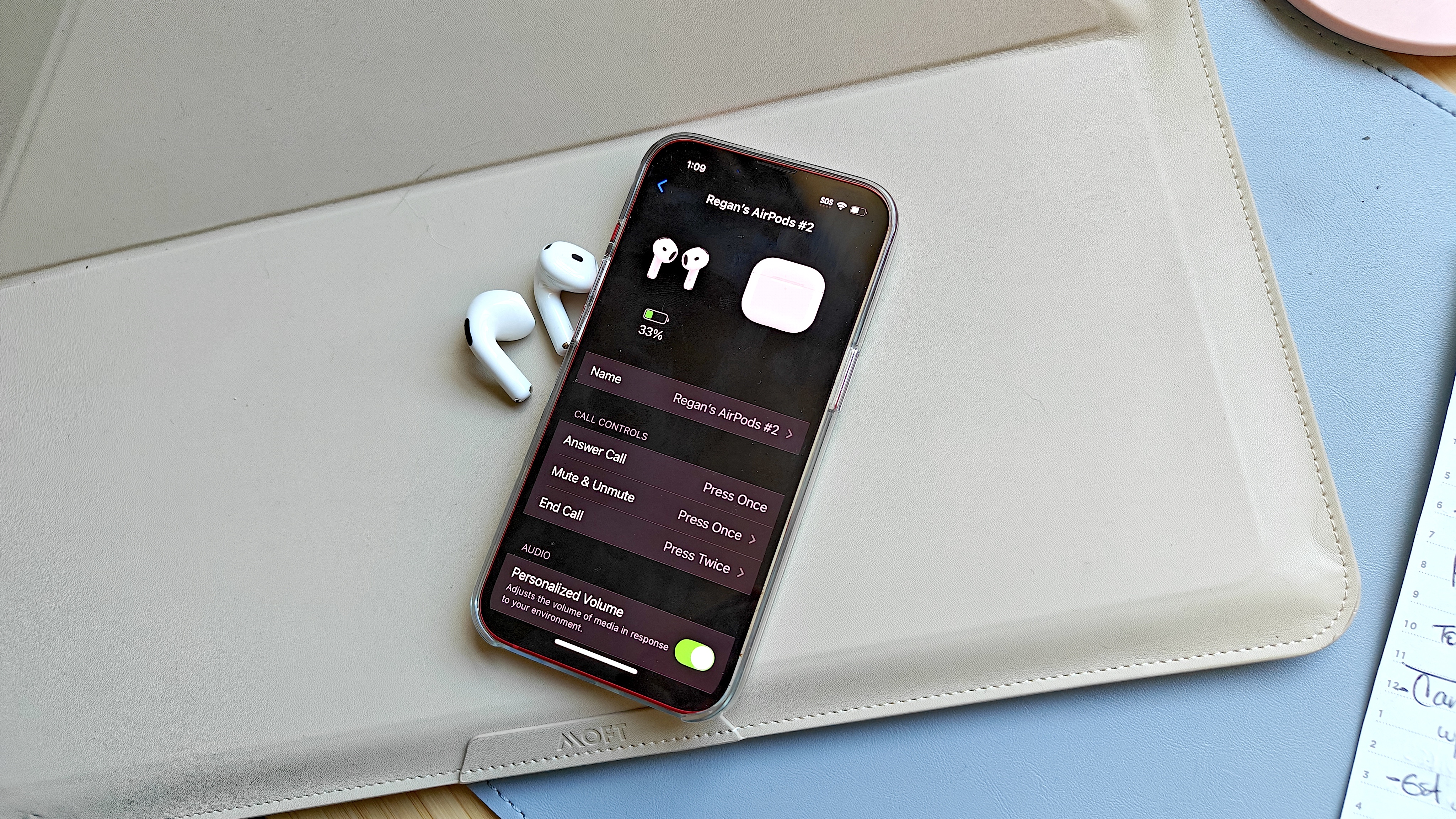
There are two ways to access Audio Sharing. If you have the Music app open with playback controls visible, tap your AirPods name at the bottom of the screen.
Alternatively, swipe down from the top-right corner to open Control Center. In the audio playback controls panel, tap the icon in the top-right corner representing your connected AirPods.
Once you tap either location, you'll see playback options. Tap Share Audio below the playback controls.
4. Connect the second pair of AirPods or Beats

A prompt will appear on your screen offering to Share Audio. Now have your friend bring their AirPods or Beats headphones (still in the charging case) close to your iPhone and open the lid.
When your iPhone detects the second pair, tap Share Audio on the prompt. If requested, hold the button on the back of the charging case to complete the connection.
Once connected, both pairs of headphones will play the same audio simultaneously. The iPhone or iPad controls the overall volume, but each person can also adjust their own volume separately using their headphone controls.

Follow Tom's Guide on Google News and add us as a preferred source to get our up-to-date news, analysis, and reviews in your feeds. Make sure to click the Follow button!