Handheld PC gaming is getting increasingly popular. Thanks to devices like the Steam Deck and Nintendo Switch, even Microsoft felt like it couldn't ignore the fun, kicking off a broad initiative to improve Windows for these types of experiences.
Microsoft's first real foray into this form factor is the Xbox Ally and Xbox Ally X. Developed by ASUS, the Xbox Ally range are based on the Z2 platform from AMD, and serve as successors to the previous ASUS ROG Ally devices.
The Xbox Ally range were the first to sport Windows' new "Full Screen Experience" feature, which lets apps take over the Windows environment similar to a kiosk-style mode — albeit with multi-tasking, gamepad-friendly controls, and slightly boosted performance in tow. The Xbox app is the designated "Full Screen Experience" by default, although there are now many alternative options as well.
Indeed, under the hood, it's still full blown Windows 11. All of the compatibility, and all of the complexity on top.
1. Update EVERYTHING
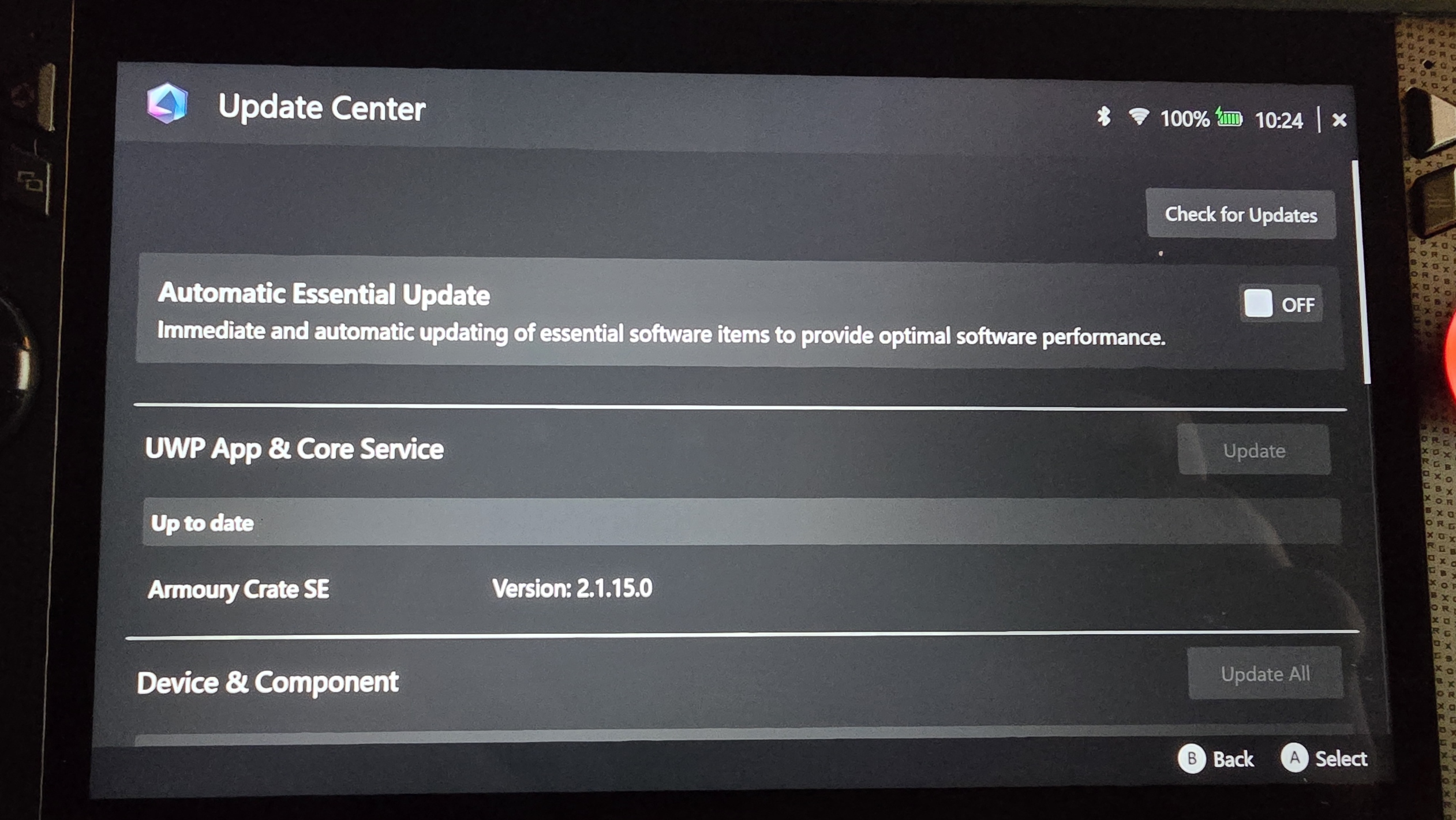
First off, your Xbox Ally / Xbox Ally X will want to do updates. It should update most things during the initial OOBE (out of box experience), where you set up your Wi-Fi and your Microsoft Account. However, it's worth knowing where the different updaters can be found. Here's a check list.
- During the initial set up, Windows should run a lot of the updates automatically, but you'll need to do even more after the fact.
- After the initial load and Microsoft Account set up, the Xbox app will load in. It might give you a notification for updates. If it does, navigate to the notification bell on the bottom left of the Xbox app, then hit A if there's an update notification.
- The Xbox app will open up the Microsoft Store if it needs an update. Select "Downloads" in the bottom right on the Microsoft Store.
- In Downloads, select Check for Updates to see if you need to update any Windows system apps.
- Next, press the Armoury Crate button on the controller. It's the spiral-looking button to the top right of the Xbox button, on the left side of the screen.
- This opens up the Armoury Crate Command Center. Select "Open Armory Crate" with A to access the settings.
- After some initial configuration, select the cogwheel settings icon either using the right bumper or by tapping on the screen.
- Tap on or select "Update Center" then "Check for Updates."
- Plug your Xbox Ally in, then select "Update All." You may need to restart afterwards.
- After the reboot, it's worth checking on Windows Update for upgrades as well.
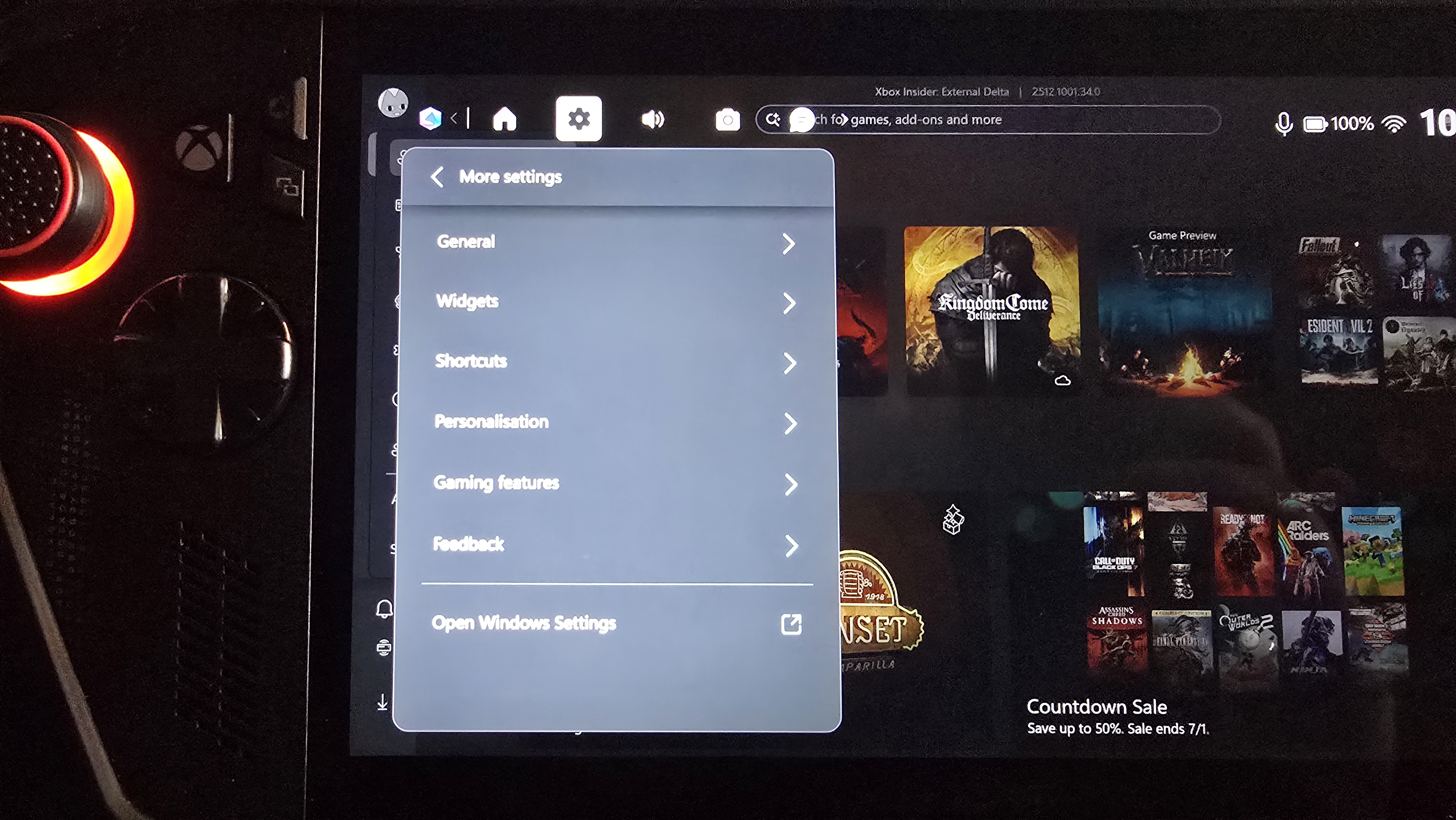
- Press the Xbox button on the left of the screen to open the Xbox Guide.
- Navigate right to the settings cogwheel.
- Scroll down and select "More Settings."
- Click or select "Open Windows Settings."
- Click "Windows Update" from the Settings menu on Windows.
- Click "Check for updates."
- If there are updates available, be sure to download and install them. You might need to restart again.
2. Learn how the Xbox and Armory Crate buttons work
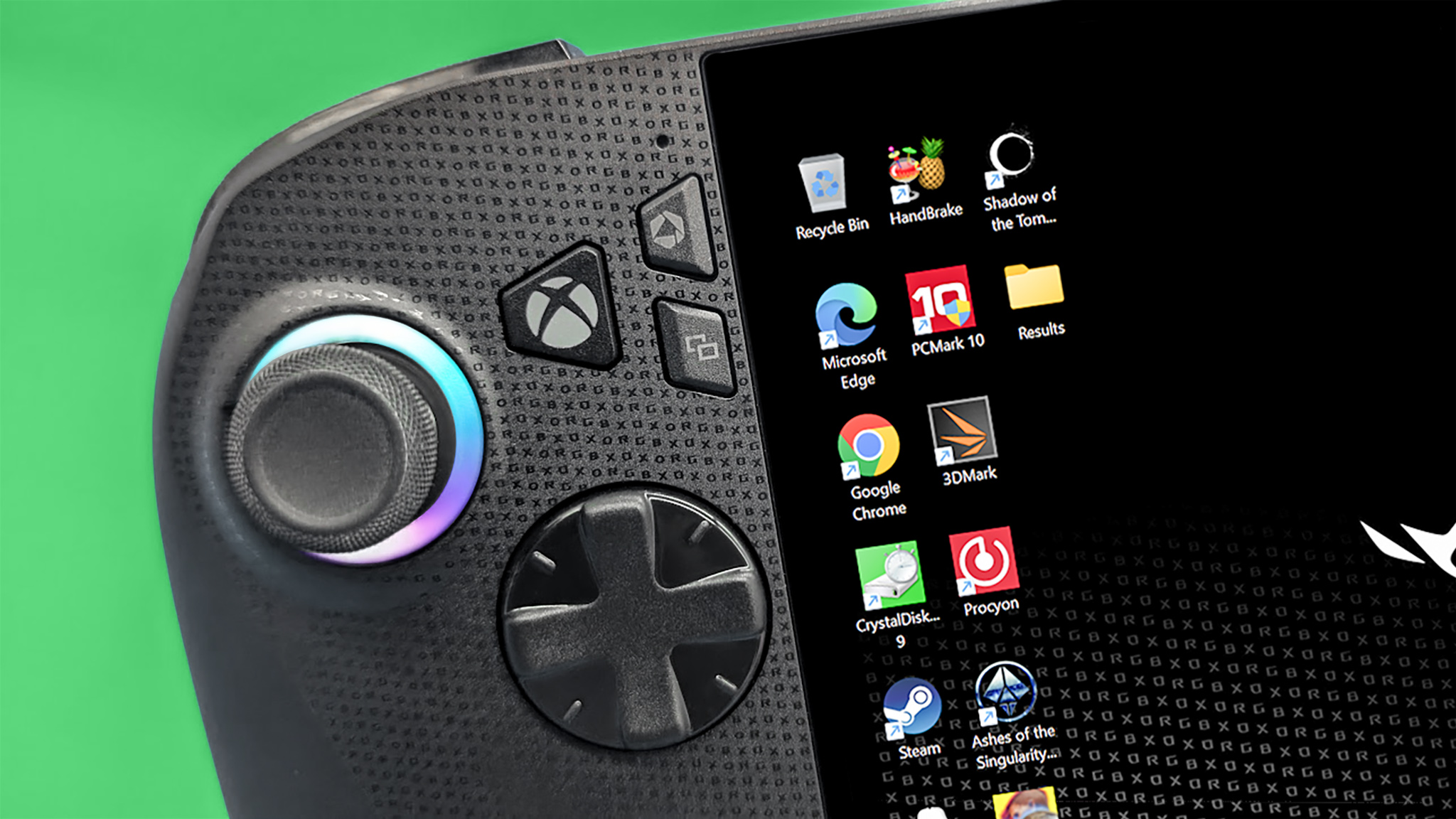
The main buttons on the Xbox Ally are the Xbox button, the Armoury Crate button on the left, the standard Xbox view and menu buttons on either side, and the Xbox library button on the right side. They're not very clearly explained out of the box, so it's worth recapping what they actually do.
- The Xbox button on the left is your main menu button. A long press will start multi-tasking mode, which lets you navigate to other apps and screens you have open. It will also let you easily close those apps, and also exit to the Windows desktop. A quick press will open the Xbox Game Bar, giving you access to the wider menu options, including the Xbox friends list, game launchers, settings, game recording, and much more.
- The Armoury Crate icon above it is a shortcut to the ASUS Command Center. This lets you adjust operating mode and a variety of other hardware settings. For operating modes, lower watt means better battery life, but lower performance. 2D games and very optimized 3D games can run fine on the lower watt settings, but more intensive games may need 25w+ modes and for the device to be plugged in. A long press opens Xbox's AI Gaming Copilot.
- The Library button is opposite the Armoury Crate on the right side of the screen, above the Xbox menu button. This gives you quick access to your Xbox PC game library. A long press will open Xbox's Gaming Copilot voice mode, which can be handy inside games to get quick information.
- You cannot customize the behavior of these buttons using Armoury Crate, sadly, but you can customize other buttons from the Armoury Crate's main settings menu.
3. Enable offline permissions (or don't)
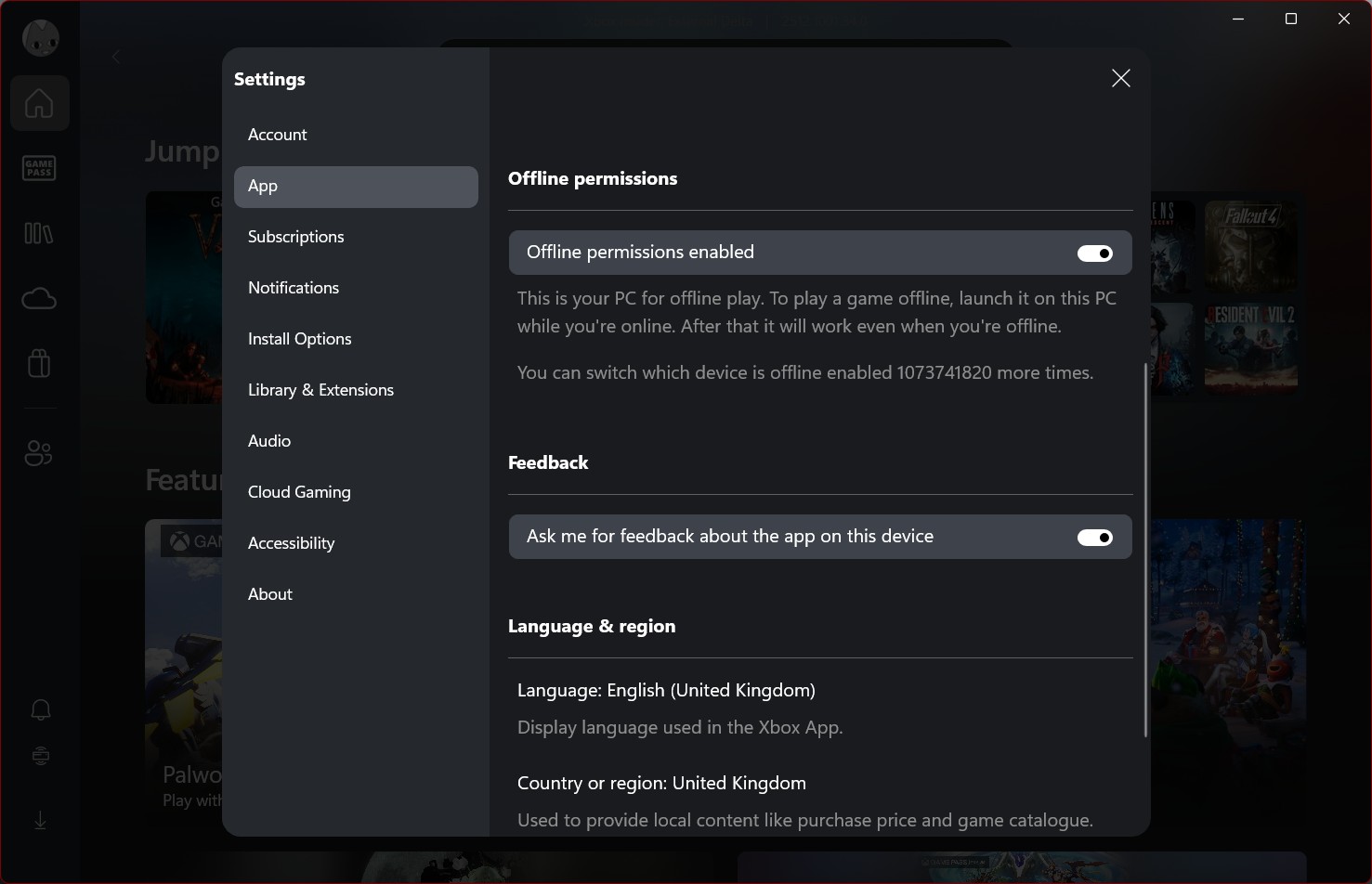
Offline permissions ensures that your Xbox games remain accessible even without internet. This is ideal for flights, trains, and other situations where you might not have the best Wi-Fi conditions. Here's how to turn it on.
- Open the main Xbox app by hitting the Xbox button and selecting "Home."
- Tap on your profile picture in the top left.
- Open up the Settings menu.
- Select "App" from the Settings menu's side bar.
- Scroll down a bit and turn on "Sharing Permissions.
Note: Games still need to launch initially online to download permissions, but once they have, you'll have 14 days of offline play before you need to re-download the license. You can only swap your offline permissions to another PC a few times a year.
4. Learn operating modes in Armory Crate
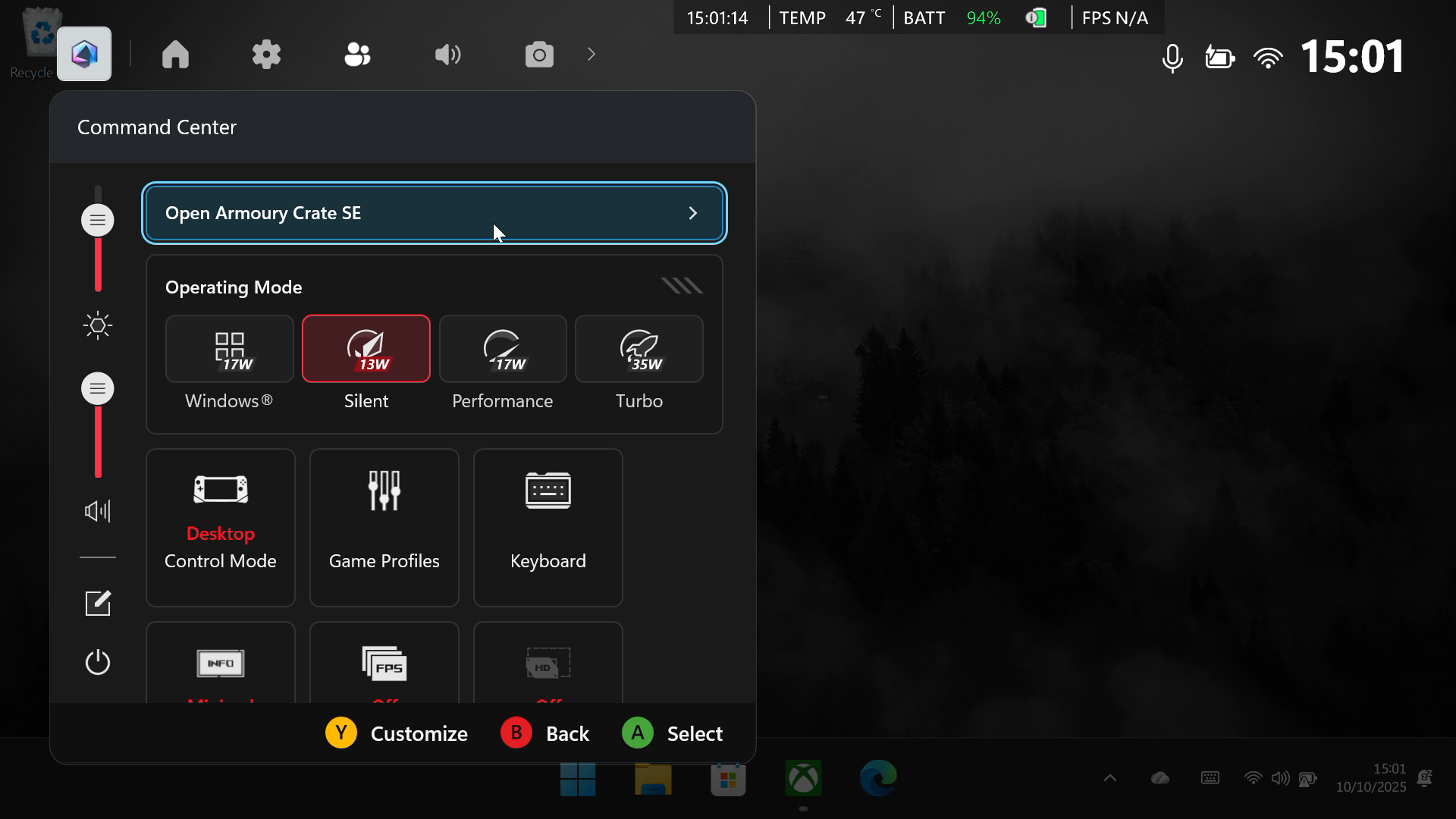
I noted it in the above section here, but it's worth re-iterating. The most important aspect of your gaming handheld experience revolves around setting the operating power mode. You can find this via the Xbox Game Bar, either hitting the Xbox button and navigating left to the Command Center, or simply hitting the Command Center Armoury Crate button on your device.
⚠️WARNING: If you switch performance modes while playing games with kernel level anti-cheat (Call of Duty, Battlefield, Overwatch, Valorant, etc.), some systems might detect your account as running cheat software or injectors. It doesn't happen often, but set your performance mode before loading up the game, and be sure not to switch it while the app is open.
- By default, you'll have access to three main power modes on your Xbox Ally and Xbox Ally X. You should consider your power setting for the type of game you're playing. And type of scenario you're in.
- If you need maximum battery life (without easy access to power outlets, etc.) consider playing less-intensive 2D games or well-optimized 3D games. The Silent Operating Mode will use the least amount of power, maximizing battery life. Many games run flawlessly at low wattages, especially more simple 2D titles. Games like Hollow Knight, Ball x Pit, Vampire Survivors, Darkest Dungeon, Monster Train run really well. You can even play some well-optimized past-gen or retro-styled 3D games like Cyberpunk 2077, Fallout 4, Valheim, Lies of P, and Dusk in low power mode too.
- Performance mode is when you need a bit more juice without blowing up your battery. If you're trying to run a 3D game but find that it's struggling or you want more smooth frame rates, consider bumping it up to Performance mode. You'll lose around an hour of battery life (from 3 down to 2 hours maybe) roughly, but in some scenarios it might be worth it. You can tweak graphics performance per-game inside a game's settings to get better performance too.
- Turbo mode is generally what you'd reserve for intensive, high-end AAA PC games, or scenarios where you have access to a power outlet. This mode will burn through the battery in less than an hour, but will also provide a far more impressive experience and allow you to run games on higher graphics settings.
- There's also a Windows performance mode, which is designed for more traditional PC usage, browsing, basic apps, and so on. If you're planning to use your device as a laptop replacement, setting it to Windows mode should give a more balanced experience. But much like for games, if you're doing more intensive tasks like video editing or development, Turbo mode might be better again.
- In the Armoury Crate under Performance Settings, then Eco Assist, you also have the option to enable or disable CPU Boost. You can save some battery life by turning CPU Boost off, but it's worth keeping it on if you're doing very CPU-intensive tasks or gaming. Video editing, strategy and simulation games, and other physics-heavy games might benefit from CPU boost being turned on.
5. Enable Battery Care mode

Battery Care mode is a feature that you should probably enable on every device you own, including the Xbox Ally or Xbox Ally X. Most smartphones, tablets, laptops, and now, PC gaming handhelds have battery care modes. Turning this on will cap your battery charge below 80%. It's thought that maxing out your battery charge all the time reduces its maximum charge, decreasing its lifespan.
Here's how to turn on Battery Care mode on Xbox Ally handhelds:
- Open the Armoury Crate by hitting the Command Center button on your gamepad, and hitting "Open Armoury Crate."
- Select the settings menu via the cogwheel icon.
- Select Battery Care in the bottom right.
- Turn on Battery Care Mode. Now your device will only charge to 80%.
- If you need it to go to 100% because of a commute or something like that, head back to this menu and select Instant Full-Charge Mode. It will charge to 100% for the next 24 hours, then revert back to Battery Care Mode.
6. Consider installing other launchers and tools (and maybe uninstalling some too)

You can get by with all of the apps in the box, but there's some additional features worth considering. You could also head into the Windows settings, heading to apps, and remove pointless apps like Microsoft Teams and so on.
To uninstall apps, go to the Desktop mode and then swipe up from the bottom of the screen to bring up the menu. Select Settings > Apps > Installed Apps.
From there, if you see a program you want to remove from your Xbox Ally X, press the More Options button (...) on the right side and then select Uninstall.
Here are some apps worth considering installing on your Xbox Ally.
- Steam is the world's biggest and best PC gaming store. It's pre-installed on some Xbox Ally devices, but if you don't have it installed for some reason, consider heading to Steam to grab it.
- GOG is another excellent store worth considering. GOG is focused on cataloguing retro games DRM-free. The uptake has been relatively low from big publishers, but some, like Capcom, have been putting titles like Dino Crisis and the classic Resident Evil games onto the service.
- One Game Launcher is an Xbox Game Bar game and app library that makes it easier to access games from all launchers and stores in a single place.
- SteamGridDB is a great app that updates and fixes Steam game art within the Xbox app launcher library.
7. Consider some of my personal favorite Xbox Ally accessories
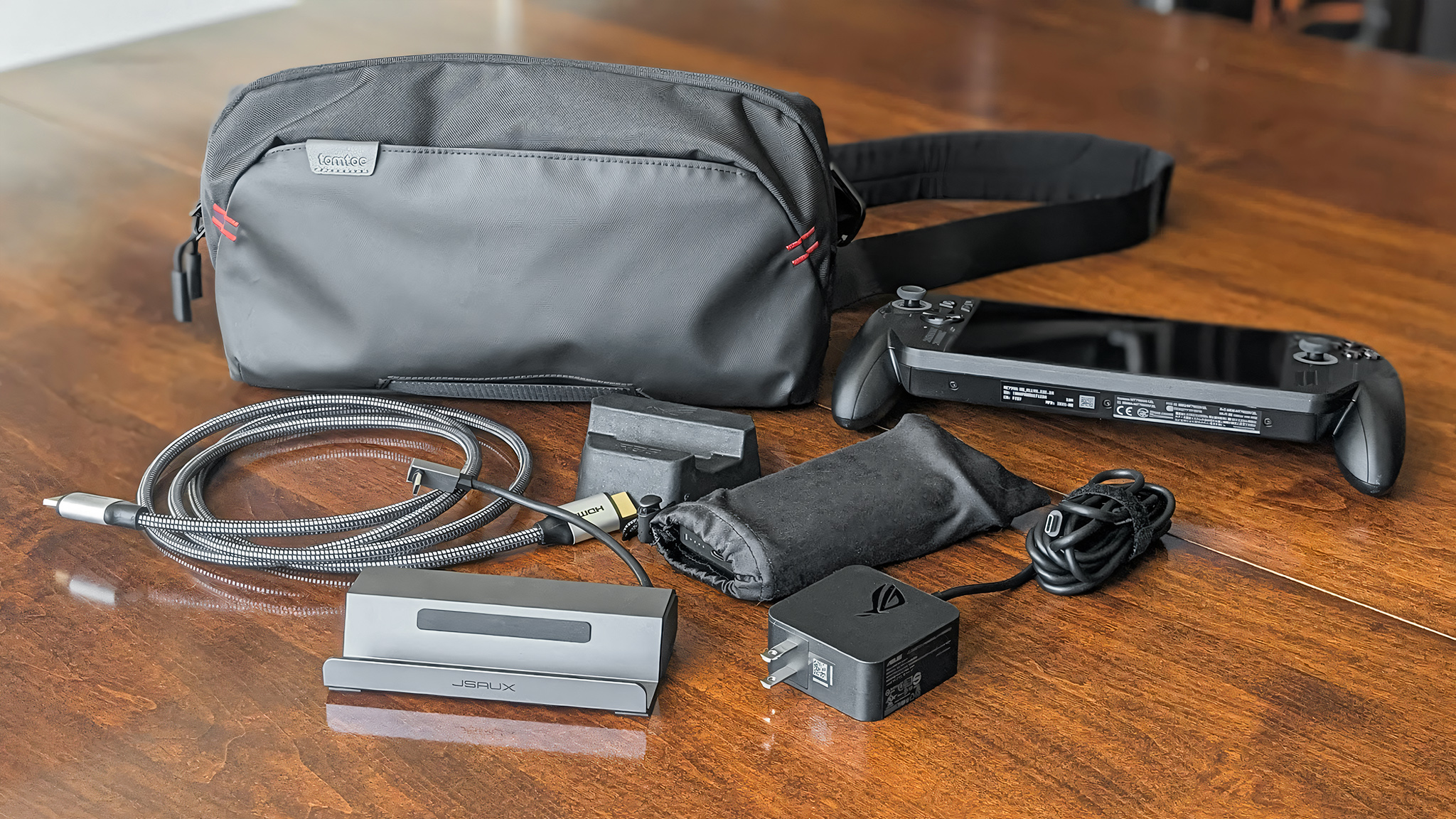
The Xbox Ally is a great and robust device, but if you're planning to travel with it a lot, dock it for use with a TV, or simply want to extend your experience, consider some of these accessories I personally use myself!
Related: More best Xbox Ally accessories
And that's a wrap!
If you have any questions about the Xbox Ally, from set up, to best games, or anything else, let me know in the comments and I'll try to answer them!

Follow Windows Central on Google News to keep our latest news, insights, and features at the top of your feeds!