Get all your news in one place.
100's of premium titles.
One app.
Start reading
Digital Camera World
Peter Travers

There are 50+ custom options on your Canon EOS camera – these are the five settings I use to make my soccer photos winners, saving battery power and editing time

Menu screens from EOS camera showing custom control options.

Most keen photographers use, or at least know about, back button focusing. For Canon EOS mirrorless cameras, such as the R6 Mark III, this is when you set the AF-ON button at the back of the camera to control focusing, instead of focusing being handled when you half-press the shutter button. With this custom setup, you can press the ‘back button’ with your right thumb to track focus on moving subjects such as soccer players, or lock focus part of a scene, leaving the shutter button for only taking photos (and metering).

But there are lots of other ways to customize other buttons on your camera to make your photographic life easier, and so you don’t miss that shot as you’re fiddling about with your camera’s menus, scrolling for that special setting you can’t find!

A popular custom setup - aka Back Button Focusing - is to make the AF-ON button to be in charge of autofocus (and metering) instead of the shutter button (Image credit: Peter Travers)

I was shooting a big soccer tournament all-day long recently, with loads of quick matches between local youth teams on eight different pitches, and I didn’t have time to switch lenses as I’d miss those winning shots – like a great Jude Bellingham goal for England against Norway in the World Cup!

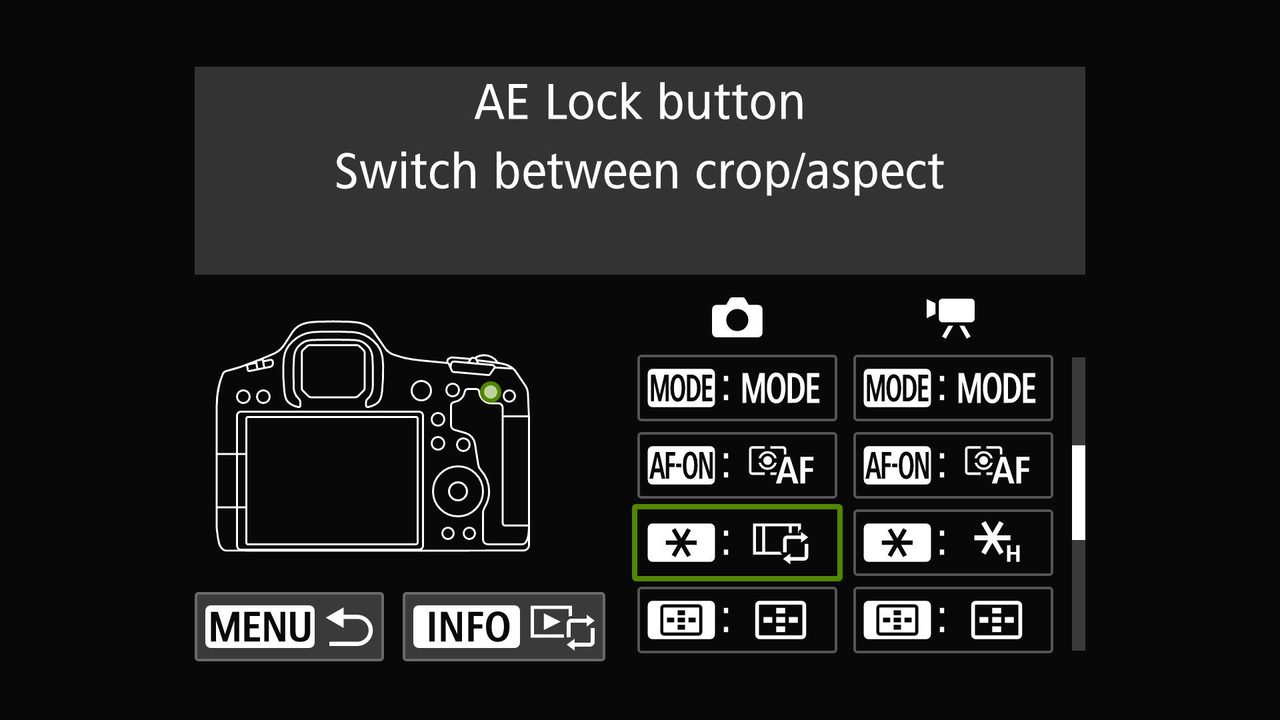
I was shooting with the full-frame Canon EOS R5 Mark II and RF 70-200mm F2.8L IS USM lens, and I was very happy to discover I could set it up to instantly switch between Cropping/aspect ratio modes. I had the rear * (star) button (reserved for as AE lock by default, which I never use) as a custom control to switch from full-frame to crop 1.6x mode for more reach when needed for players at the other end of the pitch, so 200mm became 320mm at the press of a button.

The rear * (star) button is for as AEL (Auto Exposure Lock) which I never use, so it was a spare button to assign for other settings I use more often (Image credit: Peter Travers)
Customize your full-frame Canon: why not set up the * button to switch to 1.6x crop mode to make your 200mm focal length instantly become 320mm to fill the frame with your distant subjects (Image credit: Peter Travers)

As the * button is next to the AF-ON button, I didn’t need to take my eye from the viewfinder, I could quickly press the * button with my right thumb mid games to flick to 1.6x crop mode (skipping the 1:1 square mode), to fill the frame with the action.

This also turned out to be a crucial custom setup for me and the EOS R5 Mark II, as it was hammering down with rain and windy as hell for most of the afternoon, so I couldn’t switch lenses in those conditions even if I wanted to.

This setup also saved hours when editing over 4,000 action images, since I didn’t need to crop the JPGs as much as I would have if I’d only used the usual full-frame mode.

Some other full-frame EOS cameras switch between aspect ratios, so I have to press the * button a couple of times to go from full-frame to square to crop mode. The EOS R8, for example, brings up the cropping/aspect ratio modes on screen when pressing the customized * button, so you can switch to crop mode and back to full-frame quickly.

You have over 50 options to assign to the * button, such as switching between One-Shot and Servo AF so you're set to track action subjects like soccer players (Image credit: Peter Travers)

What other modes might you find helpful to access quickly via the * button on newer Canon EOS cameras like the EOS R5 Mark II?

There are over 50 of other options to switch modes or to essential controls to this one * button as you can see in all these menu screenshots above and below.

Set the * AE Lock button so it activates the Eye Control AF (Image credit: Peter Travers)
Or why not set the * AE Lock button so it activates Action Priority AF if your soccer subject starts sprinting! (Image credit: Peter Travers)

Here are 5 suggestions you might find useful:

1. Switch between AF modes from One-Shot AF to Servo AF for action subjects.

2. Activate Eye Control AF.

3. Switch to Action Priority AF mode, ideal if your subject suddenly gets active.

4. Switch your screen off to save battery power.

5. Simply to access your White Balance options (as dedicated WB buttons on top of EOS mirrorless cameras have gone missing now they’re smaller than DSLR bodies).

You can also customize other buttons on EOS cameras including: M-Fn, SET, MODE and even the LCD light bulb button!

Customize the * button to switch off the screen on your camera to save battery power or when you're not using it as you're shooting with the EVF (Image credit: Peter Travers)
This is a useful custom setup for new mirrorless cameras that don't have space on top for a dedicated WB button – customize the * button to access your White Balance options (Image credit: Peter Travers)

You might also like…

Take a look at the best Canon telephoto lenses and best Canon superzoom lenses to get more reach instead of using crop modes if you prefer and need max high res images.

Sign up to read this article
Read news from 100's of titles, curated specifically for you.
Already a member? Sign in here
Related Stories
Top stories on inkl right now
One subscription that gives you access to news from hundreds of sites
Already a member? Sign in here
Our Picks
Fourteen days free
Download the app
One app. One membership.
100+ trusted global sources.