If you’re wondering how to set up your new Apple Watch, you’ve come to the right place.
Whether you just got your hands on the latest flagship Apple Watch Series 11, entry-level Apple Watch SE 3, rugged Apple Watch Ultra 3, or any other recent model, the following guide will walk you through all the necessary steps to get your smartwatch up and running quickly and painlessly.
But first, it’s a good idea to make sure your iPhone is running up-to-date software to ensure a seamless pairing process with your new Apple Watch. To check your phone’s current operating system and update it if necessary, navigate to Settings, General, Software Update, and scroll down.
Need a little more assistance? Here’s our step-by-step guide on how to download and install iOS 26, the latest iPhone software.
Once your phone is up-to-date, you're ready to get your new Apple Watch set up and paired! The whole process takes about 30 minutes from start to finish. Follow my illustrated step-by-step instructions below, and you’ll have your shiny new Apple Watch humming along in no time.
How to setup and pair your new Apple Watch
- Unbox the Apple Watch, place it on a charger, and power it on
- Choose your language and region
- Bring your iPhone close and open the Apple Watch app to start pairing
- Choose whether to set up the device for yourself or someone else
- Tap ‘Start pairing’ and line up the yellow square with the watch face
- Log in with your Apple ID credentials if prompted and tap 'continue'
- Agree to the TOC and select a passcode (if you want)
- Select your accessibility settings and enter your fitness details
- Tap 'continue' through the next prompts and start the syncing process
- Once 'Hello' appears on the watch, tap the screen
- Take an optional watchOS 26 tour or tap 'skip' to get to the homescreen
- Check for software updates and install as needed
Read on to see full illustrated instructions for each step.
1. Unbox the Apple Watch, place it on a charger, and power it on
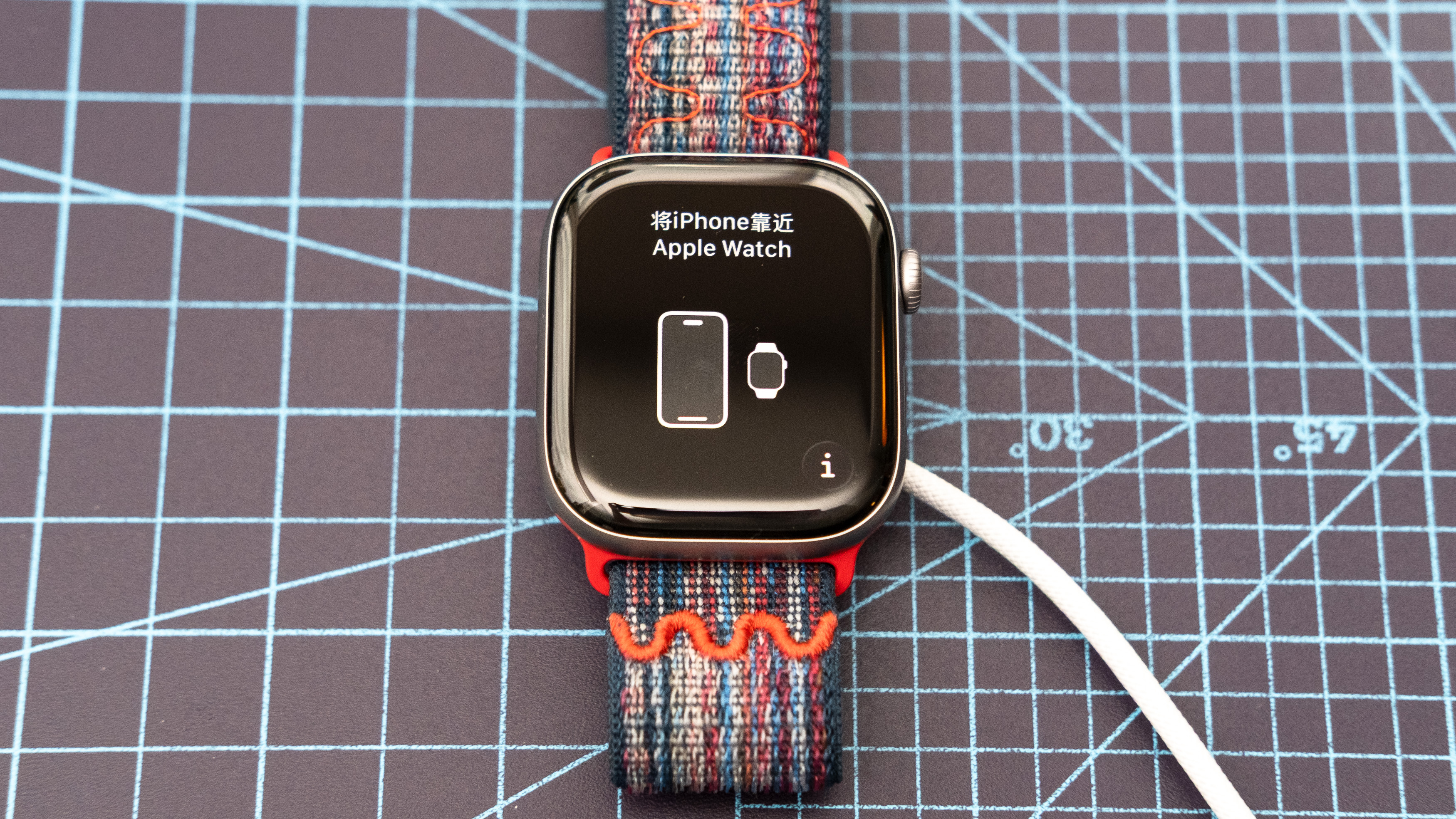
To set up your new Apple Watch, first start by removing it from its box, attaching the strap, and sticking the watch on its magnetic charger. Next, wait for your Apple Watch to power on. If it doesn't on its own, press and hold the side button (located below the digital crown) for a few seconds until the screen above appears.
2. Choose your language and region
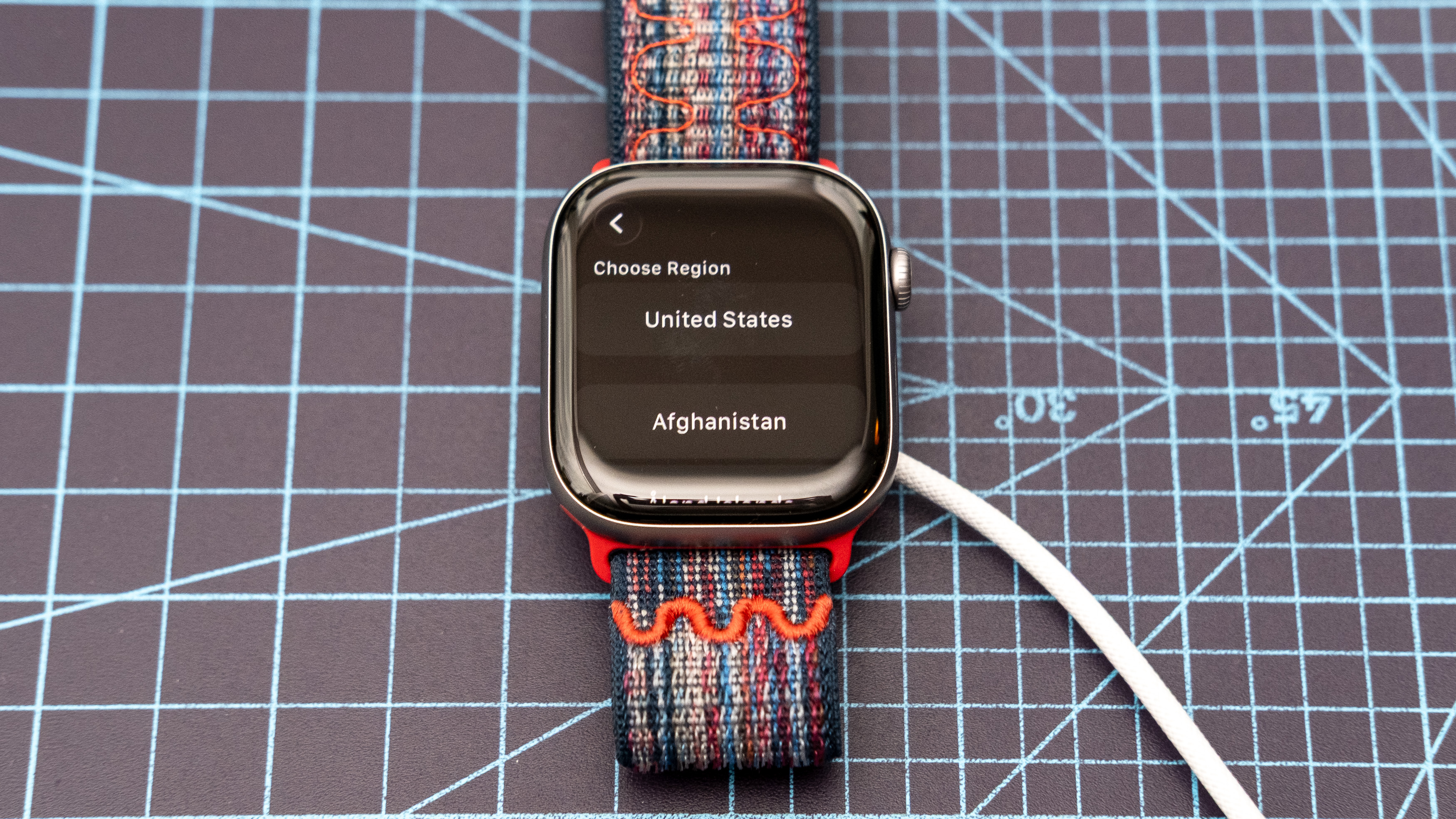
With the Apple Watch fired up for the first time, it's time to select your language of choice along with your operating region. Both sets of options are listed alphabetically.
3. Bring your iPhone close and open the Apple Watch app to start pairing
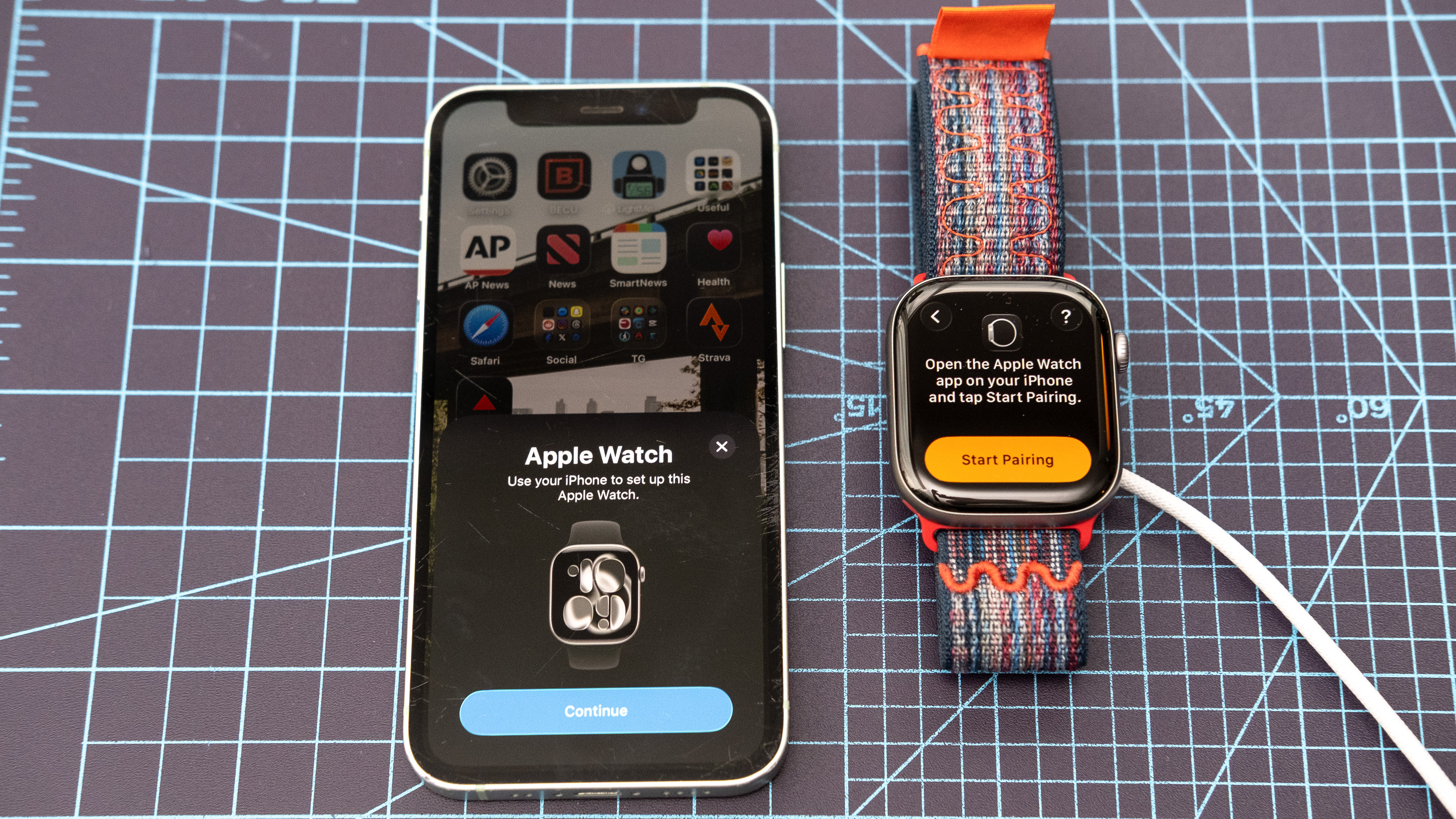
With your region and language selected, it's nearly time to begin the pairing process. Grab your iPhone and open up the Watch app (the icon looks like a side profile of an Apple Watch). Bring your phone a few inches away from the Apple Watch, and a pop-up should appear on your phone's screen asking if you want to pair the watch. Click 'continue' to start the pairing process.
If the pairing pop-up doesn't appear, fear not. Open the Watch app and tap on 'All watches' in the upper left corner. Next, scroll to the bottom and tap 'Add watch.'
4. Choose whether to set up the device for yourself or someone else
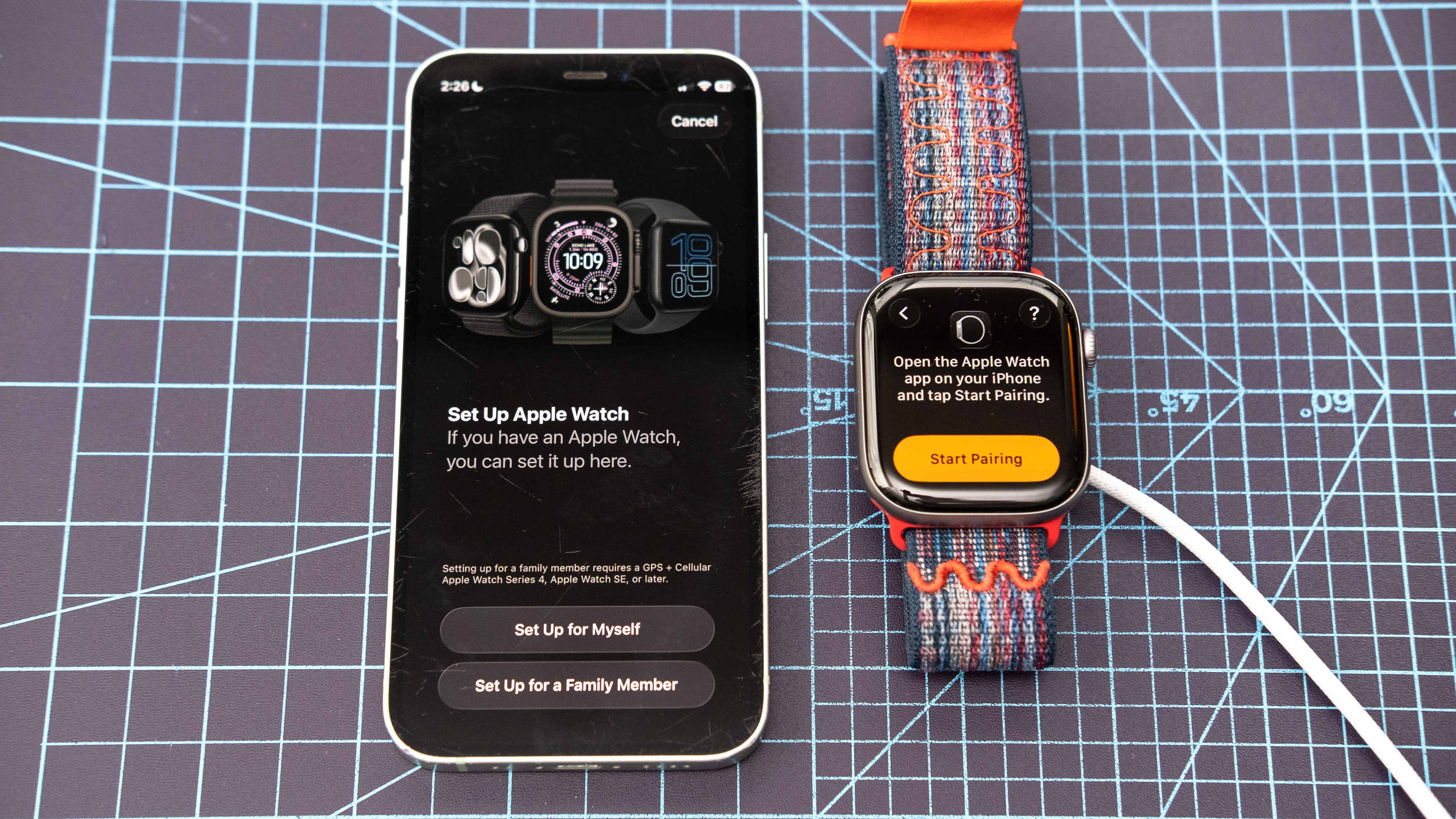
On the next screen, choose whether you want to set up your new Apple Watch as your own device or as someone else's, for example, your child's. (For the sake of this guide, we're going to assume you're setting it up for yourself.)
5. Tap ‘Start pairing’ and line up the yellow square on your phone with the watch face
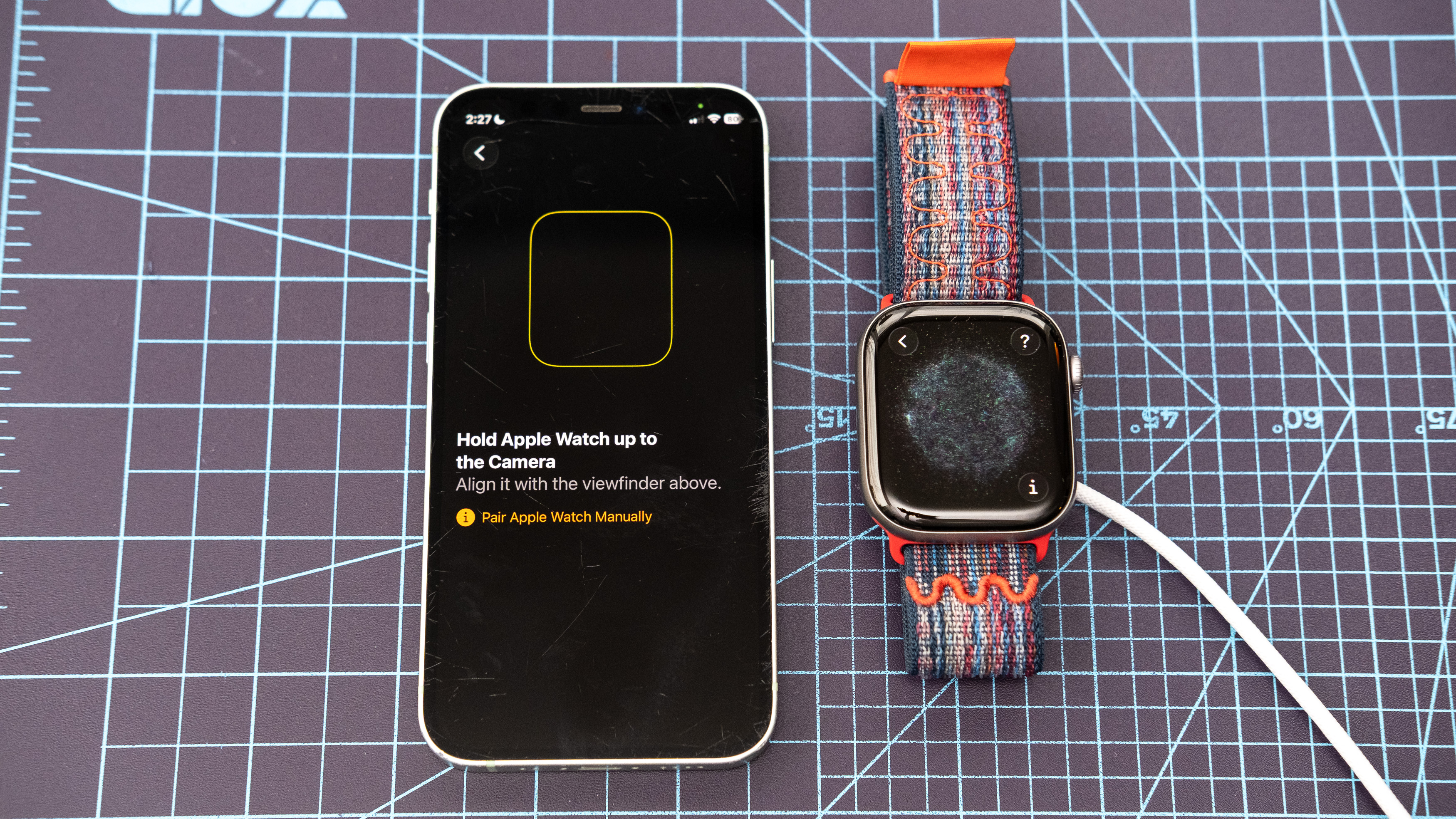
Next, tap 'Start pairing' on your Apple Watch. This should display an outer space-looking graphic, while a yellow square should appear on your iPhone's screen. Line the yellow square on your iPhone up to perfectly frame your Apple Watch display to officially pair the two. Note: Try to avoid reflections from windows or light sources during this process for the best results.
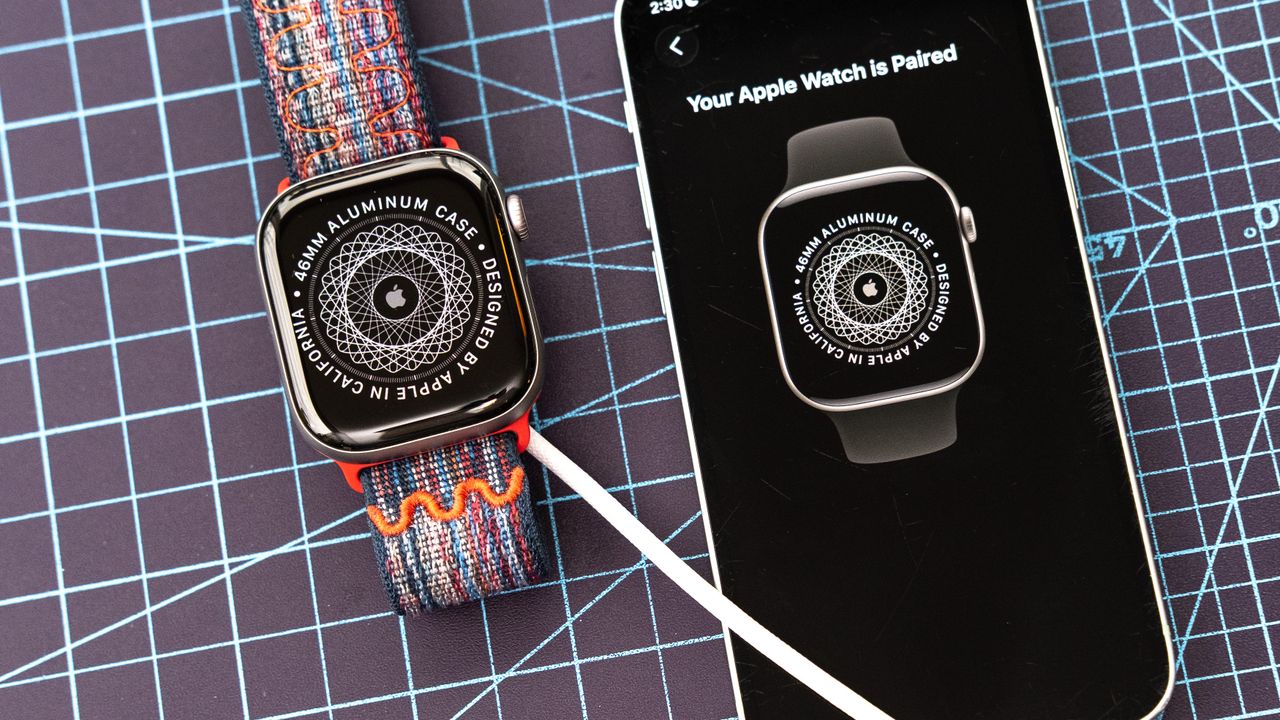
If you do it correctly, you should be presented with a message on your iPhone confirming that the watch was successfully paired (see lead image for the article).
6. Log in with your Apple ID credentials if prompted and tap 'continue'
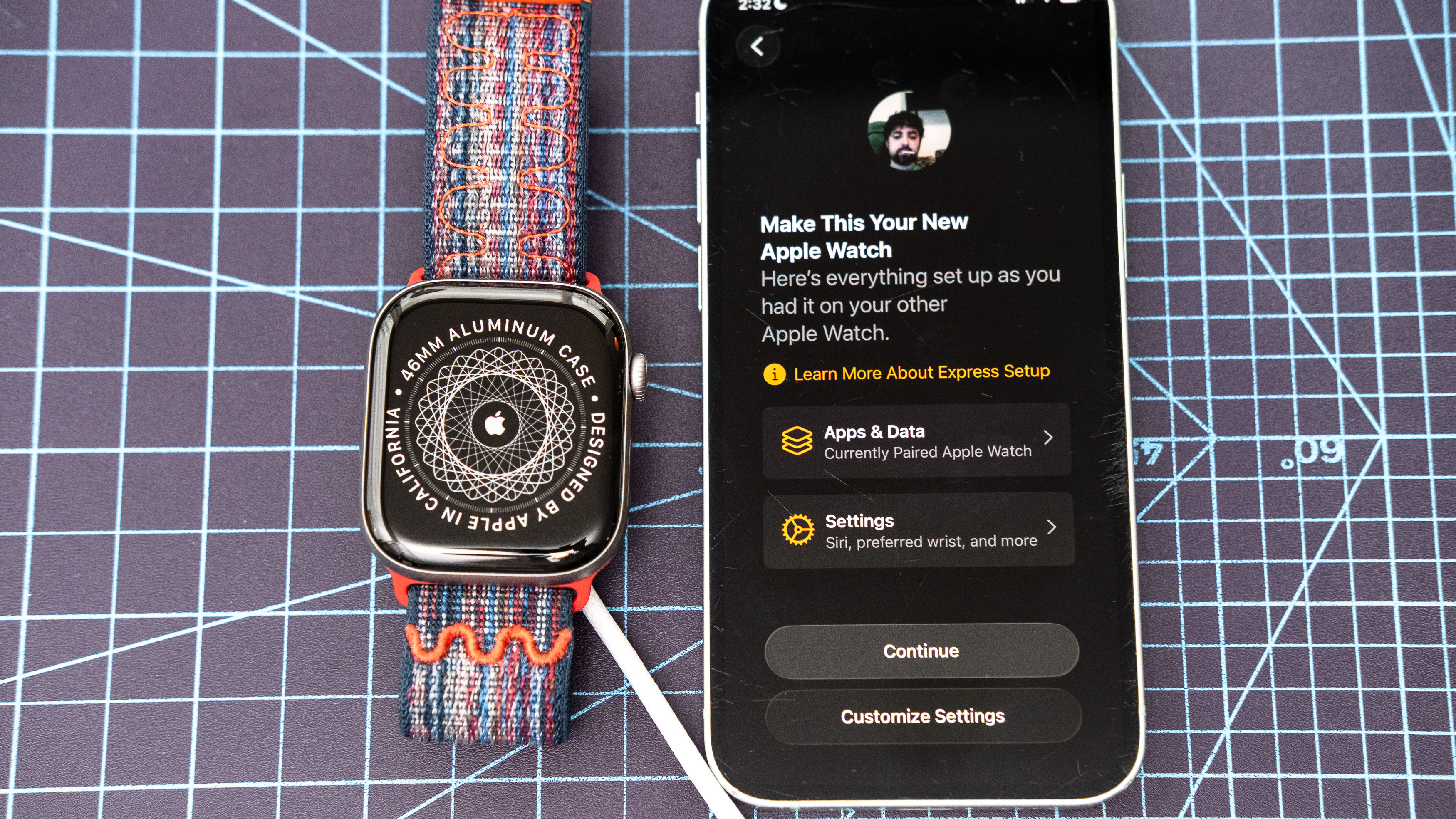
Next, you may or may not be prompted to enter your Apple ID credentials. Once entered, you should see the screen shown above. Tap 'Continue' to proceed with the quick and easy setup, which I recommend. Or, tap 'Customize settings' to jump into the weeds. For this guide, we'll be sticking with the former.
7. Agree to the TOC and select a passcode (if you want)
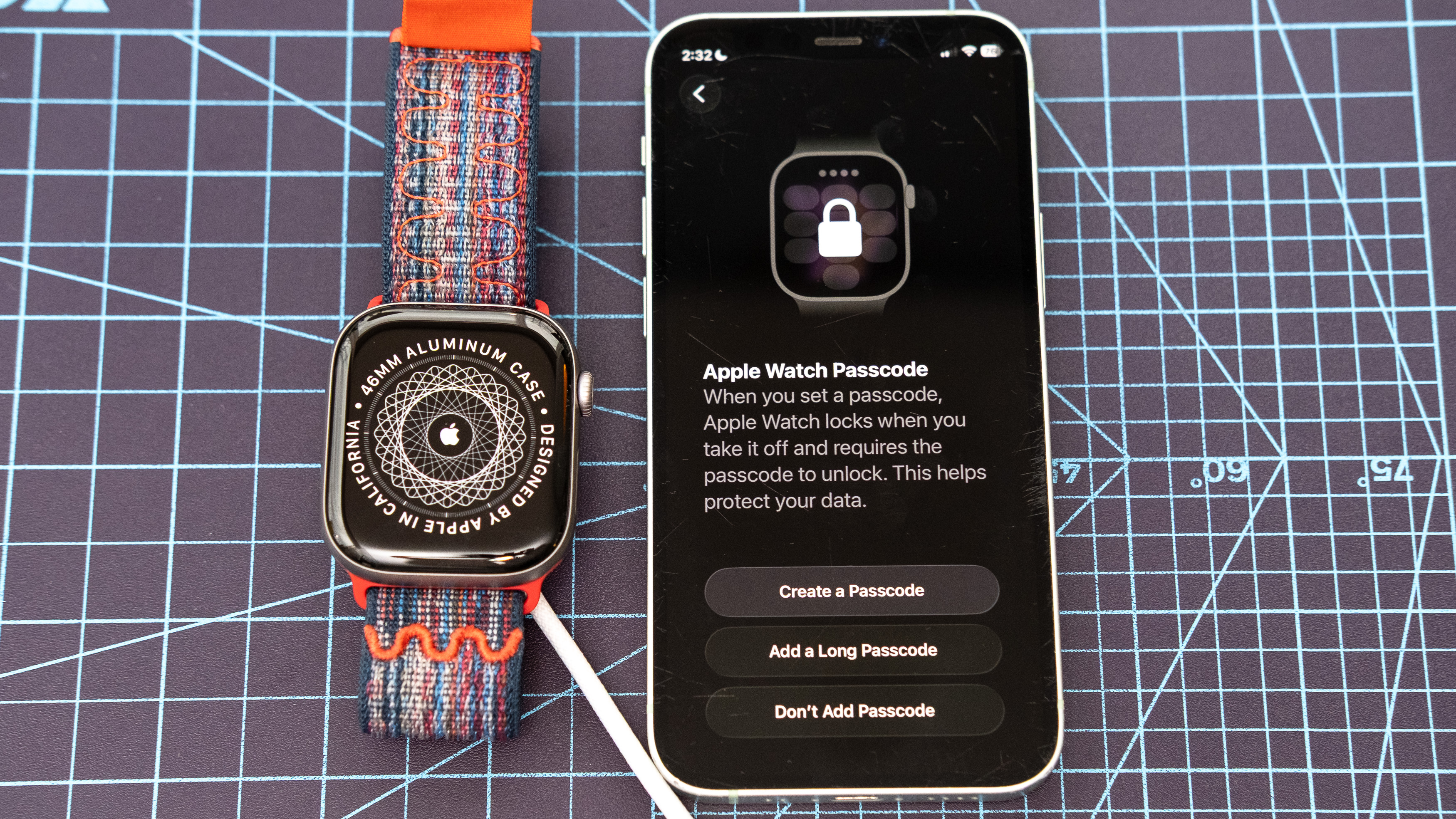
Apple will then present a lengthy set of terms and conditions. Scroll to the bottom and accept Apple's legal gobbledegook. On the next screen, choose whether or not you want a passcode to unlock your watch. If you decide to enable one, you'll be prompted to enter it twice.
8. Select your accessibility settings and enter your fitness details
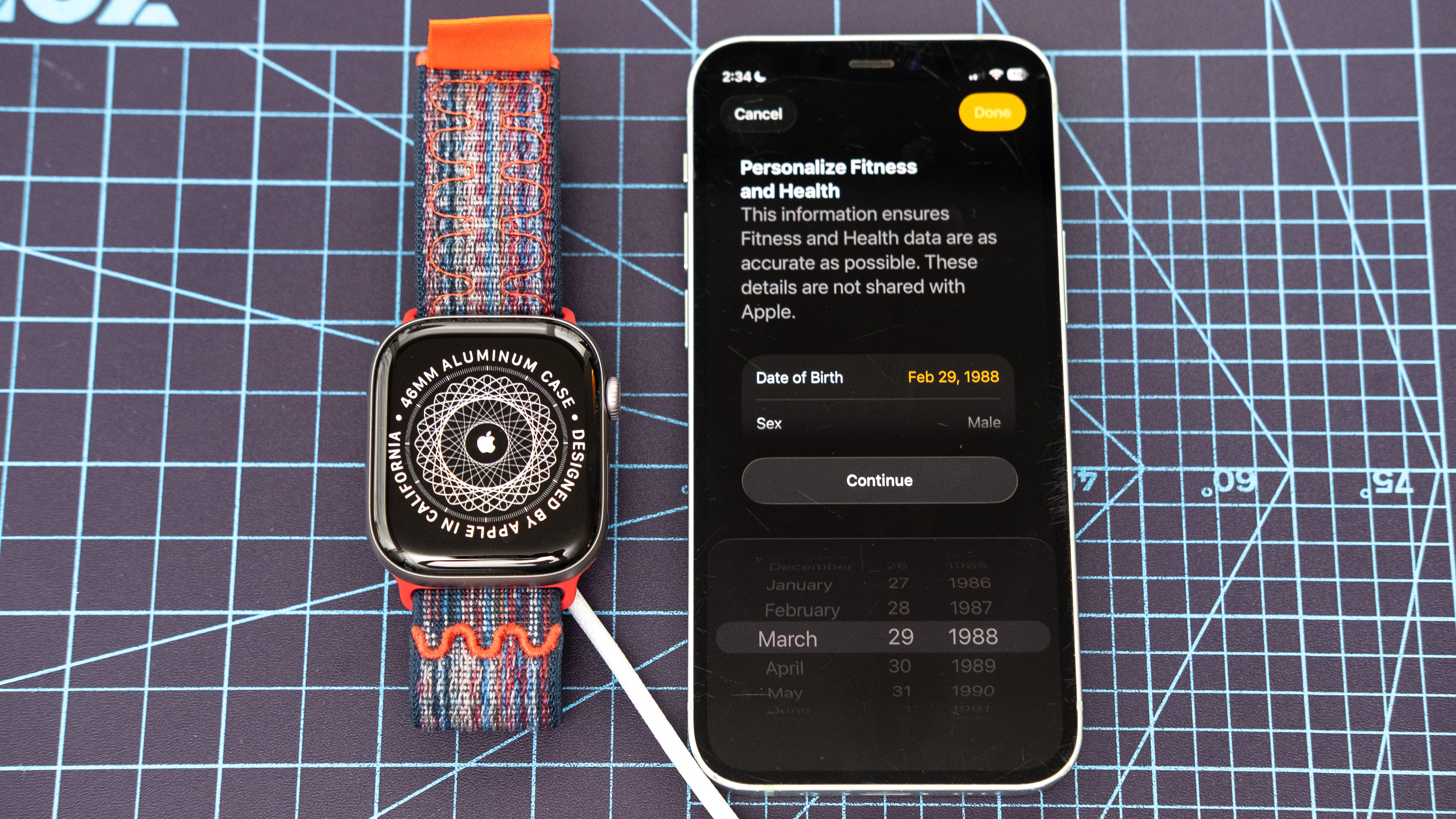
On the following screen, choose whether you want to apply accessibility settings from your iPhone. Next, you'll be asked to enter or verify your fitness and health information so that your new Apple Watch can better monitor your holistic metrics. Tap 'Continue' when you're done.
9. Tap 'continue' through the next several prompts and start the syncing process
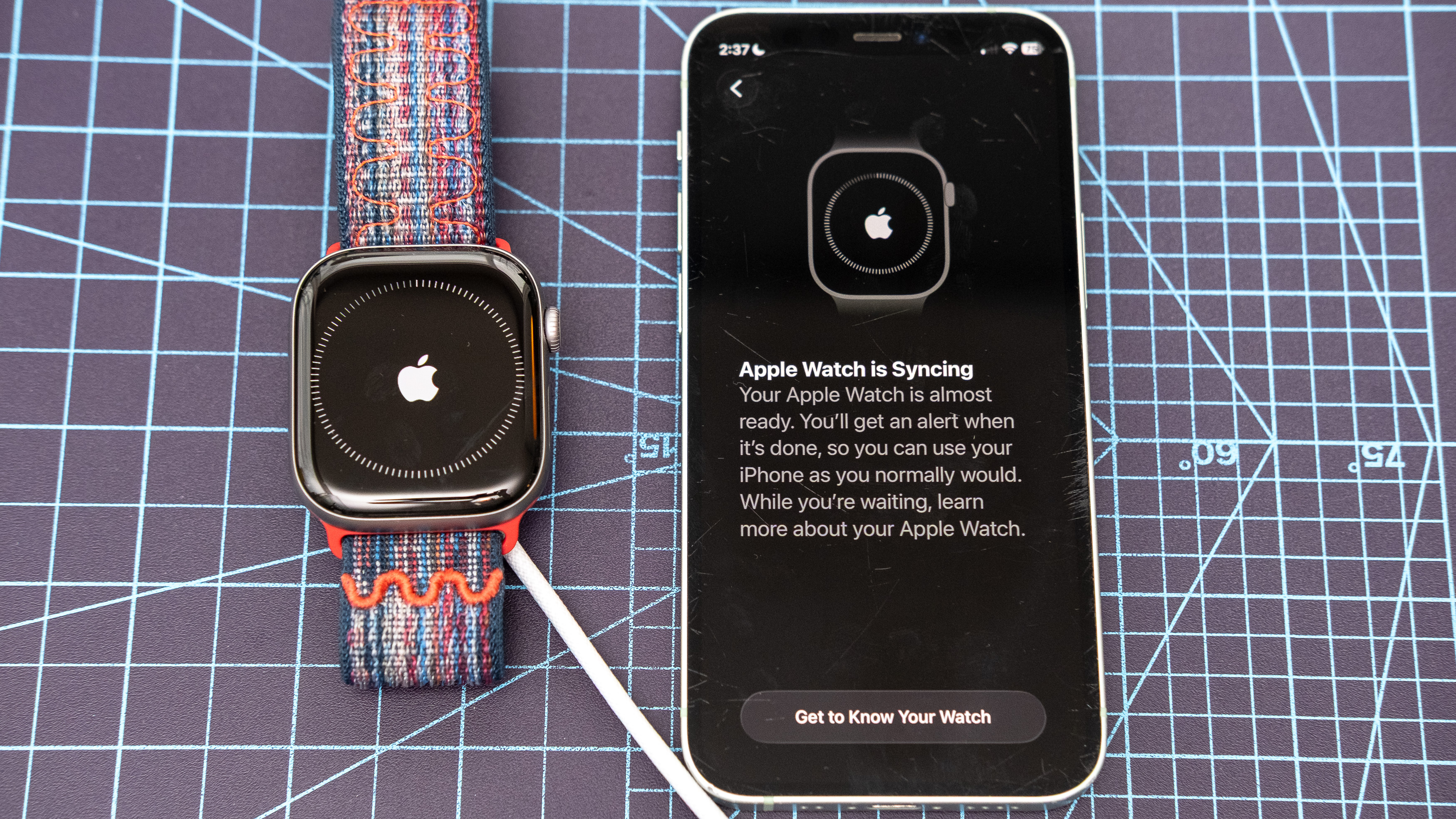
The following screens you can skip through pretty quickly, as they can be set up later. For each of the following, tap 'Continue' at the bottom of each of the preceding screens to make your way to the final Apple Watch setup steps. First, you'll get a quick explainer on safety tools, followed by the option to set up cellular on the device, followed by a gesture control tutorial, and finally a rather random question about the device's Water Depth app.
Once you've made your way past those screens, the syncing process will begin, and your Apple Watch and iPhone will display the screens shown above.
10. Once 'Hello' appears on the watch, tap the screen
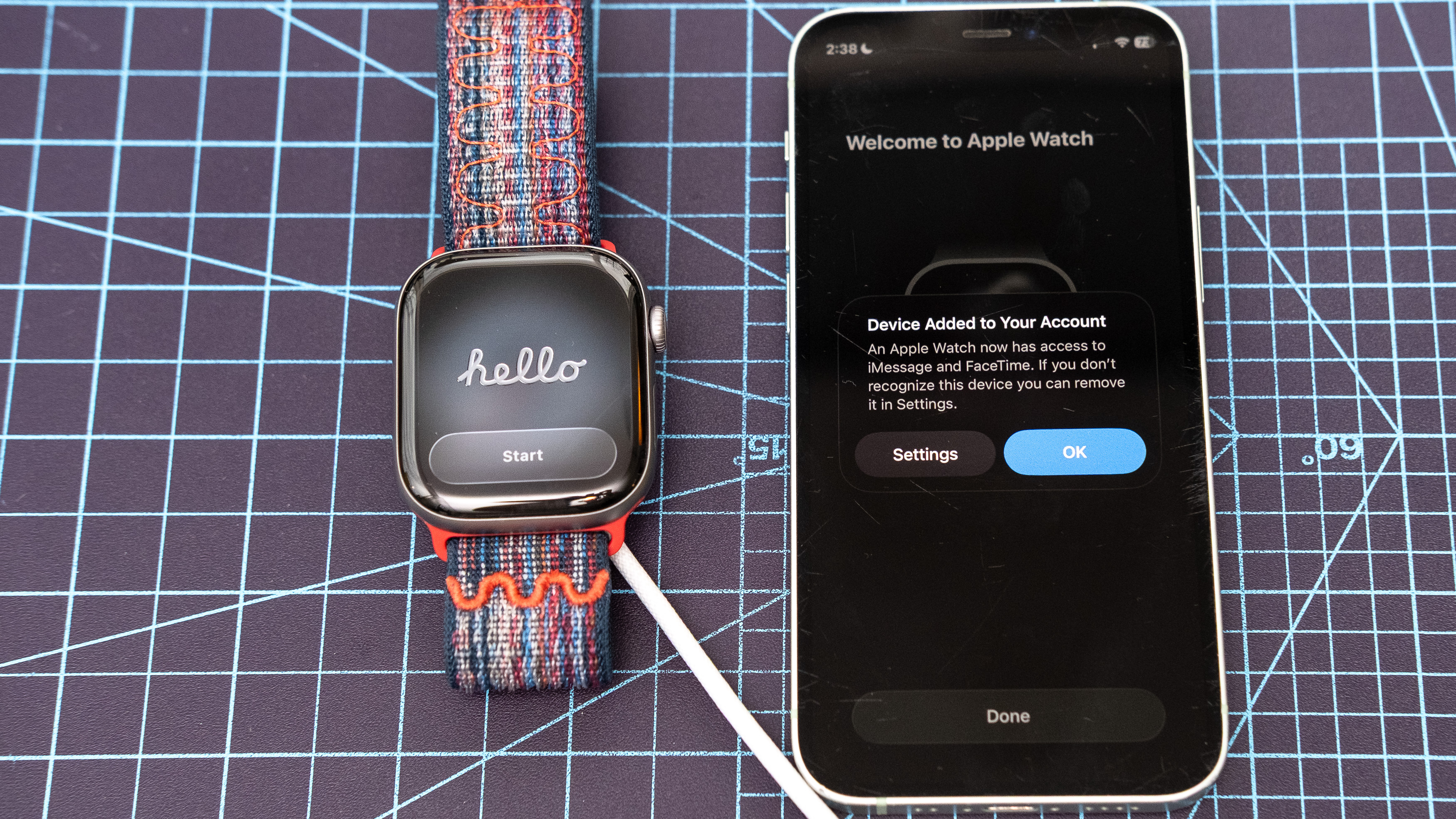
After several minutes, you should see 'Hello' appear on your Apple Watch and a message indicating that the device has been added to your Apple account on your iPhone. Tap 'Ok' on the iPhone pop-up, followed by 'Done.' On your Apple Watch, tap the 'Start' button.
11. Take an optional watchOS 26 tour or tap 'skip' to get to the homescreen
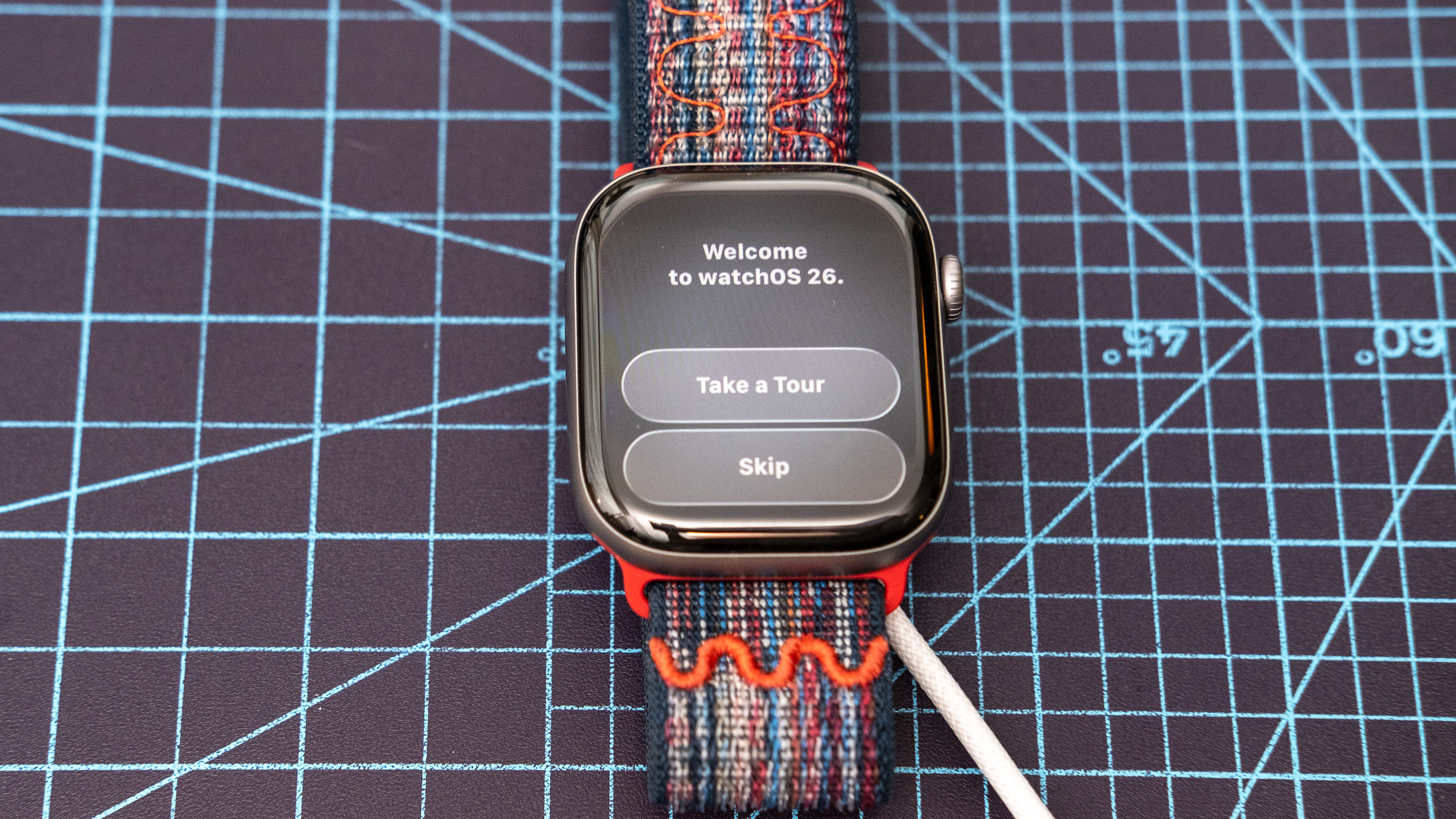
On the following screen, decide whether or not you want to take a quick tour of the latest operating system, including basic navigation tips, or skip right to the watch's homescreen.
12. Check for software updates and install as needed
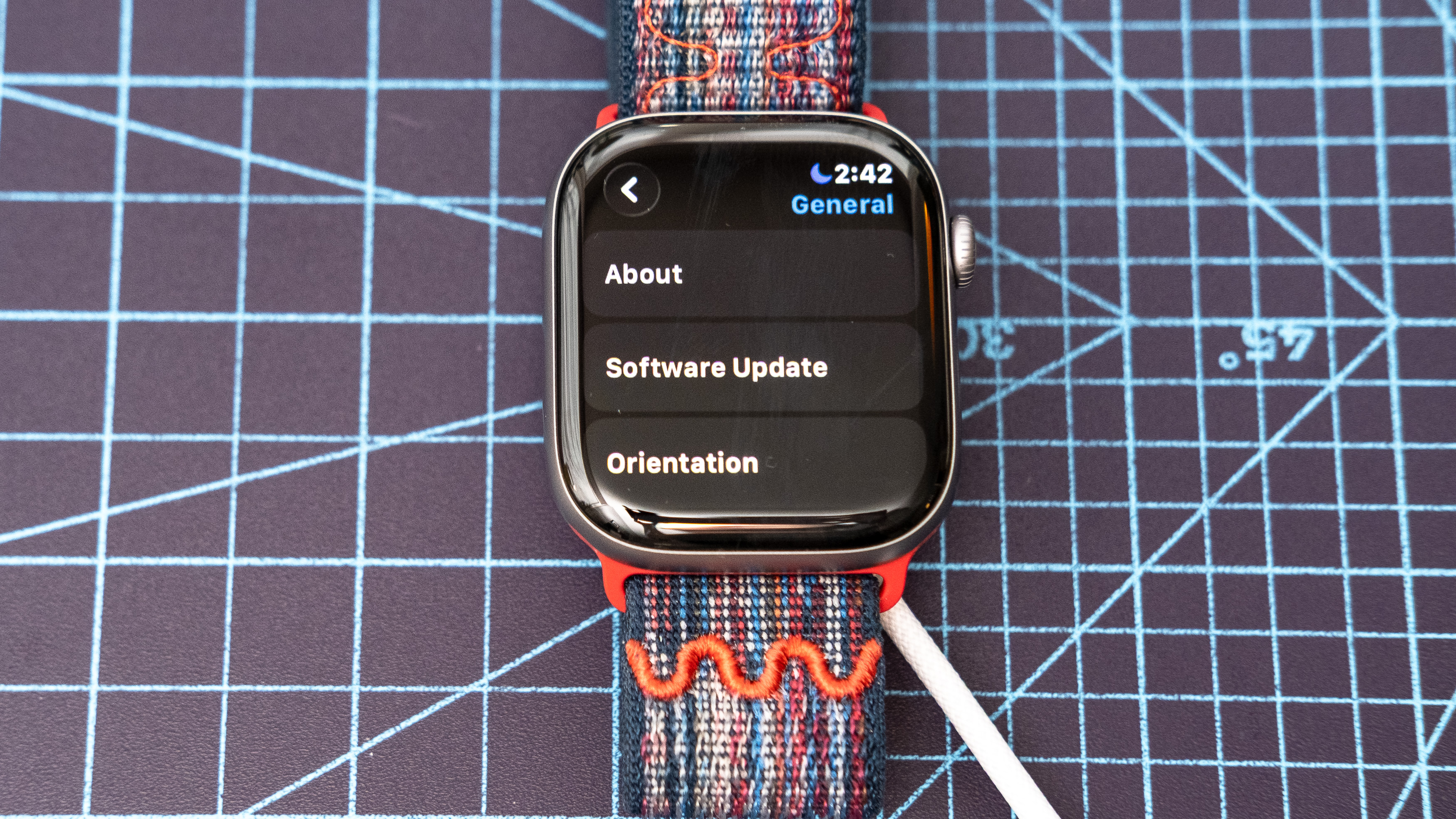
At this point, your new Apple Watch is pretty much ready to go, but there is one last thing you'll want to do: ensure that you're running the latest WatchOS software. To do this, press the digital crown and scroll down through the apps until you find settings. Enter settings, scroll, and tap on 'General,' followed by 'Software Update.'
Lastly, scroll to the bottom of the update page to check for fresh releases. If one appears, tap 'Install.' This should eventually cause the watch to restart and update, a process that takes around 15 minutes.
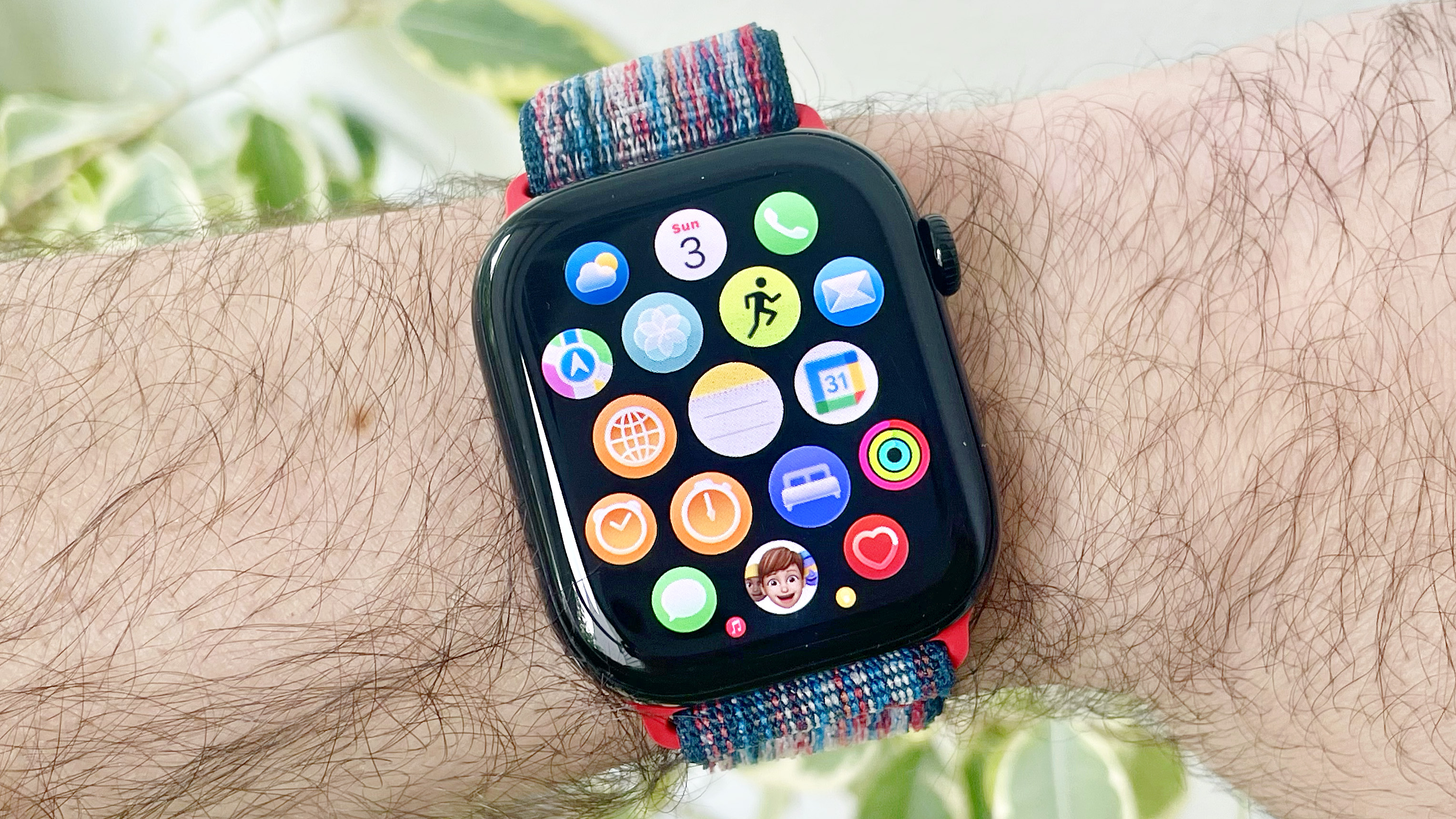
Now that you've got your new Apple Watch paired and running the latest software, why not dive into the best Apple Watch features?
Some of my favorites include the Notes app for staying organized and jotting down important tidbits on the go, Apple's handy Wrist Flick gesture for dismissing notifications, and the new AI-powered, personalized fitness coach, Workout Buddy.
And don't forget to customize your Apple Watch face, turn on automatic volume adjustments, and enable sleep tracking with daily sleep scores and sleep apnea detection.

Follow Tom's Guide on Google News and add us as a preferred source to get our up-to-date news, analysis, and reviews in your feeds. Make sure to click the Follow button!