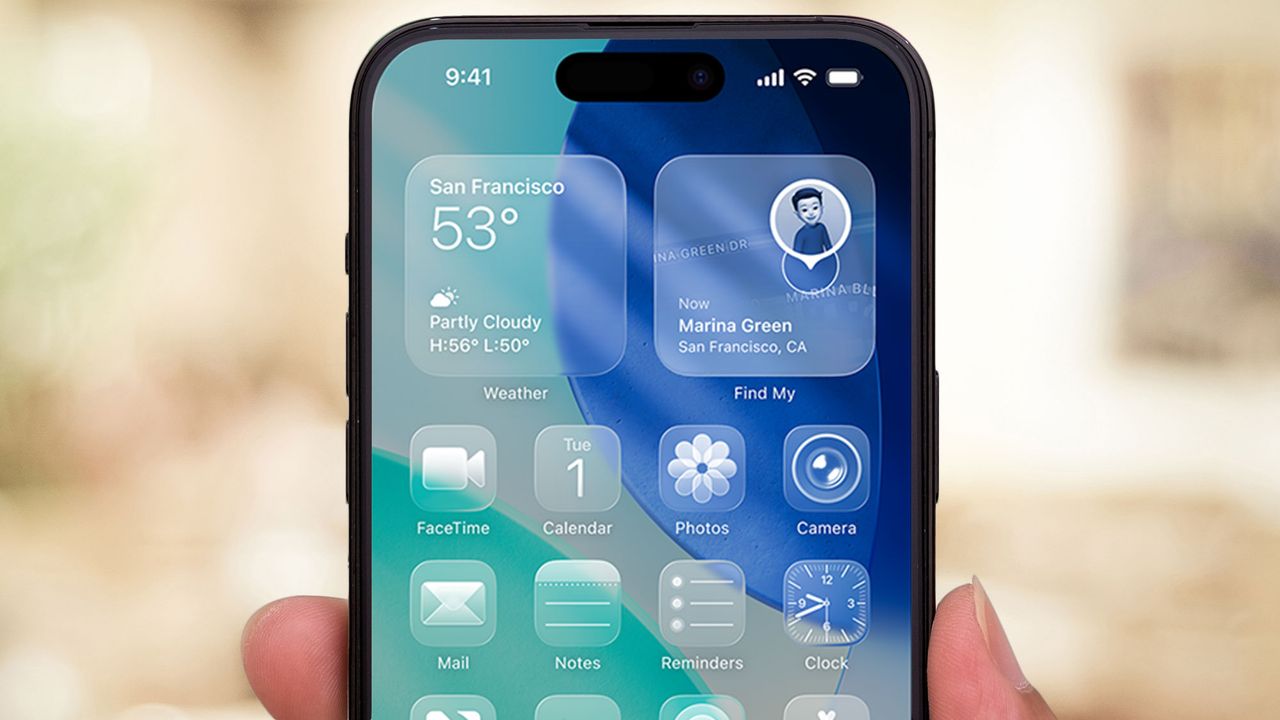
iOS 26 is now available for download, with the Liquid Glass interface leading the changes in Apple's annual software update. As part of this major design change, you can now enjoy Liquid Glass icons, new transparent icons that give your iPhone's homescreen a translucent, minimalist look to let your wallpaper show through.
Instead of the usual solid app icons, Liquid Glass creates a layered effect that adapts to your surroundings and changes between light and dark environments automatically.
Now that iOS 26 is here, it's easy to set up Liquid Glass icons, as the process takes just a few taps. Whether you want a completely clear look or prefer to keep some color, you can customize the transparency level to match your aesthetic.
Here's how to enable Liquid Glass icons on your iPhone.
1. Access the homescreen customization menu
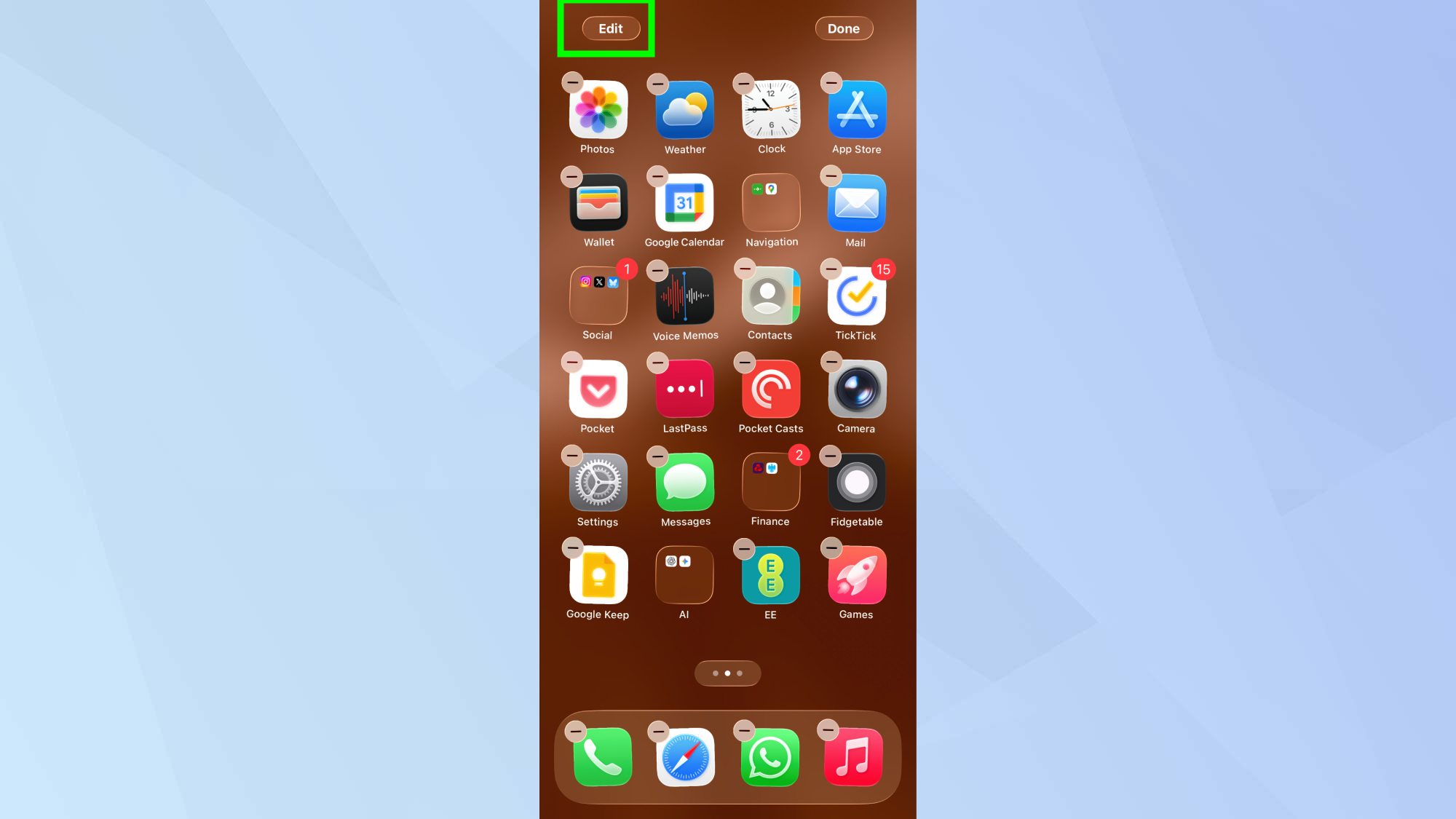
Long-press anywhere on your iPhone's homescreen or lockscreen until you see options appear.
Tap the Edit button that appears in the top-left corner of your screen, then the Customize menu option.
This opens the menu where you can change your homescreen appearance and access the new Liquid Glass options.
2. Select your preferred Liquid Glass style
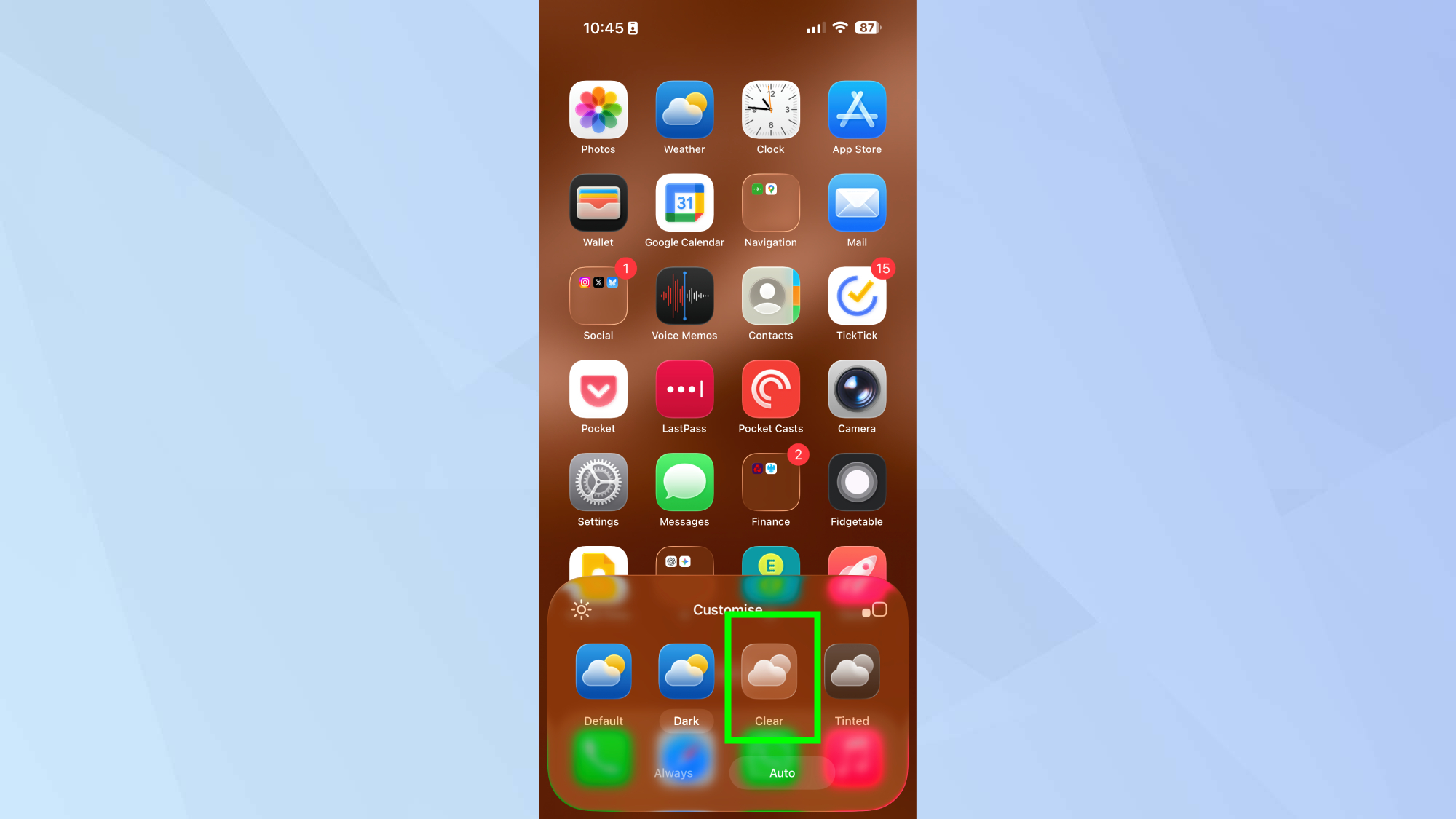
There should now be a menu at the bottom of your screen showing Light, Dark, Tinted, and Clear options.
Tap Clear to access the Liquid Glass settings. This is where you'll find all the transparency options for your app icons.
3. Switch between Liquid Glass modes
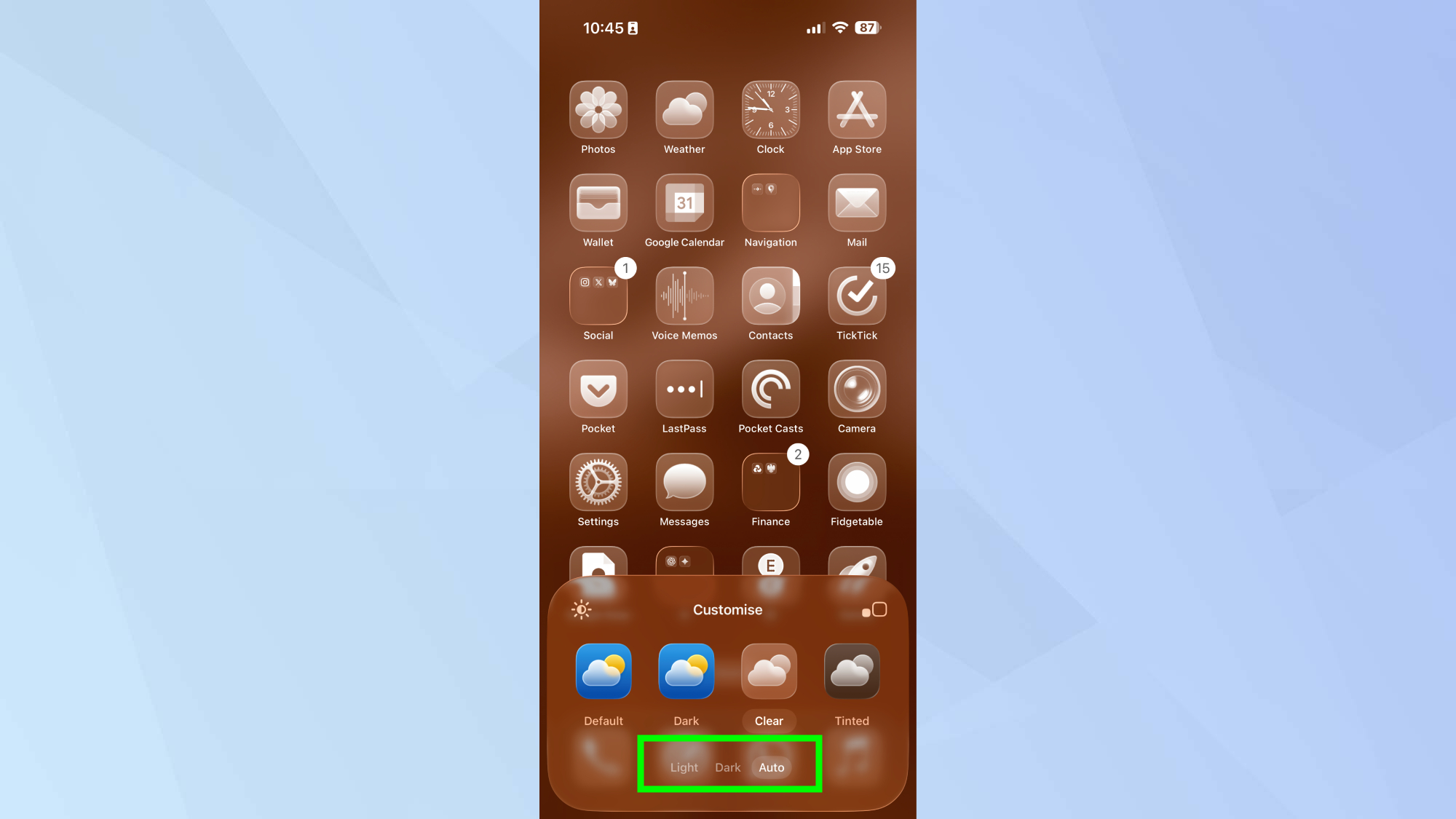
Select from the three Liquid Glass options: Clear Light, Clear Dark, or Clear Auto. Clear Light makes icons completely transparent, while Clear Dark keeps some original colors with the glass effect.
Choose Clear Auto to automatically switch between light and dark modes based on the time of day.
4. Change back to regular icons anytime
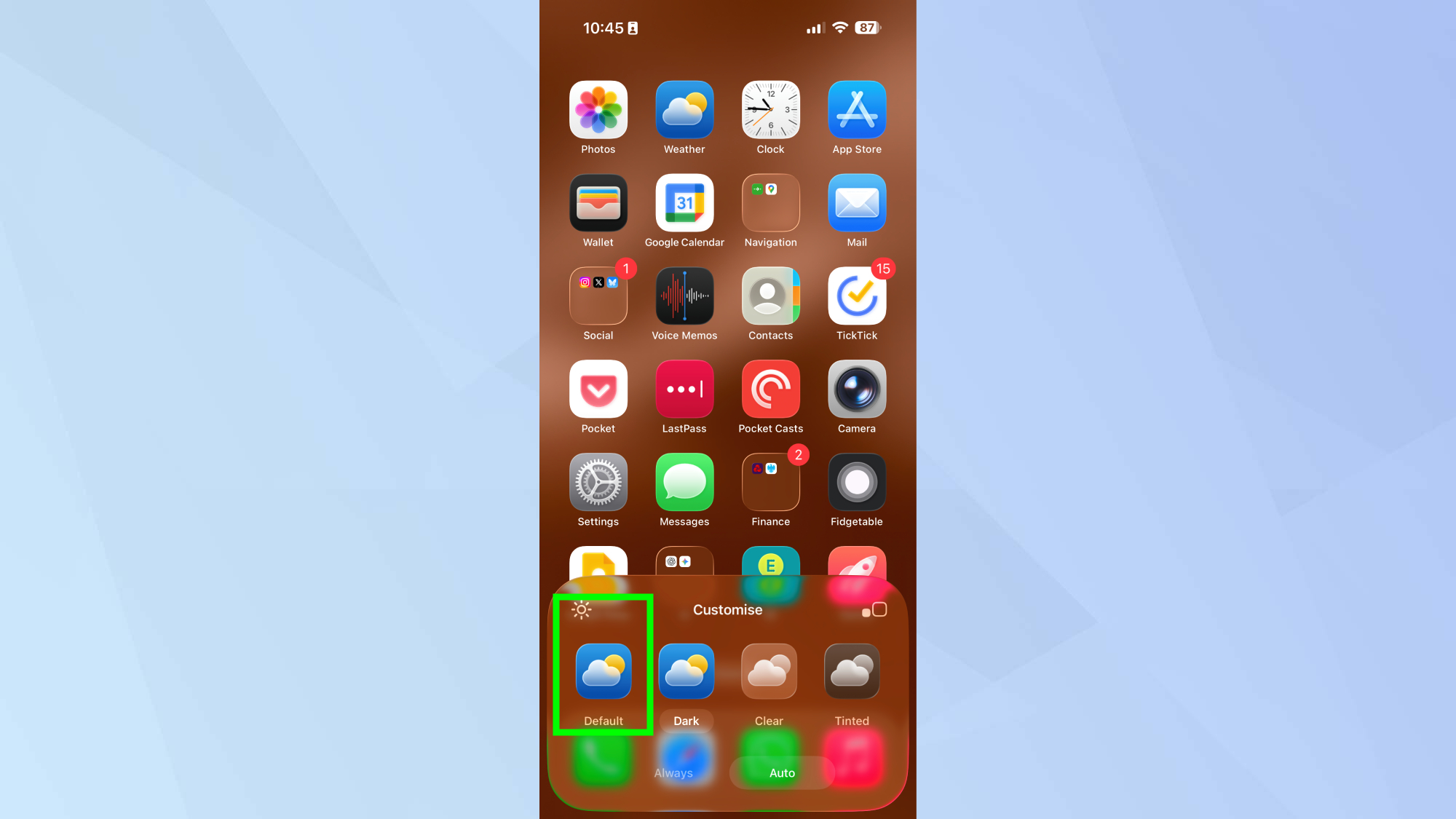
To return to normal app icons, repeat the same steps by long-pressing your homescreen, tapping Edit, and selecting Default.
You can experiment with different looks until you find what works best for your wallpaper and personal style.
For more on Apple's new software update, read our iOS 26 review and find out about which iOS 26 features you should try first.
Follow Tom's Guide on Google News to get our up-to-date news, how-tos, and reviews in your feeds. Make sure to click the Follow button.