Hi, I'm Kaycee. Welcome to Hidden iPhone Tips, a weekly column where I dig into the best iOS features Apple doesn't tell you about.
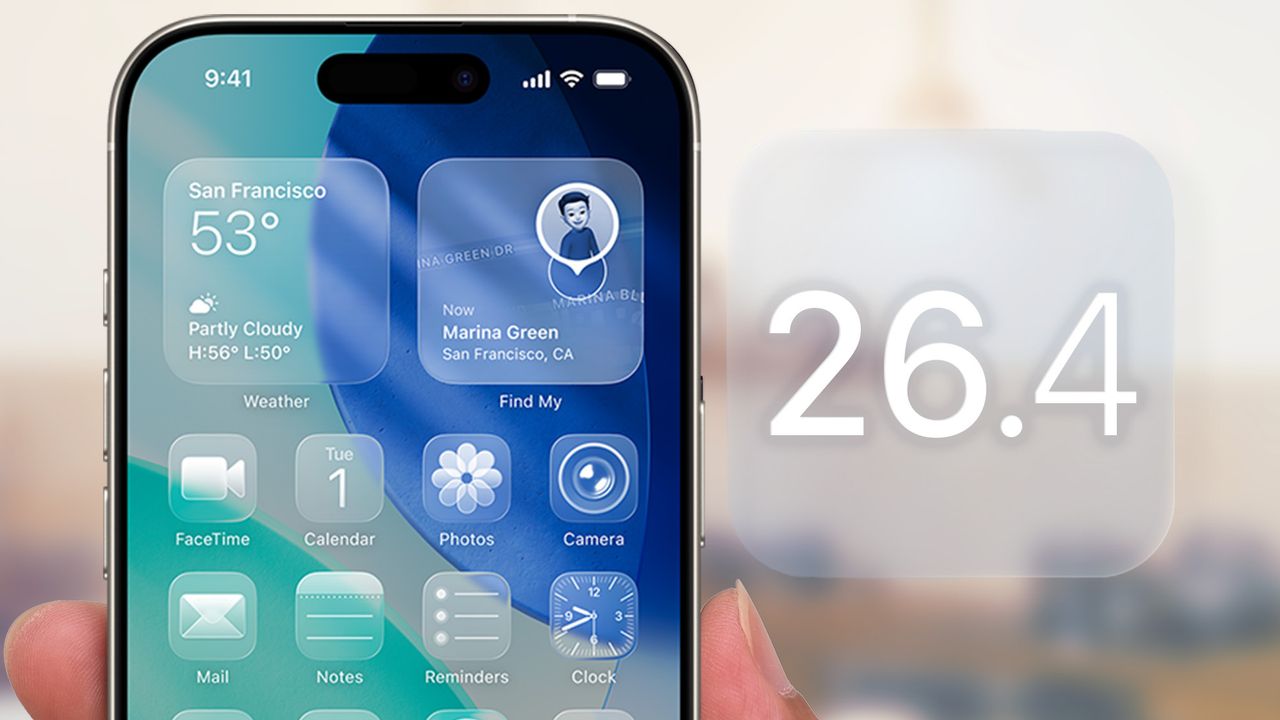
Liquid Glass is one of the most visible design changes in iOS 26. Some people love it. Others find it overwhelming, distracting, or just too much during daily use. iOS 26.4 adds two settings that give you control over how intense Liquid Glass feels.
Reduce Bright Effects is new and specifically targets the bright flashing that happens when you interact with interface elements. Reduce Motion has been updated to better handle Liquid Glass animations, which matters for people who felt iOS 26 was still too active even with the original setting enabled.
These aren't complete design overhauls, but they let you dial back the flashiest parts of Liquid Glass without changing the entire system appearance. Here's how to enable them.
1. Reduce Bright Effects
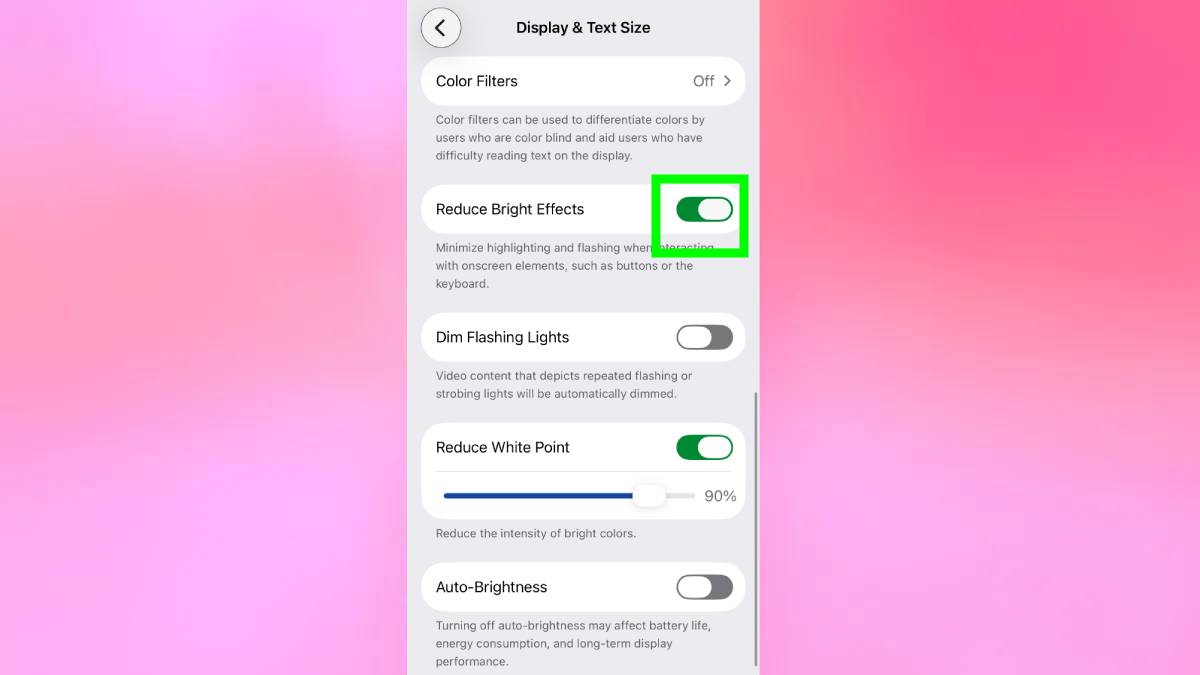
This new setting targets the bright flashing that occurs when you interact with buttons, links, and other tappable elements. With Liquid Glass enabled by default, these elements produce noticeable bright highlights when pressed. Reduce Bright Effects dims these flashes significantly.
Open Settings, Accessibility, Display & Text Size and turn on Reduce Bright Effects.
This setting is particularly useful in low-light environments where bright flashes are more jarring. Using your iPhone at night with Reduce Bright Effects enabled makes the screen feel less aggressive on your eyes.
Reduce Bright Effects doesn't eliminate all Liquid Glass visual effects. Animations, transitions, and shimmer effects remain. It specifically targets brightness, not motion. For motion reduction, you need the second setting.
2. Improved Reduce Motion
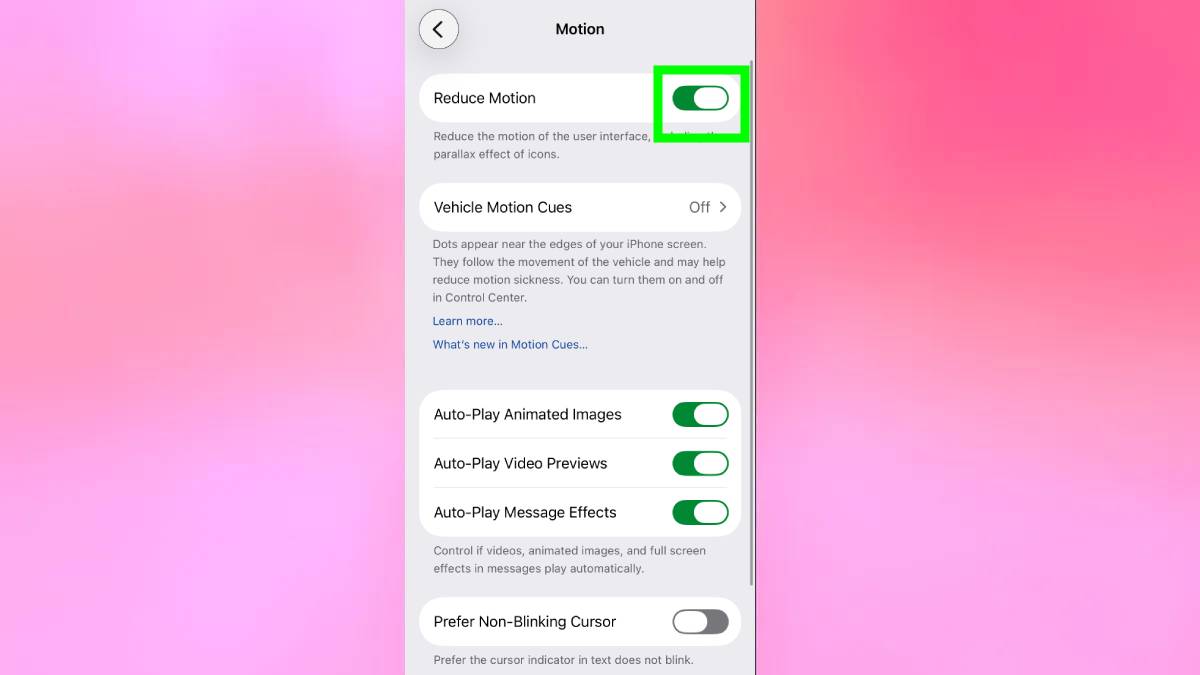
Reduce Motion existed before iOS 26.4, but Apple updated it to better handle Liquid Glass animations. Previously, enabling Reduce Motion reduced some animations but didn't adequately address the fluid transitions and movement effects specific to Liquid Glass. The updated version in iOS 26.4 is more effective.
Open Settings, Accessibility, Motion and turn on Reduce Motion.
This is particularly helpful for users sensitive to on-screen motion. The constant fluid animations in Liquid Glass can cause discomfort or distraction for some people. Reduce Motion tones this down significantly while keeping the interface functional and responsive.
You can enable both Reduce Bright Effects and Reduce Motion simultaneously for maximum reduction of Liquid Glass intensity. Together, they address both the brightness and motion aspects of the design, creating a notably calmer interface.
Why these settings matter
These two settings don't remove Liquid Glass completely, but they address its most intense elements. Bright flashing and constant fluid motion are the aspects people complain about most. Reduce Bright Effects and improved Reduce Motion specifically target these.
For users with visual sensitivities, these settings make iOS 26 more usable. Bright flashes can trigger discomfort or headaches. Constant motion can cause similar issues. Having controls for these elements matters beyond aesthetic preference—it's about accessibility and comfort during daily use.
Even for users without sensitivities, these settings improve focus. A less flashy, less animated interface can feel less demanding of attention. Your iPhone still works identically, but it's not constantly vying for visual attention with every tap and swipe.