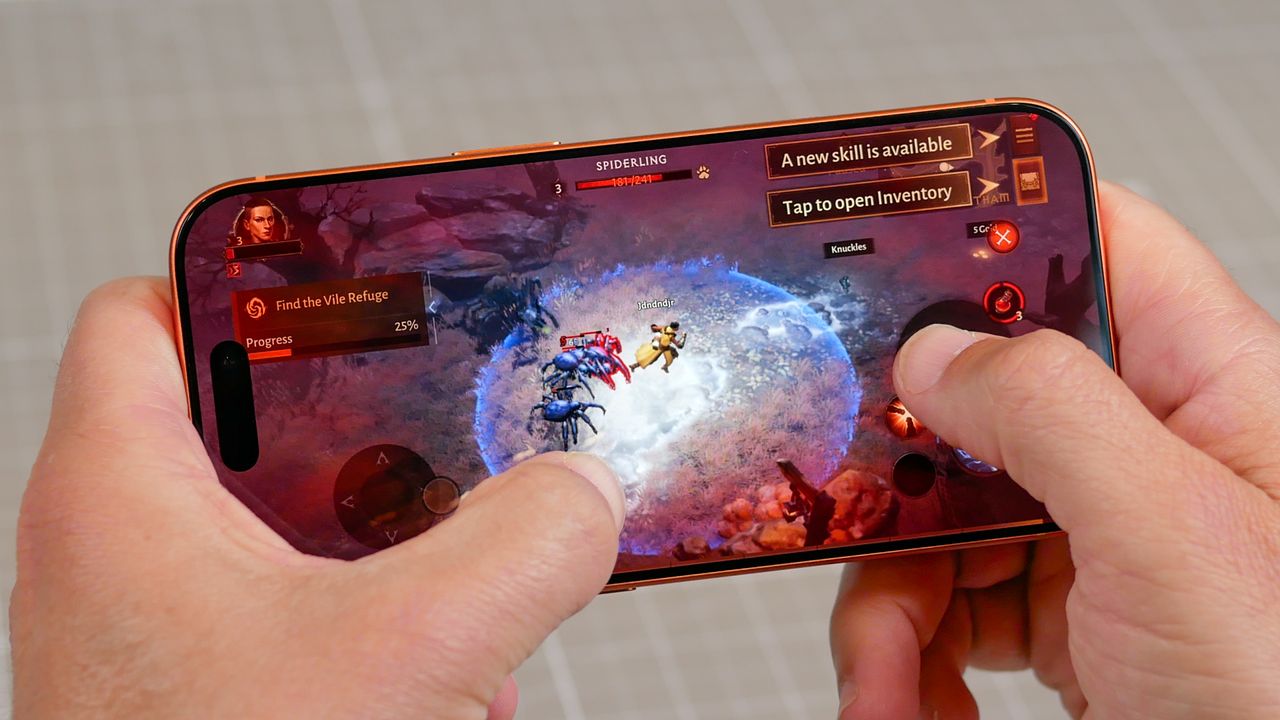
I have a problem — people keep wanting to talk to me when all I want to do is blow off some steam by playing a game on my iPhone.
I don't want to give the impression that I'm some serious gamer needing to shut down the outside world so that I can devote my full energy to an immersive RPG or first-person shooter. These are casual games in the most literal sense — little puzzlers I play in bursts of a few minutes at a time whenever I need a break from the hard business of being me.
The games I favor may be low-stakes, but they certainly require some degree of concentration and attention — two things I can't provide when notifications from Slack and Messages flash up at the top of my iPhone's display when I'm trying to beat a timer. My games may not be life or death, but neither are most of these notifications; instead, they're usually something that can wait the minute or two that I'm getting my gaming on.
In an ideal world, my iPhone would block these kind of things automatically. Some phones have a gaming mode that automatically silences distractions when you launch a game, but that's not a part of Apple's iOS software.
A Game mode of sorts debuted with iOS 18, but it was more about optimizing gaming performance. Launch a game in the current iOS 26, and you can access a Game Overlay panel to adjust volume and display brightness. But if you want distraction-free gaming, you're going to have to take matters into your own hands, as I did using the built-in Focus Mode feature of iOS plus Apple's own Shortcuts app.
Setting up a Gaming Focus Mode in iOS 26
Focus mode has been part of the iPhone's bag of tricks since 2021. You can set up modes for specific settings like work, play and more to disable potentially distracting apps and silence unnecessary alerts so that you can concentrate on the matter at hand. Apple even has some preset Focus modes — including one for gaming — to help you take advantage of the feature.
1. Create a Focus mode
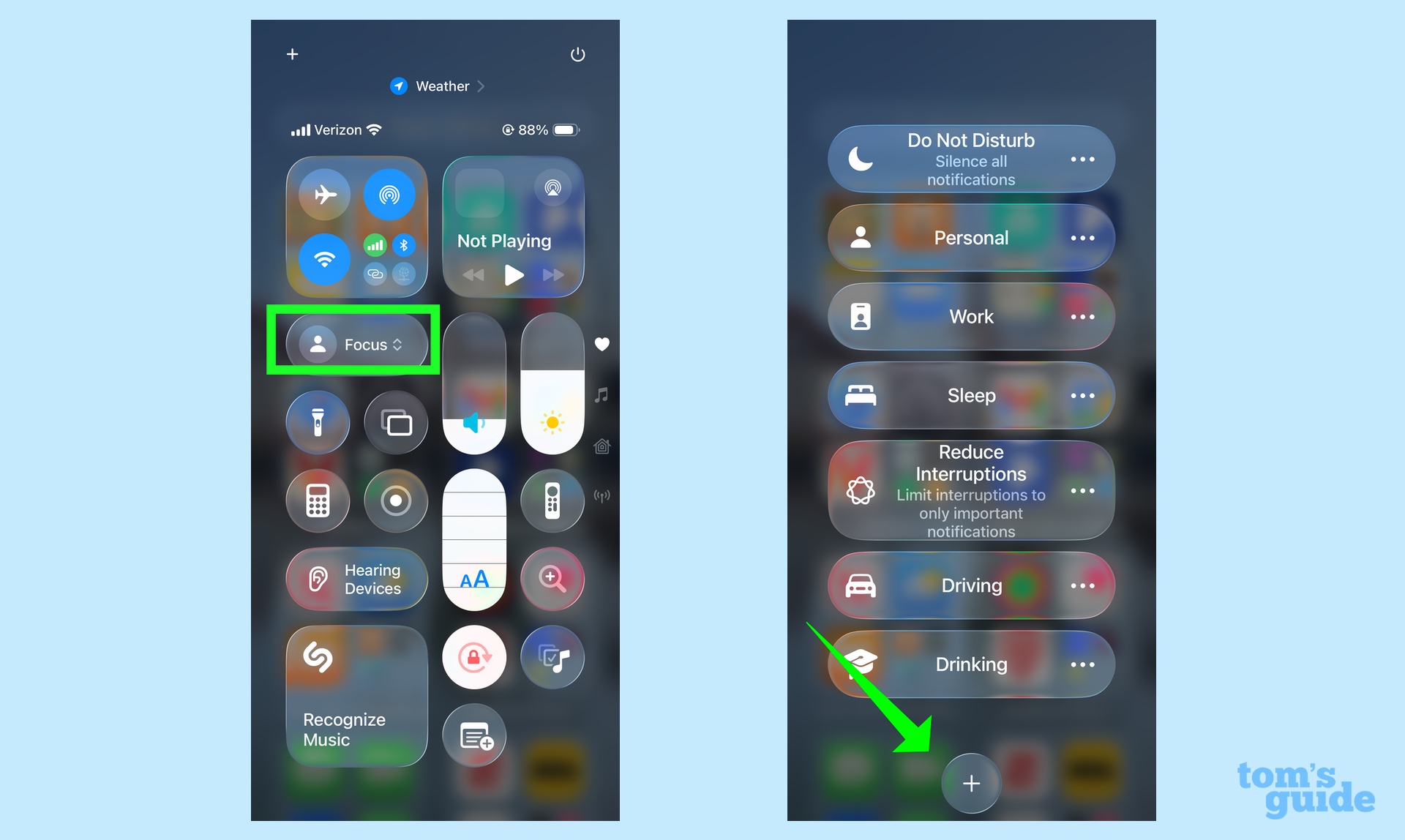
Apple offers multiple ways to create a new Focus setting. My preferred method is to access the Control Center by swiping down from the right corner of my iPhone's screen and tapping the Focus control. Since I'm creating a new Focus, I'm going to hit the Plus button at the bottom the screen.
If you prefer, you can instead launch Settings and tap on Focus. There's a Plus button for adding a new Focus mode, too.
2. Fine-tune your focus
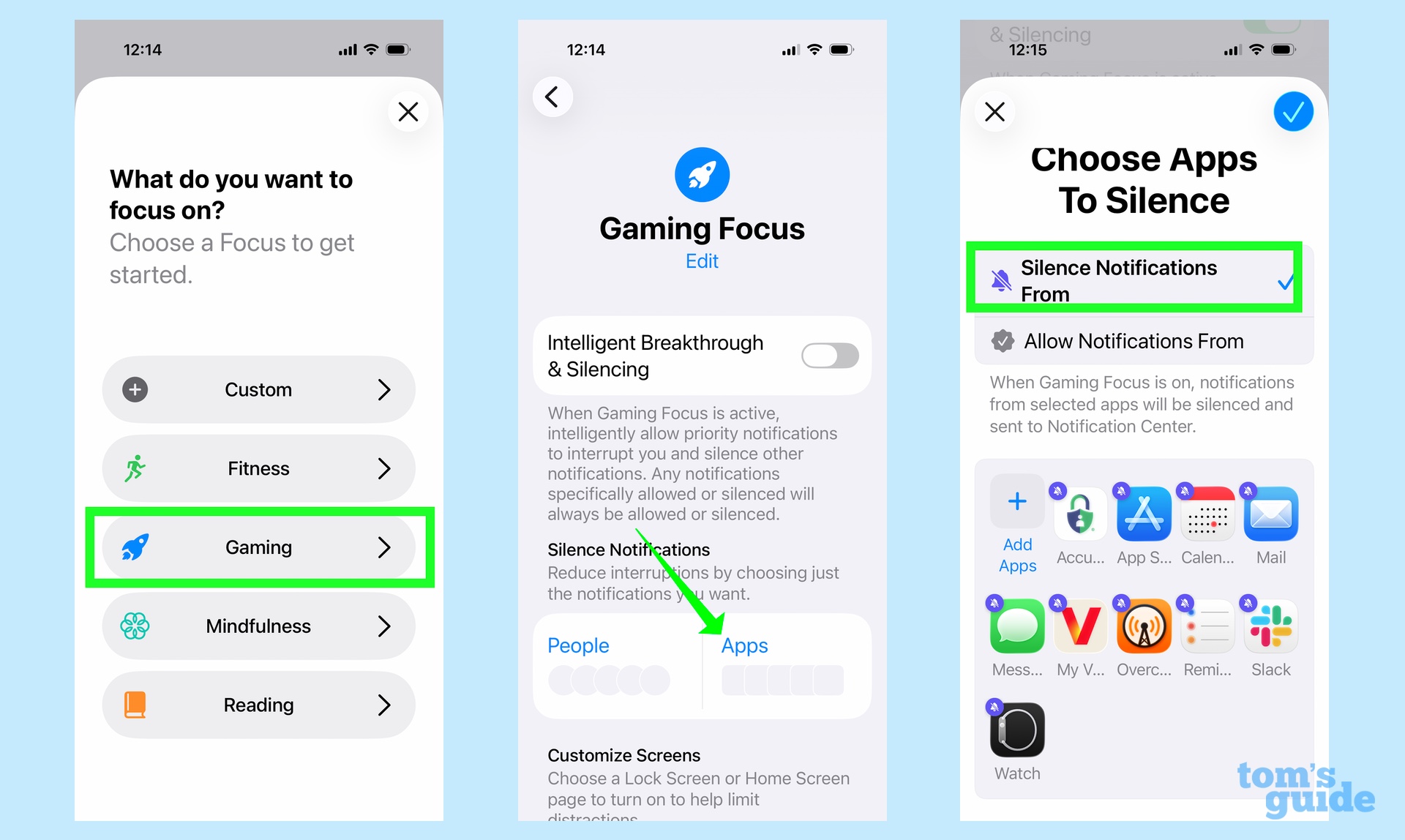
I've selected Gaming from the list of Focus modes, since there are some very gaming-specific features I can enable. For instance, I can set a wireless controller to turn on every time I turn gaming focus on, if that's the kind of gaming I plan on doing. (It's not, but it's a nice option to have.) I can also set a specific time for Gaming mode to launch, if I want to enjoy regularly scheduled gaming sessions.
Other controls let me set specific filters for certain apps or even set up customized lock and home screens to highlight the apps I want access to. This is all pretty elaborate for my stated objective of merely silencing notifications so all I've done is tap the Apps section, selected Silence Notifications From and made sure the offending apps are black-listed.
Creating a Focus Mode shortcut
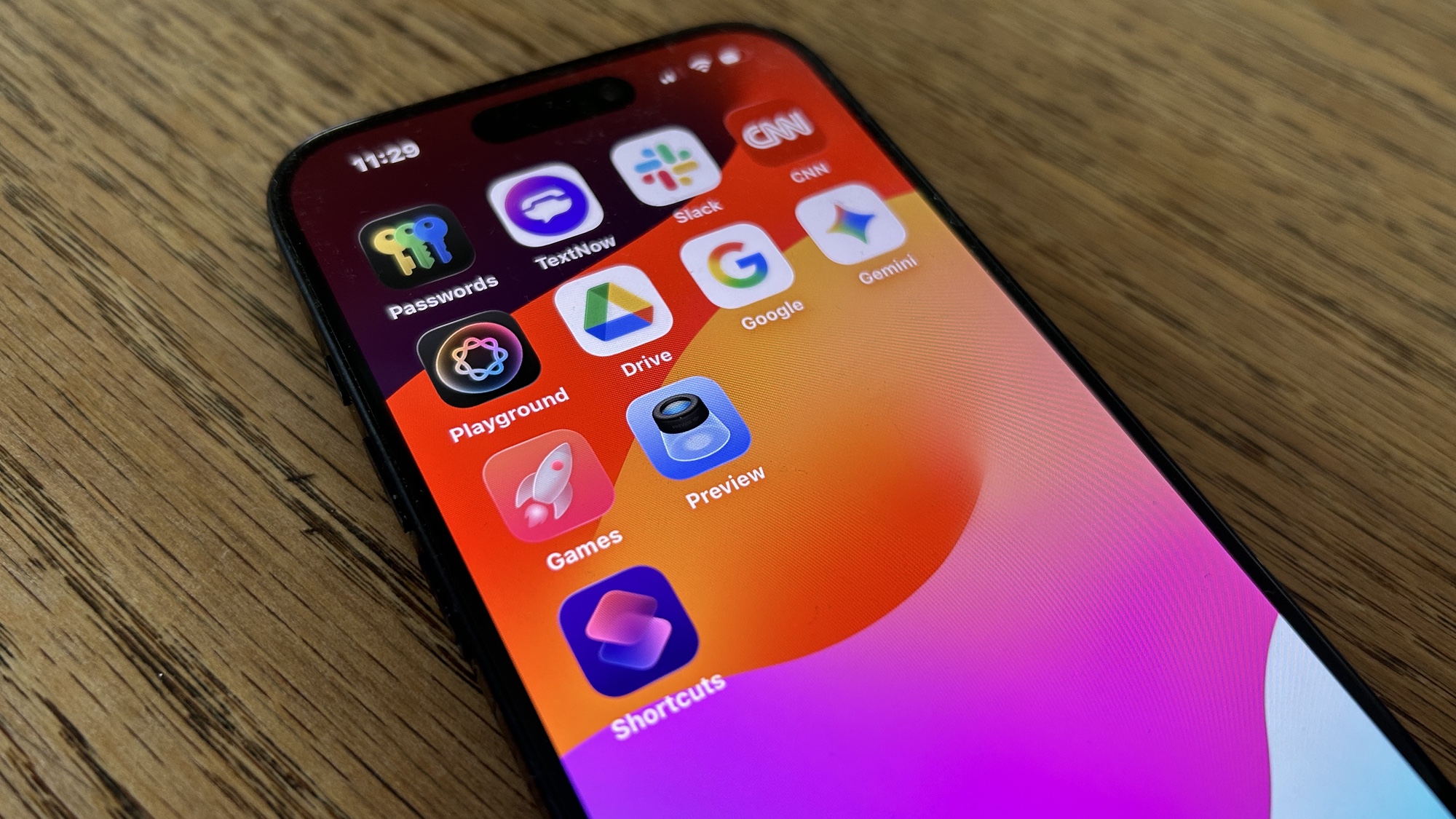
As it stands, I can now launch my Focus mode from the iPhone's Control Center and enjoy uninterrupted gaming. But I still want the process to be a little more automated with that Focus mode turning on whenever I launch certain games and, ideally, switching off once I'm done gaming. For that, I've turned to the Shortcuts app.
Shortcuts is built into iOS 26, and you can use it to automate routines, from the very sophisticated to the simple one I've got in mind.
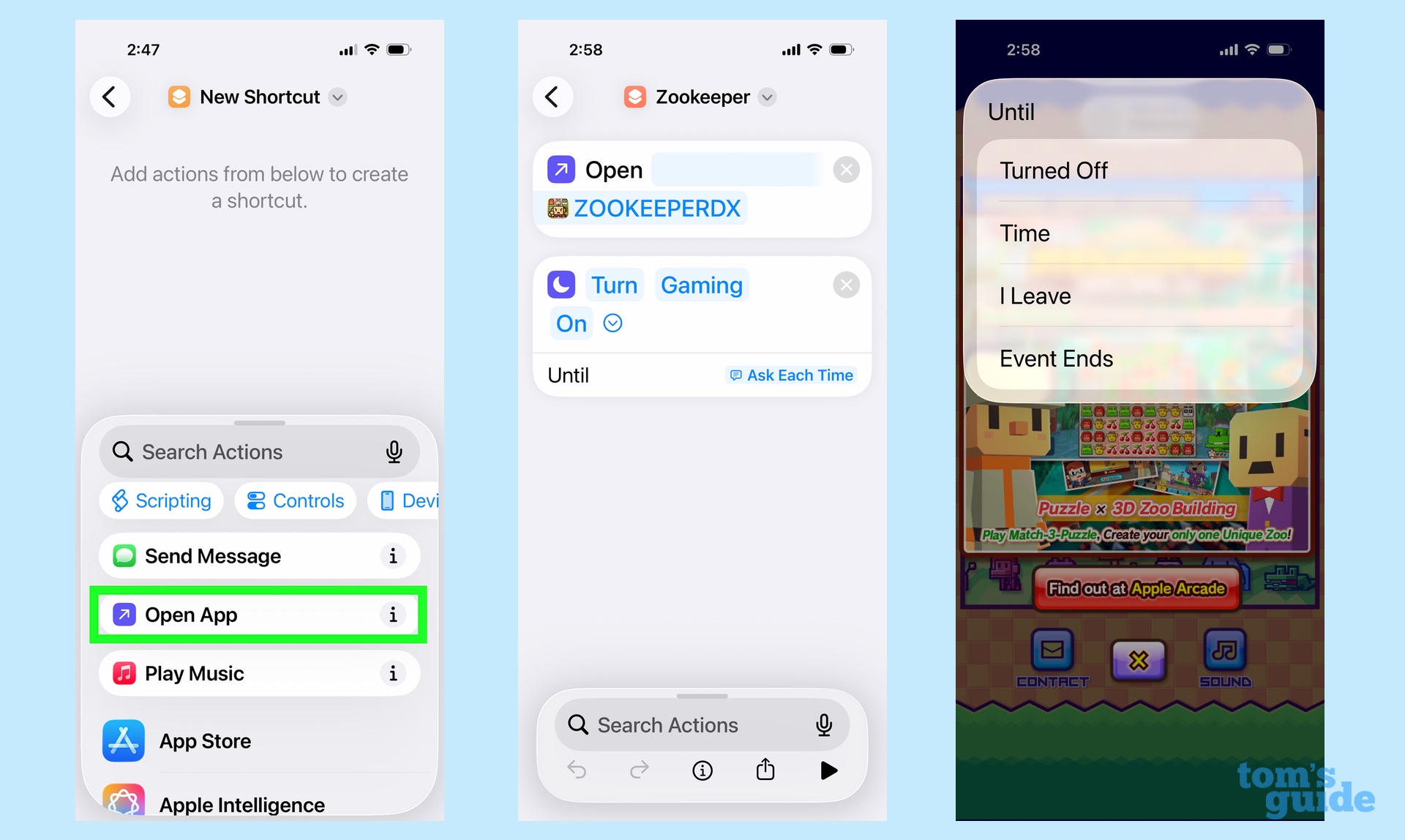
To get started, I tapped the Plus button and began my shortcut with the opening of a specific app — in this case, the Zookeeper match-3-style game. I've then instructed the shortcut to turn on the gaming focus when the app launches, asking me at each launch when to disable the Focus mode. ("Event Ends" seems to cover when I close out the app, which works for my purposes.) I'm still fine-tuning the last part of the shortcut, but everything seems to work for now.
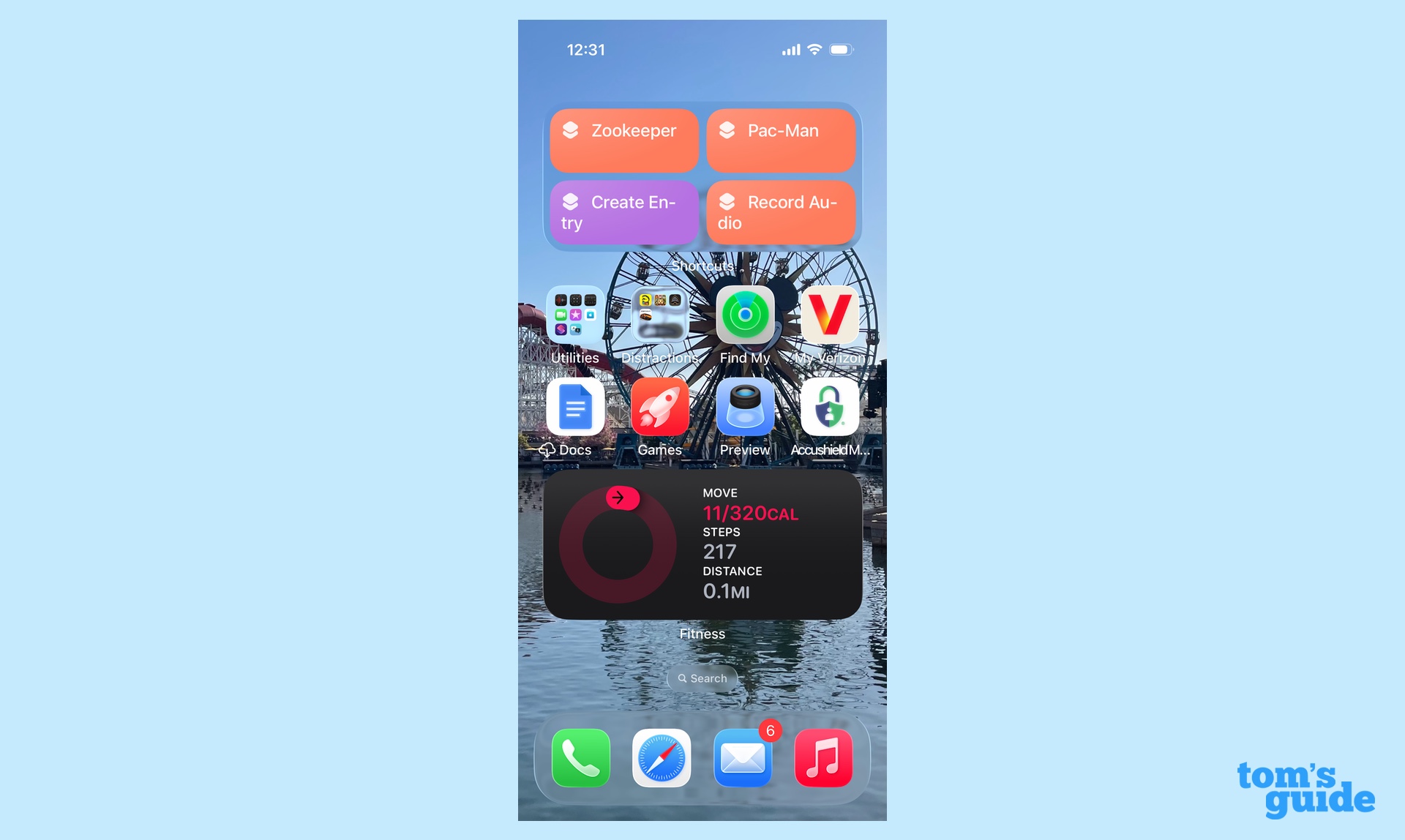
So how do I launch all this? A home screen widget featuring frequently used Shortcuts lets me tap the name of select games to enjoy a little distraction-free gaming session.
It may not be the most elegant way to game without notifications interrupting my flow, but it's what I was able to assemble quickly with the tools at hand. And it's allowed me to get a little bit more enjoyment out of some iPhone apps I turn to all the time.

Follow Tom's Guide on Google News and add us as a preferred source to get our up-to-date news, analysis, and reviews in your feeds.