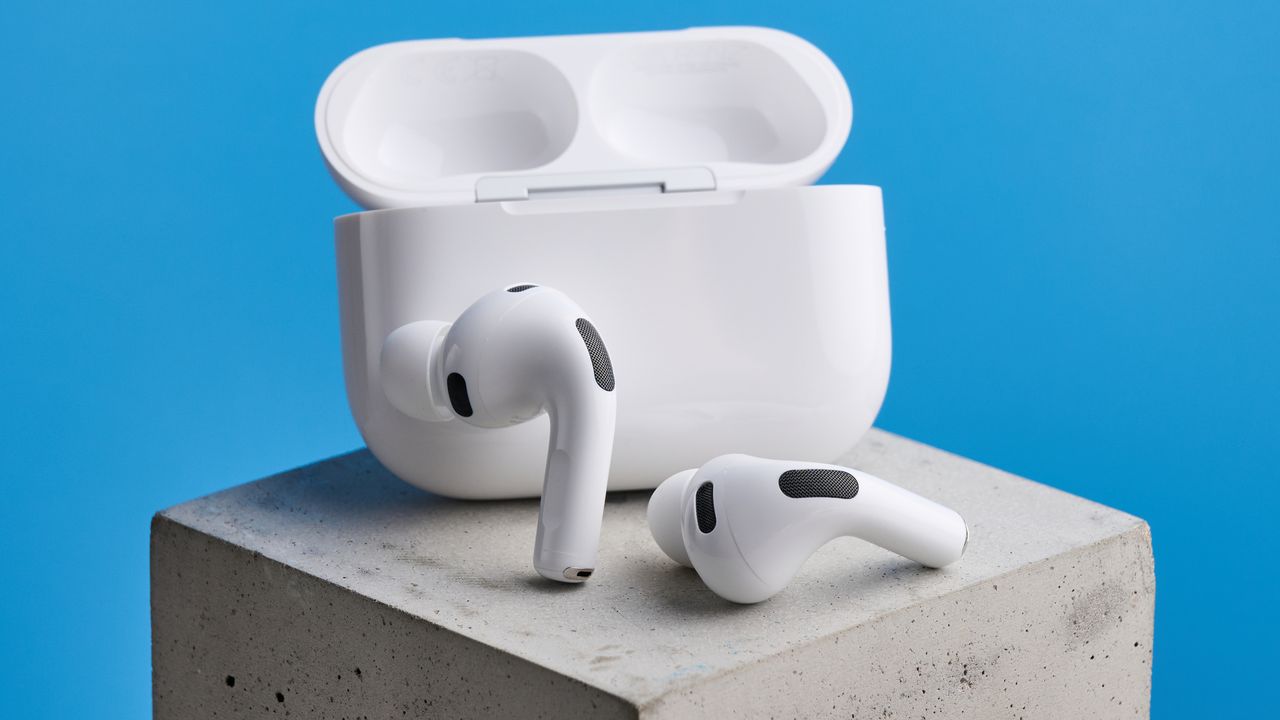
Taking group selfies or photos where you want to be in the frame usually means awkwardly stretching your arm to reach the shutter button while trying to keep your hand out of the shot. Apple's iOS 26 introduced a feature that solves this problem: Camera Remote for AirPods.
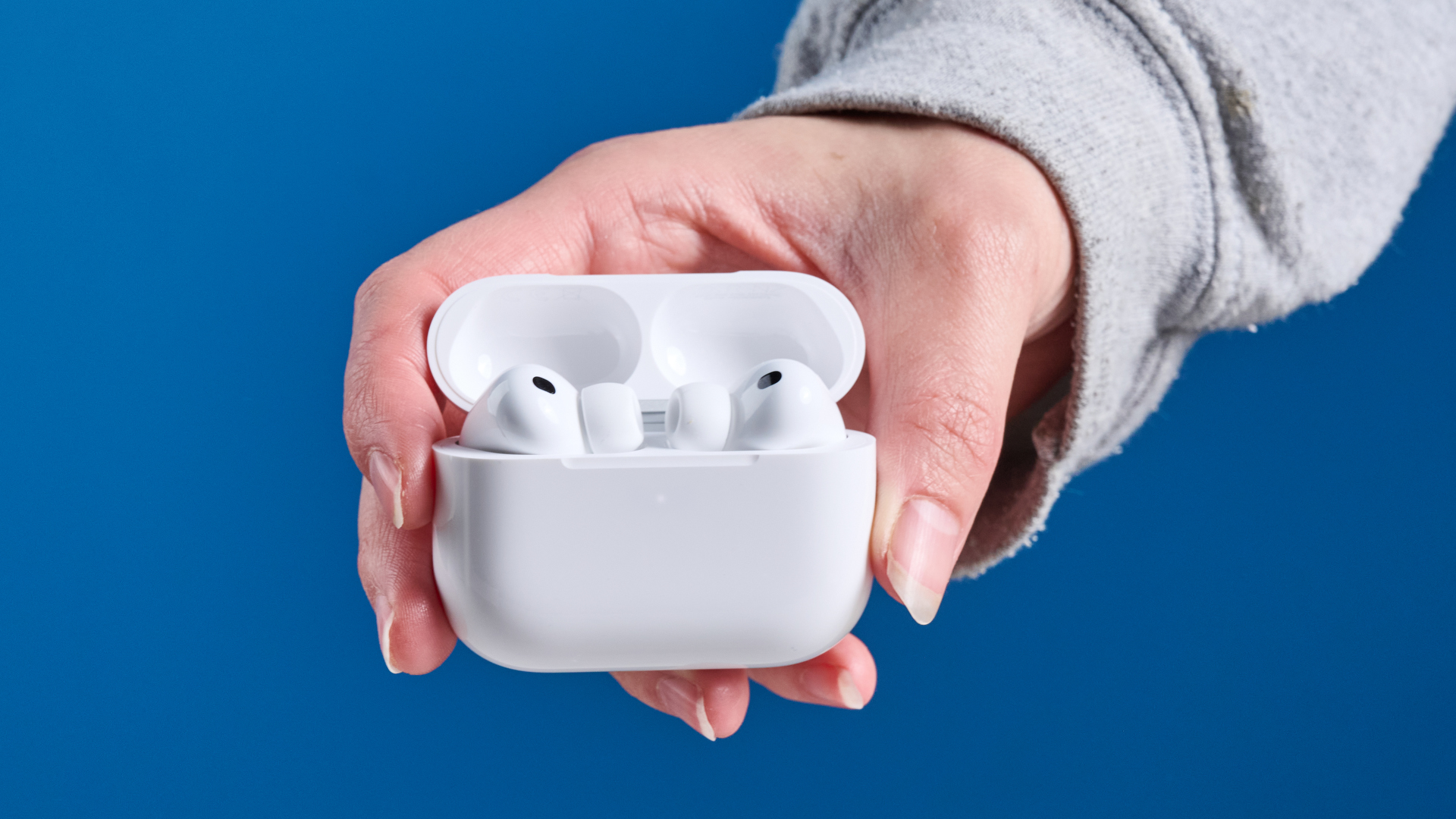
You can set up your iPhone at the perfect angle, step back into frame, and trigger the camera with a simple press. However, it only works with AirPods that have an H2 chip, which includes AirPods Pro 2, AirPods Pro 3, and AirPods 4. Here's how to enable Camera Remote and use your AirPods to take photos.
1. Connect your AirPods to your iPhone
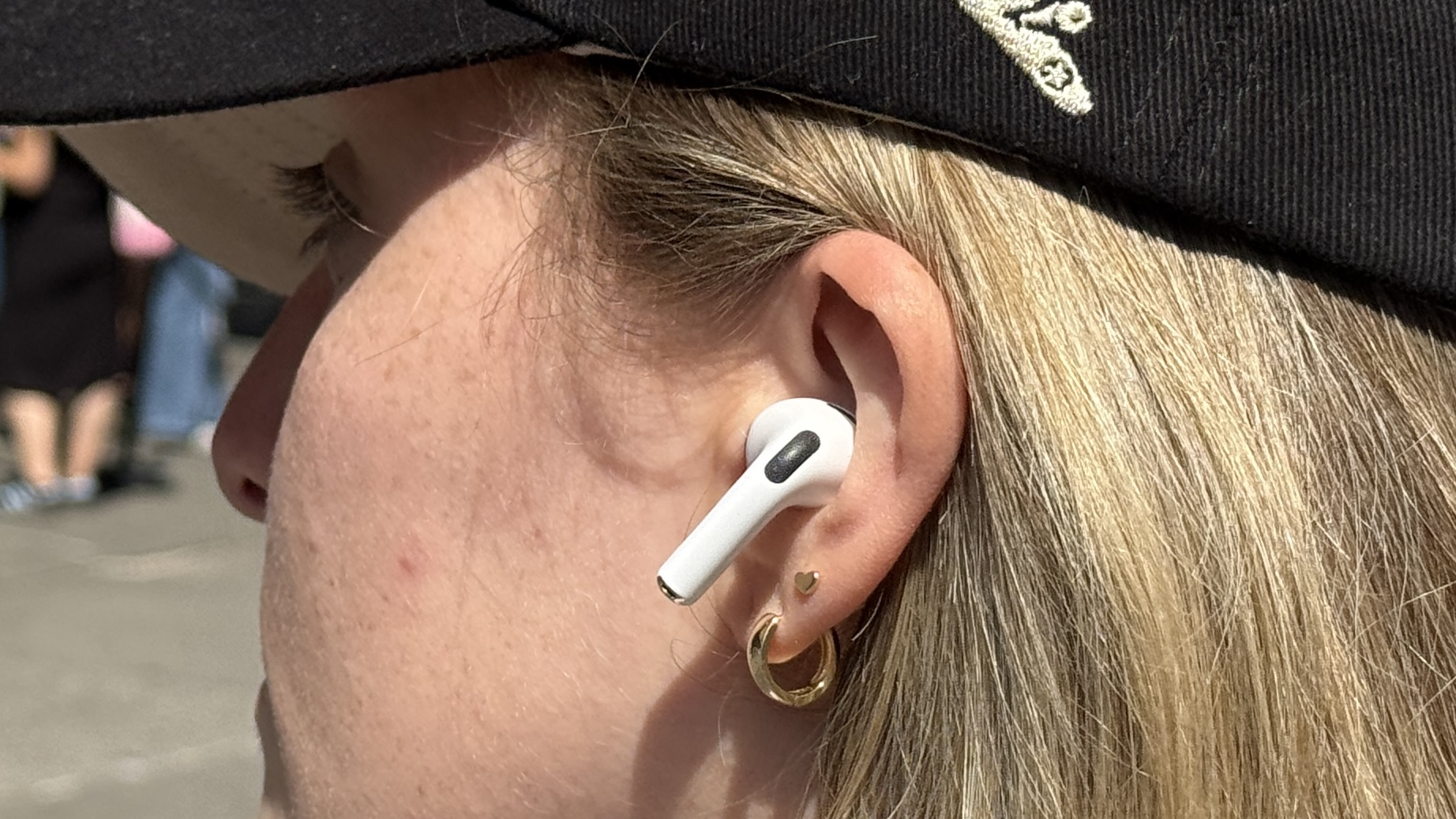
Put your AirPods in your ears. If they're already paired to your iPhone, they should connect automatically. You'll see the AirPods icon appear in your iPhone's status bar when they're connected.
As mentioned. make sure you're using one the compatible models: AirPods Pro 2, AirPods Pro 3, or AirPods 4, as these are the only models with the H2 chip required for Camera Remote.
Open AirPods settings
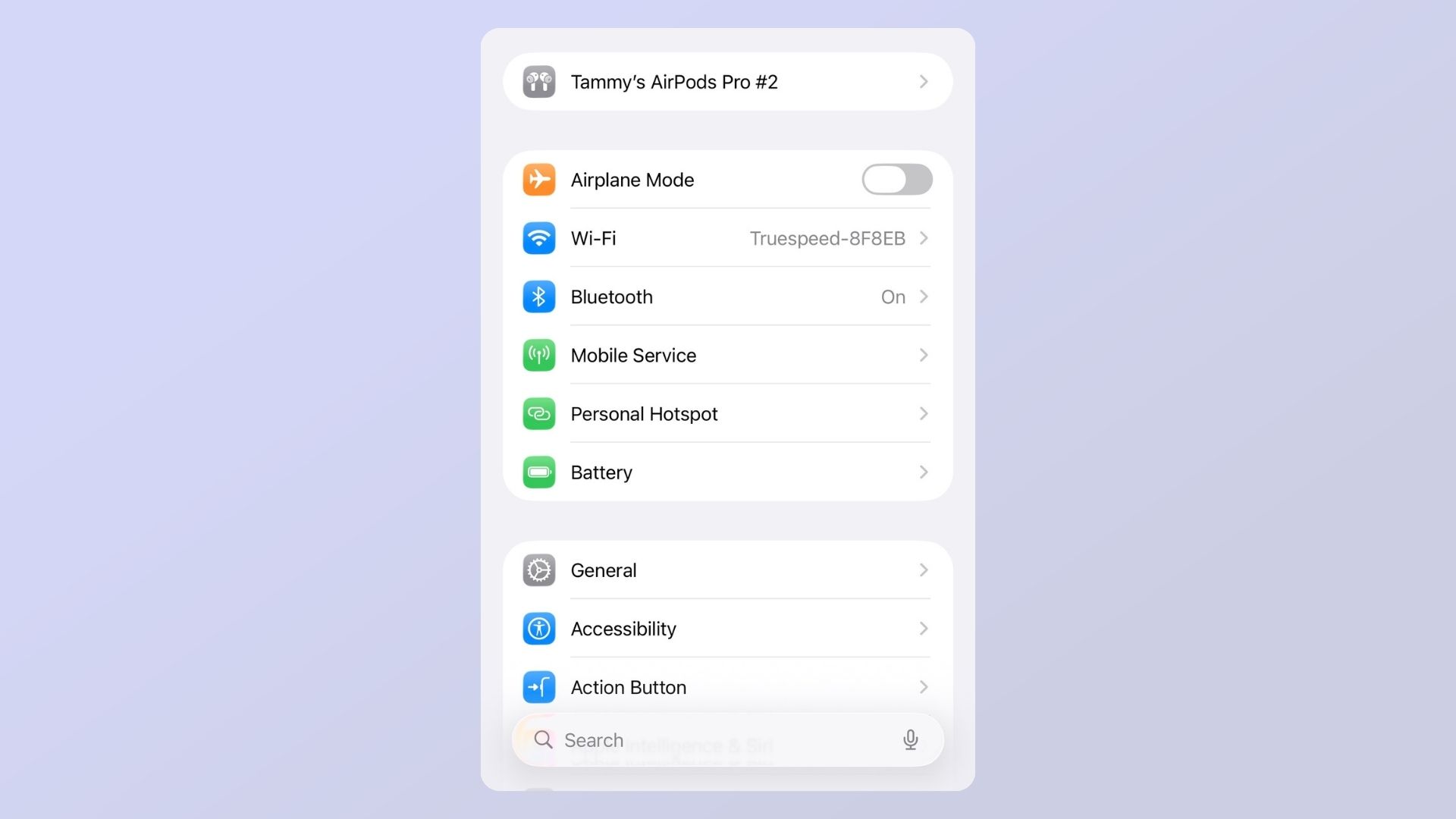
Open the Settings app on your iPhone. Scroll down until you see your AirPods listed in the settings menu. The listing will show your AirPods' custom name if you've renamed them, or the default name like "AirPods Pro."
Tap on your AirPods to open their settings.
3. Turn on Camera Remote
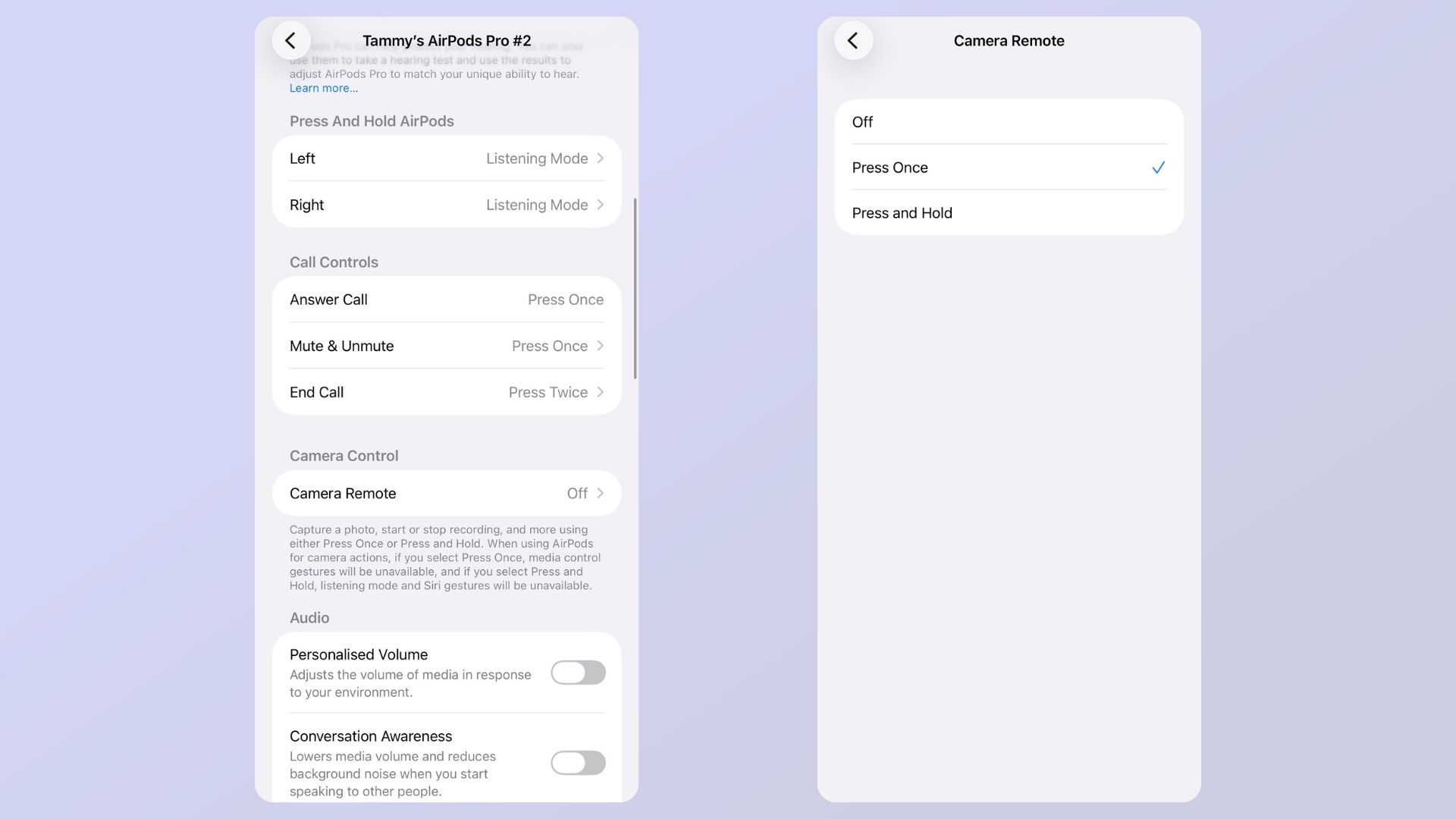
Find Camera Remote under the Camera Control section and tap it. Next, choose either Press Once or Press and Hold to determine how you'll trigger the camera.
Press Once takes a photo with a single press of the AirPod stem, while Press and Hold requires holding briefly. Pick whichever feels more comfortable.
4. Take photos with your AirPods
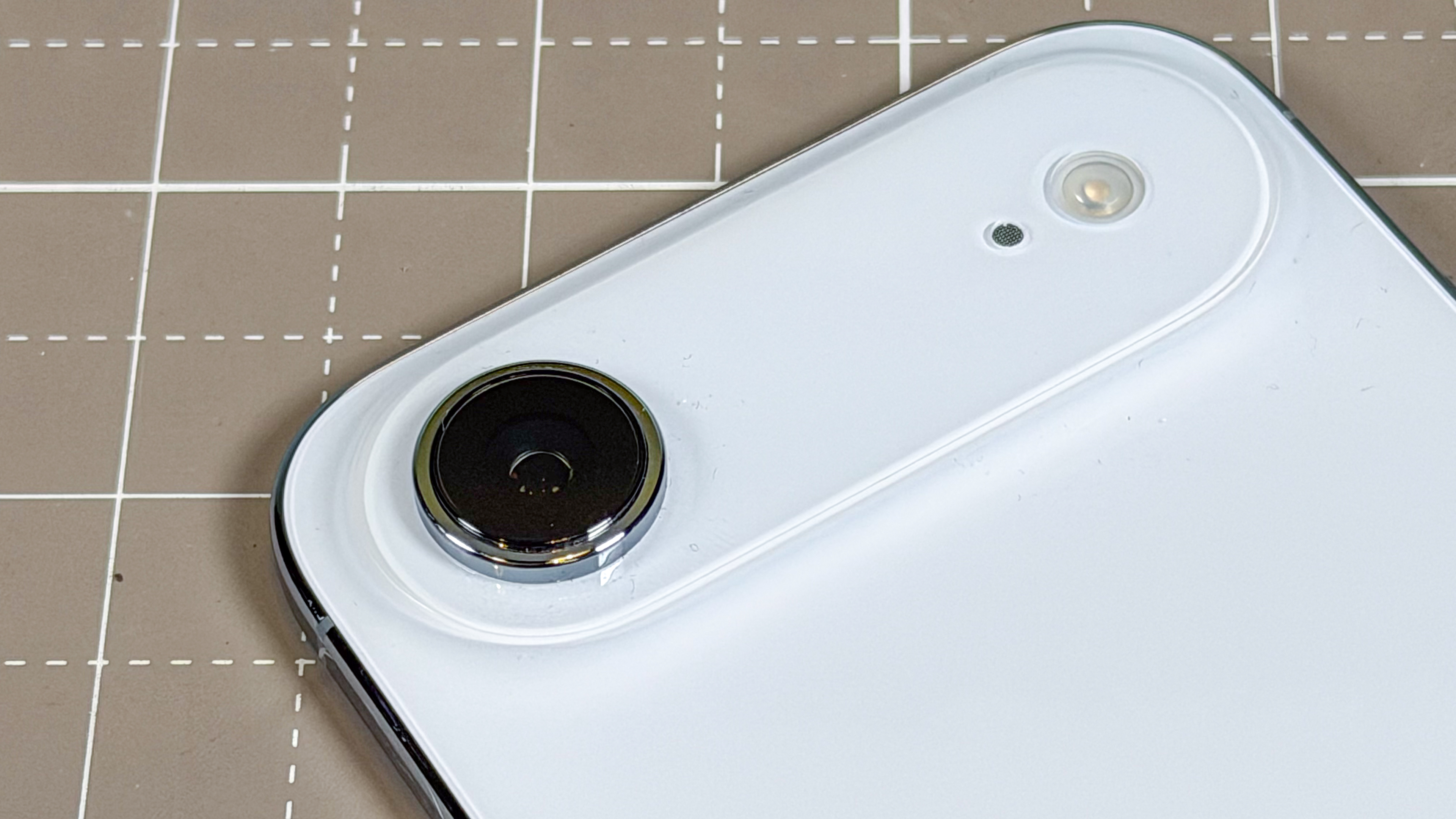
Open the Camera app and position your iPhone where you want it — on a surface, propped up, or held by someone else. Make sure at least one AirPod is in your ear. Simply press the AirPod stem using your chosen method.
5. Record videos with your AirPods
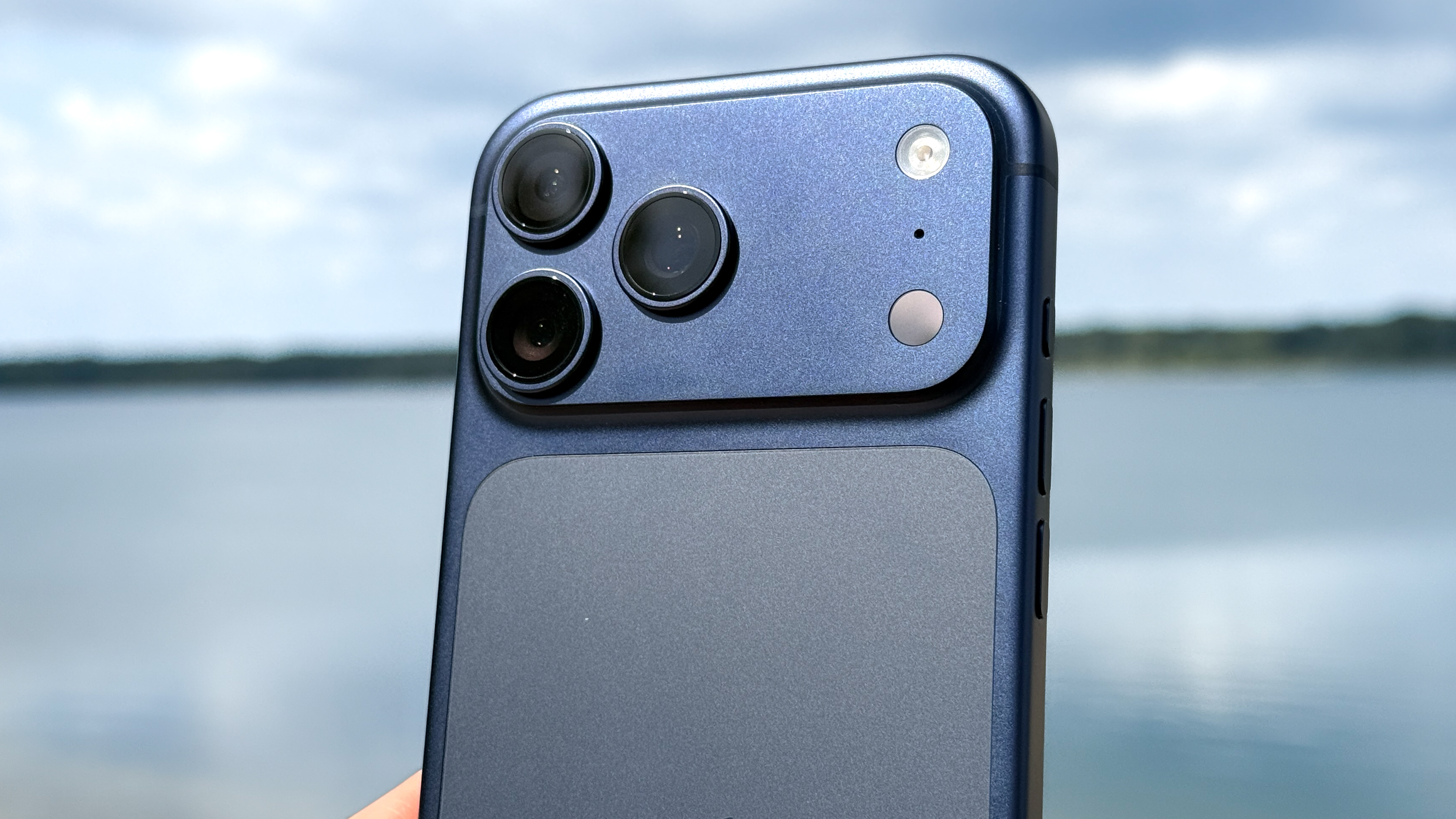
You can also take videos using Camera Remote. Switch the Camera app to Video mode (or Cinematic, Slo-Mo, etc.). Press your AirPod stem to start recording immediately.
To stop recording, you just press the stem again.
What to know about Camera Remote
The three-second countdown for photos is automatically enabled and can't be disabled. You can extend the countdown by tapping the grid icon in the top right of the Camera app, selecting Timer, and choosing 5 or 10 seconds.
Camera Remote works with all camera modes including Portrait, Panorama, and Time-Lapse, making it a versatile tool for different types of photography.

Follow Tom's Guide on Google News and add us as a preferred source to get our up-to-date news, analysis, and reviews in your feeds. Make sure to click the Follow button!