Get all your news in one place.
100’s of premium titles.
One app.
Start reading
Tom’s Guide
Tom’s Guide
Technology
Mike Prospero

How to turn on end-to-end encryption on a Ring Video Doorbell

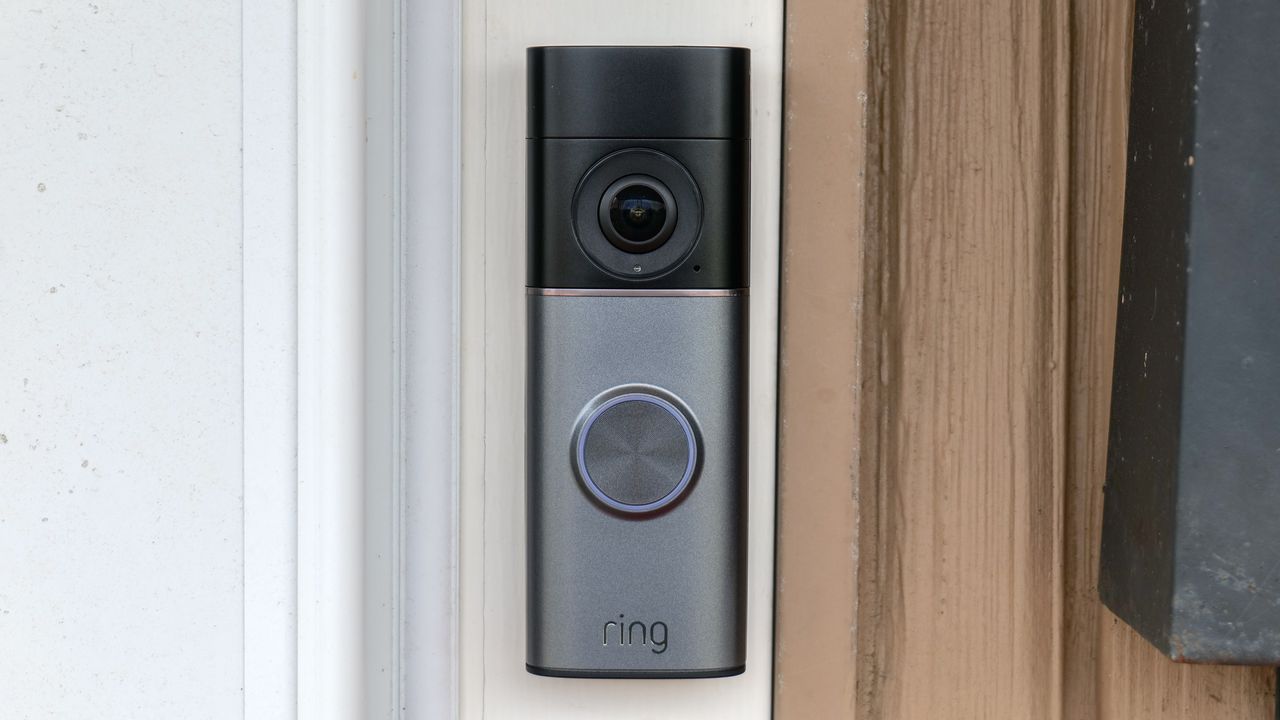
Ring Wired Doorbell Pro (3rd Gen) on door frame.

Ring makes some of the most popular and best video doorbells and home security cameras, but who can see all your video besides you?

While Ring states that it will generally only share video footage with law enforcement if the company is served with a valid legal order — it will make exceptions for "cases involving imminent danger of death or serious physical injury to any person" — some homeowners may feel even that represents too much of an invasion of privacy.

If you own a Ring camera and are uncomfortable with the company sharing your video, you don't have to go out and buy a new camera. You can turn on end-to-end encryption in the Ring app, which will prevent anyone but you from being able to access the footage.

Here's how to turn on end-to-end encryption in the Ring app, the products that support it, and some things to note if you do — namely, the features that you'll no longer be able to use.

Features disabled with end-to-end encryption

Before you turn on end-to-end encryption, there are two things to note. The first is that by turning on this feature, it deactivates a number of other features, such as the ability to view live video on a Fire TV or Alexa-enabled smart display. Here's a full list of the features you'll lose:

  • Shared User access to videos
  • Share Video Links
  • Video access on Ring.com
  • Event Timeline
  • Smart Video Search
  • 24/7 Video Recording
  • Live View from multiple mobile devices simultaneously
  • Watching Ring videos on Amazon Echo Show, Amazon Fire TV or Tablet, or third-party devices
  • Pre-Roll
  • Rich Notifications
  • Video Preview Alerts
  • Alexa Greetings
  • Quick Replies
  • Bird's Eye View
  • Virtual Security Guard
  • Snapshot Capture
  • Camera previews
  • Motion Verification
  • Video Verification
  • Person Detection

Ring devices that support end-to-end encryption

Since Ring launched end-to-end encryption, it has expanded the feature to almost all of its products. The only devices that will not work with E2EE are the Ring Video Doorbell (1st Gen), Ring Video Doorbell Wired, Ring Stick Up Cam (1st Gen), and Ring Spotlight Cam (1st Gen)

How to turn on end-to-end encryption on a Ring Video Doorbell

Open the Ring app

1. Open the Ring app on your smartphone, and select the menu button in the upper left corner.

Open Control Center

2. In the drop-down menu that appears, select Control Center. Here, you will see options for Account Management, Account Verification, Authorized Client Devices, Video Management, Public Safety, and more. 

Select Video Encryption

3. Scroll down and select Video Encryption

Select End-to-End Encryption

In the menu that appears, select End-to-End Encryption. On the next screen, select Enable End-to-End Encryption. This page will give you a warning of affected features.

Set up end-to-end encryption

Now, you'll have to set up end-to-end encryption, which will require you to stand near the devices you want to use this feature. Click the "Set Up End-to-End Encryption" button.

View and save your enrollment key

Next, the Ring app will generate an enrollment passphrase, which you'll need to enroll additional mobile devices, or regain access to your videos if your phone is lost. Copy the passphrase, click on the box next to "I saved the passphrase in a secure place," and press "Confirm and Continue"

Enroll your devices

Next, you'll have to specify which Ring devices you want to enroll, as well as which devices (such as your smartphone) will be able to see encrypted video. You'll see a list of the Ring devices you own that are eligible to use end-to-end encrypted video. Select the first device you want to enroll.

The next screen will show you the impacted features. To proceed, press Agree and Continue.

Move close to the device you want to enroll

Next, you'll have to move close to the device you want to enroll. When you're there, press the button in the app that says "I am near the device."

Connect to your device

Your doorbell or camera will enter setup mode, and temporarily create its own Wi-Fi network. A light on the device should let you know it's in setup mode; follow the prompts in the app to connect to the device's Wi-Fi network.

Add more devices

After a handful of seconds, you should be returned to the screen listing all of your available Ring devices. Follow the steps above to add the rest to end-to-end encryption, or press "I'm Done" to leave.

If you decide you no longer want end-to-end video encryption, you can un-enroll your devices in the Ring app. However, you will lose access to any videos that were recorded while end-to-end encryption was activated.

Now your Ring doorbell is encrypted. If you'd like more security tips for your tech, get started by learning how to encrypt files on Mac and how to password protect folders on Windows. If you want to learn more about what you can do with your smart home tech, kick off by learning about 9 things you never knew you could do with smart lights.

Sign up to read this article
Read news from 100’s of titles, curated specifically for you.
Already a member? Sign in here
Related Stories
Top stories on inkl right now
One subscription that gives you access to news from hundreds of sites
Already a member? Sign in here
Our Picks
Fourteen days free
Download the app
One app. One membership.
100+ trusted global sources.