
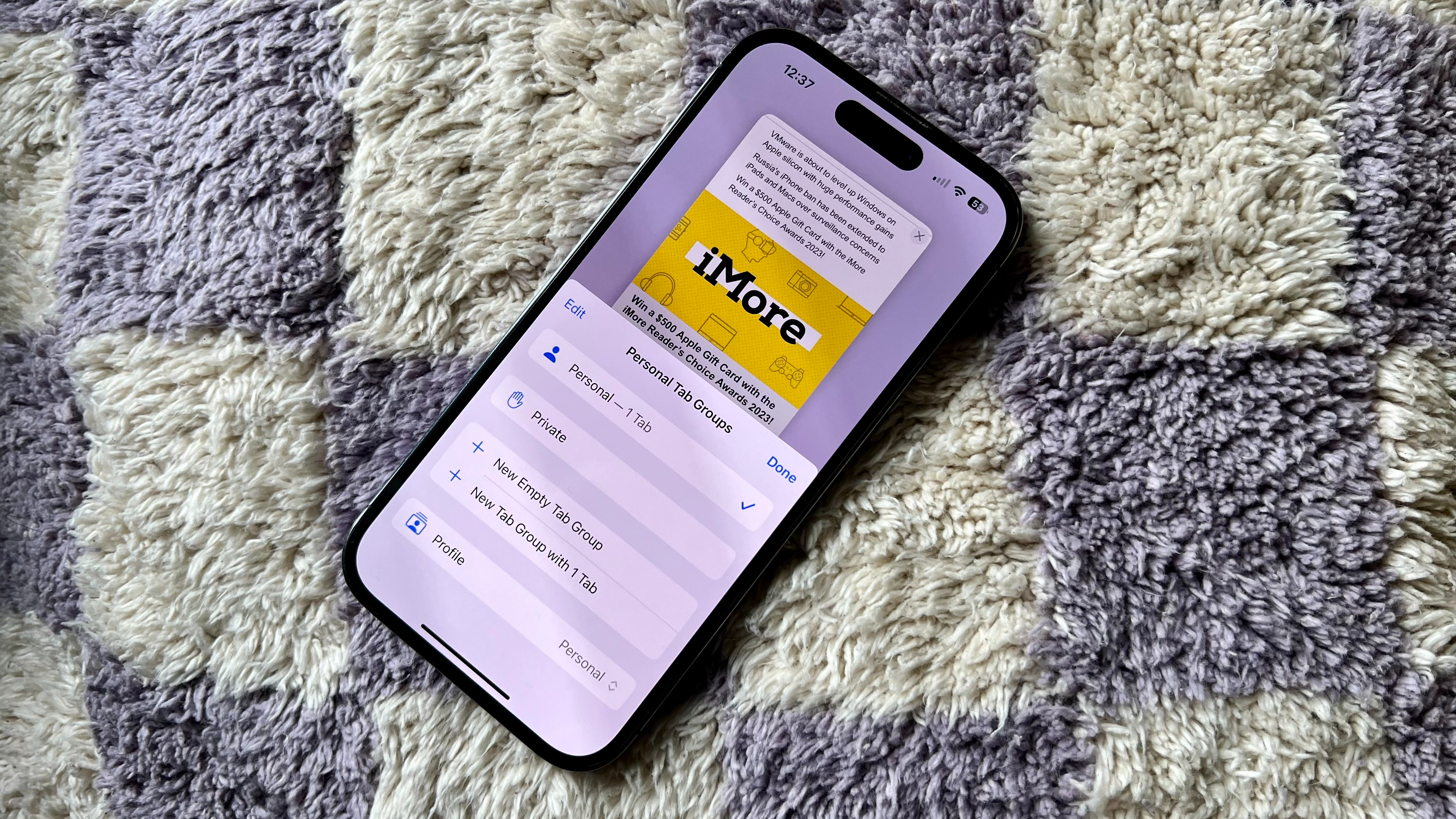
Safari Profiles is a major new addition to Safari on your iPhone in iOS 17. The new Safari organizing tool allows you to have separate groups of tabs and bookmarks within the Safari app, making for a very easy way to split work and personal Safari browsing in a similar way to Focus modes on the iPhone with iOS 15.
For whatever reason, Apple has opted to make Safari Profiles harder to find on iOS 17 than they should be - nestled into settings rather than part of the Safari app. Luckily, we’ve got you covered and can show you exactly how to set up Safari Profiles on iOS 17 without you having to go on an excursion to find them.

The best thing about Safari Profiles is that each profile you set up has separate history, cookies, extensions, Tab Groups, and favorites. They also sync between devices, and you can easily add profiles to Focus, so whenever you finish working at the end of the day, your work Safari Profile disappears until 9 am the next morning. Here’s how to set up Safari profiles on iOS 17 to take control of your browsing habits.
How to set up Safari Profiles on iOS 17
Beta software, also referred to as a preview, seed, or release candidate, is a version of the software still under development and not yet released to the public. This software is intended only for installation on development devices registered under your Apple Developer Program membership. Registered development devices can be upgraded to future beta releases and the public version of the software. Attempting to install beta software in an unauthorized manner violates Apple policy and could render your device unusable and necessitate an out-of-warranty repair. Make sure to back up your devices before installing beta software and install only on devices and systems you’re prepared to erase if necessary.
iOS 17 is only available as a public beta at the time of writing. Here’s how to install it.
There are a few steps to setting up Safari Profiles with an initial setup in Settings followed by fine tweaking in Safari. To get started, here’s how to create a Safari Profile in Settings.
- Open Settings and select Safari
- Under Profiles, tap New Profile
- Pick a name, icon, and color for the Profile
- Tap Done

When setting up your Safari Profile, you can also set which Favorites the profile will use and the opening page when you open a new tab. Now that you have created a profile, it’s time to head to Safari and set it up.
- Open Safari
- Tap the Tabs icon in the bottom right
- You’ll see a Profile icon in the center of your bottom bar
- Tap the Profile icon and choose between your Safari Profiles

You can completely split your Safari browsing between multiple profiles and differentiate between work and personal use easier than ever before.
Use Safari Profiles on iOS 17 to get on top of your life
Safari Profiles are the next step in taking control of your work-life balance on iOS. After using the feature for over a month now, Safari Profiles feels like the next step in taking control and separating work from pleasure.
Like Focus, you’ll need to play around with the feature to find a setup that works for you, but once you do, you’ll wonder how you ever lived without them. I’ve been using Safari Profiles for my different hobbies. For example, I do a lot of fantasy football, and over the summer, my Safari can be overflowing with football transfer news. Now, thanks to Safari Profiles, I have a specific place for all sports-related browsing, and I love it.
iOS 17 is currently in public beta, and you can install it today to take advantage of Contact Posters and StandBy mode. If, however, you want to wait for a more stable release, the official version will launch later this year alongside the iPhone 15.