
The desire to disconnect is growing, but finding the right balance can be difficult. Parents face a classic modern dilemma when trying to give their children a safe way to stay in touch without handing over a dopamine-fueled playground.
At the same time, many adults (myself included) are desperately seeking an escape from screen addiction but find that traditional "dumb phones" lack essential modern tools like reliable GPS tracking or banking apps.
You might think the only solution is buying a specialized device or paying for a third-party app. It turns out, the perfect distraction-free solution is probably sitting in your desk drawer right now with an older iPhone.
The eco-system advantage
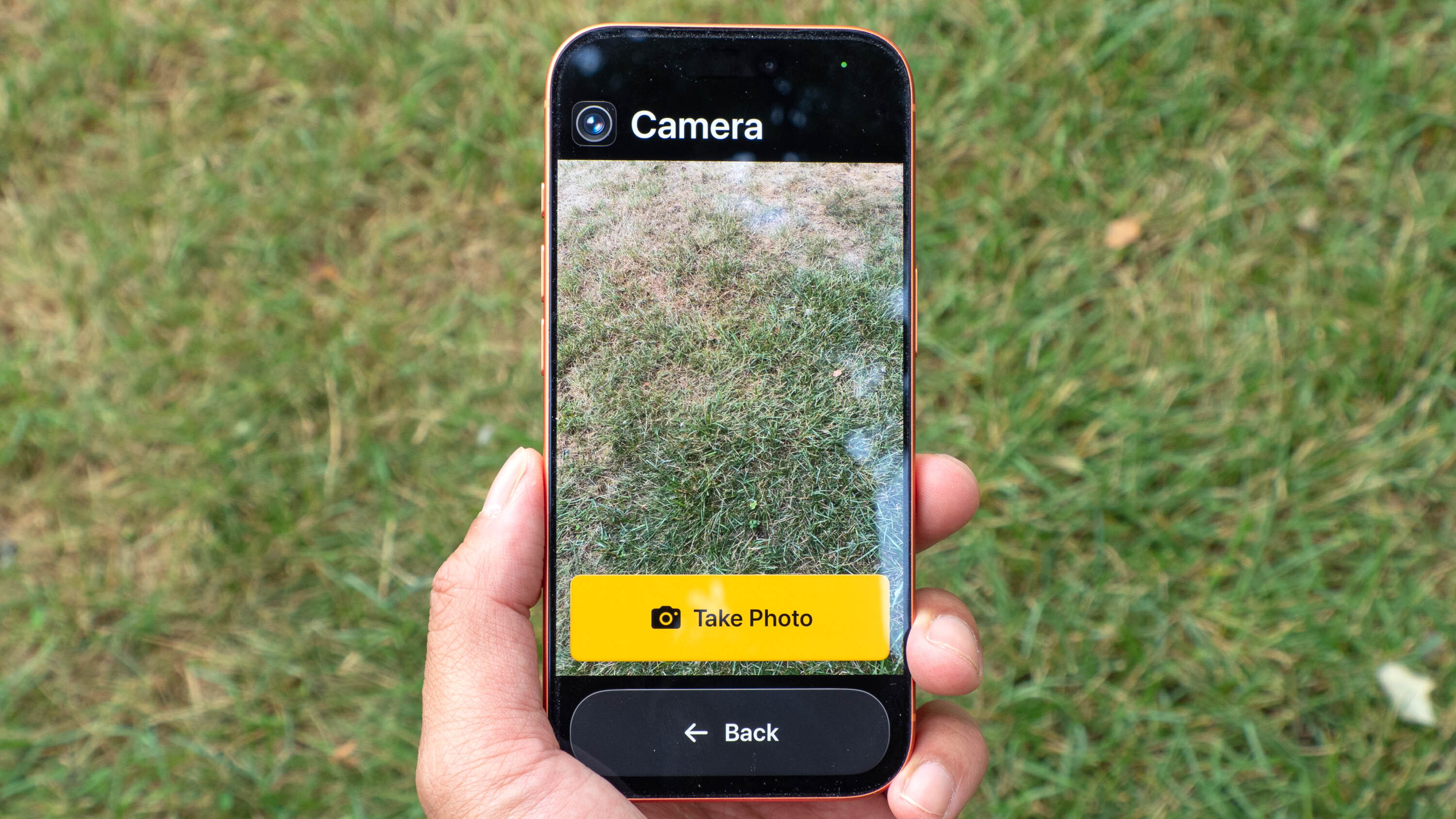
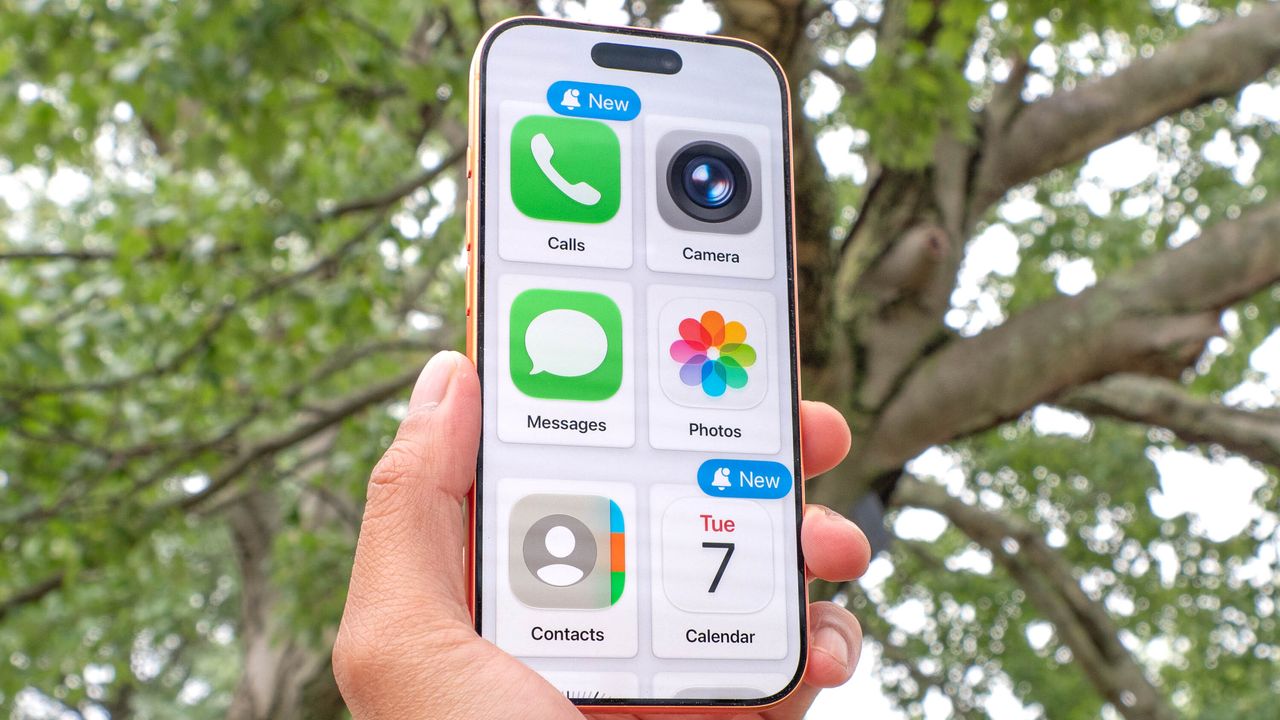
Apple actually built the ultimate distraction-free phone inside iOS 17, they just didn't advertise it. A feature called Assistive Access, originally designed as an accessibility tool for cognitive disabilities, completely strips away the complex ecosystem of iOS and replaces it with massive, simplified blocks.
The real genius here is how it handles temptation and security. In standard iOS, it is entirely too easy to bypass your own app limits or click web links sent via text message. Under this mode, web links are rendered completely dead text, entirely shutting down that internet loophole.
How to enable Assistive Access
To get started, you just need an old iPhone running iOS 17 or later, which means an iPhone XR or newer will work perfectly.
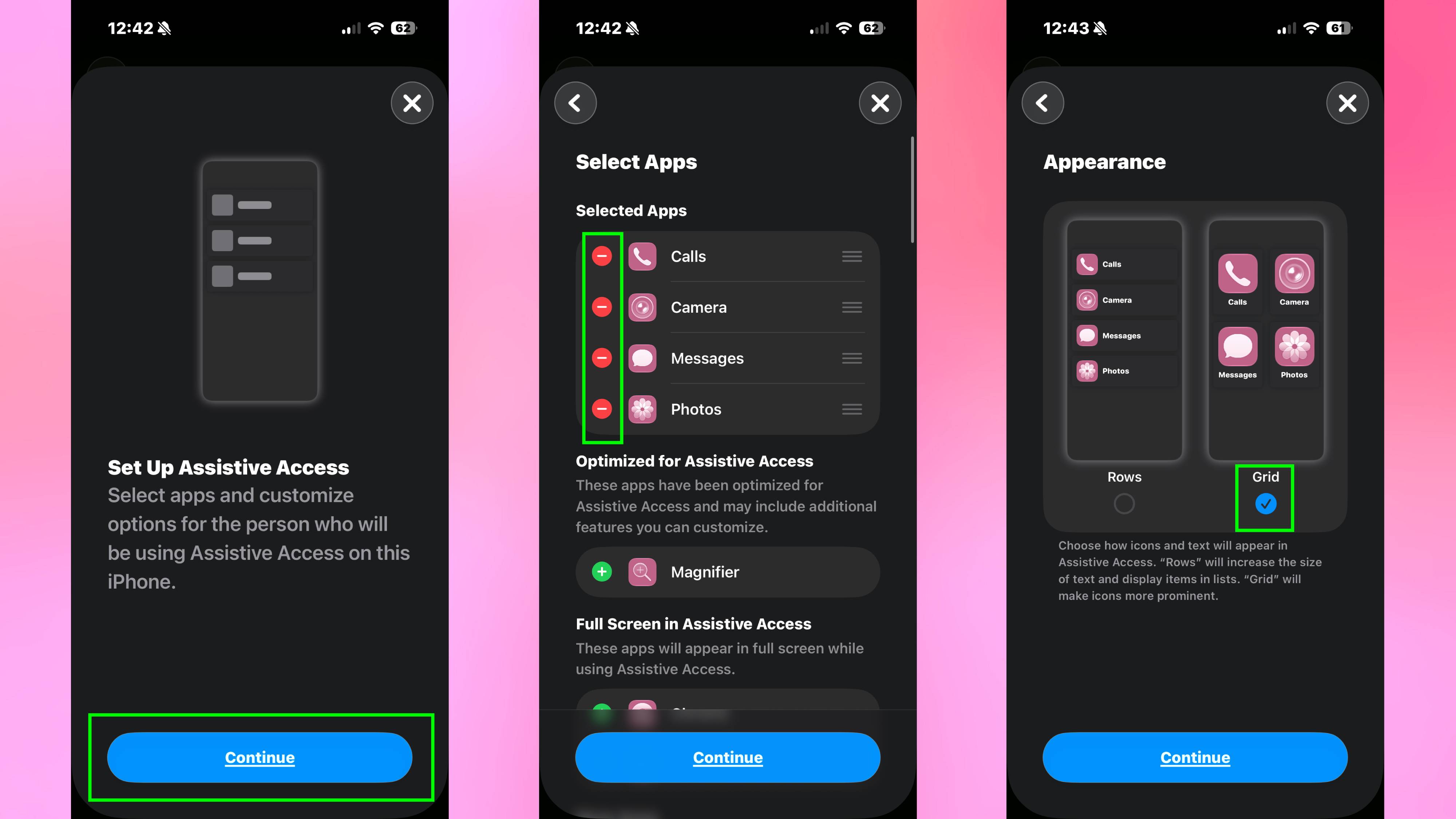
First, open the Settings app. Next, scroll down and tap Accessibility. From there, tap Assistive Access. You will then tap Set Up Assistive Access and hit Continue.
Now you need to choose your apps, so tap the green plus icon next to the apps you want to allow. I recommend starting with a basic toolkit of Calls, Messages, Maps, and Camera.
You'll then be asked to choose your preferred appearance. If you want the large, distraction-free tiles, select Grid.
Finally, set a unique four-digit passcode that locks the phone securely into this mode, preventing a child (or your own impulsive thumbs) from exiting back into regular iOS.