
Get all your news in one place.
100’s of premium titles.
One app.
Start reading
What Hi-Fi?
What Hi-Fi?
Technology
Andy Madden

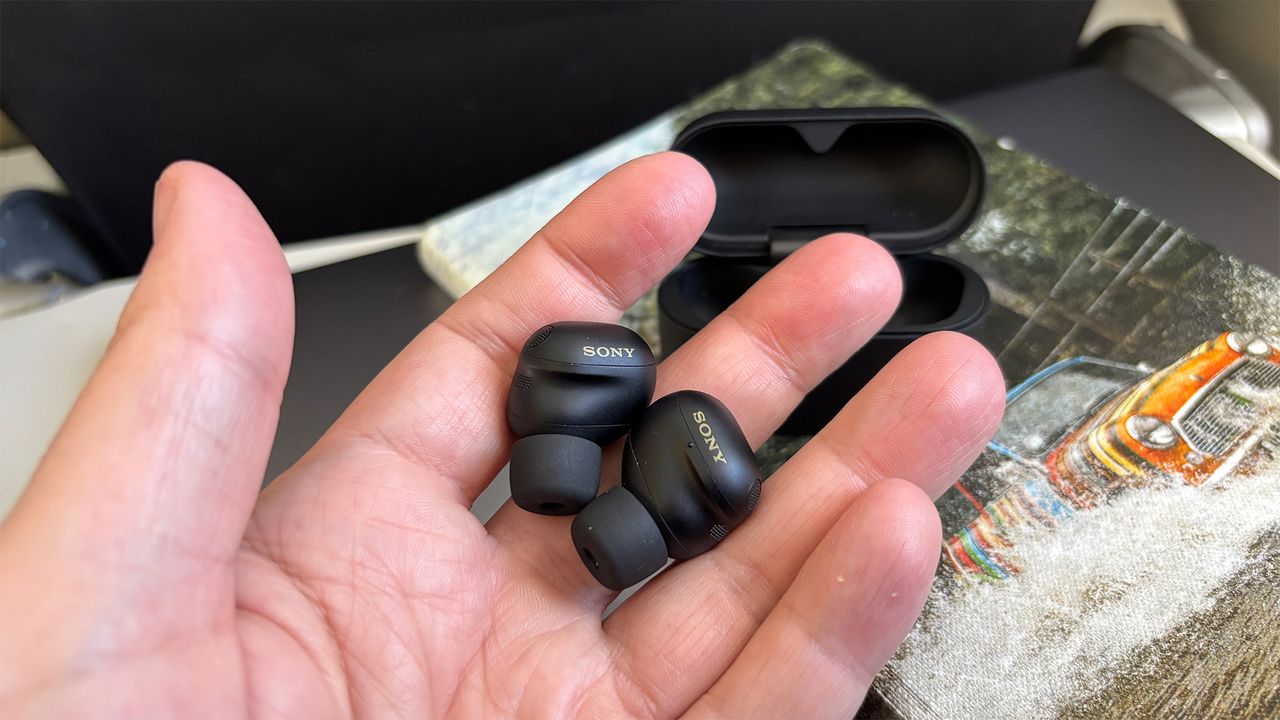
6 settings you should immediately tackle on the Sony WF-1000XM6 wireless earbuds

Sony WF-1000XM6 wireless earbuds.

When I buy some new audio or video tech, I’m not afraid to admit I quite like to trawl through an instruction manual to see what nuggets of information I can find.

You never know, there might be something in there amongst the 20 different language versions that could make my experience that little bit better or run that little bit smoother.

There might even be a tip or trick that can actually improve the performance.

Now, Sony’s WF-1000XM6 wireless earbuds don’t come with a manual. All the information is accessed through its Sound Connect companion app, where product information and features are all at your fingertips.

I’ve spent a couple of weeks getting to know Sony’s new flagship earbuds (check out our verdict in our Sony WF-1000XM6 review), playing with their settings, and here are the ones I’d recommend you make a beeline for when/if you buy a pair…

Bluetooth Connection Quality

(Image credit: What Hi-Fi?)

Here you’re given the option to choose between ‘prioritise sound quality’ or ‘prioritise stable connection’. Some wireless earbuds don’t perform well when you wear them in built-up areas or crowded locations, such as a train or subway station. This can manifest itself in dropouts and a broken wireless signal, which can play havoc when you’re trying to listen to music.

Out of the box, the Sonys prioritise stability; but I’m a stickler for sound quality. Thankfully, even after I made the change to this setting, the WF-1000XM6 haven’t let me down, so do consider making the switch.

  • Device Settings > Connection > Bluetooth Connection Quality

DSEE Extreme

Because I want the Sonys sounding their best, it’s not often I listen to low-quality audio files. All my Amazon Music playlists are downloaded onto my iPhone in the highest quality possible.

But, just in case something I play from another source is compromised, Sony’s DSEE Extreme engine does a good job of trying to boost the quality – you can actually hear an uplift in clarity and expression. I recommend having this set to ‘Auto’ so it’s ready to jump in should it be required.

  • Device Settings > Sound Quality/Volume

Bluetooth Multipoint

(Image credit: WF-1000XM6)

I’m not sure where I’d be without Bluetooth Multipoint. Hence, it’s the first setting I try to track down with any pair of wireless earbuds I’m testing. Being able to have two sources paired to the Sonys at the same time means I’m confident I can switch from music streamed through my laptop to a call on my mobile seamlessly.

It’s not often I’ve had any major problems using this feature on wireless earbuds, and with the WF-1000XM6, I am pleased to report it’s a smooth and painless process. You can also add additional devices to the earbuds through the same menu.

  • Device Settings > Connection > Connect to 2 devices simultaneously

Controls

One of the best things about the Sonys is that there are plenty of customisation options for controlling the buds. Using the menus, you can come up with pretty much any combination of taps and presses you want.

By default, you change volume on the buds by repeatedly tapping on the left or right earbuds. Now I’m not a fan of tapping on something that’s already wedged in my ear canal, so I switch to ‘continue pressing’, where you press and hold a finger on an earbud to turn the volume down (left) or turn it up (right).

  • Device Settings > Controls > Change the touch sensor function

Auto Power Save

(Image credit: What Hi-Fi?)

If you want to try to prolong battery life when you’re on the move, there’s a neat feature tucked away in the power menu on the app. Once enabled, ‘Auto Power Save’ will kick in when the battery of the headphones drops to 20% or below.

The feature changes the settings for a number of features on the earbuds: Equaliser, DSEE Extreme, Speak-to-Chat, Voice Control/Voice Assistant. None of these I consider really vital, however, especially when your priority is to squeeze a bit more listening time out of the earbuds.

  • Device Settings > Power/Battery > Auto Power Save

Eartip fit test

(Image credit: What Hi-Fi?)

The Sony WF-1000XM6 app includes not one but two ways of checking the fit and seal from the eartips. The first check involves taking a picture of your left and right ear, which you can then compare with Sony’s preferred positioning. It works fine, but the test I think you’ll find more useful is the one which helps you pick the right eartip size.

This test measures the airtightness of your tips. It sends an audio signal into your ears and, works out if there is any sound leakage. I have been testing earbuds long enough to tell if I don’t have an equally strong seal in both ears, but the feature is still worth using, even if it’s just to confirm your suspicions. Then you can try the other tip sizes when necessary.

  • Device Settings > Wearing > Check wearing condition and earbud tips

MORE:

Read our full Sony WF-1000xM6 review

Our pick of the best wireless earbuds

What is Bluetooth Multipoint? What devices support it?

Sign up to read this article
Read news from 100’s of titles, curated specifically for you.
Already a member? Sign in here
Related Stories
Top stories on inkl right now
One subscription that gives you access to news from hundreds of sites
Already a member? Sign in here
Our Picks
Fourteen days free
Download the app
One app. One membership.
100+ trusted global sources.