Get all your news in one place.
100’s of premium titles.
One app.
Start reading
Windows Central
Windows Central
Technology
Mauro Huculak

Windows 11’s January update is breaking PCs — here’s how to fix your boot issue

Windows 11 boot recovery.

On Windows 11, Microsoft has confirmed that the January 2026 Security Update (KB5074109, build 26200.7623) is triggering additional issues that can prevent some devices from booting properly.

Although the company has already released two out-of-band updates to address earlier problems, Microsoft now acknowledges that this particular failure remains unresolved, and neither emergency patch (KB5077744 and KB5078127) corrects the boot issue.

Reports indicate that affected systems crash during startup with an "UNMOUNTABLE_BOOT_VOLUME" stop error, displaying a Black Screen of Death message stating: "Your device ran into a problem and needs a restart."

Microsoft says the issue affects at least Windows 11 versions 25H2 and 24H2 and confirms it is actively working on fixes and potential workarounds. In the meantime, impacted users must manually uninstall KB5074109 from the Windows Recovery Environment (WinRE), as you won't be able to reach the desktop to complete the process normally.

In this how-to guide, I'll outline two ways to uninstall the KB5074109 update from your computer.

How to uninstall the buggy January 2026 update from WinRE on Windows 11

If you must uninstall a quality update from the recovery environment, you can complete this task in at least two ways.

Option 1

To uninstall the latest buggy update using Automatic Repair to enter WinRE, use these steps:

  1. Power on the PC.
  2. After the Power-On Self-Test (POST), and you see the blue Windows logo (if applicable), press the power button again to shut down.
  3. Repeat steps 1 and 2 multiple times to trigger the Windows Recovery Environment (WinRE).
  4. Select your account (if applicable).
  5. Confirm the account password.
  6. Click the Continue button.
  7. Click the Advanced Startup button to continue.
  8. Click on Troubleshoot.
  9. Click on Advanced options.
  10. Click on Uninstall Updates.
(Image credit: Mauro Huculak)
  1. Click the "Uninstall latest quality update" option.
(Image credit: Mauro Huculak)
  1. Sign in using your administrator credentials (if applicable).
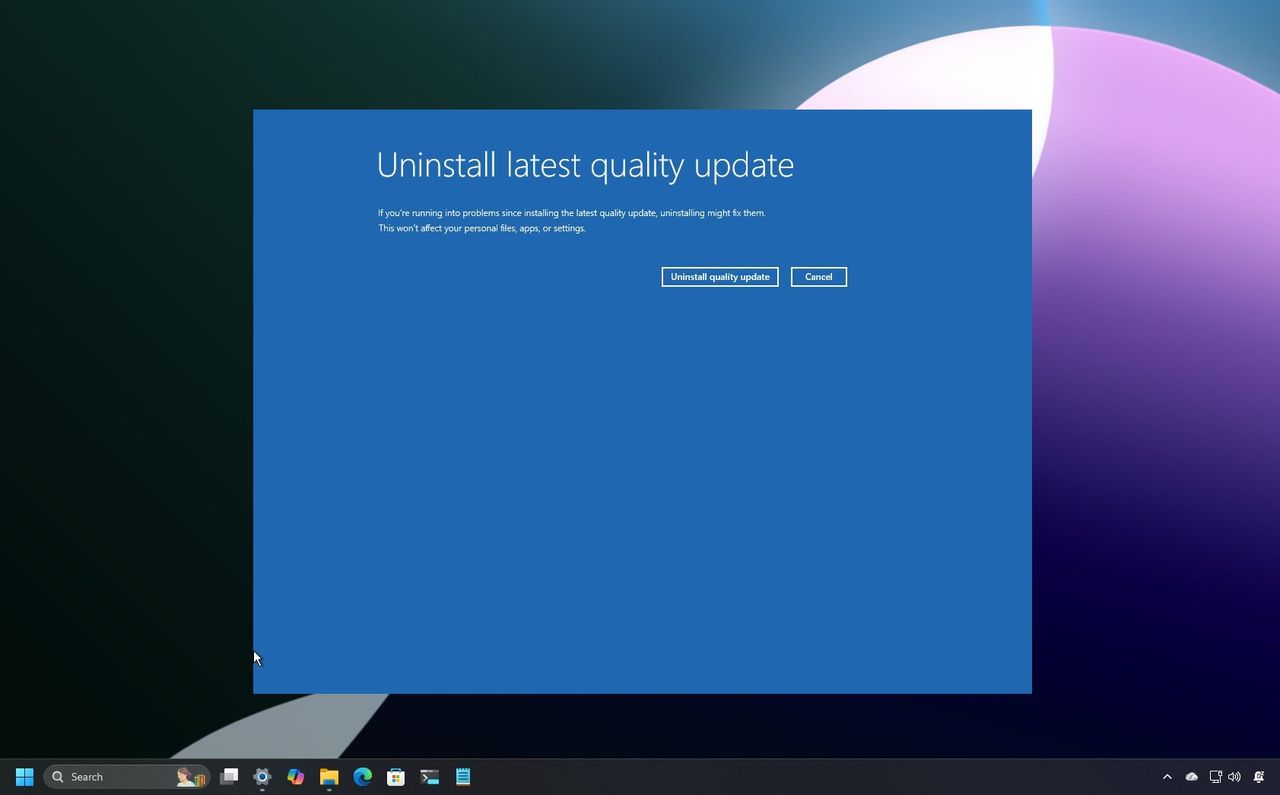
  2. Click the "Uninstall quality update" button.
(Image credit: Mauro Huculak)

If you cannot access the Windows Recovery Environment this way, then proceed with the steps below.

Option 2

Before you can proceed with these instructions, you will need to ensure your new computer can boot from the USB flash drive by checking the Unified Extensible Firmware Interface (UEFI) settings.

Since every computer is different, you'll need to check your device manufacturer's website for more specific steps.

Alternatively, nowadays devices may also offer a boot menu option that lets you choose which device to start the computer from. If your system supports this option, you can use it to launch Windows 11 Setup without changing the firmware. (One more time, the only way to know this is by checking your manufacturer's website for more specific steps.)

To uninstall the latest buggy update using a bootable media to enter WinRE, use these steps:

  1. Connect the Windows 11 USB flash drive to the device.
  2. Start the PC.
  3. Press any key to continue.
  4. Choose the installation language and format.
  5. Click the Next button.
(Image credit: Mauro Huculak)
  1. Choose the keyboard and input method.
  2. Click the Next button.
  3. Select the "Repair my PC" option.
(Image credit: Mauro Huculak)
  1. Click the Next button.
  2. Choose the keyboard language.
  3. Click on Troubleshoot.
  4. Click on Uninstall Updates.
(Image credit: Mauro Huculak)
  1. Click the "Uninstall latest quality update" option.
(Image credit: Mauro Huculak)
  1. Choose the target operating system. For example, "Windows 11."
  2. Sign in using your administrator credentials (if applicable).
  3. Click the "Uninstall quality update" button.
(Image credit: Mauro Huculak)

Once you complete the steps, the device will uninstall the most recent update, allowing you boot directly into the desktop.

If you also want to prevent the same update from installing again, immediately after uninstalling it, open Settings > Windows Update, and click the option to pause updates. You can also use these steps to disable Windows Update entirely.

More resources

For more helpful articles, coverage, and answers to common questions about Windows 10 and Windows 11, visit the following resources:

Follow Windows Central on Google News to keep our latest news, insights, and features at the top of your feeds!

Sign up to read this article
Read news from 100’s of titles, curated specifically for you.
Already a member? Sign in here
Related Stories
Top stories on inkl right now
One subscription that gives you access to news from hundreds of sites
Already a member? Sign in here
Our Picks
Fourteen days free
Download the app
One app. One membership.
100+ trusted global sources.