Get all your news in one place.
100’s of premium titles.
One app.
Start reading
Tom’s Guide
Tom’s Guide
Technology
David Crookes

This iOS 26 feature autofills payment cards on any site — here's how to set it up

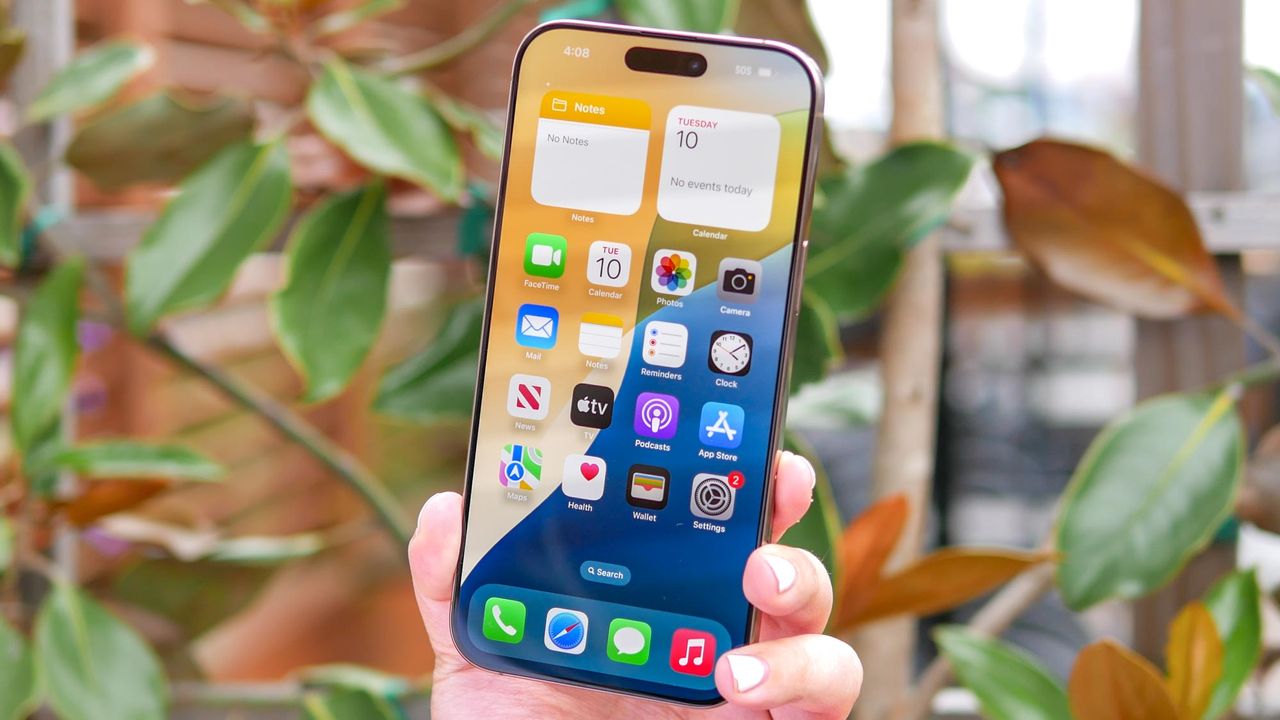
IPhone 16 Pro Max shown in hand.

Making payments online can be frustrating depending on the website or app you're using. While many accept secure payment systems like Apple Pay or PayPal for quick checkout, some still require you to manually enter payment card details — even when you don't have your card handy.

Sometimes this leads to abandoned purchases simply because typing out card numbers, expiration dates, and CVV codes feels like too much effort. But there's a solution if you have iOS 26 or later installed on your iPhone.

Apple Wallet includes an autofill feature that can then be easily accessed whenever you need to fill in a payment form with your card details. It takes less than a minute to do and because it requires Face ID or Touch ID to access the information, it’s also secure.

Here's how to set up and use payment card autofill in iOS 26.

1. Open Apple Wallet

First of all, open the Apple Wallet app on your iPhone (make sure you instal iOS 26 or later) and tap the three-dot icon in the top-right hand corner.

2. Select AutoFill

Now select AutoFill from the list of options. This may take you to an explanatory screen that explains how you can use AutoFill Cards with Apple Pay. Tap Continue if you see this.

3. Add a card

You will land on the AutoFill Cards screen. Here, simply tap Add Card.

4. Input the details

The screen will automatically allow you to use the camera to scan your card. Alternatively you can decide to enter your card information manually. Select Done when you’re finished.

Your card details are saved and they can now be used to autofill payment information.

5. Make a payment

Visit an online store whether it’s via an app or a website and make your way to the payment page. When you see a form field asking for financial information, you can tap the card field and select AutoFill.

6. Choose Credit Card

A small menu will appear. Tap Credit Card and, after authenticating access using Face ID or Touch ID, your card information will be shown on the screen. You can now select the card and the details will be entered into the field.


(Image credit: Future)

Follow Tom's Guide on Google News and add us as a preferred source to get our up-to-date news, analysis, and reviews in your feeds. Make sure to click the Follow button!


More from Tom's Guide

Sign up to read this article
Read news from 100’s of titles, curated specifically for you.
Already a member? Sign in here
Related Stories
Top stories on inkl right now
One subscription that gives you access to news from hundreds of sites
Already a member? Sign in here
Our Picks
Fourteen days free
Download the app
One app. One membership.
100+ trusted global sources.