Get all your news in one place.
100's of premium titles.
One app.
Start reading
Tom’s Guide
Tom’s Guide
Technology
Kaycee Hill

The 3 new iOS 27 AI tools that will instantly save your ruined photos

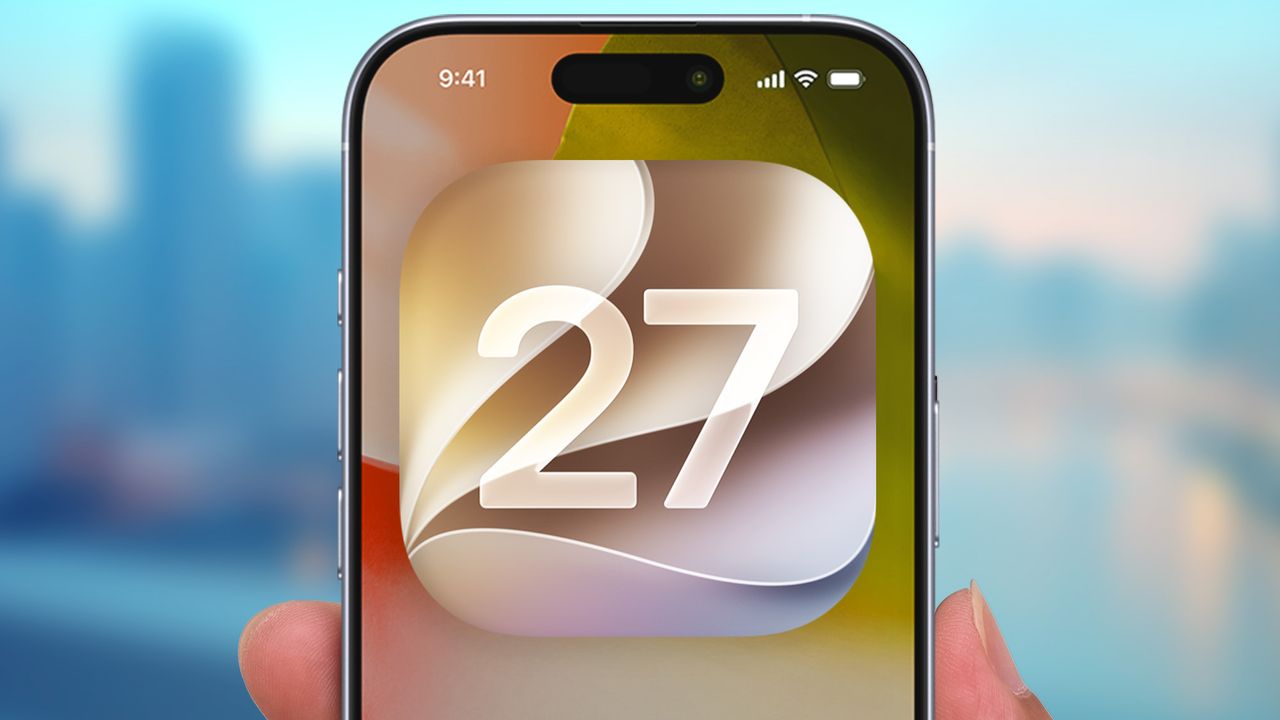
IOS 27 logo on iPhone.

I've taken thousands of photos, and, because I'm not a photographer, almost all of them have one small problem. The horizon tilts slightly left. My subject is too far away. Someone's elbow creeps into the frame at the last second. Normally I'd either accept the imperfect shot or spend time in a editing app trying to fix it. iOS 27 changes that entirely.

Apple's built three editing tools directly into Photos that solve these exact problems. Of course, as this is Apple Intelligence, it won't always fix everything perfectly — but they handle the most common photo mistakes remarkably well.

You'll need the iOS 27 beta running on your iPhone to access them right now. Here's what's new in your Photos app.

1. How to use Reframe to fix camera angles

Reframe solves the problem of imperfect framing that you can't fix by retaking the shot. You got the moment, but the angle was slightly off, or a sign crept into the top of a portrait.

Open your photo in the Photos app and enter editing mode. Next, tap tools and choose Reframe. Then touch and drag the image to shift the perspective as if you'd physically moved the camera before pressing the shutter.

A blur appears around the edges of the original image as you move it. When you find the perspective you prefer, tap Save. Apple's AI automatically generates new content to fill in those gaps, keeping the result consistent with the scene.

2. How to use Extend to add missing space

Extend lets you add space around image edges that wasn't there when you took the photo. This solves tight crops where you couldn't back up far enough. It also fixes tilted horizons by extending the top or bottom of a landscape shot, giving the AI more room to level things out.

Open the photo in editing mode and select Extend from the Apple Intelligence Tools. The interface lets you pinch and drag the edges of the image. Apple's AI understands what should fill those spaces and generates matching content.

You can adjust how much you extend on each side.

3. How to use the upgraded Clean Up tool

Cleanup removes unwanted objects from photos. The iOS 27 version handles complex backgrounds far better than the previous version. A photobomber's elbow. A trash can in the background. A distraction you didn't notice until you reviewed the photo later. The upgraded Cleanup tool tackles these scenarios more accurately.

Select Clean Up from the Apple Intelligence Tools in editing mode. Tap the object you want to remove. The AI analyzes the background and surrounding content, then fills in the space with contextually appropriate detail.

For simple backgrounds, Cleanup works instantly. Complex scenes with texture, shadows, and multiple elements now process more accurately thanks to improved AI recognition.

More from Tom's Guide

Sign up to read this article
Read news from 100's of titles, curated specifically for you.
Already a member? Sign in here
Related Stories
Top stories on inkl right now
One subscription that gives you access to news from hundreds of sites
Already a member? Sign in here
Our Picks
Fourteen days free
Download the app
One app. One membership.
100+ trusted global sources.