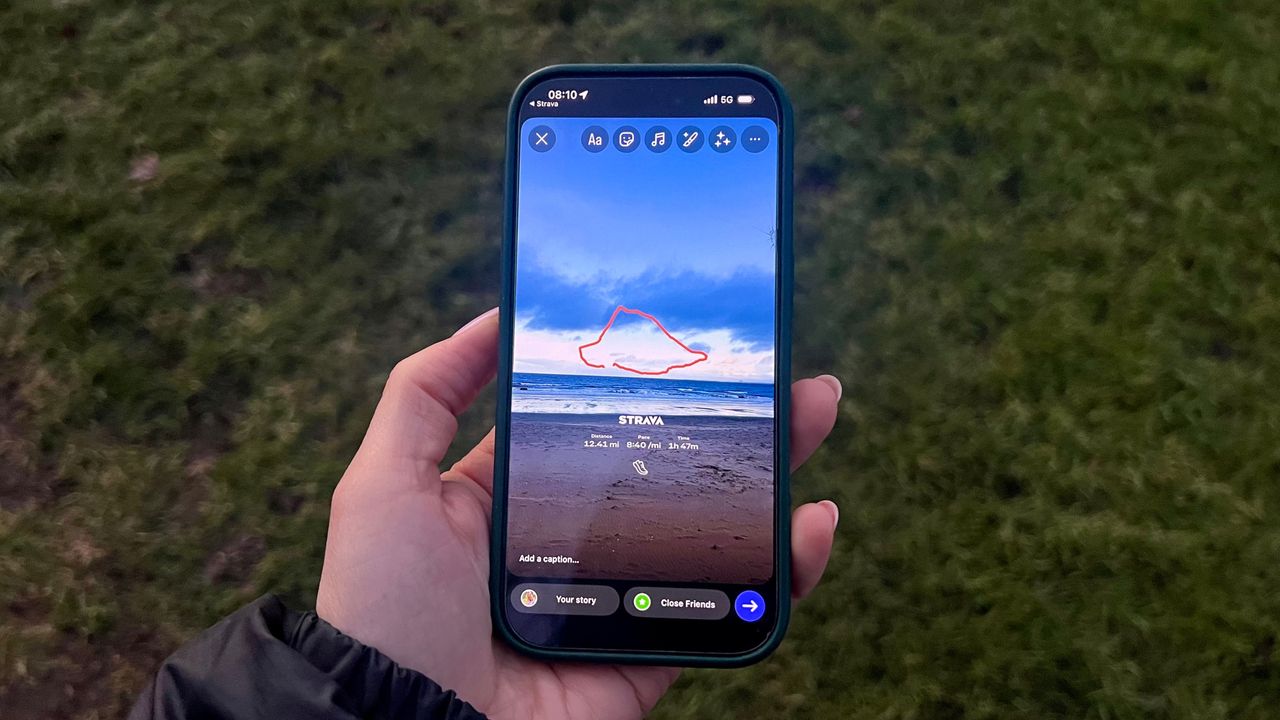
Would you run a marathon if you couldn’t post it on Instagram? If your answer is no, you’re not alone. Luckily, Strava has a slightly hidden built-in tool that makes it easy to share your workout stats on Instagram stories or videos while keeping your feed polished.
Strava, one of the best running apps on our roster, rolled out Sticker Stats alongside a bunch of other updates last April, but unless you’re tuned into the world of content creation, it’s easy to miss. With this feature, you no longer need to screenshot your workouts or rely on a third-party app to overlay your stats on Instagram stories, videos, or posts. Keep reading to find out how to try it out with your own stats.
How to share your Strava stats on Instagram
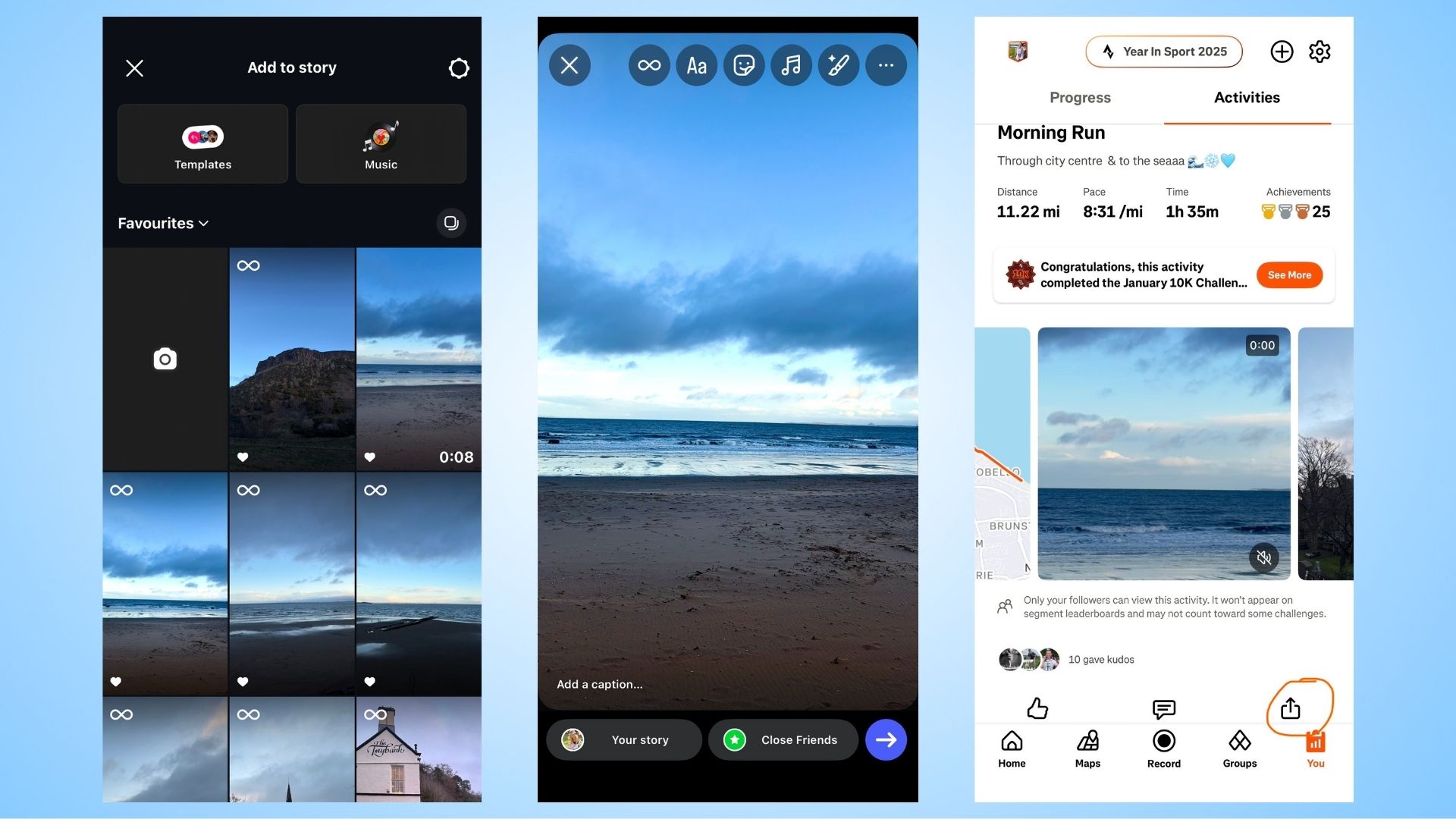
- First, I like to pick a photo from my camera roll that I'd like the Strava Stats Sticker to overlay. I get this ready in the Instagram app to post as a story, but don't press post.
- Next, open up the Strava app on your phone and go to your activities.
- Scroll to the activity you want to share and select the share icon.
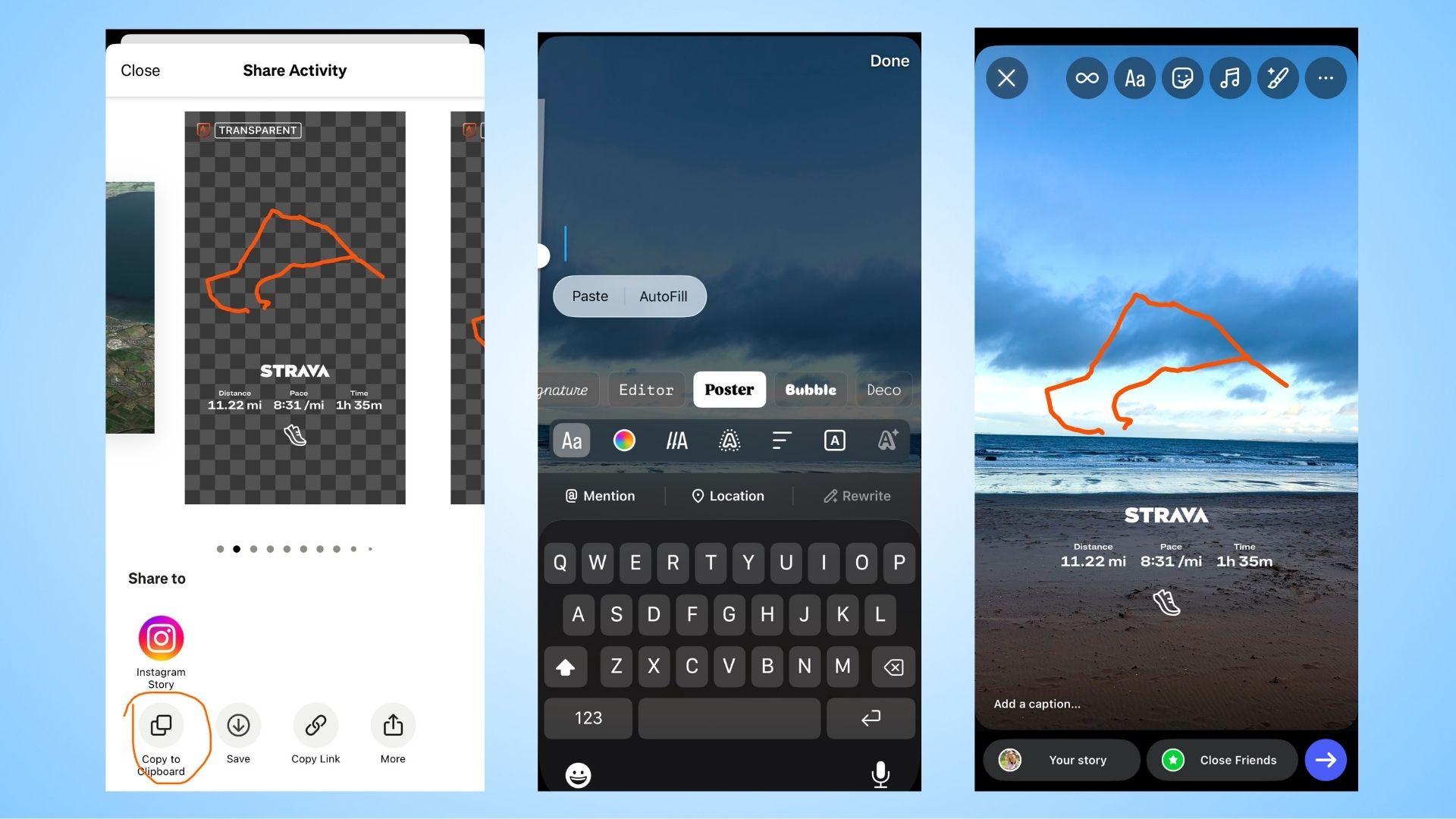
- You can then scroll through different transparent displays of your stats. Pick one and then select 'Copy to Clipboard'. You can also choose to share directly to Instagram Story, but this way doesn't let you move the stats around on your image of choice.
- Now head back to Instagram where you left your chosen picture on your Instagram Story.
- Now, as if you are about to add some text to the Story, hold down and select paste.
- Your Strava stats should appear over your photo, and you can now move them around however you wish them to appear over the image.
- Press post and enjoy your work of art.
There are a few different ways to add your Strava stats to an Instagram story, and you may find another method works better for you. This is just the way I’ve found works best as someone who likes to play around with positioning stickers on my story. If you’re not a perfectionist or don’t care too much about placement, you can simply click “Share to Instagram Story” from Strava and then add the image as a sticker. Just note that in this case, you’ll only be able to adjust the size and location of the image, not the Strava stats themselves.
Have a play around and don’t forget to tag us on Instagram with any of your Strava stat creations — we’d love to see them!

Follow Tom's Guide on Google News and add us as a preferred source to get our up-to-date news, analysis, and reviews in your feeds.