
Hi, I'm Kaycee. Welcome to Hidden iPhone Tips, a weekly column where I dig into the best iOS features Apple doesn't tell you about.
I was scrolling through Photos recently deleting blurry shots from a family gathering when I noticed something. One photo I'd marked for deletion (a group shot where half the people had their eyes closed) had a little "Live" indicator. I tapped it out of curiosity and suddenly saw a filmstrip of alternate frames, including one where everyone looked perfect.
That discovery led me down a rabbit hole of camera features I'd completely overlooked despite using my iPhone camera as my primary shooter. Turns out my camera had been doing helpful things in the background, and I'd just never bothered to explore beyond the basic shutter button.
Here are three features that are actually game-changers.
3 hidden iPhone camera features
1. Record videos directly from Photo mode
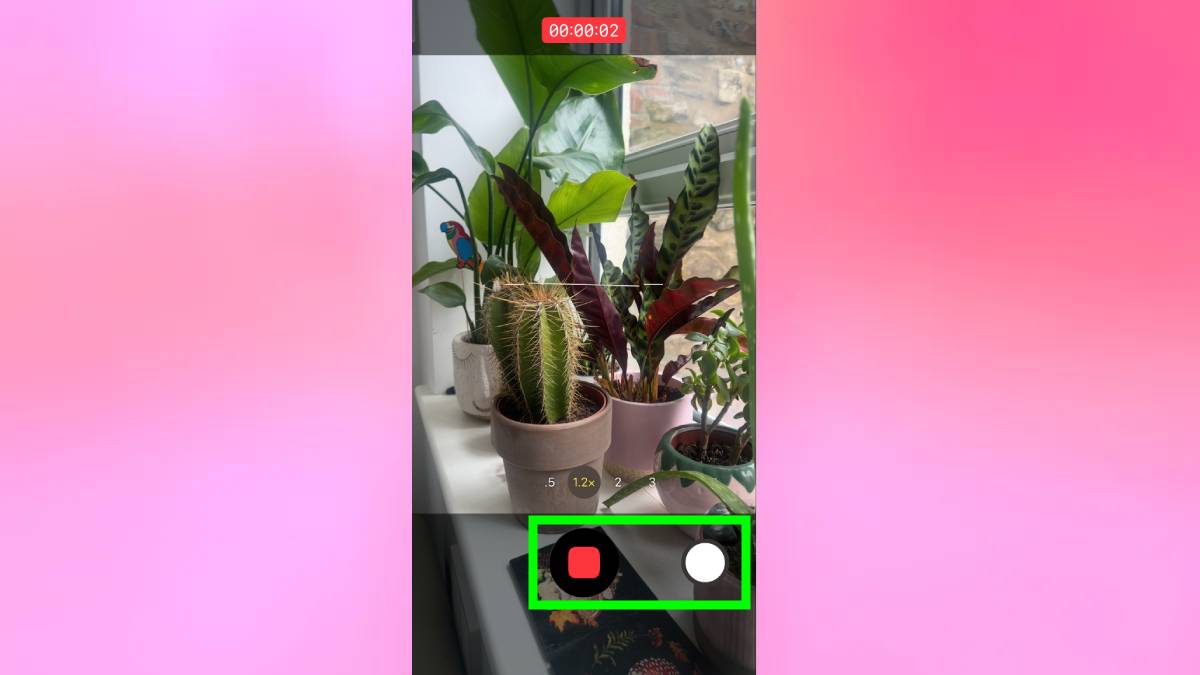
I used to fumble switching between Photo and Video modes constantly. I'd frame a shot for a photo, realize I wanted video instead, lift my finger off the shutter button, swipe to Video mode, then start recording. By then, the moment I wanted to capture was often gone.
You can record video directly from Photo mode without switching. Long-press the shutter button to start recording, then release to stop. For longer videos, long-press and swipe right to lock the recording so you don't have to keep your finger on the button.
While recording this way, you can still snap photos by tapping the smaller white button that appears on the right side of the screen. This lets you capture both video and still images of the same moment without stopping the recording or switching modes.
2. Scan and use text directly from the camera
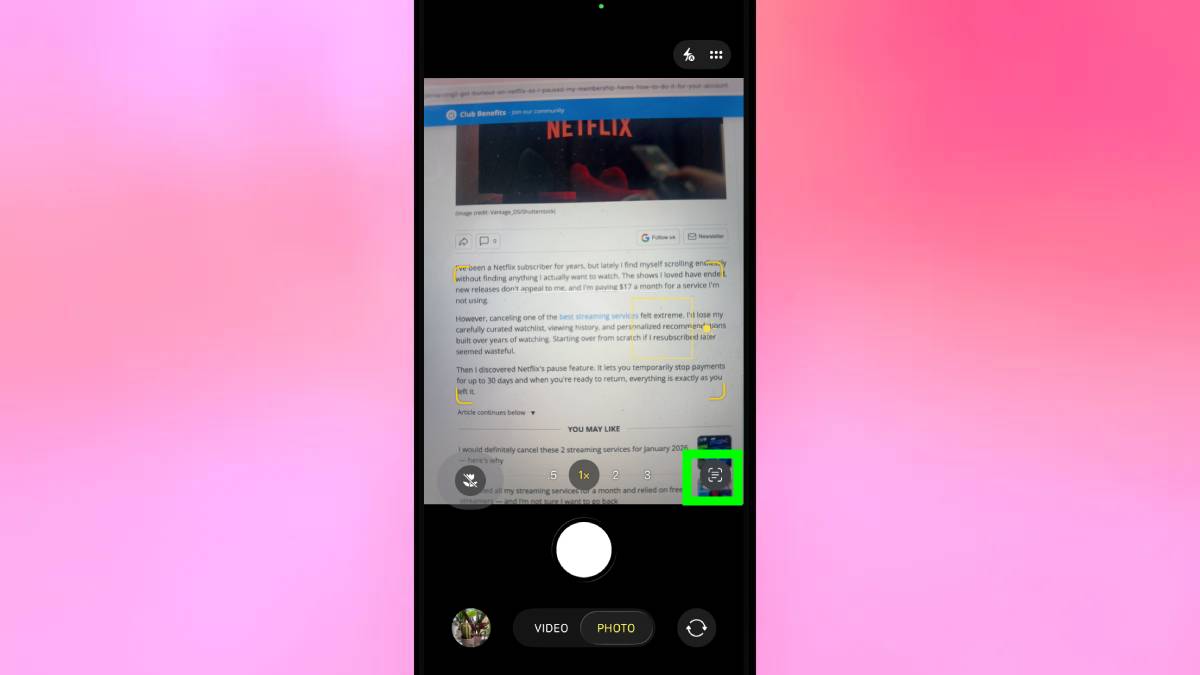
Open the Camera app in Photo mode and point your phone at any text. Make sure the entire text you want to scan fits in the frame. After a moment, your phone will detect the text and a Live Text icon will appear in the bottom-right corner of the screen.
Tap the Live Text icon (it looks like a small square with lines of text). Depending on what you scanned, different options will appear. For phone numbers, you can call directly, send a message, add the number to contacts, or copy it. For URLs, you can tap to open the link in your browser, share it, or copy it. For regular text, you can copy it, translate it, look up definitions, or search the web.
This feature is particularly useful for capturing information quickly without needing to pull out a pen or type into Notes.
3. Extract perfect still frames from Live Photos
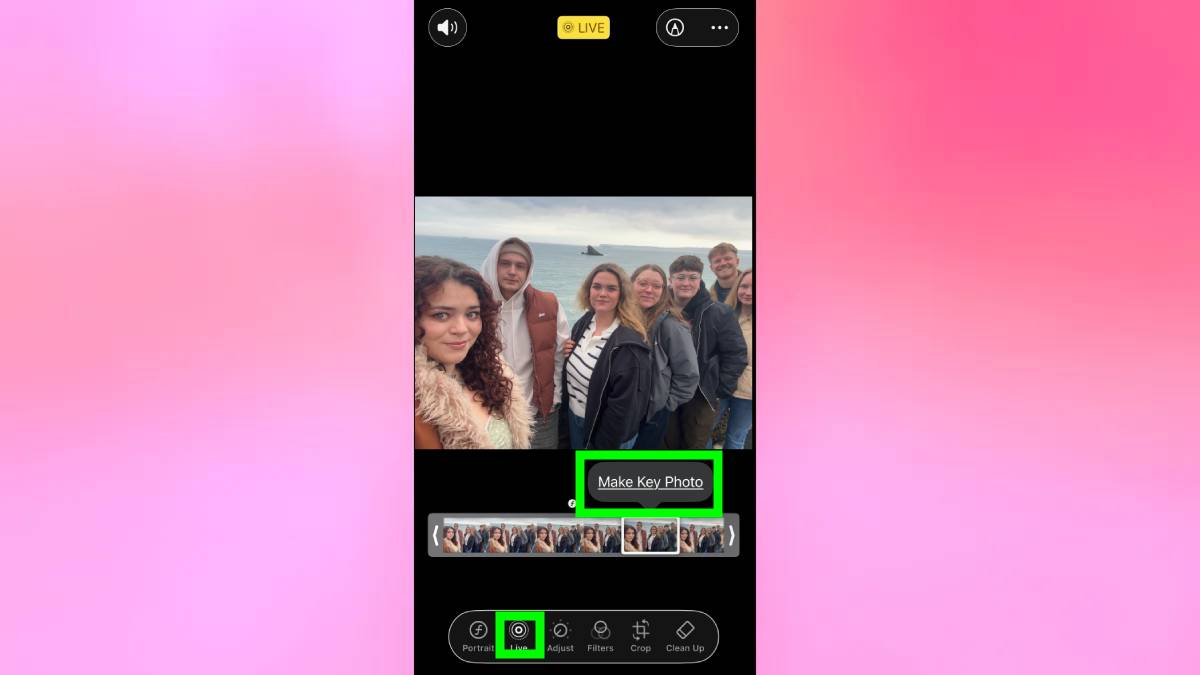
Live Photos capture 1.5 seconds of video before and after you press the shutter, giving you multiple frames to choose from instead of being stuck with one potentially blurry or poorly-timed shot. I used to just accept whatever frame the camera initially selected, not realizing I could pick a better one.
Open any Live Photo in your Photos app. Tap Edit at the top right, then tap the Live Photo icon at the bottom (it looks like concentric circles). A filmstrip of frames appears below the photo showing the entire 1.5-second capture.
Drag the slider left or right to scrub through all available frames. When you find the perfect moment — eyes open, better expression, sharper focus — tap "Make Key Photo." This sets your chosen frame as the main image without deleting the Live Photo motion.
This feature saves shots I would have deleted. Group photos where someone blinked, action shots that caught awkward mid-motion moments, and portraits with unflattering expressions. Live Photos often captured a better frame I can extract after the fact.
Check out more hidden iPhone tips below!