
Get all your news in one place.
100’s of premium titles.
One app.
Start reading
Android Central
Android Central
Technology
Sanuj Bhatia

My parents struggled to use their Pixel phones, so I made them easier to use by turning on this setting

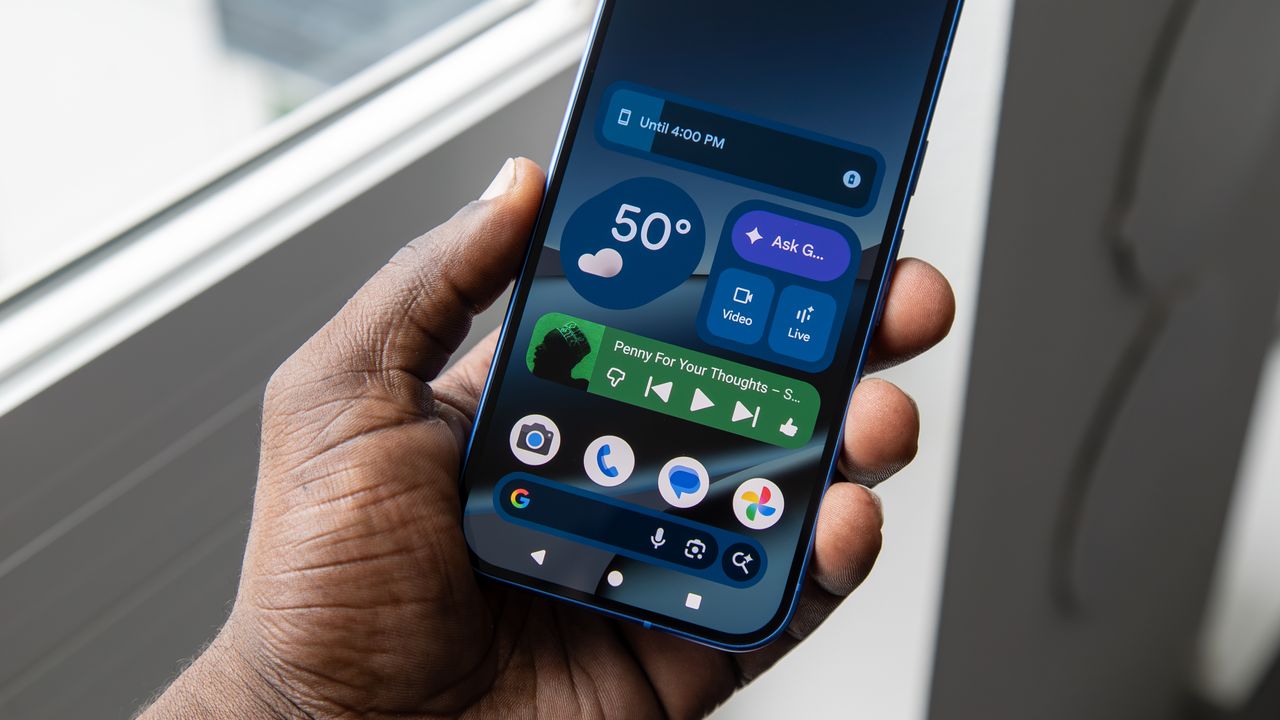
Simple View layout on the Google Pixel 10.

Pixel phones are filled with a ton of AI features that make them a better experience for me than other Android phones. However, one of the most basic challenges my parents kept running into had nothing to do with AI. They struggled with simply using the phone itself. Getting back to the home screen, switching between apps, or even figuring out where they were felt unnecessarily difficult.

I've always felt that Pixel phones use slightly smaller fonts than other Android smartphones, and while that is fine for me, it's a completely different story for ageing eyes. For my parents, the text just felt too small to comfortably read most of the time. I needed to find a way to make their phones work for them.

Sure, you can adjust certain settings by manually increasing text size or changing the font, but those are menus older users rarely dig into on their own. As a result, everyday navigation and readability often become bigger hurdles than using any of the helpful built-in features.

It was only recently that I realized Pixel phones come with a simple toggle that makes a massive difference. It scales up the entire interface, making everything bigger and easier to see, which is perfect for older users dealing with nearsightedness or general vision issues.

Here's how you can set it up and make your parents' Pixel a lot easier to use.

What is Simple View on Google Pixel phones?

(Image credit: Derrek Lee / Android Central)

Simple View does not turn your Pixel into an old-school phone with oversized app icons and stripped-down settings. Instead, it lets users continue using their phone normally, with access to all Pixel features, while making the UI and text noticeably larger and easier to read.

It also simplifies navigation by switching to a three-button layout, which is far more intuitive for many people. Here's what changes when you enable Simple View, so you know exactly what to expect:

  • Larger text and icon sizes
  • Simplified Home screen layout
  • Simplified 3-button navigation buttons
  • Higher touch sensitivity
  • Contact, Clock, and Weather app shortcuts
  • High-contrast wallpaper
  • Increased App Grid to 4x4 display
  • Suggested apps locked

As you can see, Simple View does more than just increase text size and change navigation. It also enables high-contrast wallpaper for improved readability, as well as enables a fixed 4x4 app grid layout, which makes it easier for users to quickly spot the apps.

How to enable Simple View on Pixel phones

Thankfully, enabling Simple View on a Google Pixel is exactly as easy as it sounds. If you are setting up the device for the first time, you can enable Simple View right during setup so the UI is already larger and easier to read from the moment the user starts using the phone.

During initial setup, on the "Welcome to your Pixel" screen, tap Accessibility, then select Set up with Simple View. This enables the feature straight away and applies all the changes from the beginning.

However, if the phone is already set up, you can still enable Simple View by following these steps:

1. Open the Settings app.

2. Scroll down and select Accessibility.

3. Under the Quick Access section, tap Simple View.

4. Turn on the toggle to Use Simple View.

(Image credit: Android Central )

Once enabled, your Pixel will instantly switch to larger UI elements and automatically enable three-button navigation.

It's worth noting that if you turn on Simple View after setup, you'll miss out on a few extras like the increased app grid size and high-contrast wallpapers. Those options are only available during the initial setup, so if you want the full Simple View experience, you will need to reset the device and enable it during setup.

Overall, Simple View is a small but incredibly useful feature for anyone who struggles with tiny UI elements on modern smartphones. It has made using the Pixel 10 Pro significantly easier for my mom, and it could be just as helpful for your parents, too.

Sign up to read this article
Read news from 100’s of titles, curated specifically for you.
Already a member? Sign in here
Related Stories
Top stories on inkl right now
One subscription that gives you access to news from hundreds of sites
Already a member? Sign in here
Our Picks
Fourteen days free
Download the app
One app. One membership.
100+ trusted global sources.