For ages, my iPhone's Face ID was hit or miss. Some days it unlocked instantly, other days it failed repeatedly and forced me to type my passcode. The inconsistency was maddening, especially when my hands were full or I was in a hurry. The problem got worse when I wore makeup, changed my hair, or tried unlocking my phone from certain angles.
I assumed Face ID just wasn't reliable, but it turns out there's a specific setting designed to solve this exact problem. Apple's Alternate Appearance feature lets you register your face a second time, which dramatically improves recognition accuracy. After setting it up, my Face ID works consistently now, even when I'm glammed up or holding my phone at odd angles. Here's how to enable it.
Why Face ID isn't always reliable
Face ID uses advanced facial mapping technology that constantly learns different aspects of your face with each scan. In theory, this should make it more accurate over time. But in practice, certain changes confuse the system.
Heavy makeup or new hairstyles that cover parts of your face can create recognition issues. Glasses, hats, or scarves can also throw it off. Even the angle you hold your phone matters.
The Alternate Appearance feature solves this by letting you register your face a second time under different conditions, giving Face ID two complete facial maps to reference instead of one.
How to set up Alternate Appearance
1. Open Face ID & Passcode settings
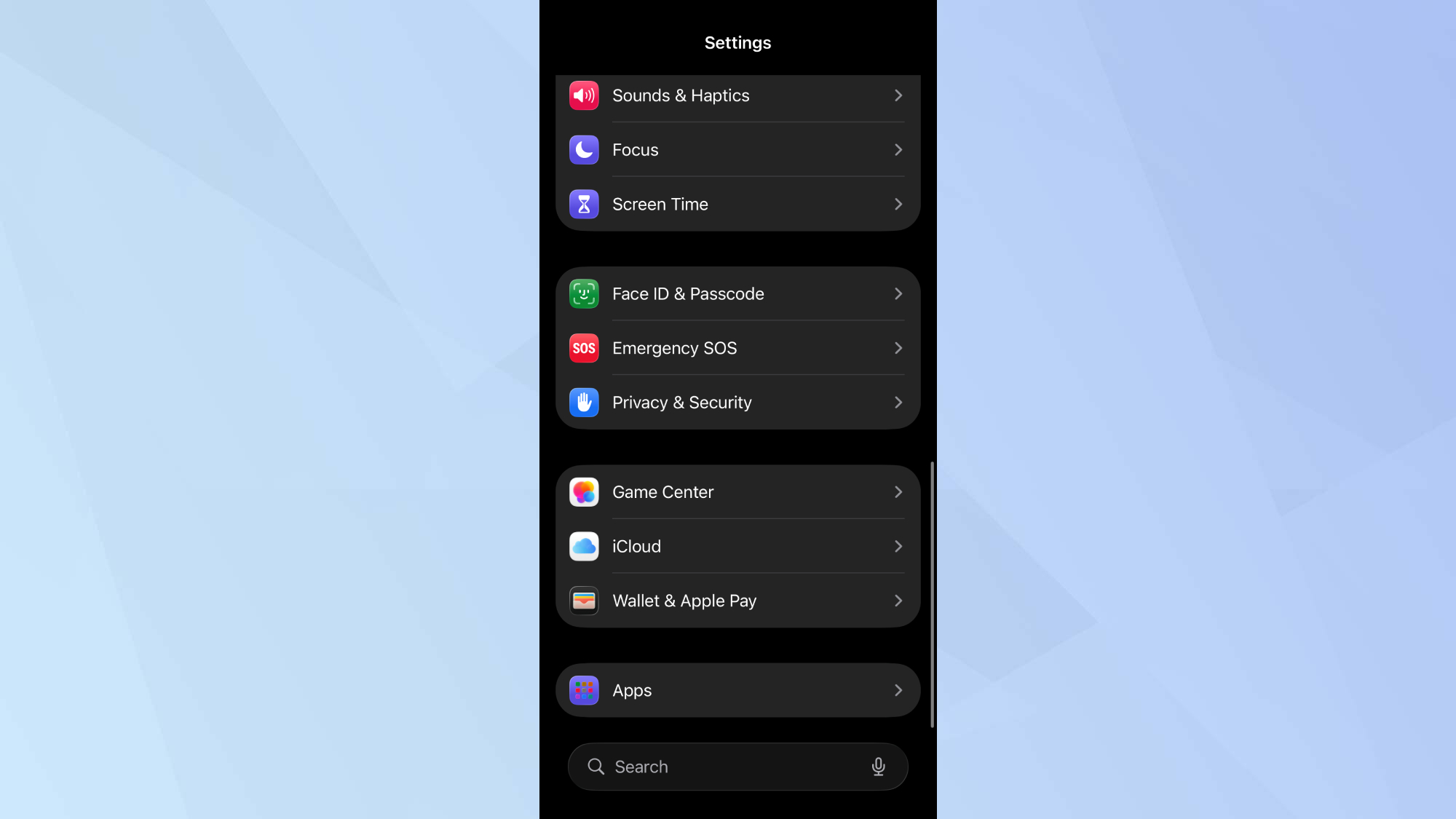
Open the Settings app on your iPhone and scroll down until you see Face ID & Passcode. Tap it to open the Face ID settings menu. You'll be prompted to enter your iPhone passcode for security verification.
This is the same numeric code you use when Face ID fails or when you restart your phone. Enter it to proceed.
2. Select Set Up an Alternate Appearance
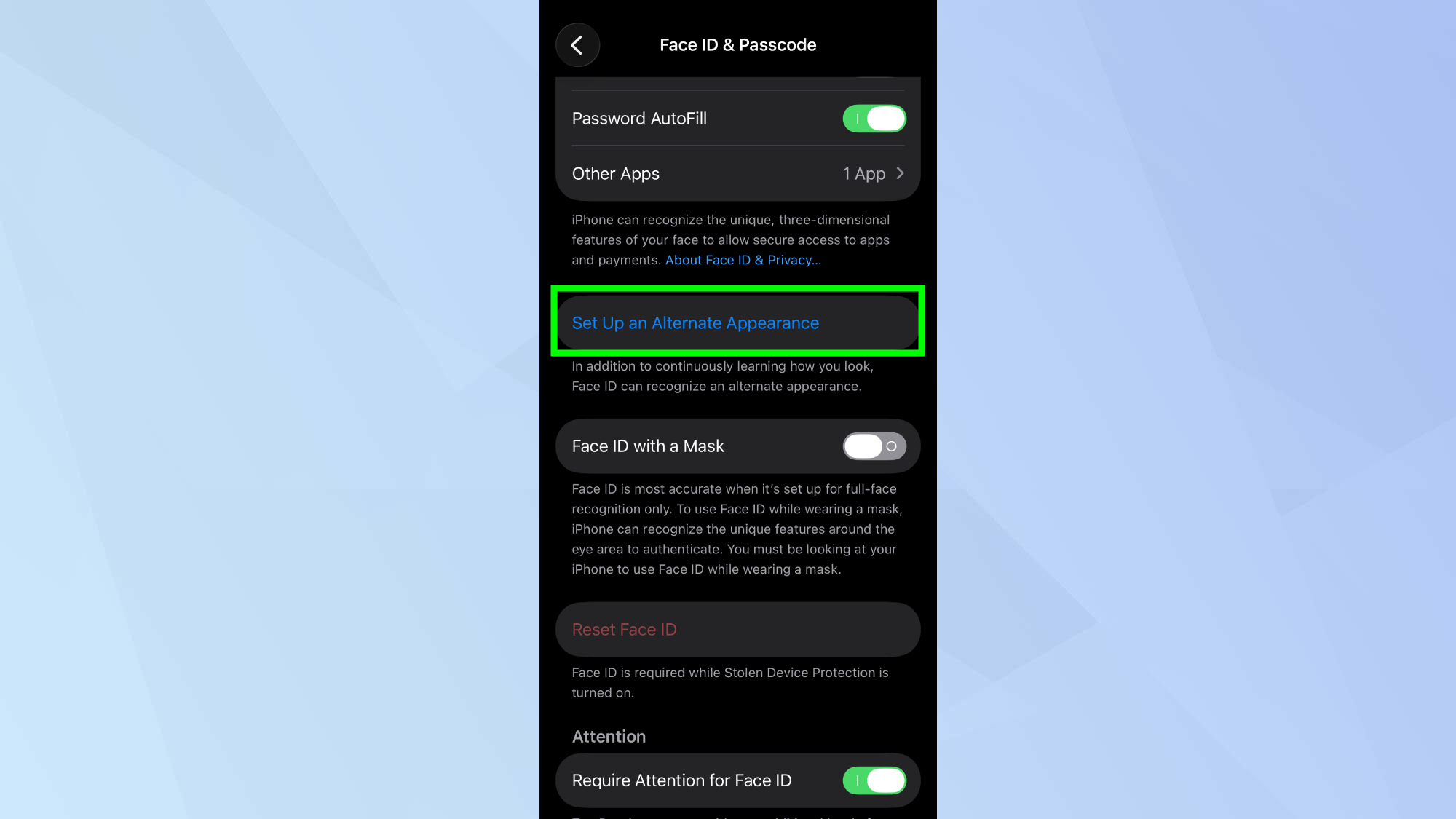
Once you're in the Face ID & Passcode settings, scroll down past your existing Face ID options. You'll see an option labeled Set Up an Alternate Appearance. Simply tap this to begin the process.
The alternate face scanning setup will begin, which works identically to when you first registered Face ID on your iPhone. Tap Get Started.
3. Position your face and complete the scan

Your iPhone will display a circular frame on the screen with instructions to position your face within it. It's just like setting up Face ID the first time. Hold your phone at a comfortable distance, about 10-12 inches from your face. Make sure your entire face is visible within the frame.
When you're ready, slowly rotate your head in a complete circle. The iPhone scans your face from multiple angles as you move.
If you're setting this up to fix makeup-related recognition issues, wear makeup during the scan. If angle problems are your issue, hold the phone at the angle that typically fails for you.
Enjoy more reliable Face ID!
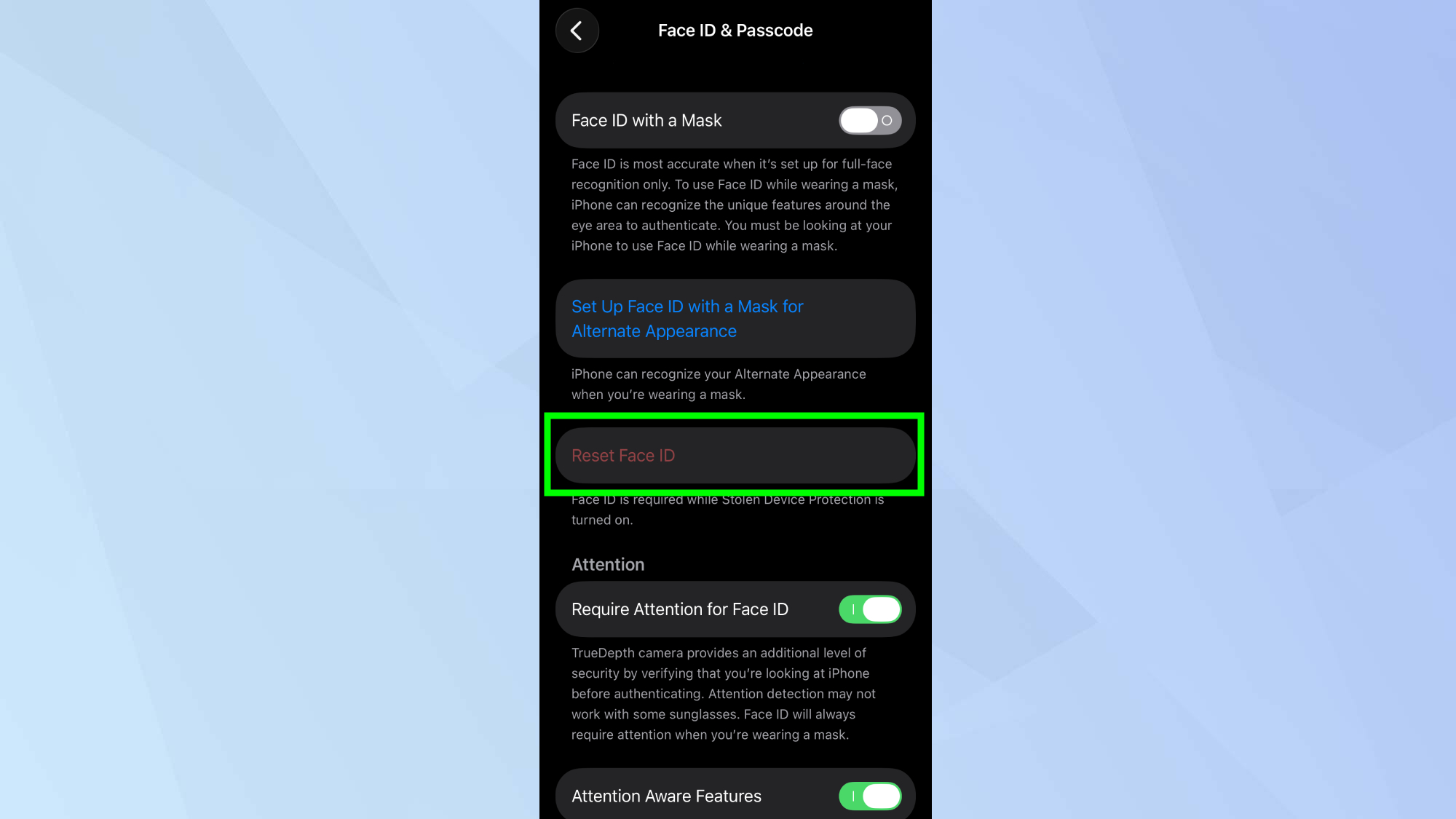
You should now notice significantly better recognition across various conditions. If you're someone who wears a mask, I suggest toggling on "Face ID with a Mask". Your iPhone can recognize the unique features around the eye area to authenticate.
If, somehow, Face ID still fails in specific situations, consider resetting Face ID entirely and starting fresh with both scans. You can do this by tapping Reset Face ID.

Follow Tom's Guide on Google News and add us as a preferred source to get our up-to-date news, analysis, and reviews in your feeds. Make sure to click the Follow button!