Get all your news in one place.
100’s of premium titles.
One app.
Start reading
Tom’s Guide
Tom’s Guide
Technology
Michael Desjardin

Looking for a ‘dumb TV’ experience? I found a hidden Google TV feature that lets you use your smart TV offline

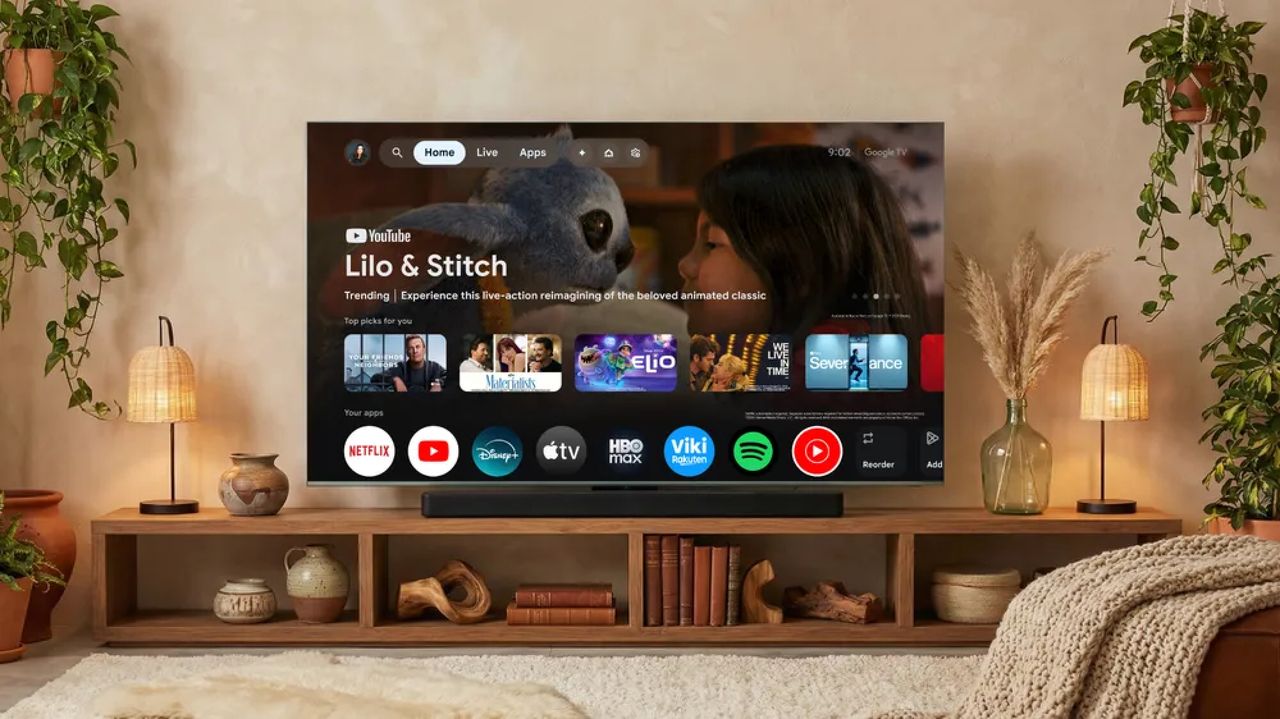
Google TV Gemini upgrades.

Google TV is one of the most popular smart platforms. These days, TVs made by Hisense, Sony and TCL all arrive with Google’s streaming software built right into the experience right out of the box.

If you don’t want to sign up for a Google Account or you’d rather not connect your TV to the internet at all, Google TV offers a way for you to bypass the experience altogether, leaving your TV free to pipe in pictures the old-fashioned way: from a cable box, satellite, indoor antenna, or physical media player.

To enable Basic Mode, you need to do so during the TV's initial setup. This means that if you've previously set up Google TV, you'll need to perform a factory reset on your TV. If you're setting up Google TV for the first time, skip to step #2.

1. Perform a factory reset on your Google TV

Performing a factory reset will erase all of your personal data, including apps, login information and any changes you may have made to the TV's settings. Take this into consideration before resetting your TV.

To perform a factory reset on a Google TV, open the Settings menu, select the All Settings option, scroll down to the System submenu and then select About. From here, it's just a matter of selecting the Reset option, which will prompt you to either accept or cancel your decision to reset Google TV.

2. Access Basic Mode in Google TV

During the initial setup process, your Google TV will guide you through several initial steps. Once you reach the welcome screen, select your preferred language. Next, select your region or country.

Afterwards, Google TV will give you two options: Set up Google TV and Set up basic TV. Choose the latter.

3. If prompted, decline to setup Wi-Fi connectivity

Some versions of Google TV will ask you to set up a wireless internet connection upon entering Basic Mode. To be absolutely sure that your Google TV is not connecting to the internet, select the Skip option on this screen.

Afterwards, you'll be carried through the rest of the TV's initial setup process, including pairing a remote control and choosing various settings for your TV's picture and audio.

4. Enjoy the Basic Mode experience

With Basic Mode enabled, your Google TV will be limited to live TV and any external devices connected to it. This includes streaming devices, gaming consoles, cable boxes and indoor antennas.

While in Basic Mode, Google TV may prompt you to sign in to access apps, the voice assistant and custom content recommendations. Doing so will take you through the setup process again, allowing you to sign in with a Google account to access streaming apps and extra features.


Follow Tom's Guide on Google News and add us as a preferred source to get our up-to-date news, analysis, and reviews in your feeds.


More from Tom's Guide

Sign up to read this article
Read news from 100’s of titles, curated specifically for you.
Already a member? Sign in here
Related Stories
Top stories on inkl right now
One subscription that gives you access to news from hundreds of sites
Already a member? Sign in here
Our Picks
Fourteen days free
Download the app
One app. One membership.
100+ trusted global sources.