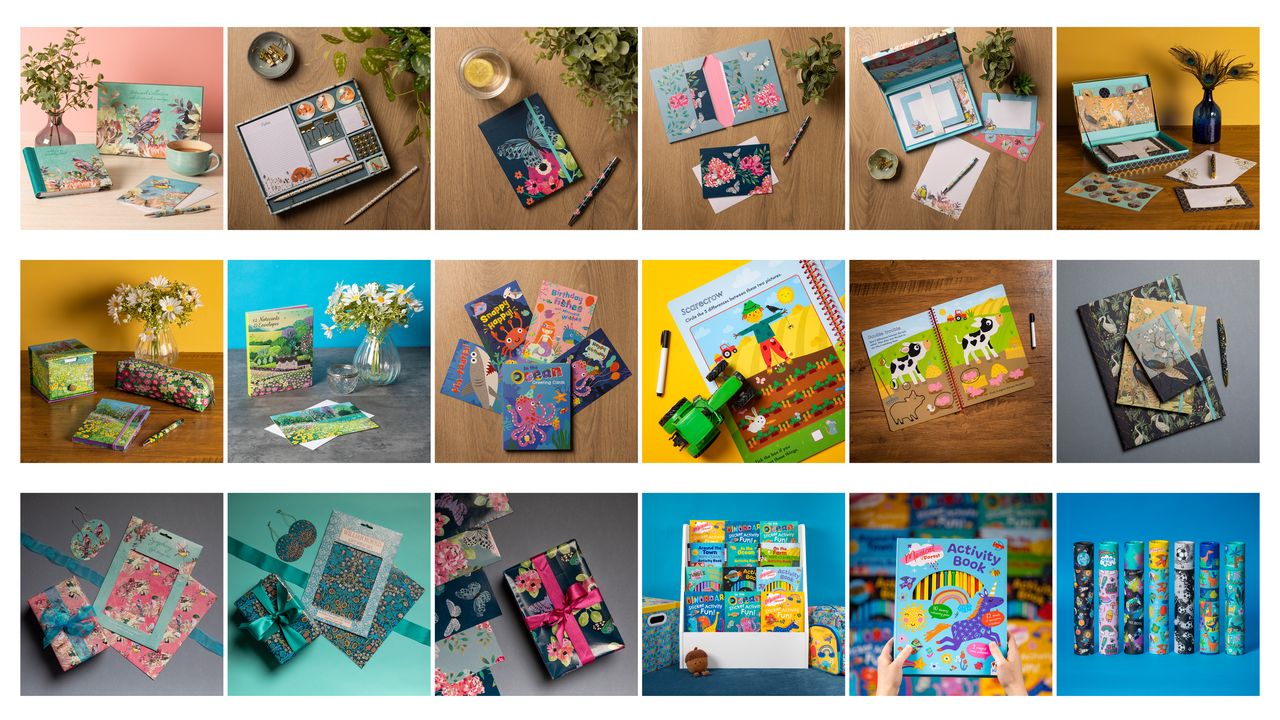
Everywhere from Instagram to website galleries and online shopping sites like Amazon want us to use square images, and I have several clients who request only square images of their product shots and for staff portraits for their websites.
The main reason is that a square or 1:1 aspect ratio ensures images appear neat together on websites, and square images look uniform on both desktop and mobile screens, reducing the need for multiple image shapes.
But composing so everything fits inside a square 1:1 ratio image isn’t always as straightforward as you may think. It’s very easy to assume things you think will be in your square frame as you compose, only to discover on your computer when it’s too late, important elements (eg part of a product or a person) have been chopped out of shot now the image has been cropped to a square.
You may also make the mistake of zooming in too tight, so then don’t have enough image to crop a square without losing important elements.
A simple solution I use is my camera’s aspect ratio cropping information mode, usually shown as 1:1 or 6:6 for square images in the menu. I’ve used a Canon EOS camera’s menu as an example here, but your camera will likely have a similar option to set up these guide lines.
For Canon EOS cameras the ‘Adding cropping information’ is usually hidden in Custom Functions in the orange menus. Select the 6:6 aspect ratio or similar.
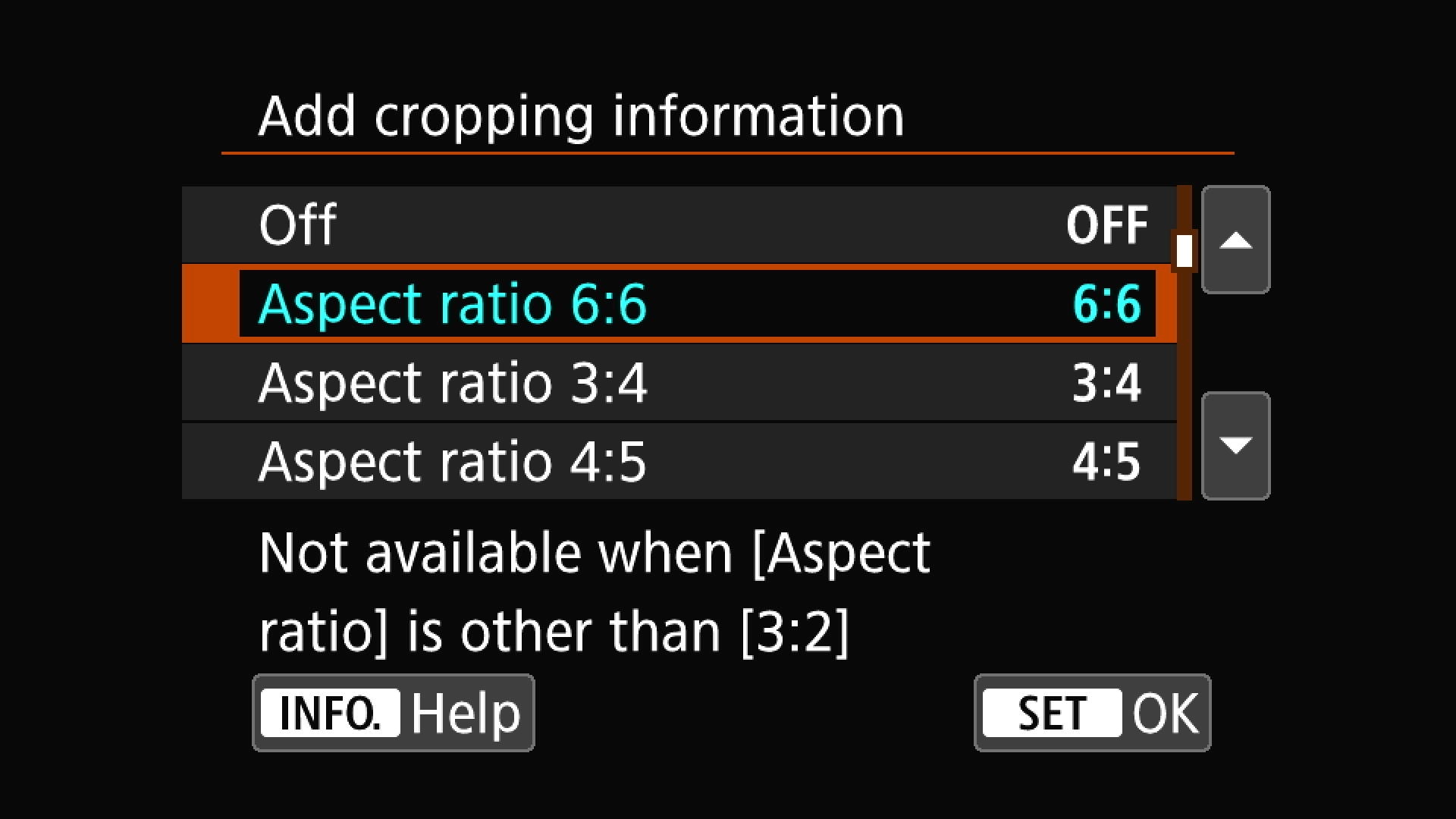
Set the aspect square ratio in the menu, then vertical guidelines will appear on the left and right sides of your camera’s screen (sometimes cameras will also black out the sides so all you see is the square framing area) to provide a square for composing photos.
Now you can ensure your square compositions are good – for me it’s making sure the whole products fit in the square, and it’s only props and backgrounds that may be partially cropped, to keep the client happy.
There’s an art to setting up products, or a landscape or group of people, to fit into a square shape. It’s all too easy to set up stuff on a table-top on a backdrop, and position a family for a photo, and they’re grouped together way too wide to fit in a square.
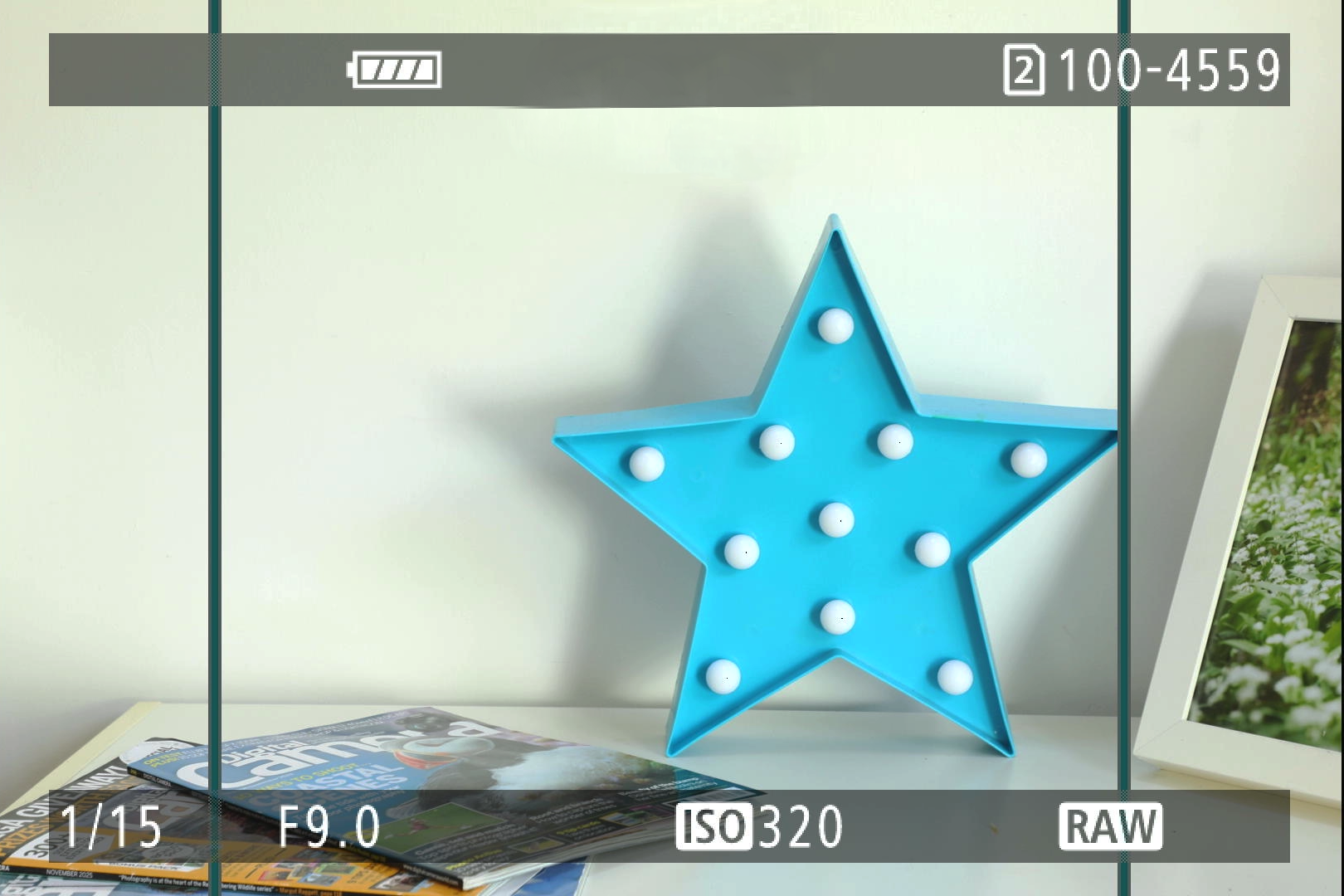
When you shoot, instead of cropped RAW images recorded to the card, the camera should only add aspect ratio information to full images, to enable you to crop quickly to squares when batch editing your RAW images.
This is useful as sometimes you may need to move your square crop left or right for the best result in Adobe ACR or Lightroom.
Note that older cameras, like the Canon EOS 5D Mark III for instance, you will need Canon DPP software to edit crops used with these aspect ratio modes.
See also Oh no, I shot a photo at the wrong aspect ratio on my iPhone! Well, here’s how to fix it
You might also like…
Take a look at these landscape photography tips, to help you get the most of the best cameras for landscape photography and the best lenses for landscapes.