Get all your news in one place.
100’s of premium titles.
One app.
Start reading
Tom’s Guide
Tom’s Guide
Technology
Alan Martin

iOS 16.5 causing iPhone battery drain complaints — here’s what we know

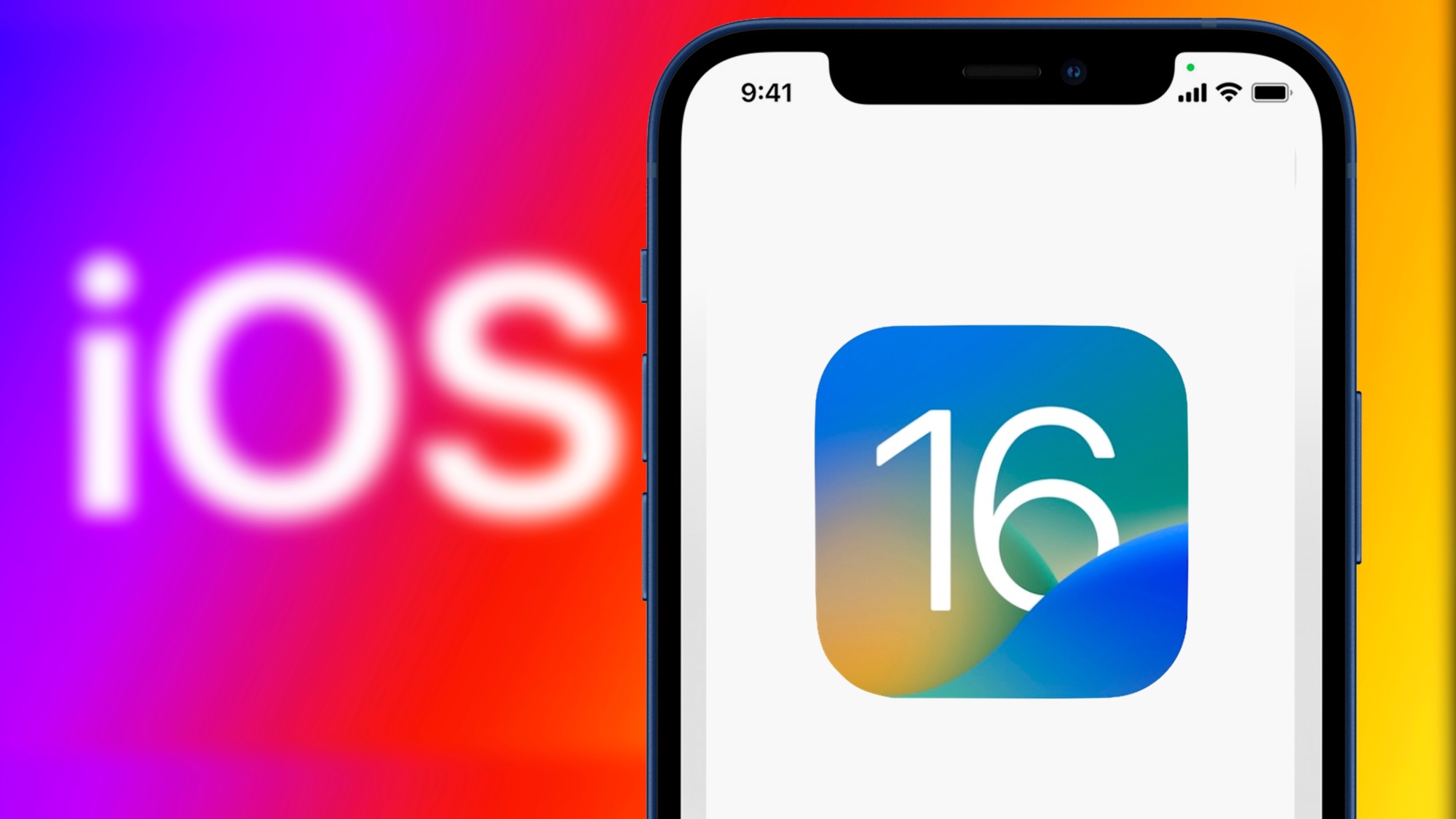
iOS 16 logo on iPhone

Apple’s latest iPhone update — iOS 16.5 — is causing a bit of a stir on social media. No, not because of suddenly incompatible hardware, but thanks to unexpected battery drain. 

“iOS 16.5 is deadly for the battery”, tweeted one irked user, while another warned of “horrific” battery life, “drastically” slower charging times and “seriously hot temperatures.” 

So, what’s going on here, and how can it be fixed? The good news is that, in most cases, the fix is simply a bit of patience. Hard as it may be to believe, ignore it and the problem will likely go away on its own.

That’s because when you download a new version of iOS, a lot of stuff happens in the background. Data is optimized for the new software, battery settings may be recalibrated, apps might need patches and you may even find your photos being rescanned if the update has included new algorithms. 

All of these things use up juice, but it’s a temporary problem. After a couple of days, your battery should have adjusted and things should return to normal.

Indeed, Apple has said as much in the past.  “It's normal for your apps and features to need to adjust up to 48 hours after an update,” the company’s Twitter support account told users when it was iOS 15.4 drawing complaints last Spring

In other words, you shouldn’t let the warnings worry you — although, maybe delay the upgrade to a time when you won’t be without a charger for an extended period. 

Personally, I updated my iPhone 14 Pro to iOS 16.5 a couple of days ago, and didn’t notice any battery drain issues. But if there is anything systemic, you can bet your life that Apple will put out a further update soon tackling the root of the issue (as it did with iOS 15.4.1, which arrived within a fortnight of widespread issues being reported).

But what if you’ve waited 48 hours and your iPhone is still struggling for stamina? The first thing to do is to check your iPhone’s battery health, which is hidden in the Settings menu. Simply scroll down to “Battery,” tap it, and then select “Battery Health”. 

At 80%, Apple will tell you to get a battery replacement, but if it’s sub-90 and you’re struggling, you may want to go before the prompt. But don’t forget there are ways to make your iPhone battery last longer that don’t require surgery at the Apple Store too.

More from Tom's Guide

Sign up to read this article
Read news from 100’s of titles, curated specifically for you.
Already a member? Sign in here
Related Stories
Top stories on inkl right now
Our Picks
Fourteen days free
Download the app
One app. One membership.
100+ trusted global sources.