Get all your news in one place.
100's of premium titles.
One app.
Start reading
TechRadar
TechRadar
Axel Metz

I went stargazing in the Atacama Desert and used a hidden iOS 26 feature to capture the night sky — here’s how to take similar photos on your iPhone

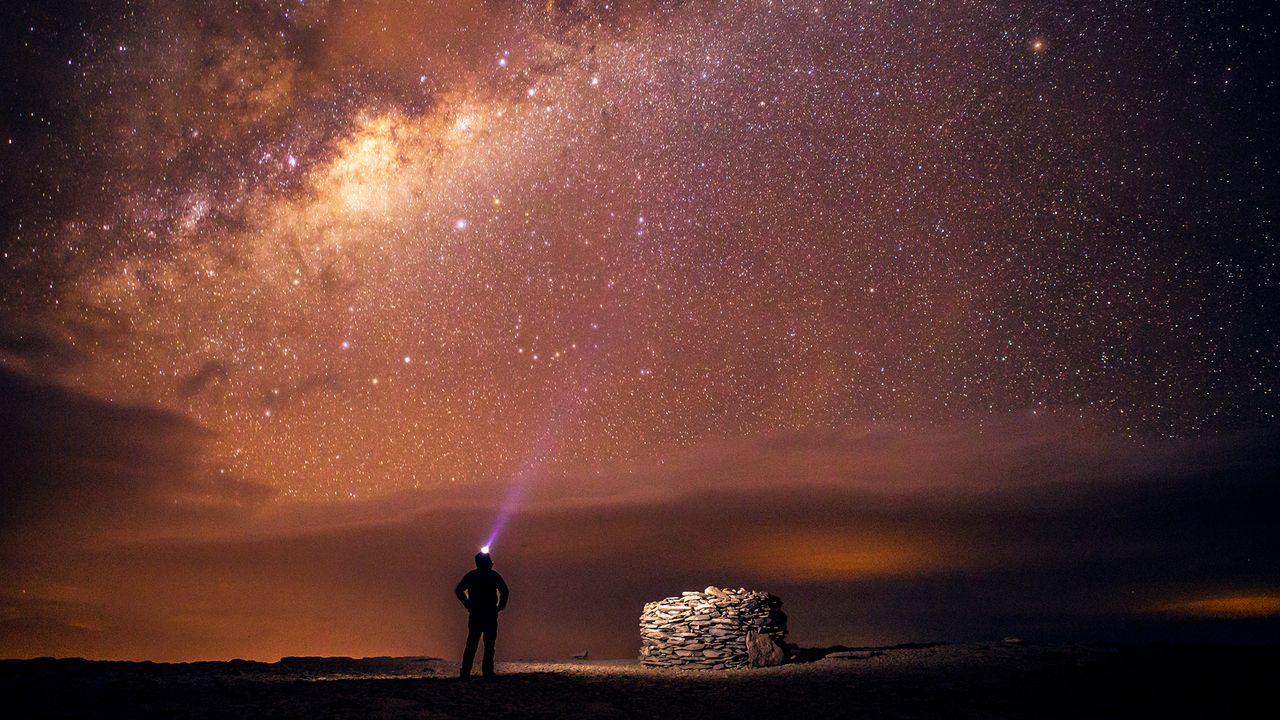
A man in the Atacama Desert staring into the night sky.

If you’re into astrophotography, you’ll know that clarity is everything. High-altitude regions with limited rainfall and minimal light pollution are perfect for stargazing because of the clear skies they provide, and Chile’s Atacama desert — famed for being the world’s driest (and highest) non-polar desert — is among the best places on Earth to set up your telescope.

Alas, I didn’t have room for a telescope in my backpack during a recent visit to South America, but I did have my trusty iPhone 16 Pro Max. And so when I arrived at the small town of San Pedro de Atacama for a spot of stargazing in January, I thought I’d put the astrophotography capabilities of Apple’s 2025 flagship to the test.

I know what you’re thinking: why did I take the iPhone 16 Pro Max, and not the shiny new iPhone 17 Pro Max? Well, mainly because I’m contractually obliged to share all phone samples with my TechRadar colleagues (boo!), and it didn’t seem fair to steal away our only iPhone 17 Pro Max unit for several months. But also, the iPhone 16 Pro Max runs iOS 26 just as comfortably as its successor, and Apple’s latest software update introduced a hidden nightography feature that I was eager to try on any compatible iPhone.

Night Mode has been a feature of all iPhones (excluding iPhone SE) since the iPhone 11 and iOS 13, but iOS 26 saw Apple introduce Night Mode Max, which raises the exposure ceiling from 10 seconds to 30 seconds. This essentially allows the iPhone’s camera sensor to capture three times more light and deliver sharper night photos as a result.

Night Mode Max allows for up to 30 seconds of exposure time (Image credit: Future)

Night Mode’s default three-second exposure time is enough to capture a dimly lit street in detail, but it’s nowhere near enough if you’re hoping to capture the invisible intricacies of a night sky scene (think galaxies, nebulae, star trails, et al.).

The caveat is that, to access Night Mode Max, your iPhone has to remain completely still or be placed on a tripod. And luckily, during my visit to the Atacama Desert, a local Chilean astronomer kindly allowed me to borrow his tripod for a single photo.

I set up my iPhone 16 Pro Max in the mount, selected the Night Mode Auto toggle — which automatically appears at the top of the viewfinder when in a dark environment — and let the device go through the motions for 30 seconds.

The unedited result of Night Mode Max

(Image credit: Future)

Et voilà! The photo above is the unedited version of the image captured by my iPhone 16 Pro Max in the Atacama Desert.

The cloudy band on the left is the Milky Way, and that fuzzy patch of light on the right is the Large Magellanic Cloud — a dwarf galaxy only visible from the Southern Hemisphere. The straight line at the bottom of the frame is, I hope, a shooting star, but it could well be a satellite passing through the exposure.

In any case, I was pretty happy with what the iPhone 16 Pro Max was able to capture in Night Mode Max. My colleague, Lance, ran a comparison between the nightography capabilities of the Samsung Galaxy S25 Ultra and iPhone 16 Pro Max last year, and I think the additional 20 seconds of exposure time granted to my shot via iOS 26 yielded visibly different results.

Of course, almost all night photos can be improved with a touch of editing, but I recognize that most people aren’t comfortable using complex editing apps like Adobe Lightroom or Photoshop. So here’s what I managed to come up with using the built-in editing tools in the iPhone’s Photos app…

(Image credit: Future)

Now, I’m no professional photographer or particularly adept photo editor, but that’s not a bad result for an iPhone. And not even the latest model!

At this point, I should probably admit that the aforementioned Chilean astronomer told me which edits to implement on my photo, since he regularly uses his own iPhone to capture the night sky in San Pedro de Atacama. I typically play around with Exposure, Brilliance, Highlights, and Contrast, but he went the whole hog and tweaked nearly every option available in the Photos app.

Here are the exact edits, in case you want to replicate them yourself:

  • Exposure: -21
  • Brilliance: +17
  • Highlights: -25
  • Shadows: -29
  • Contrast: +25
  • Brightness: +7
  • Black Point: +7
  • Saturation: +27
  • Vibrancy: -16
  • Warmth: -55
  • Tint: -61
  • Sharpness: +49
  • Definition: +68
  • Noise reduction: +49

So there you have it — the best way, in my opinion (and in the opinion of a talented Chilean astronomer, whose name I dearly wish I could remember), to capture the night sky on an iOS 26-compatible iPhone: activate Night Mode Max, and edit the bejesus out of the resulting photo.

Of course, dedicated telescopes will yield even better results, and we’ve detailed how to step up your stargazing game on the cheap in a separate article. But it’s amazing to see how far astrophotography has come on devices once considered incapable of capturing the night sky in any meaningful detail.

A daytime view of the Atacama Desert in Chile — proof that I was there! (Image credit: Future)

Sign up to read this article
Read news from 100's of titles, curated specifically for you.
Already a member? Sign in here
Related Stories
Top stories on inkl right now
One subscription that gives you access to news from hundreds of sites
Already a member? Sign in here
Our Picks
Fourteen days free
Download the app
One app. One membership.
100+ trusted global sources.