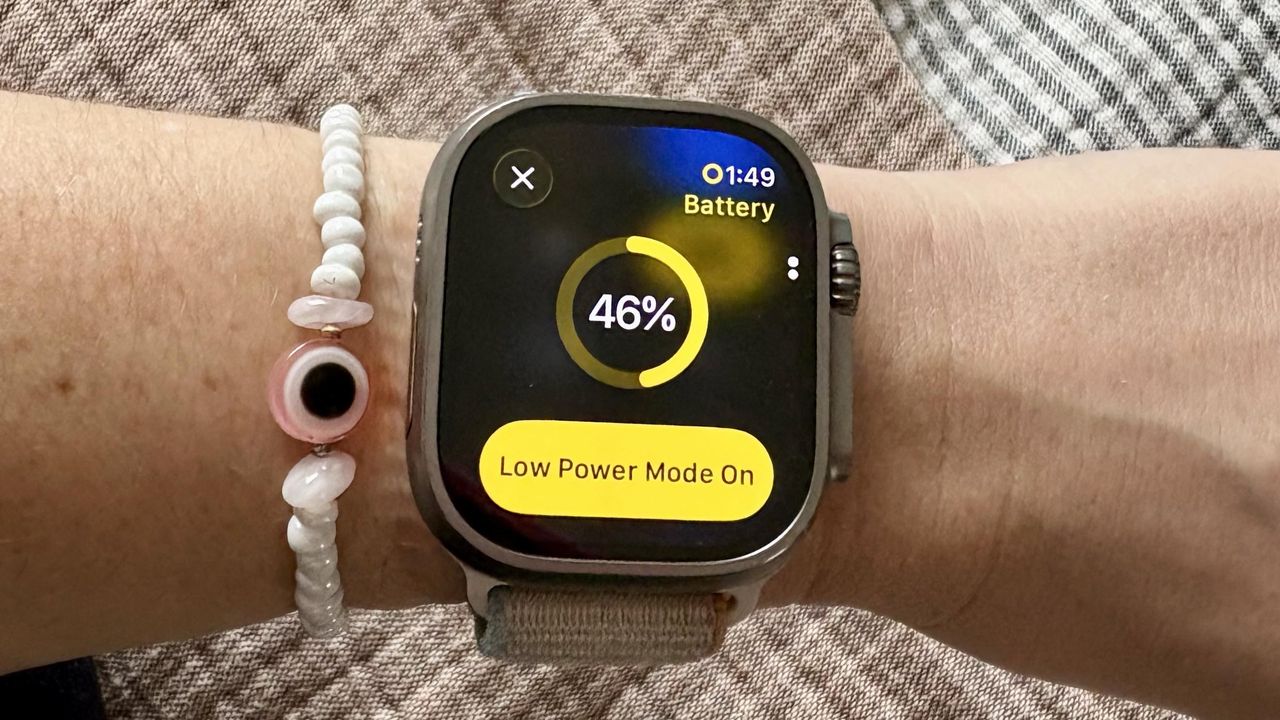
I review some of the best smartwatches on the market for a living, and have worn an Apple Watch for the better part of the past decade, but I’m still absolutely useless at remembering to charge it. This is one of the reasons I’ve opted for the Apple Watch Ultra 3, as it has the longest battery life of any Apple Watch, but I still find myself in low power mode more often than I’d care to admit.
If, like me, you’re useless at remembering to charge your Apple Watch, this is the article for you. After much digging through Apple’s support pages, I found a simple fix — it won’t let you ditch your charger for days on end, but it will help your Watch hold its charge a little longer.
The one Apple Watch feature I turned off to save my battery
Of course, the best way to extend the battery life of your Apple Watch is to enable low power mode. This turns off features like Always On Display, background heart rate and blood oxygen measurements, and heart rate notifications to allow your Watch to last longer.
Yet if we’re talking about daily wear, another thing you can do to improve the battery life of your Apple Watch is to prevent your apps from refreshing in the background. It’s a feature I always turn off whenever I’m switching to a new Apple Watch, and I’ve found that it makes a tangible difference when it comes to battery life.
What you might not have realized is that, without this setting turned off, every app on your Apple Watch is checking for updates and new content in the background, even when you’re not using it. This uses power.
To maximise the battery life of your Apple Watch, you can choose to turn this option off. It does mean that you’ll have to manually update your Apple Watch apps, but this isn’t too much of a challenge.
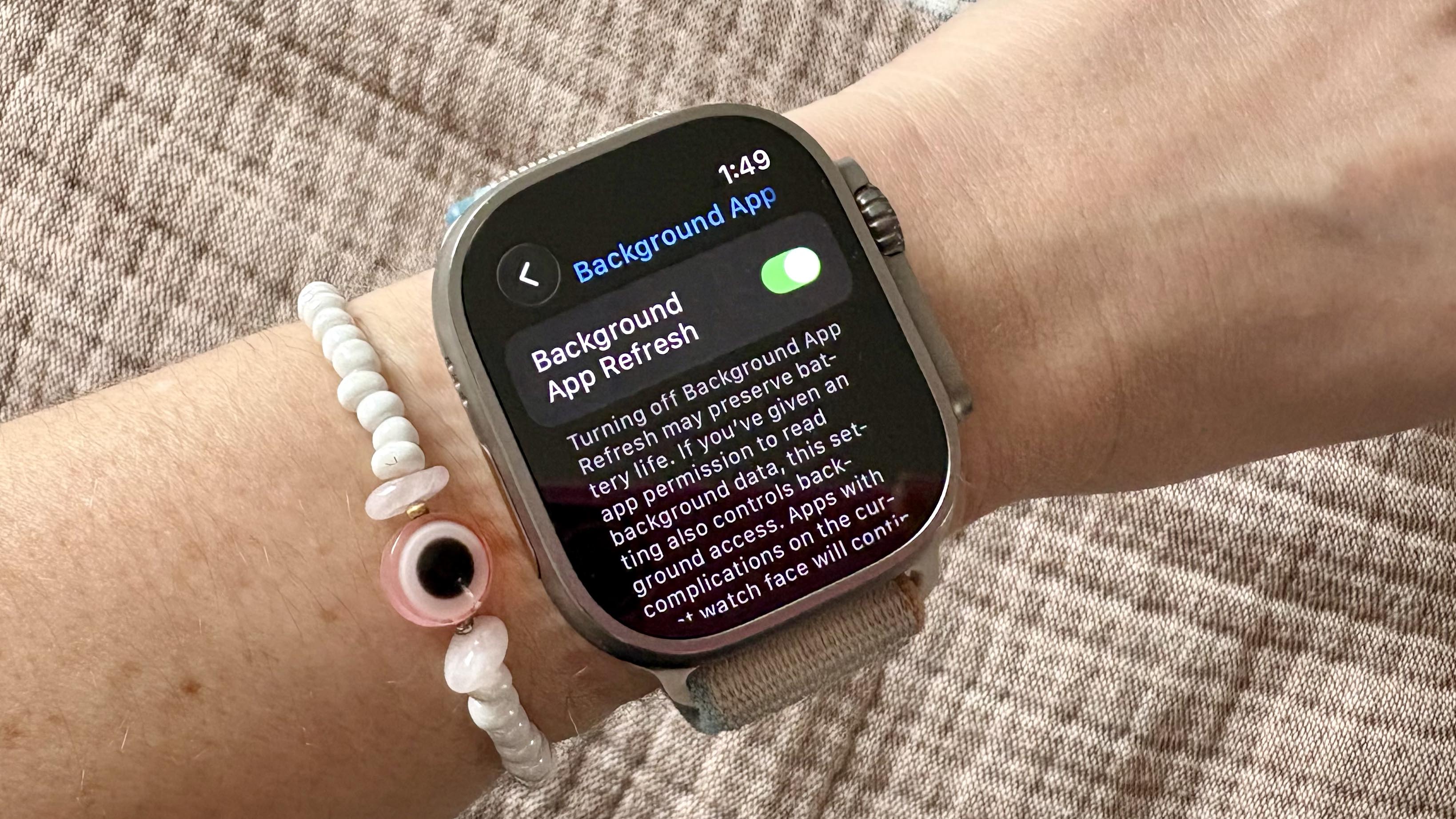
Here’s how to turn this setting off from your Watch:
- Go to the Settings app on your Apple Watch
- Tap General
- Find Background App Refresh
- You can either toggle all apps off or scroll down to choose which apps you’d rather turn off. An easy way to save battery life is to toggle off apps you’re not using to stop them from refreshing in the background.
It is worth noting that if you have any apps on your Apple Watch face, even with this setting turned off, they’ll still refresh. I use this third-party app to display my daily steps on my Apple Watch face, and it’s a game-changer, as well as my activity rings and weather, but if you’re using another app to customize your watch, know that it’ll still update, even if none of your other apps are.

Follow Tom's Guide on Google News and add us as a preferred source to get our up-to-date news, analysis, and reviews in your feeds.