Your iPhone’s battery doesn’t actually drain at random, even if it feels that way when you’re staring at 20% before lunch. It’s easy to blame the usual suspects like screen brightness or 5G, but the real cause often hides in the background features you don’t think about.
Apple doesn’t make this especially obvious. When I looked into my own iPhone’s battery usage, I found three unexpected settings quietly draining power throughout the day. After switching them off, my screen-on time nearly doubled.
Here’s what might be behind your battery problems, and how to fix them for good.
1. Turn off Background App Refresh
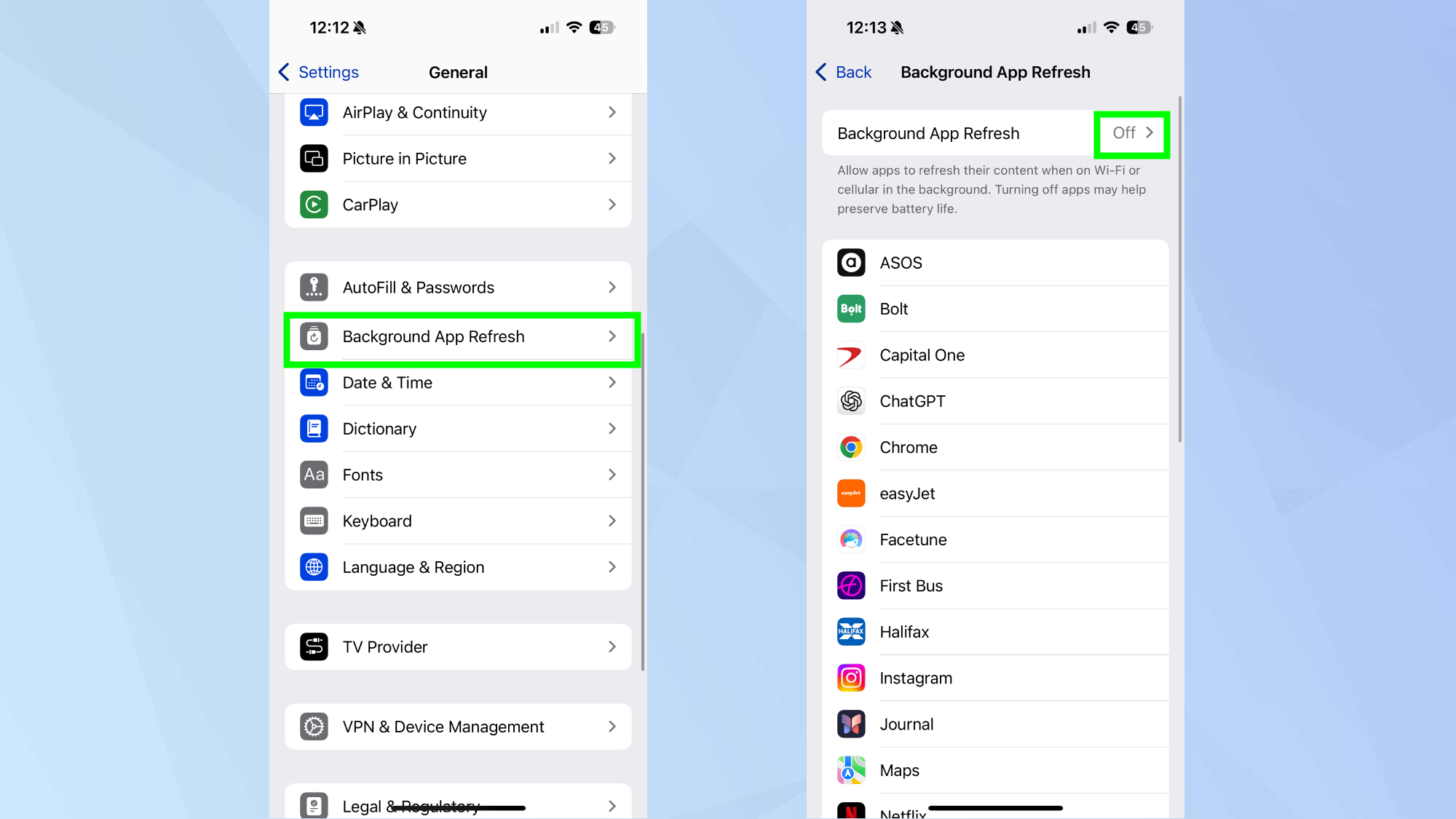
This one setting makes a surprisingly big difference. Background App Refresh lets apps update when you’re not using them, quietly draining your battery in the process.
The thing is, iPhones are powerful enough to refresh content almost instantly when you open an app, so you won’t even notice it’s off.
Open Settings, tap General, then select Background App Refresh. Choose Off to stop all apps from updating in the background, or you can toggle off for specific ones you don’t need.
2. Adjust your Accessibility settings
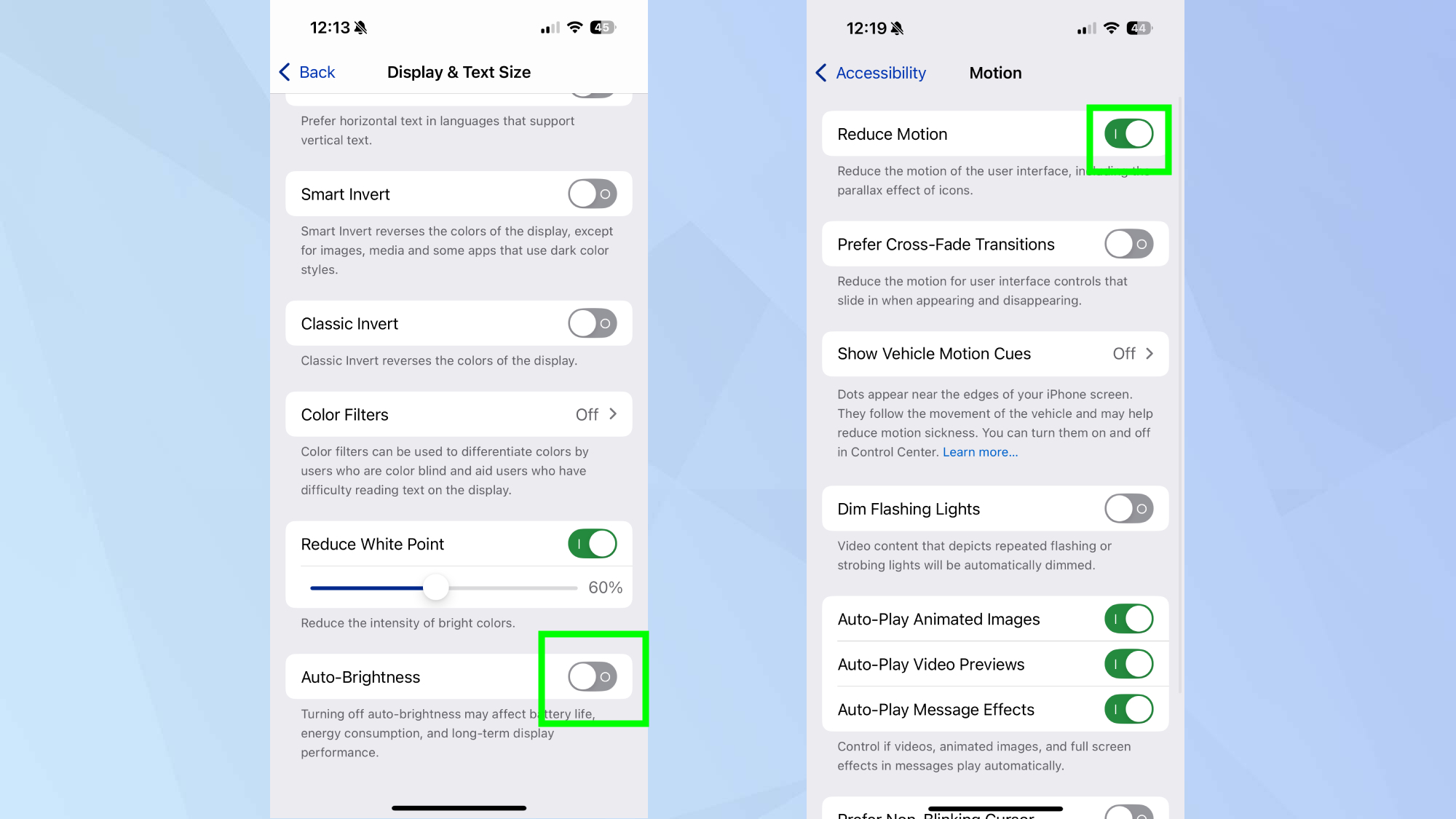
Two often-overlooked accessibility features can quietly chip away at battery life. Auto-Brightness sounds smart, but it constantly recalibrates based on lighting conditions, which can keep your display busier than necessary.
Go to Settings, Accessibility, Display & Text Size, scroll to the bottom, and toggle Auto-Brightness off. You’ll have full manual control via the Control Center, which is easier and more efficient.
Next, return to the Accessibility menu, select Motion, and turn on Reduce Motion. This trims down interface animations and transitions, giving your phone less graphical work to do. It’s a small tweak that makes iOS feel snappier and lighter on power.
3. Turn off Raise to Wake
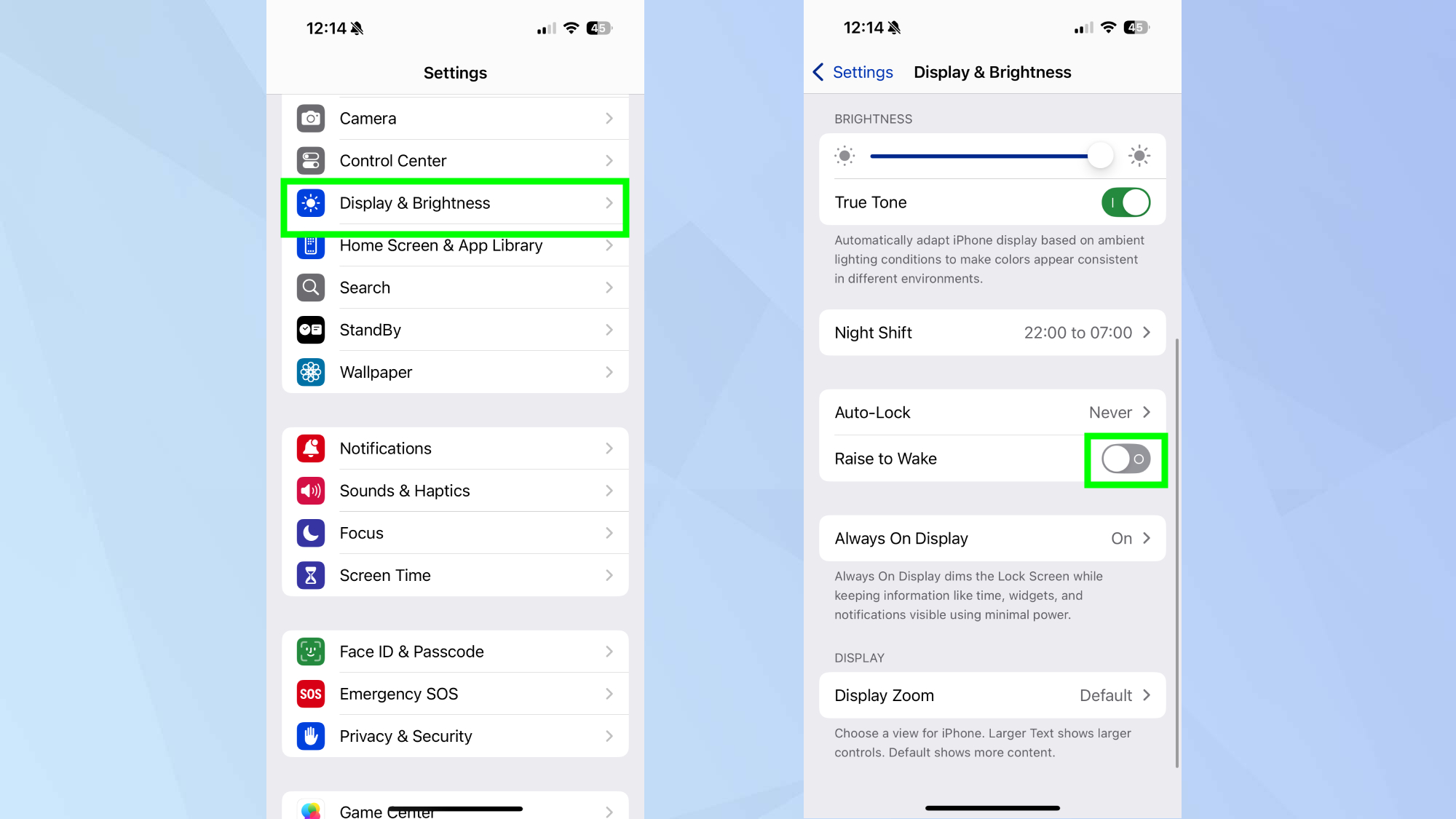
Every time you pick up your iPhone, it wakes the screen — even if you didn’t mean to check it. That constant flicker burns through more power than you’d think.
Go to Settings, tap Display & Brightness, then scroll down and toggle Raise to Wake off. From now on, your screen will stay dark until you deliberately tap it or press the side button. You’ll instantly notice fewer accidental wake-ups and a longer-lasting charge.
Follow Tom's Guide on Google News and add us as a preferred source to get our up-to-date news, analysis, and reviews in your feeds. Make sure to click the Follow button!