

This past weekend, I was playing Forefront with a large group of friends. The game finally made it out of beta and launched v1.0 a few days prior, so I needed to reinstall it to ensure I didn't run into any weird bugs. Oddly enough, this caused more strife; suddenly, no one in the game could hear me, and nothing I did seemed to fix it.
It wasn't until I quit the game that a friend reminded me about app permissions. Duh! The Meta Quest runs Android, which means each app has to request permission to sensitive information like location, cameras, and microphones. Sure enough, I went into Forefront's app permissions, and it had no permission to do anything other than run on my headset.
Unfortunately, this can easily happen if you accidentally click off a permissions box or click deny without realizing the importance of a permission. To make matters worse, there's nothing on the Quest that will tell you that this is the problem; you just have to figure it out all by yourself. If you find that your voice chat in a game isn't working, or something else is suddenly broken in a Meta Quest game, you might need to check the app's permissions.
Fixing permissions on a Meta Quest

Once you've realized that missing or incorrect permissions might be what's causing you strife in your Meta Quest game, you're halfway to solving the problem. Most apps on the Meta Quest will only need microphone permission to work properly, but some other apps and games, like mixed reality games, will also need spatial data and camera permissions.
No matter what permissions the game might need, you can fix them all in one convenient place. Meta's new Navigator UI makes it a little harder to find some settings, but, ironically, requires fewer steps to get to where you want than the old UI. Here's how to find them:
1. While wearing your Meta Quest, press the Meta button on the right controller to bring up the Navigator menu.
2. Find the app or game you want to change permissions for in the library.
3. Point your cursor to the app, then press and hold the trigger until a menu appears.
4. Click Settings from the pop-up menu.
5. Under the permissions tab, tap any toggle to enable permissions that are disabled.
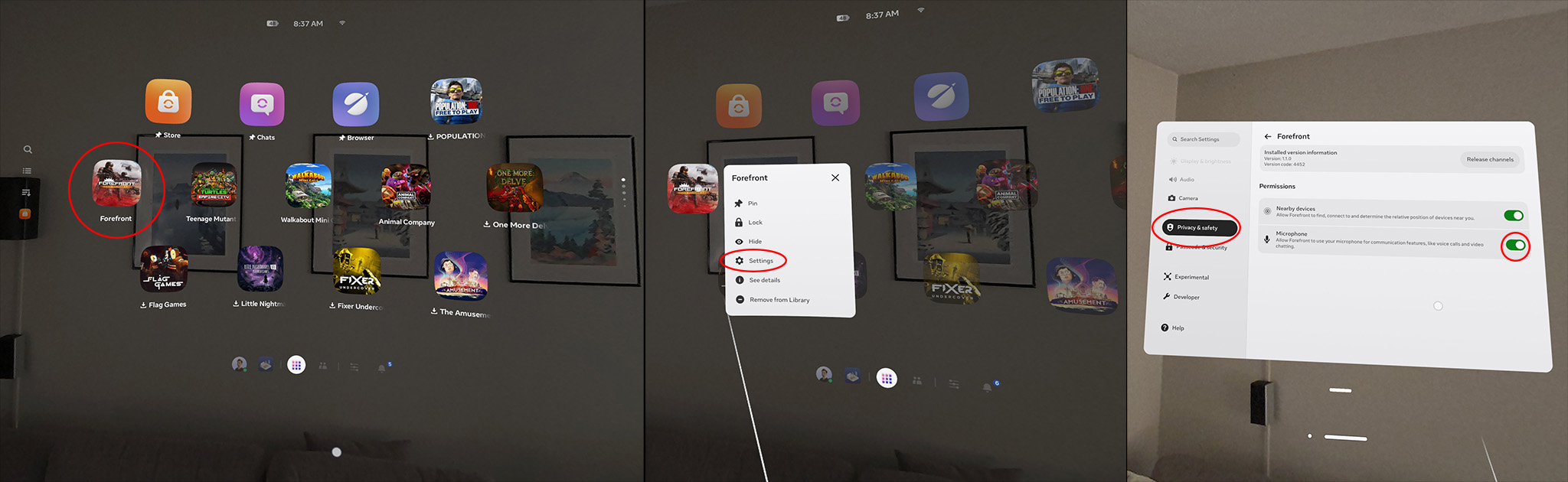
After making the change, everything should start working normally. It's possible some apps or games might require you to quit and restart them, but permissions changes normally take effect immediately. If that still didn't fix your issue, make sure voice chat is enabled, and voice volume isn't turned all the way down in your game's settings menu.
It's annoying that the system doesn't tell you when an app is requesting permission, but you've previously denied it (or ignored it), but at least it's simple to find out if a permissions issue is what's causing the problem. Happy gaming!