
Get all your news in one place.
100's of premium titles.
One app.
Start reading
Digital Camera World
James Artaius

How to transfer photos to a computer: Three easy ways to get your pictures off your camera

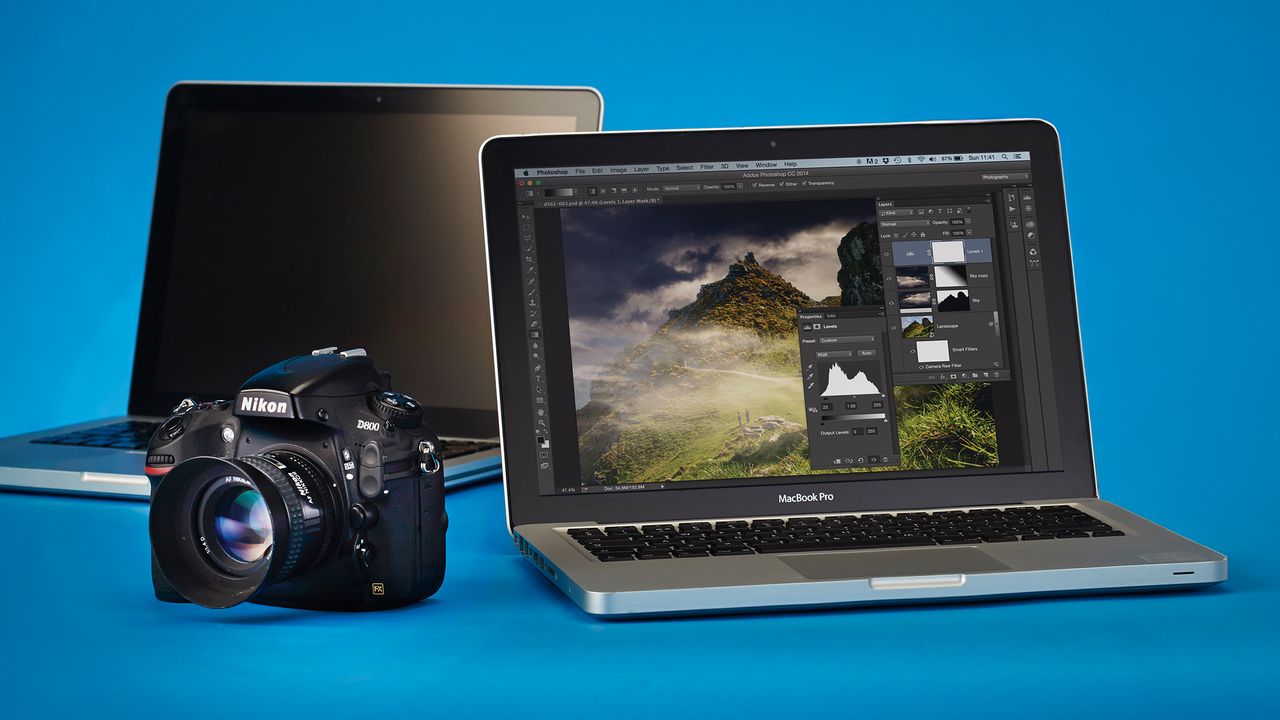
Nikon D800 next to a pair of MacBook Pro laptops, against a blue background.

So, you've got a camera and you've taken some pictures. But now you have to figure out how to transfer photos to a computer!

Whether you want to email your photos to relatives, share them on social media or get them into an editing app to make some tweaks, knowing how to transfer photos to a computer is your first step in getting your shots off your camera and onto a proper screen.

Here are three easy methods, including one that might just be a life saver when you're away from home and you don't have any of the leads or equipment you need…

How to transfer photos to a computer: USB connection

How to transfer photos to a computer: Direct USB camera connection (Image credit: Digital Camera World)

This is the simplest way to transfer photos to a computer, though it isn't necessarily the fastest as it depends on multiple factors (namely the speed of your camera's USB connection, the speed of your USB cable and the speed of your computer's USB port).

Simply connect your camera to your computer or laptop using a USB lead. If one has been provided with your camera, that is usually the best one to use – in fact, some older cameras can only transfer files using the manufacturers' proprietary USB cable.

How to transfer photos to a computer: Card reader

How to transfer photos to a computer: External memory card reader (Image credit: Future)

Some laptops have an SD card reader built in, but you can also connect an external memory card reader that plugs into a USB port either directly or via a lead. You will need an external reader for non-SD formats such as CFexpress and CompactFlash.

This is typically the fastest option, as direct memory card transfer is the most efficient way to move data. However, there are a few factors that might limit your transfer speed even if you have a fast memory card: the speed of your reader, the speed of your USB lead (if required) and the speed of your computer's USB connection (USB-A, for example, will be slower than USB-C).

How to transfer photos to a computer: Your phone

How to transfer photos to a computer: Smartphone camera app (Image credit: Canon)

Okay, the first two methods are fine – provided you have a USB cable and / or a card reader. But what if you're at a cafe, on a day trip or anywhere else where all you have in your bag is your laptop? Luckily, there's a third sneaky method that's completely wireless!

Sadly, no current cameras are able to transfer directly to a computer via WiFi or Bluetooth. However, every camera brand has a dedicated smartphone app for wireless transfer – such as Canon's Camera Connect app, pictured above.

This enables you to quickly transfer photos onto your phone or tablet. Then you can either send them via email or an app like Dropbox, or use AirDrop or Quick Share to wirelessly beam them to your computer.

You might also like…

Take a look at the best memory cards, including the best CFexpress cards for high-end cameras, and the best memory card readers.

Sign up to read this article
Read news from 100's of titles, curated specifically for you.
Already a member? Sign in here
Related Stories
Top stories on inkl right now
One subscription that gives you access to news from hundreds of sites
Already a member? Sign in here
Our Picks
Fourteen days free
Download the app
One app. One membership.
100+ trusted global sources.