
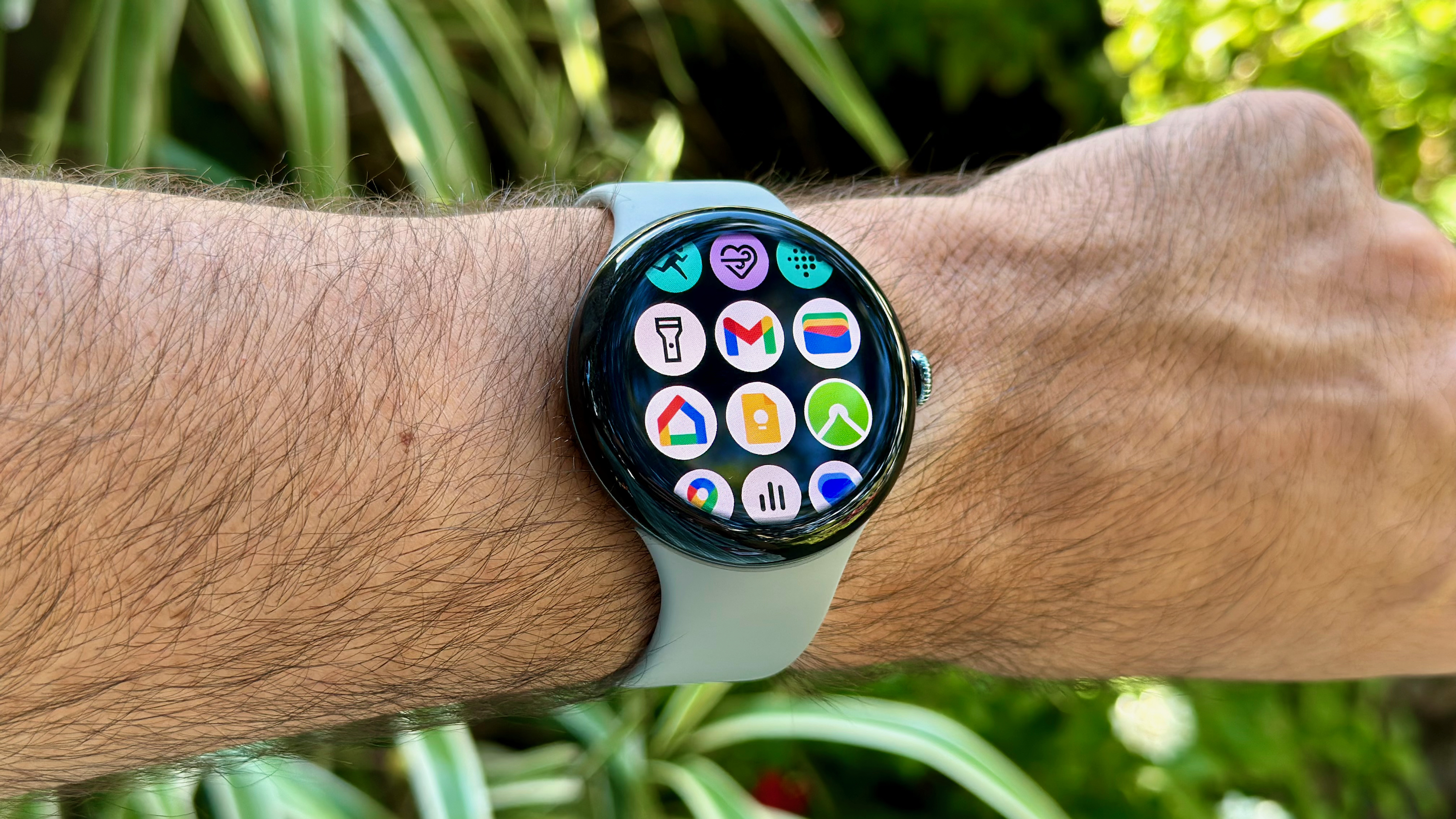
Enjoying a snazzy new Google Pixel Watch 3? Maybe you are holding onto an older model Google Pixel Watch 2 or even still sporting the original Google Pixel Watch. As you explore everything it can do, you have probably looked into ways to make it personalized as well. This might include choosing a cool watch face and adjusting the view of apps, which can be organized in either a list or grid view.
With a list, you’ll see the alphabetized names of each app line by line. Scroll up and down to find and select the one you want. With grid view, the apps create an icon formation on the screen, displaying three in a row. Scroll through and you can find and select the one you want based on recognition of the symbol. But how do you switch this view? It’s super simple.