

The macOS Golden Gate public beta is now live, giving you a chance to check out all the new features coming to the best MacBooks.
Expected to launch this Fall, macOS Golden Gate primarily focuses on updating Apple Intelligence and Siri, with the latter now officially called Siri AI. You don’t get many new features, but improvements to Liquid Glass’s readability, easier customization, and smoother performance make for an overall better experience.
While Apple’s public betas are generally more stable than the developer builds, it might still be buggy and could cause issues for your Mac. I’ve never experienced serious issues using any of these betas over the years, but it’s worth being cautious. With that said, here’s how to download the macOS Golden Gate public beta.
How to download the macOS Golden Gate developer beta
Downloading the macOS Golden Gate public beta is pretty simple. First, enroll your Apple ID in Apple's Beta Program and make sure your Mac is compatible. Here's the full list of Macs that can install and run macOS Golden Gate:
- MacBook Neo (2026)
- MacBook Air with Apple silicon (2020 and later)
- MacBook Pro with Apple silicon (2020 and later)
- iMac with Apple silicon (2021 and later)
- Mac mini with Apple silicon (2020 and later)
- Mac Studio with Apple silicon (2022 and later)
- Mac Pro with Apple silicon (2023 and later)
1. Open System Settings
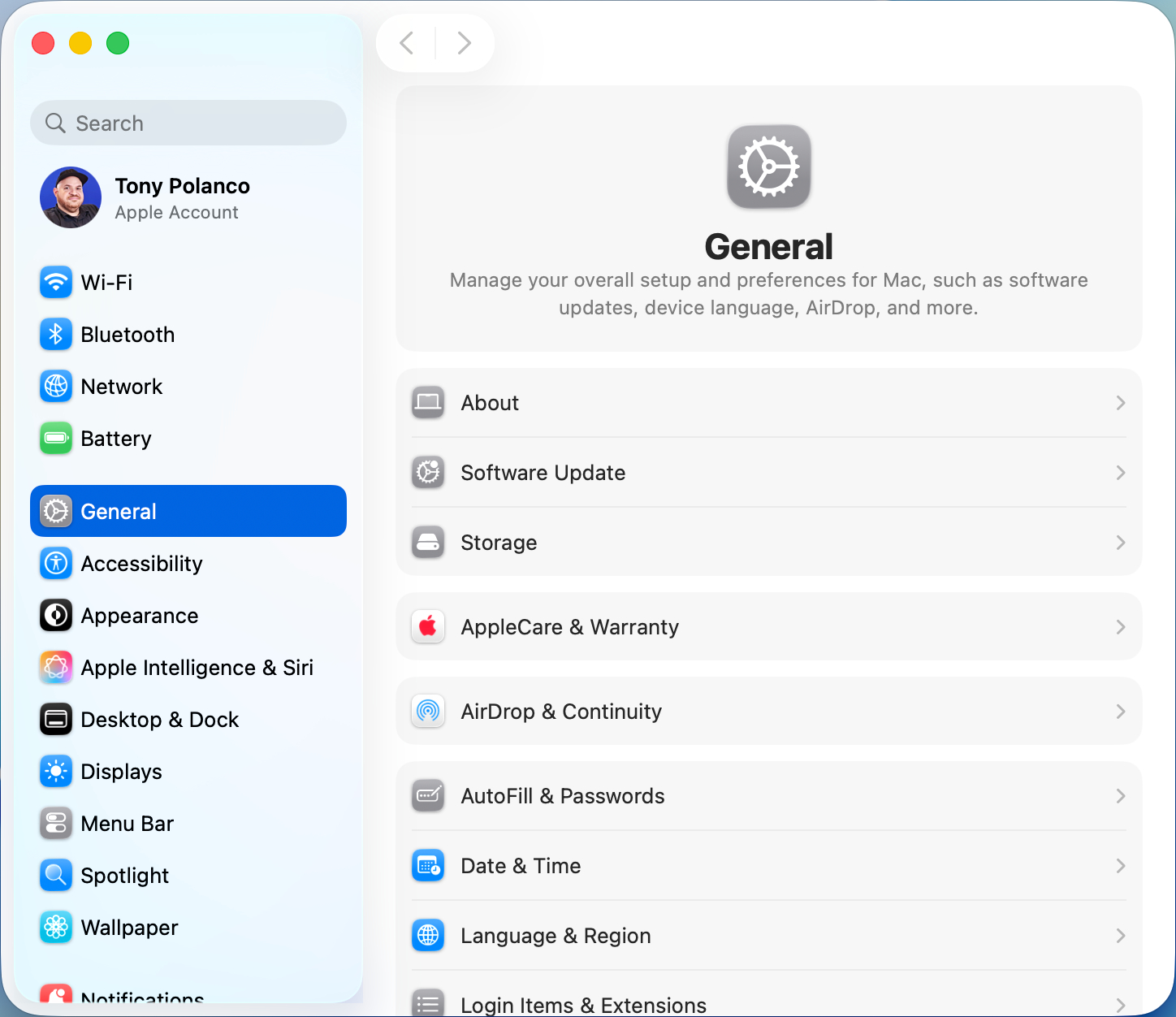
To start, open the System Settings menu on your Mac by clicking on the Apple icon in the top-left corner, then select "System Settings" from the drop-down menu. Similarly, you can also click on the gear icon in the dock.
2. Navigate to General > Software Update
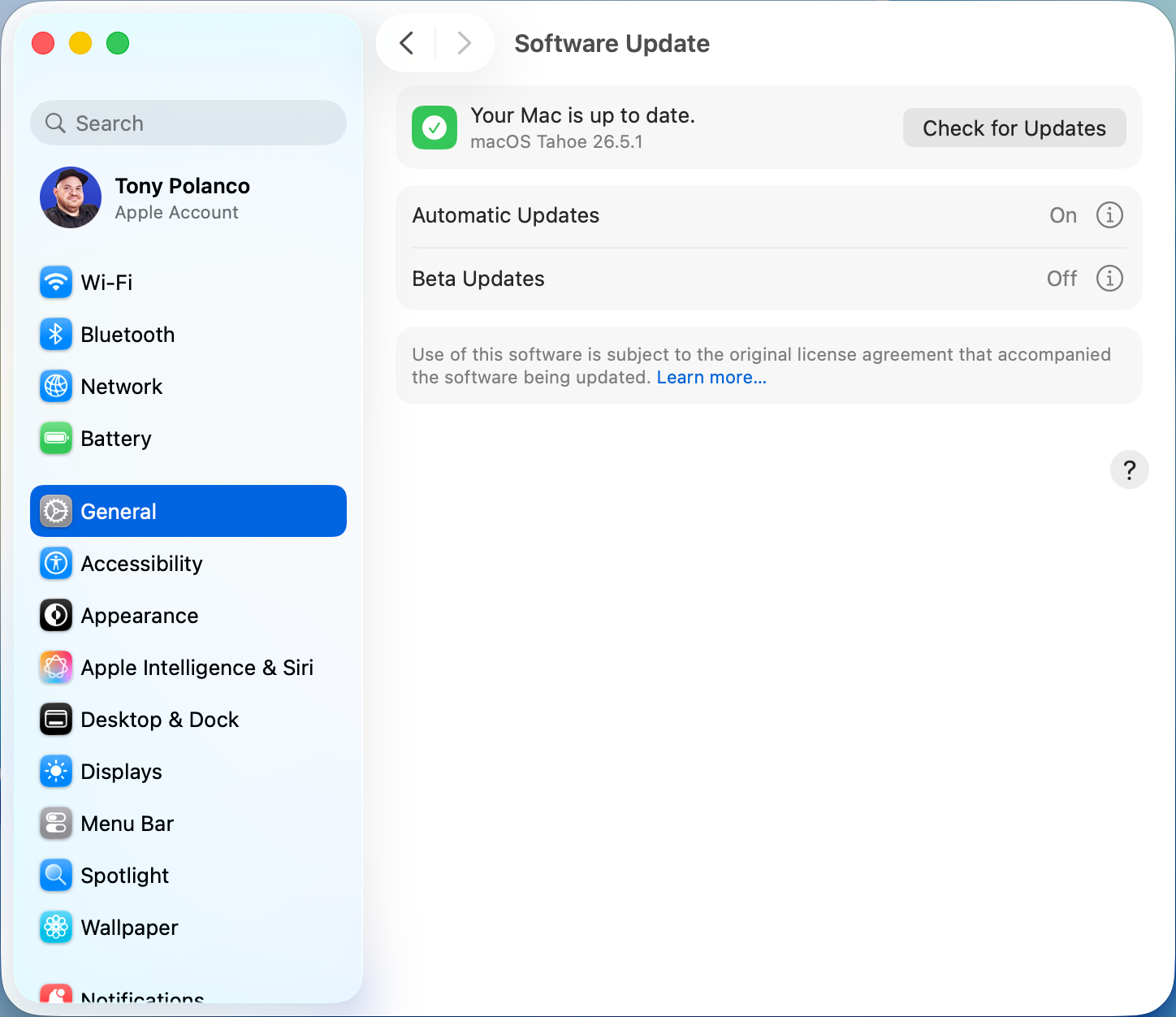
After that, navigate to the Software Update section of your General settings menu. To get there, click General in the left-hand menu of the System Settings menu, then click Software Update.
3. Enable Beta Updates and select macOS Golden Gate
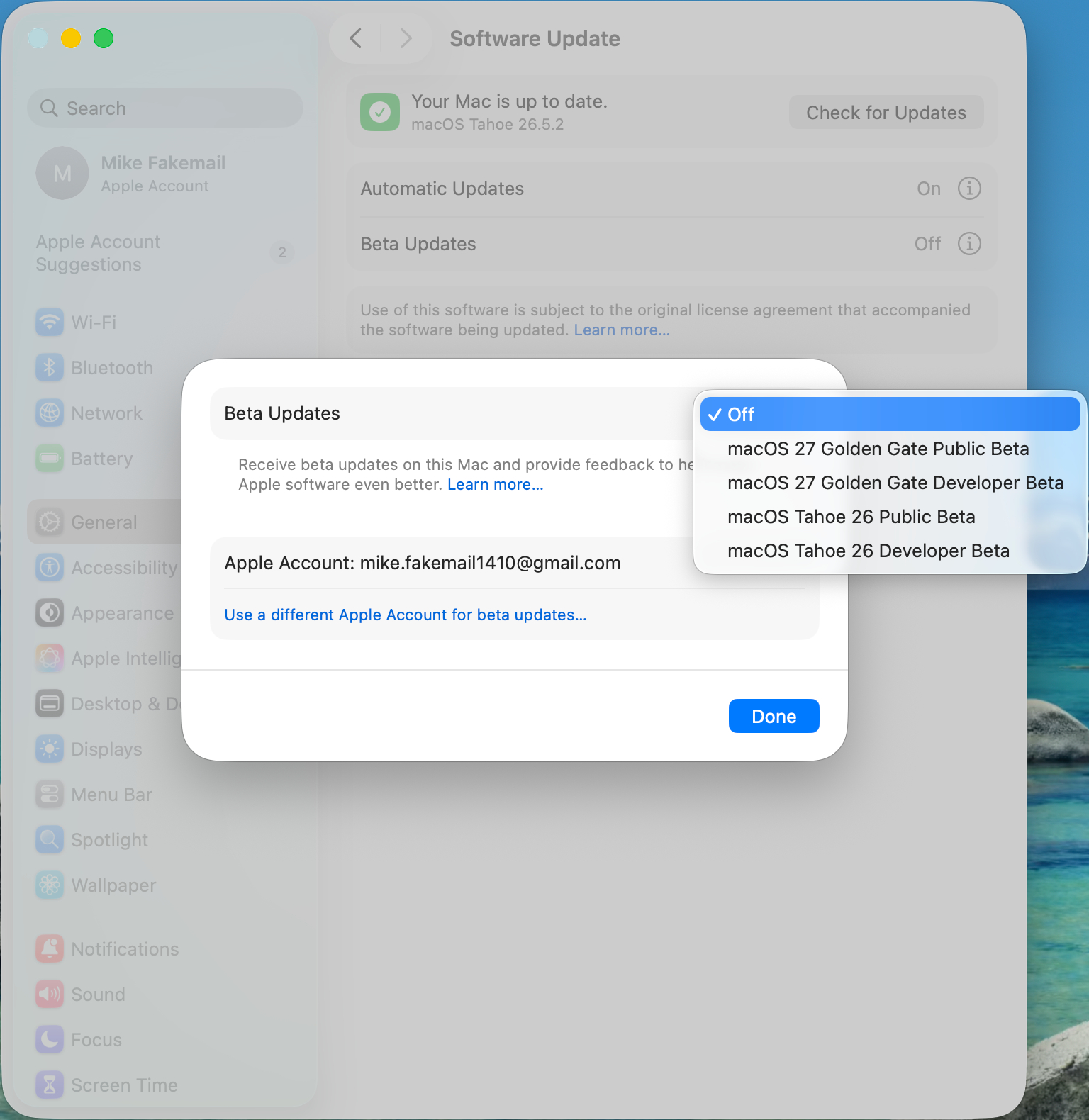
Then, make sure the Beta Updates setting is switched to On. If it's switched Off, turn it on by clicking the corresponding button. When the Beta Updates menu opens, select macOS Golden Gate public Beta from the drop-down menu. Double-check that your Apple account is enrolled in Apple’s Beta Program if you don’t see the beta listed.
4. Install the beta
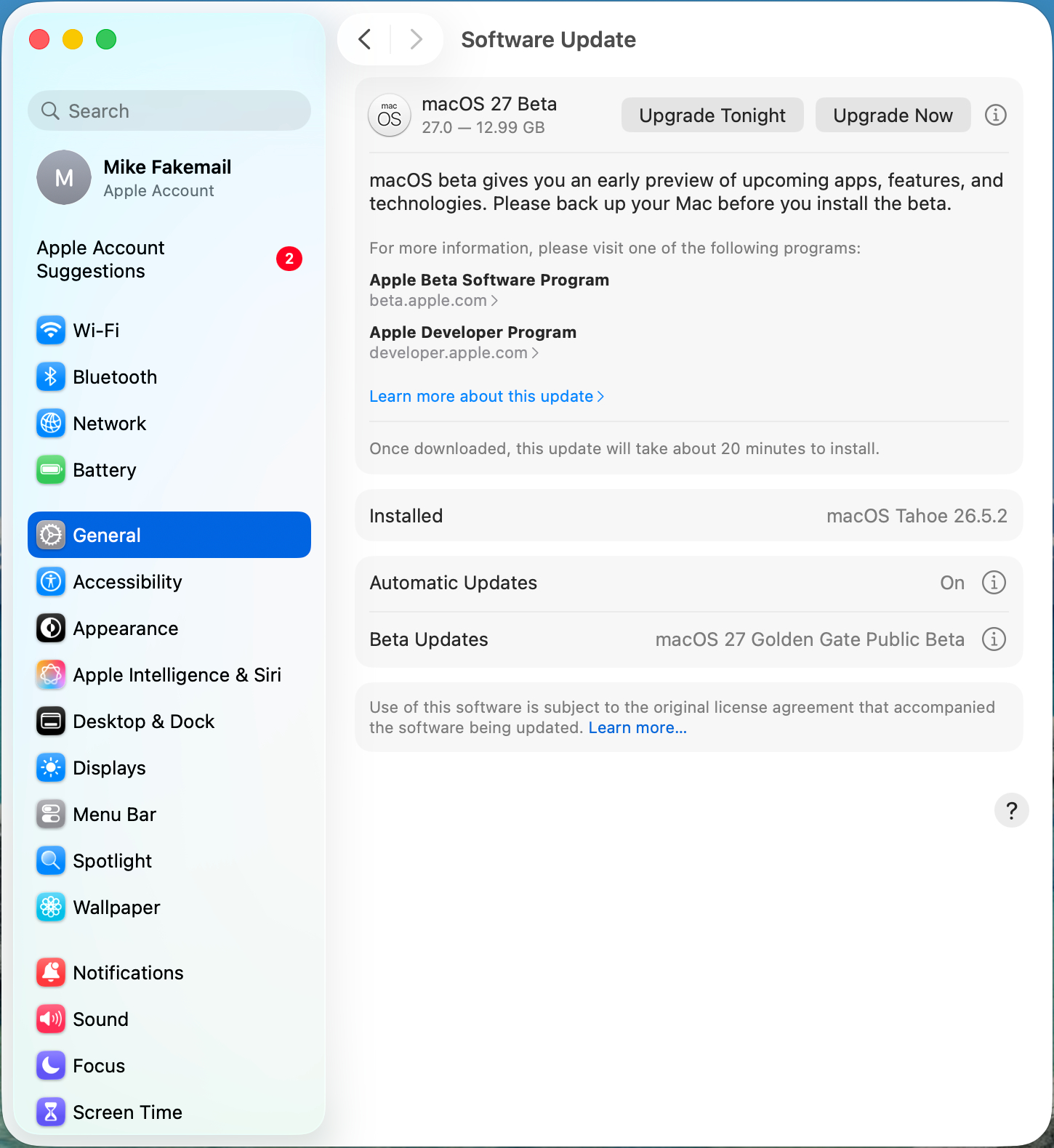
Once that's done, you should see the macOS 27 public Beta appear as available to download. All you have to do now is hit the Upgrade Now button to start downloading, and you're all set!
That’s all that’s required to download the macOS Golden Gate public beta. Your Mac will restart once the download finishes. After that, you can start trying out all the new features. Depending on your connection speed, the download might take a few minutes, so be patient.
More from Tom's Guide
- I just downloaded macOS 27 public beta — skip Siri AI and try these 5 hidden features instead
- Haptic vs. Mechanical trackpads: I put them both through a gauntlet, and one almost made me throw my laptop into the sun
- Exclusive: I asked Lenovo’s GM to predict the future of monitors, and it's the end of our chaotic, cable-cluttered desks and monitors that fry your retinas