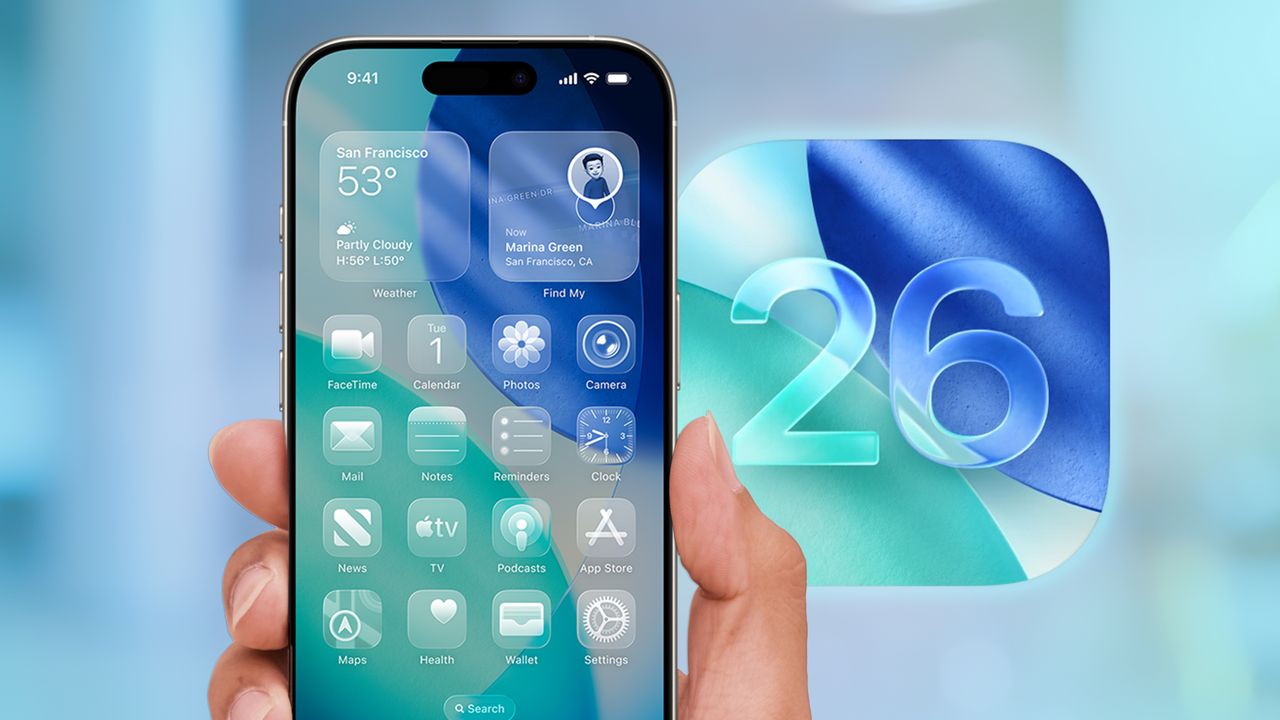
I use group messages on my iPhone every single day. Between different friend groups, family messages, and hockey teams, I can barely go an hour without receiving some kind of group message — sometimes from the blue bubbles and sometimes from the dreaded green ones.
Due to the group messages with various hockey teams, I end up in group chats with people I don't know almost every season (we use these threads to get a head count before the game). Before iOS 26, adding people in the thread to your contacts was a pain — not only did it require a bunch of extra steps, but it also required some degree of memory, a skill I'm sorely lacking.
With Apple's significant iOS updates coming to the next version (the first with the new naming convention), you can now add people to your contacts list directly from a message thread, making it easier to identify who's who and store their information in your phone for future reference.
Doesn't sound like a big deal to you? Let me explain why it's awesome.
iOS 26's new group messaging trick
In iOS 18 (and other previous iOS versions), adding someone to your contacts was a tedious process. In the case of my hockey teams, we'd have everyone in the thread say their name in a message, making it so we know who each person is.
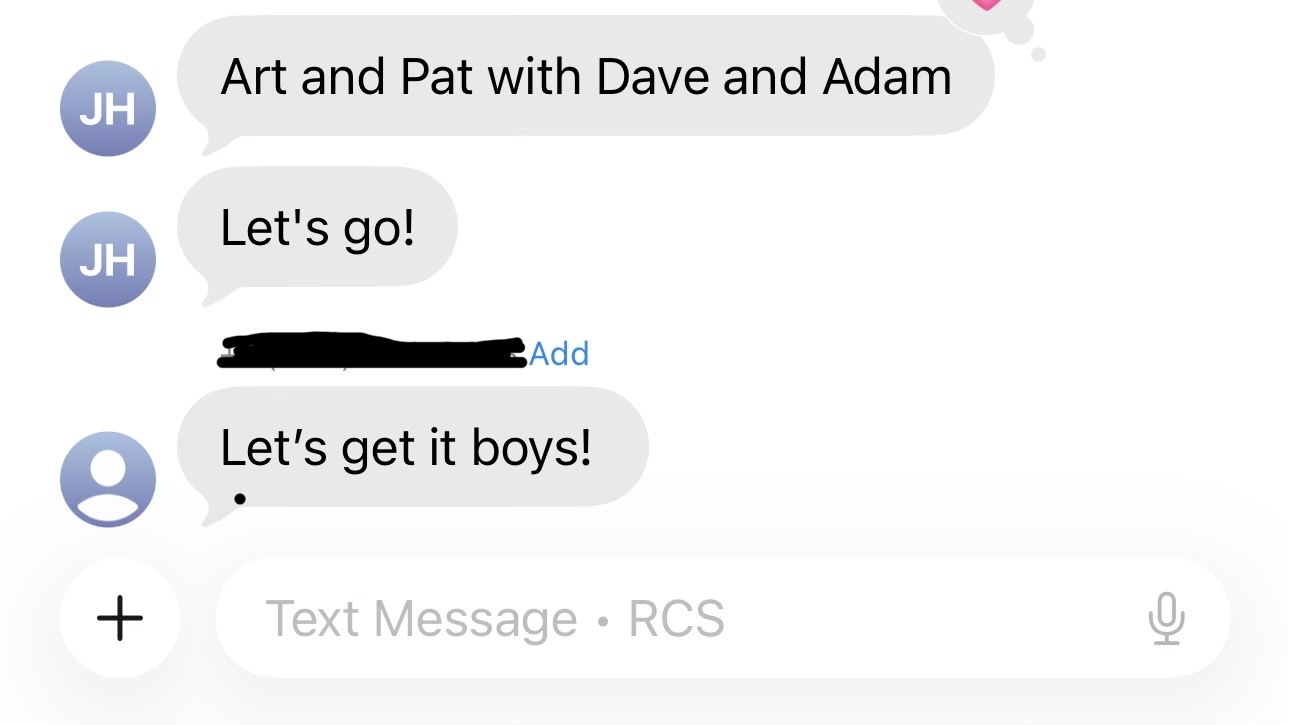
Actually putting them in the contacts was frustrating. Here's what you had to do:
- Note the name and number of the person you want to save (either in your memory or jot it down somewhere).
- Click the Info button for the thread.
- Find the number you noted down (hopefully you remember it, and there aren't too many other similar numbers).
- Click the button next to the number.
- Click Create new Contact.
- Enter the info for the person (their name and whatever else).
Here's the step-by-step process in iOS 26:
- Note the person's name.
- Click Add next to the message in the thread.
- Tap Create New Contact or Add to Existing Contact.
- Create the contact as normal.
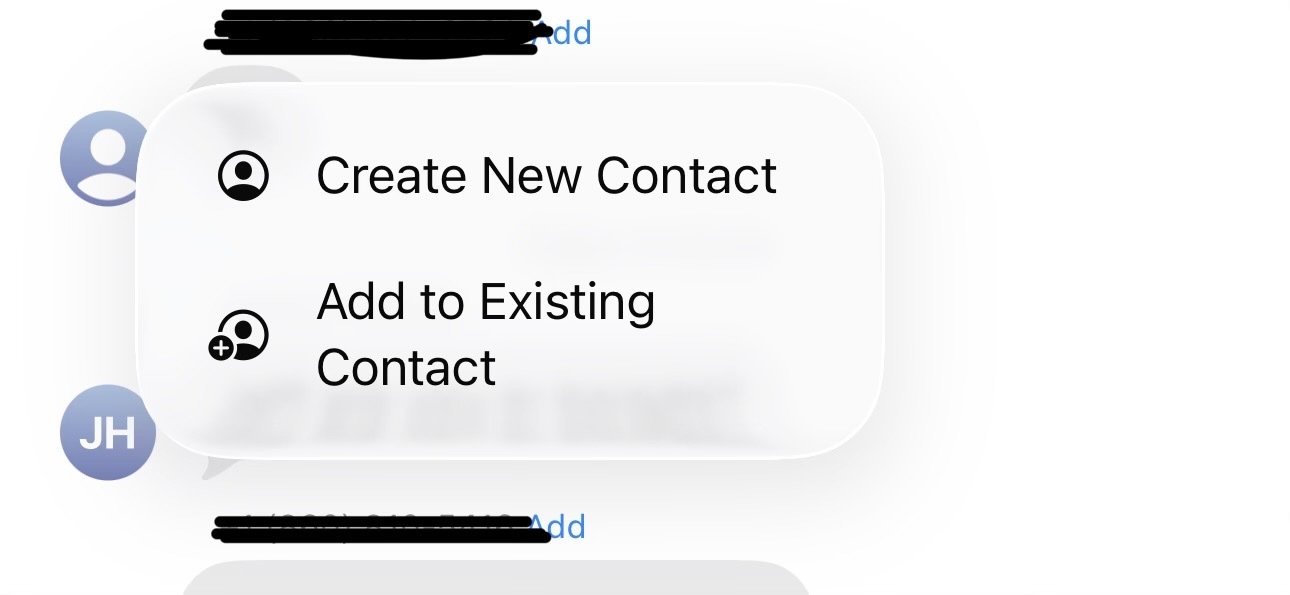
That's it. If you're added to numerous group chats with strangers and would like to have those strangers enter your contact list, you'll be excited to download iOS 26 to your device.
Of course, with the iOS 26 public beta already available, you don't even need to wait (as long as you're willing to deal with beta software and some of the kinks that come with it.
Follow Tom's Guide on Google News to get our up-to-date news, how-tos, and reviews in your feeds. Make sure to click the Follow button.