Get all your news in one place.
100's of premium titles.
One app.
Start reading
Tom’s Guide
Tom’s Guide
Technology
Kaycee Hill

Don't replace your slow Roku yet — try this 10-second fix first

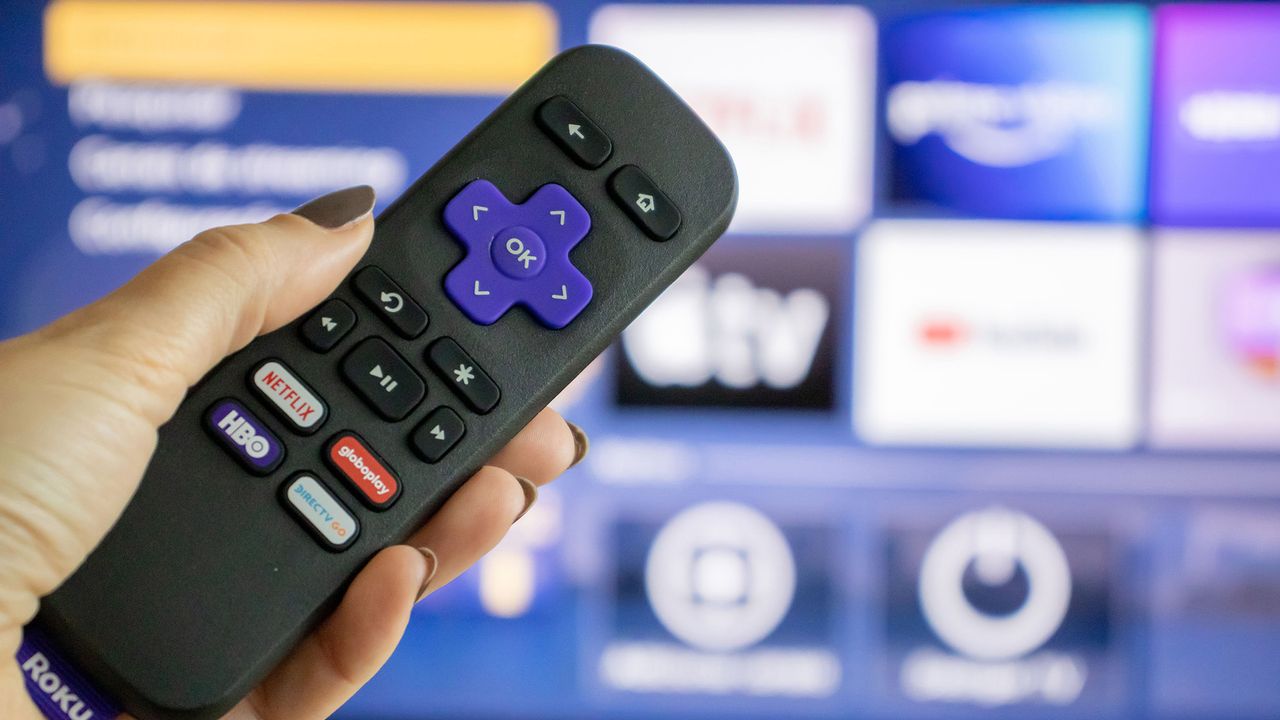
A hand holds a Roku remote in front of a TV with the Roku home screen.

A spinning loading circle that won't disappear. Apps that freeze mid-episode. Menu navigation that stutters and lags. When your Roku starts performing like this, it feels like the device is dying and you need to buy a replacement.

But most Roku slowdowns aren't hardware failures, they're software problems. Cache files accumulate over time, apps run background processes even when closed and unused channels eat up system resources.

Clearing your Roku's cache takes 10 seconds and solves most performance issues immediately. Here's how to refresh your device without factory resetting or buying a replacement.

1. Clear Roku cache with a system restart

Restarting your Roku clears temporary cache files that slow down performance. This doesn't delete your apps, accounts or settings, it just forces the system to refresh and dump accumulated junk data.

From your Roku home screen, scroll to Settings at the bottom of the menu. Select System, then scroll down and select Power.

Choose "System restart" and confirm by selecting "Restart." Your Roku will turn off, clear its cache and restart automatically.

This solves most lag and freezing issues. Apps load faster, menus respond quicker and streaming playback becomes smoother because the system isn't bogged down by cached data anymore.

2. Clear cache using the secret remote code

If it's taking too long to navigate to Settings because your Roku is lagging too much, use the hidden remote button sequence that forces a restart instantly.

Press the Home button on your remote to return to the home screen. Make sure the highlight is on the "Home" option in the left menu, not on any app or channel.

Press the following sequence on your remote: Home button 5 times, Up arrow once, Rewind button twice, Fast Forward button twice.

Your Roku restarts immediately without navigating through any menus. This secret code sequence works on all Roku devices and clears cache the same way the Settings restart does.

3. Uninstall problematic apps

If restarting doesn't fix the problem and one specific app keeps freezing or crashing, uninstall and reinstall that app. This clears app-specific cache and corrupted data that system restarts don't touch.

Highlight the problem app on your home screen but don't open it. Press the * (star) button on your remote to open the options menu.

Select "Remove channel" from the popup menu. The app uninstalls immediately.

To reinstall, go to the Roku Channel Store, search for the app and add it back. You'll need to sign back into the app and reconfigure settings, but it will run cleanly without the corrupted cache that was causing problems.

Also, it's a good idea to remove apps you haven't used in months or years. Every installed channel consumes system resources even when you're not using it. Deleting unused apps frees up memory and improves overall Roku performance.

More from Tom's Guide

Sign up to read this article
Read news from 100's of titles, curated specifically for you.
Already a member? Sign in here
Related Stories
Top stories on inkl right now
One subscription that gives you access to news from hundreds of sites
Already a member? Sign in here
Our Picks
Fourteen days free
Download the app
One app. One membership.
100+ trusted global sources.