
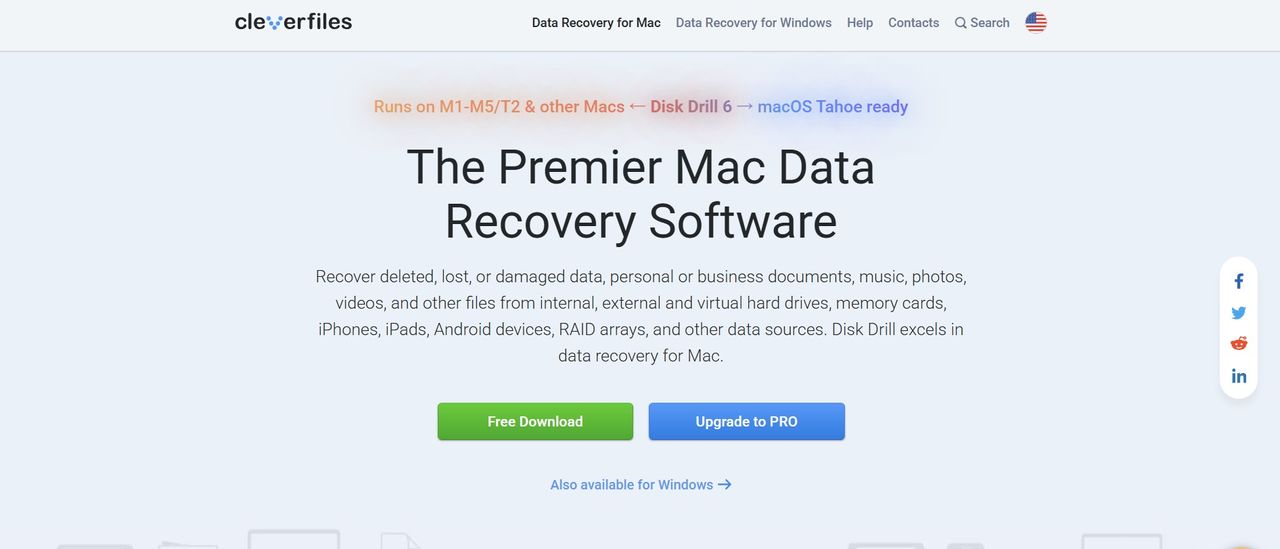
If you’re looking for a data recovery tool, especially for your Mac device, Disk Drill can be a good choice. Its deep KEXT-level Mac scans work even on newer versions, along with a very robust Windows, Android, and iOS platform.
Disk Drill's website boasts that any lost data file type can be recovered, from almost any data loss scenario you can think of. But does Disk Drill rediscover the deleted data you're expecting? We’ve put Disk Drill to the ultimate test to find out.

Disk Drill: Plans and pricing
Disk Drill's pricing is slightly on the higher side, especially its one-year subscription, which costs $89 per year. In comparison, EaseUS costs $69.95/year. That said, you can install Disk Drill on up to three devices, whereas EaseUS offers only a single-device license.
However, you get the best value with Disk Drill if you get its lifetime license, which costs only $149. The prices also remain the same for both platforms: Windows and Mac.
Disk Drill: Features
The best thing about Disk Drill is that it is very inclusive in nature, since it supports both Windows and macOS, and a wide variety of file systems such as FAT16, FAT32, exFAT, HFS, APFS, EXT 2/3/4, and RAW disks.
The application can recognize around 400 file signatures on a host of devices such as SSDs and HDDs, USB flash drives, NAS devices, software RAID arrays, smartphones, and memory cards. This is by far one of the widest coverage ranges offered by any data recovery software.

Besides simple data recovery, Disk Drill also offers a byte-by-byte backup option, which allows you to clone each sector of your device one by one while dealing with failing hard drives. You also get several ancillary tools, such as SMART monitoring, which checks your device health, and a built-in disk cleanup tool that looks for useless files on your drives.
I really loved its Advanced Camera Recovery feature, which makes it easy to restore fragmented and lost video footage from devices such as drones, DVRs, or cameras. There's also a nifty recovery chance calculator, so that you can check the probability of a file being successfully recovered before attempting to do so.

Data recovery software usually requires direct access to storage devices to properly scan and recover data. However, this is not possible on newer macOS versions with T2 and Apple Silicon M1 to M5 chips.
This is where Disk Drill comes in handy. It deploys its own kernel extension, known as a KEXT, which allows it to cooperate with the macOS kernel and bypass standard OS-level limitations to access internal drives. Since Apple has been slowly phasing out KEXTs, Disk Drill’s ability to perform deep macOS scans is a significant advantage.
Scanning
The scanning speed with Disk Drill depends on the type of drive you are scanning. If it’s an external hard disk, it can take more than 10 hours to scan 1TB of data, which is way more than other platforms we’ve tested. However, internal drive scans are pretty quick – I was able to scan around 600GB of data within a matter of five minutes.
While the scan is in progress, you can review items that have already been found, including deleted files. This allows you to start the recovery process even before the entire scan finishes.

You will see a color-coded dashboard that segregates each scan into various file types such as pictures, videos, audio, documents, archives, and so on. There’s also an option to view the files in a standard tree view, just like the file explorer on your PC. You can simply click on any one of them to view scan results and recover them.
However, one issue with Disk Drill is that it doesn’t allow you to save scans. If you head back to the homepage before recovering anything, you’ll have to run the scan all over again.
Installation and in-use experience
While Disk Drill is easy to install, compared to other software we have reviewed before, the process took longer than expected, and the application requires a system reboot before you can start using it. In comparison, other software we have tested launches directly upon completion of installation.

That said, the interface itself is pretty modern and sleek, with a pitch-black design. On the homepage, you will find a side panel that allows you to access all software features, including data recovery and extra tools.
Once you finish a scan, you’ll see two options at the top: Recover All or Review Lost Data. The Review option lets you look for the exact files and folders you want to restore in an easy-to-view, tree-style format. You also have the option to filter results based on file type, size, date modified, and recovery chances.

Simply check the box next to the file you want to recover and click ‘Recover’ at the bottom right of your screen. Once you choose a destination, the file is recovered within a matter of a few minutes.
The whole process is seamless and pretty beginner-friendly. We didn’t face any lags or unusual delays throughout the process.
Disk Drill: How we tested
To test Disk Drill thoroughly, I installed the free version of the software on my Windows 11 system with 16GB of RAM and a 12th Gen Intel(R) Core(TM) i5-12500H processor. Then, I downloaded an album of Mozart's music from the Internet Archive. This consisted of 22 files – 13 JPG files, 4 PNG files, 2 MP3 files, 2 FLAC files, and 1 torrent file.
I transferred the folder to a 1.36 TB NTFS hard drive and connected it to my Windows 11 system, after which I deleted it and emptied the Recycle Bin. Then, I ran a scan with Disk Drill, and within a matter of minutes, it found the deleted folder. I simply clicked on it and hit Recover, and all 22 files were recovered in our chosen destination within a few seconds. I repeated this test with local drives on my PC, and the results were similar.
Disk Drill: Support
Disk Drill is easy to use and it's fast. But what happens when you run into problems?
To help you out, a comprehensive selection of tutorials is provided on the website, covering everything from recovering data from specific device types, platforms, and file types. If these documents don't solve your problem, the detailed Lost file recovery university (Disk Drill's knowledge base) almost certainly will.

As readers have seen, we were particularly impressed by the knowledge base suggesting that users try to use their own OS built-in utilities to recover data before buying Disk Drill. The support section also provides balanced reviews of other data recovery tools. We particularly recommend the 'Understanding' section of the Knowledge Base, which contains some tutorials on basic subjects like how to recover just one lost file, as well as providing an overview of all Disk Drill features.
Failing that, a live chat service is available, and you can also get in touch with Disk Drill on Facebook, Twitter, Reddit, and LinkedIn.
Disk Drill: Final verdict
Disk Drill for Windows has lived under the shadow of the macOS “original” for quite some time, but based on our testing, this seems unfair. Disk Drill delivers an impressive data recovery experience, supported by features like deep macOS scanning via KEXT, byte-by-byte backups, and a host of free drive maintenance tools.
Its complete collection of features across platforms and scenarios is impressive, including the ability to mount and read previously unmountable virtual hard drives and recover data from them within a comparatively short timeframe.
Disk Drill spotted all the deleted test files and recovered them quickly, reinforcing its reliability as a recovery tool worth considering. The performance is a bit mixed, with external drive scans turning out to be slower than most of its peers. That said, its interface is a clear winner, thanks to its visually appealing and well-segregated scan results.
Pricing for the PRO version isn’t ideal for home users, although there are discounts for users of existing tools, as well as students and charities. While the pricing is on the higher side, the software delivers good value for those looking for a reliable data recovery option and who prioritize usability over cost.
- Also check out our complete list of the best data recovery software