Get all your news in one place.
100's of premium titles.
One app.
Start reading
Digital Camera World
Rod Lawton

Cheat sheet: Lightroom Classic's black and white tools at a glance

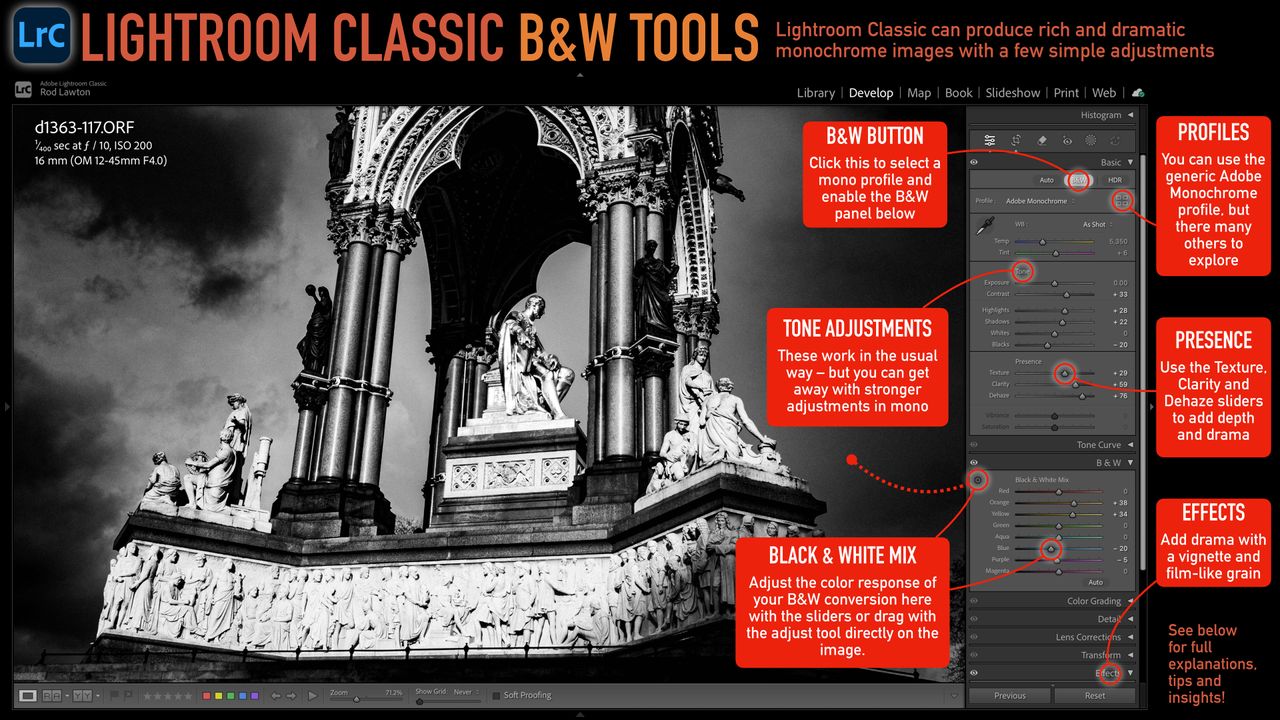
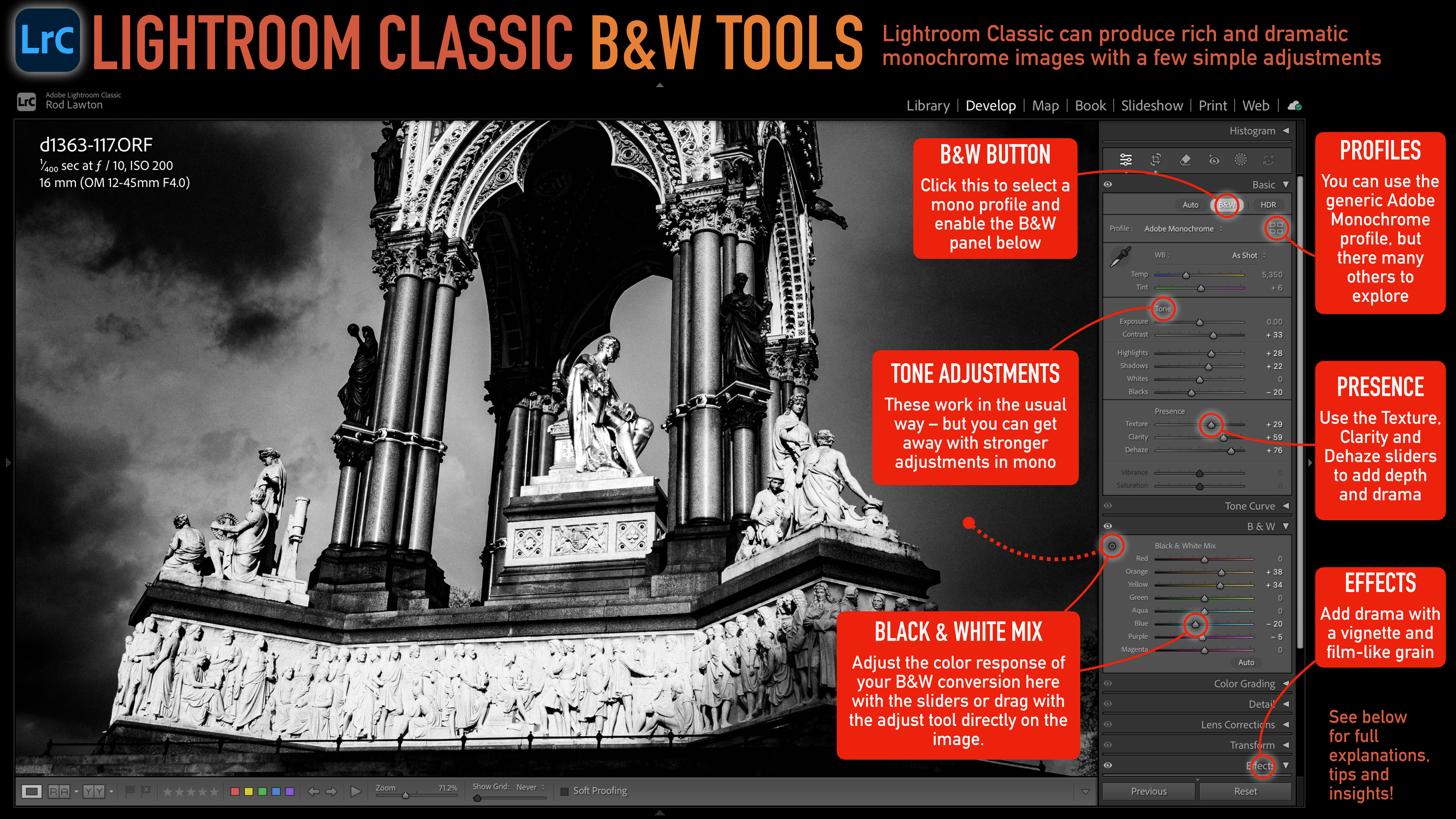
Lightroom Classic black and white cheat sheet.
To get the high-res version of this cheat sheet, click on this screenshot to open it in a new tab then right-click to download. (Image credit: Rod Lawton)

Lightroom Classic has powerful options for black and white photographers, even without delving into the masking tools for dodging and burning. Unlike color photography, where you can often use image straight from the camera, black and white relies on a little extra work in the digital darkroom. Images shot in black and white modes on the camera typically benefit from some careful contrast, clarity and color mixing adjustments to really bring them to life. So here are some key tools in Lightroom Classic to help achieve that monochrome mastery.

B&W button

This simple button at the top of the Basic panel switches the Develop tools from regular color editing to monochrome. The key difference is that what would normally be the Color Grading panel now swaps to the B&W panel, where you can apply the same color mixing tools to your black and white images that feature in Photoshop’s Channel Mixer and B&W adjustment layers.

  • You could convert color images to black and white simply by reducing the Saturation value to zero, but B&W mode is designed specifically for this kind of work

B&W panel

This displays eight different color ranges which you can adjust and ‘mix’ to create your black and white conversion. When you reduce the value of a color it comes out darker in the black and white image; when you increase the value, it comes out lighter. To make blue skies darker and foliage lighter in landscape shots, for example, you would reduce the Blue value and increase the Green.

  • If you apply larger adjustments, trying shifting adjacent color sliders slightly in the same direction to blend in the adjustment more subtly
  • Look out for edge effects around objects if you apply too strong an adjustment to darken blue skies, for example
  • The Adjust gadget can save you a lot of time. Just select it then drag up and down on areas of the image to darken or lighten those colors

Tone adjustments

These work in the normal way, but you’ll find you can often push the Contrast and other values further than you would with color images. Black and white is more forgiving of extreme adjustments, which can often add to the graphic impact.

  • By all means use the histogram display at the top to check for clipping, but you can often afford to lose more highlight and shadow detail than you can with color

Presence sliders

The Presence sliders need to be used with a little care when you’re working on color images, but in black and white you can afford to go wild. As a medium it’s already more dramatic and theatrical than color, and the Texture, Clarity and Dehaze sliders can really add to the impact of an image.

  • The Texture slider is good for adding micro-contrast to details in the image
  • Use the Clarity slider to make objects really stand out and give a lift to flat-looking images
  • The Dehaze slider adds drama to skies and gives darker tones a lift too. In color it can often add too much color saturation, but in black and white that’s not a problem!

Profiles

It’s easy to overlook the Profiles in Lightroom Classic, and while the default Adobe Color and Adobe Monochrome profiles will do a decent job, it’s definitely worth clicking the Browse button to look through all the other profiles available. Lightroom comes with a selection of bespoke B&W Profiles which all deliver a unique ‘look’

  • These profiles are not like presets. They are like a kind of pre-processing step that doesn’t involve the editing tools at all

Effects panel

The Effects panel has two great tools for black and white photographers. The Post Crop Vignetting tool adds subtle corner shading to increase the contrast in your photos and add a framing effect to aid the composition, while the Grain effect offers a very realistic simulation of actual analog film grain.

  • You can get into the nitty gritty of the Grain Size and Roughness sliders if you like, but for quick and convincing results you can leave them at their defaults and just use the Amount slider
Sign up to read this article
Read news from 100's of titles, curated specifically for you.
Already a member? Sign in here
Related Stories
Top stories on inkl right now
One subscription that gives you access to news from hundreds of sites
Already a member? Sign in here
Our Picks
Fourteen days free
Download the app
One app. One membership.
100+ trusted global sources.