Get all your news in one place.
100's of premium titles.
One app.
Start reading
Android Central
Android Central
Technology
Brady Snyder

Bought a new Google Pixel 10a? Here are the first 5 things you should do with it

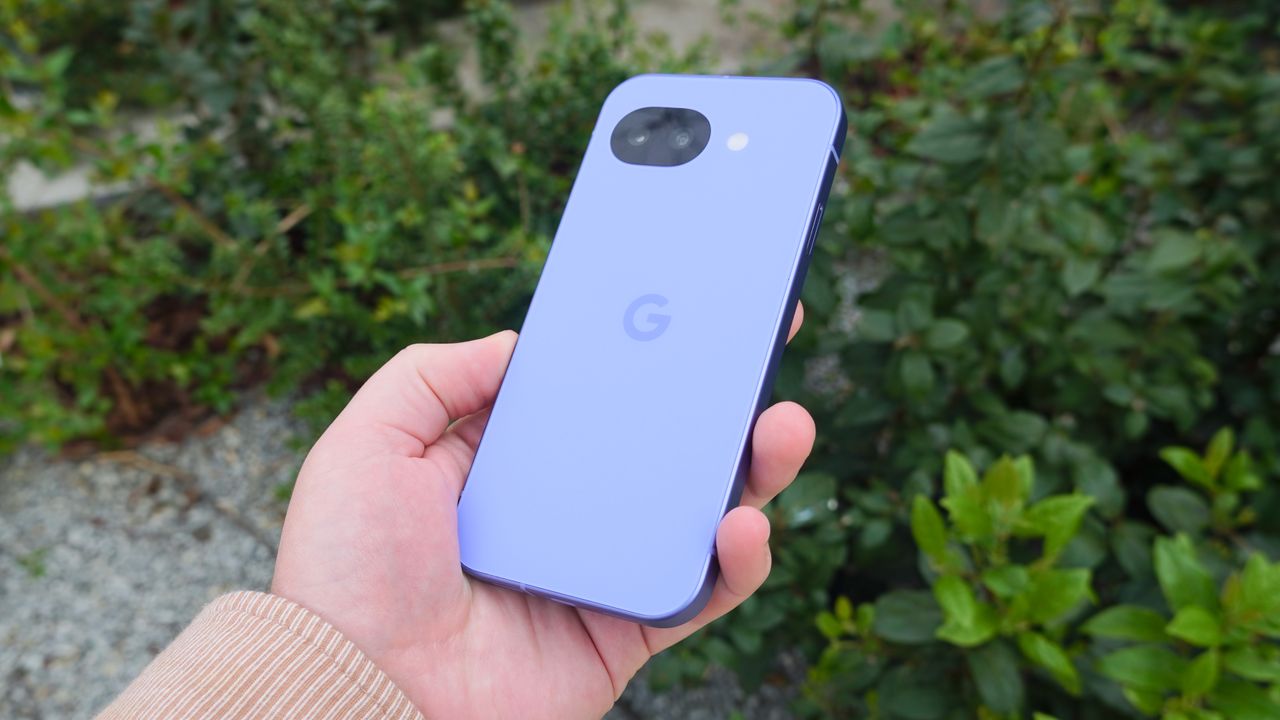
The Google Pixel 10a in the Lavender colorway.

The Google Pixel 10a features the same processor, camera system, and general design as its predecessor, and that means the bulk of the upgrades are on the software front. The Pixel 10a borrows a few software tricks from its mainline Pixel 10 counterparts that are a welcome addition to the A-series model. They include Macro Focus and Camera Coach, two incredible features that help you level up your photography game.

Of course, with so much dependent on software, the Pixel 10a is what you make of it. If you never tweak your settings or explore the latest Google features, you'll end up with a subpar experience. These are the features I used and the settings I changed immediately after unboxing my Pixel 10a — and why you should do the same.

Enable 120Hz refresh rates

(Image credit: Brady Snyder / Android Central)

The Google Pixel 10a offers a pretty outstanding display for the price point. It sports a 6.3-inch OLED panel with a 1080 x 2424 resolution and a 3,000-nit peak brightness rating. Like a few A-series phones before it, the Pixel 10a is equipped with a 120Hz display for smoother scrolling, but it's not enabled by default. If you aren't careful, you could buy a Pixel 10a for its 120Hz screen and accidentally use it in 60Hz mode the entire time.

The very first thing you should do after setting up your Pixel 10a is enable the Smooth display setting, which allows the screen to reach 120Hz refresh rates. It's disabled by default because it uses more battery, but it's worth turning on anyway for the more satisfying feedback and quicker responsiveness.

This toggle should probably be turned on automatically. After all, people go out of their way to avoid 60Hz phones. However, as long as it's disabled by default, Pixel 10a users will need to manually activate 120Hz refresh rates for their new midranger.

Try Macro Focus

(Image credit: Brady Snyder / Android Central)

Older A-series Pixel phones utilized the low-resolution ultrawide cameras for macro photography. The software feature was great for capturing close-up photos of a subject, but the 13MP ultrawide camera left much to be desired in terms of quality, and the wide-angle field of view caused visual distortion. Starting with the Google Pixel 10a, you can now use Macro Focus with the primary 48MP shooter to capture sharper, more detailed images.

The main camera enables a natural focal length and 2x sensor cropping for optical-quality zoom, even while using Macro Focus. In other words, it's a better way to take macro shots with the Pixel 10a than with the Pixel 9a and earlier models. To use it, open the Camera app and get close to your subject. Really close — about an inch away from your subject.

You only need to use the regular photo mode to trigger Macro Focus in the Camera app. When you get close enough, you'll see the style of your image preview change in the viewfinder. A flower icon will appear in the top-right corner of the screen, confirming you're using Macro Focus. A message might appear above the viewfinder instructing you how to move your camera to get the best results, like getting closer or further away.

When you've found the right composition for your Macro Focus shot, tap the shutter, and you'll have a macro shot in your Google Photos library.

Pick a display color mode

(Image credit: Brady Snyder / Android Central)

When I first set up my Pixel 10a review unit, the colors and brightness felt off. The display was rich towards the center, with blooming and low brightness toward the edges. Put simply, it wasn't a great viewing experience, but I was able to fix it by changing one setting.

Google Pixel phones ship with two color modes: Natural and Adaptive. The latter is enabled by default and displays colors in a rich, vibrant way that isn't true to life. While some might prefer the look of Adaptive colors, I thought it made my Pixel 10a screen quality worse. By switching to Natural, my Pixel 10a screen instantly looked better, as this viewing mode evened out the color vibrancy and brightness across the entire screen.

You can choose a color mode in the Settings app by tapping Display & touch, then selecting Colors. There, you'll be able to select Natural or Adaptive and watch the screen change in real time. Google provides three sample images that help you figure out which look is better for you. There's really no right or wrong option here, but it's worth taking the time to decide which color mode you prefer on your Pixel 10a.

Demo the Satellite SOS tool

(Image credit: Brady Snyder / Android Central)

The Google Pixel 10a features one chip upgrade, but it's not the main processor. Instead, the modem is new and now matches the rest of the Pixel 10 series. The Exynos 5400 modem inside the Pixel 10a, among other things, adds satellite connectivity support. As a result, this phone is the first A-series device to support Google's Satellite SOS feature. It's a tool that could end up saving your life.

The way it works is simple. When cellular service drops, say if you're on a remote hike, you're typically unable to contact emergency services for help. Features like Satellite SOS make it possible to use overhead satellites to contact emergency services in a pinch, even when you don't have cellular service. It's an incredible, potentially life-saving tool. But you want to know how to use it before a possible emergency situation.

Luckily, Google makes it easy for you to try out Satellite SOS in demo mode whenever you want. To do so, open the Settings app and tap the Safety & emergency tab. Then, tap Pixel Satellite SOS. Here, you can press Try a demo to take Satellite SOS for a spin — without actually contacting emergency services, of course. It's a no-risk way to test out the capabilities of your new device.

Try Camera Coach

(Image credit: Brady Snyder / Android Central)

Finally, there's Camera Coach, another feature that made its way to the Pixel 10a from the regular Pixel 10 series. I was initially somewhat apprehensive about bringing Gemini into my smartphone camera, but I've come away impressed by Camera Coach. It uses Gemini models to provide situational photography tips. It's an educational tool that doesn't use generative AI to change your image. Instead, it simply makes suggestions that you can then use to inform your photos.

To use it, tap the Camera Coach icon, which looks like a camera with a sparkle. From there, custom Gemini models analyze the viewfinder and suggest themes you can select. After you pick one, Camera Coach will briefly process the image and come up with a list of tips or suggestions to help you take a better shot. After you've completed the guided steps, you can take the photo and hopefully remember something you've learned for later.

It's one of the many great features on the Google Pixel 10a, and using them all helps you make the most of your new midrange Android phone.

Sign up to read this article
Read news from 100's of titles, curated specifically for you.
Already a member? Sign in here
Related Stories
Top stories on inkl right now
One subscription that gives you access to news from hundreds of sites
Already a member? Sign in here
Our Picks
Fourteen days free
Download the app
One app. One membership.
100+ trusted global sources.