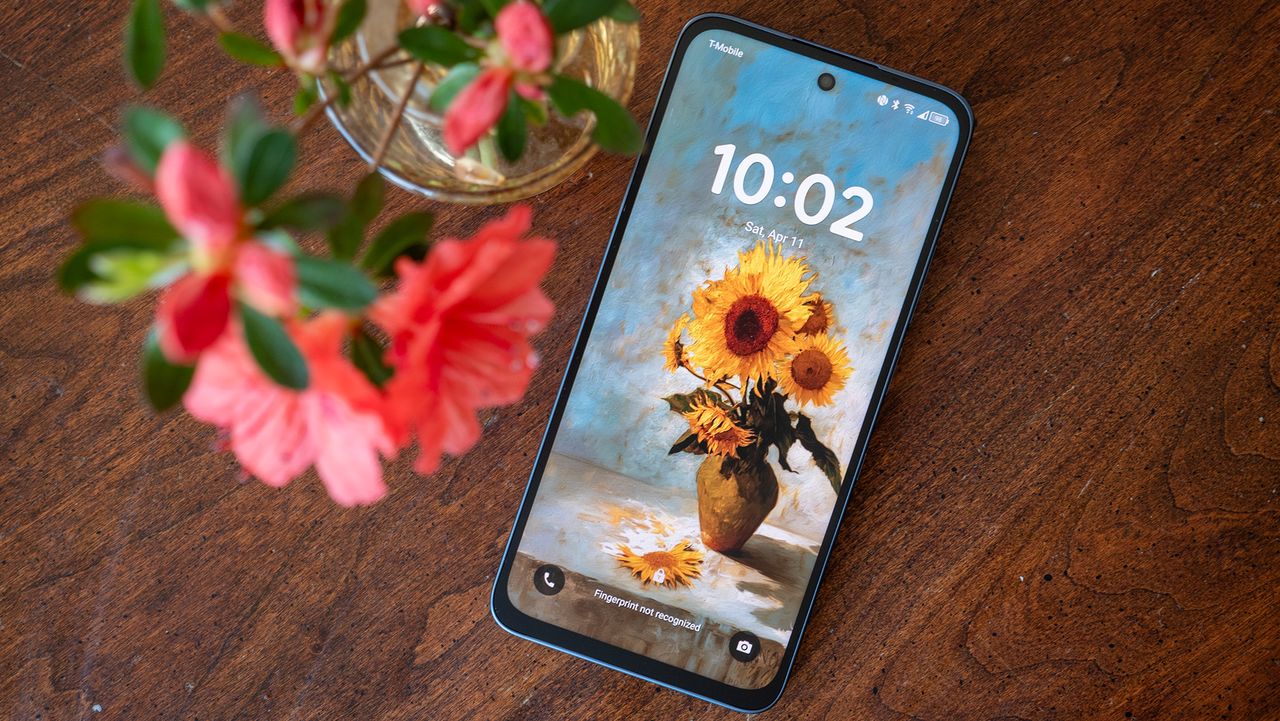
Over the years, TCL has positioned itself as a market leader in eye-friendly display technology, and that's all wrapped up in the company's impressive NXTPAPER technology. The latest phone from the company, the TCL NXTPAPER 70 Pro, just launched in April 2026 and brings NXTPAPER 4.0 technology to the continent for the first time.
Along with that new tech comes a slew of exciting features you're going to love, and I'm here to break down the coolest ones you'll want to show your friends and family. Plus, I'm going to go over features that'll make your life easier and help you get the most out of this awesome phone.
From reading to getting the most out of TCL AI, removing annoying T-Mobile bloatware, and even optimizing performance of the NXTPAPER display, these are the 5 things you've got to do with your NXTPAPER 70 Pro right away!
Remove bloat
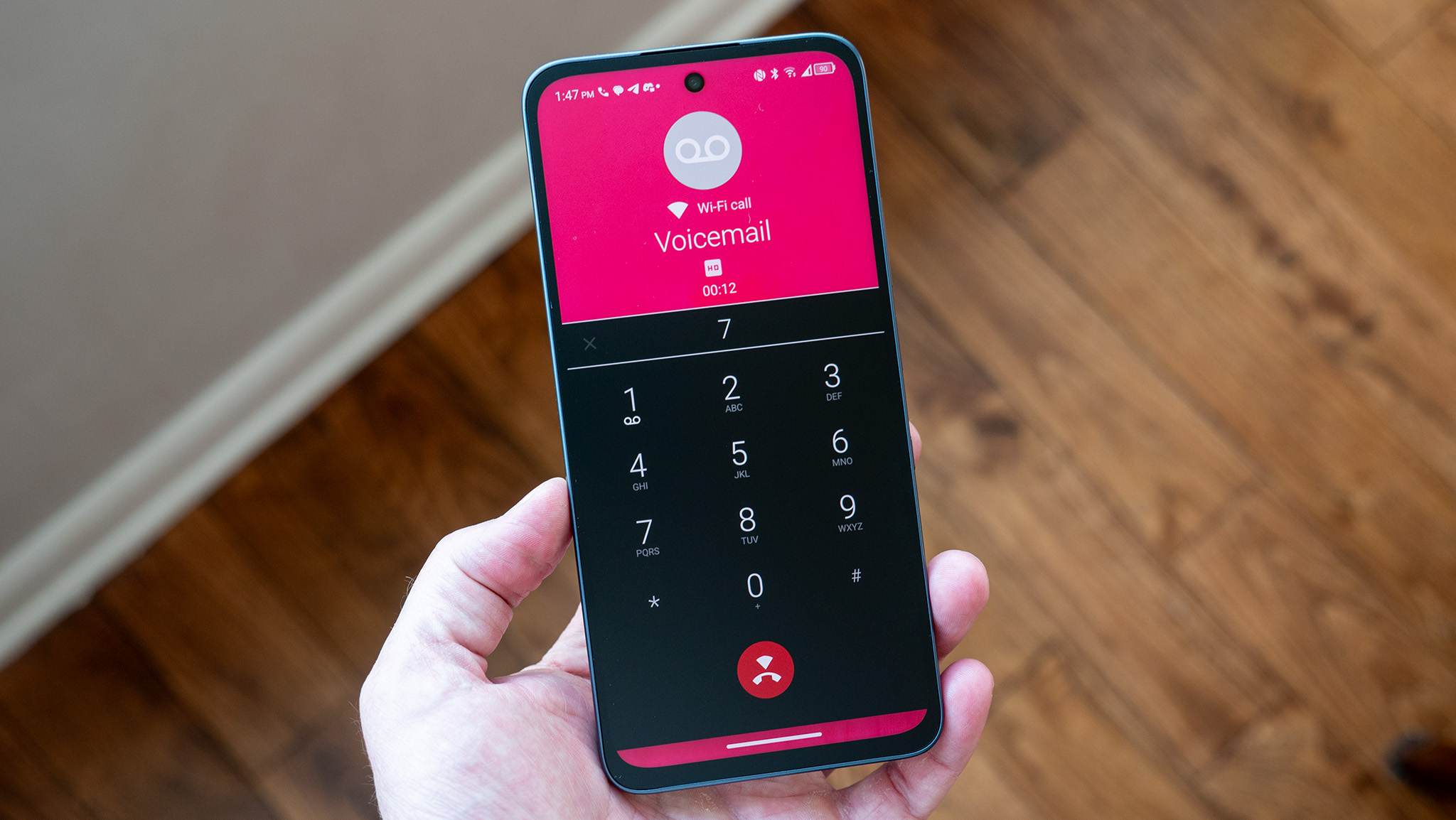
Bloatware is one of the most annoying things about any carrier-based phone and, unfortunately, the T-Mobile version of the TCL NXTPAPER 70 Pro is loaded with dozens of apps that you never asked for. You can uninstall them individually, but the trick here is to remove the source of the problem before it asks you to install even more garbage you don't want.
That offending app is called "App Selector," and T-Mobile cleverly chose to hide it from users to make it more difficult to remove. Thankfully, all you need to know is where to look, and I've got you covered.
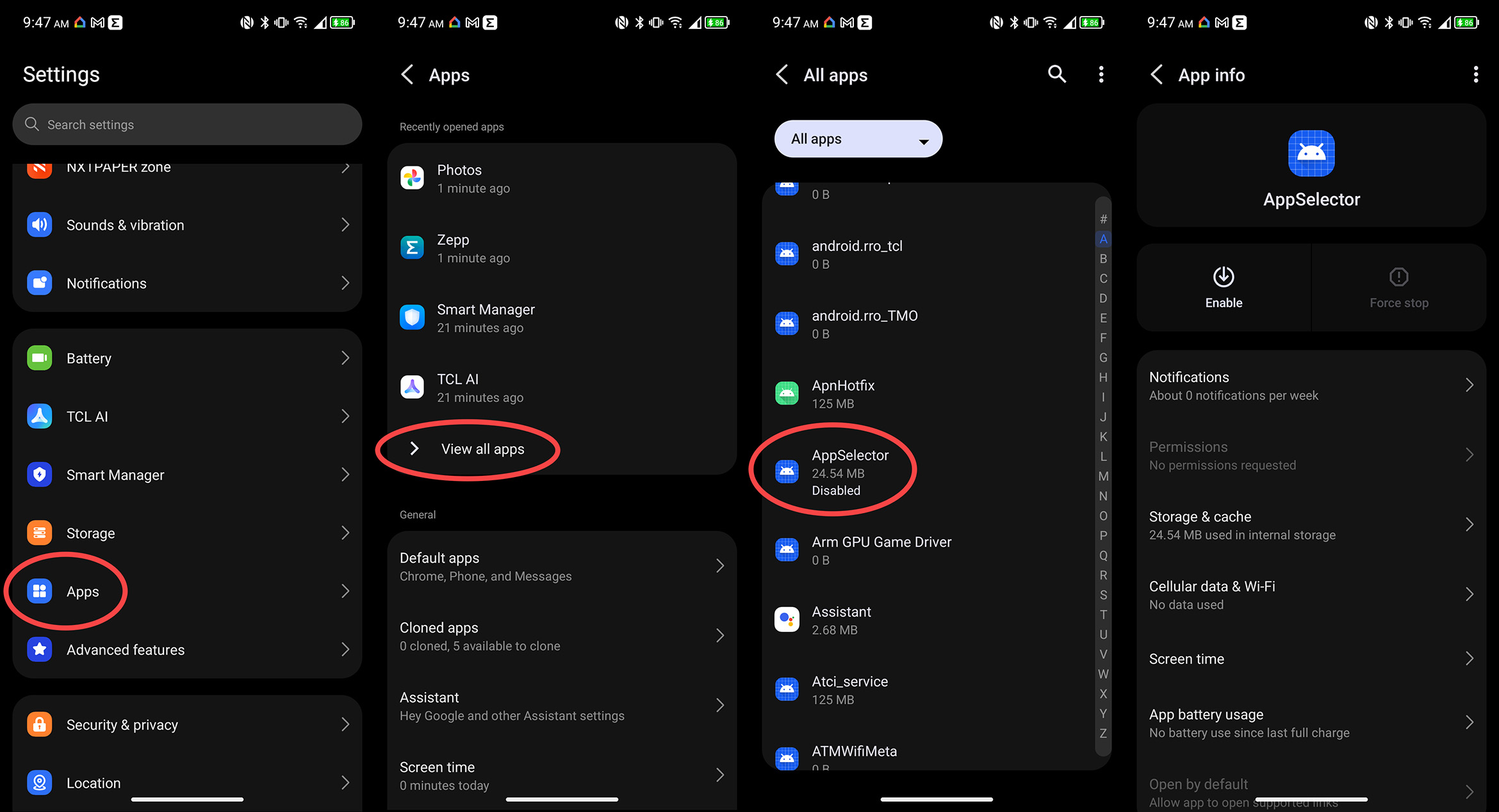
Start off by opening System settings, either via the System app in your app tray or by tapping the settings cog on quick toggles. Scroll down to and tap Apps, then tap the All Apps button in the list. Click the three-dot menu on the top right, then select Show System. Scroll down and tap AppSelector, then tap the Disable button to turn it off.
If you've accidentally run AppSelector before, go one step further and clear data by tapping Storage & Cache, then tap Clear storage.
From here, you'll still need to manually uninstall any apps AppSelector installed, but that won't take long. The fastest way to uninstall apps on this phone is to swipe up on your home screen to open the app drawer, then long-press any app icon you don't want, and tap Uninstall.
It took me about 2 minutes to clear everything off this phone I didn't want installed, which isn't much considering how much nicer the app drawer looks without all that junk installed!
Make it truly flicker-free
TCL touts its NXTPAPER 4.0 technology as truly flicker-free, and while it does indeed dim without nasty PWM dimming flicker, the phone's pixels use another flickering tactic called temporal dithering to enhance the look of the display. Temporal dithering doesn't bother me, but it causes headaches and other pain for some users, so it's best to turn it off to be safe.
First, we'll want to turn off all the NXTVISION features. NXTVISION is essentially TCL taking those annoying TV settings (like motion smoothing) and putting them on your phone. I certainly don't want my phone doing this crap, and you probably don't want it either.
To disable these features, open System settings, either via the System app in your app tray or by tapping the settings cog on quick toggles, then scroll down to and tap Display. Scroll down and tap NXTVISION, then turn each of the toggles off.
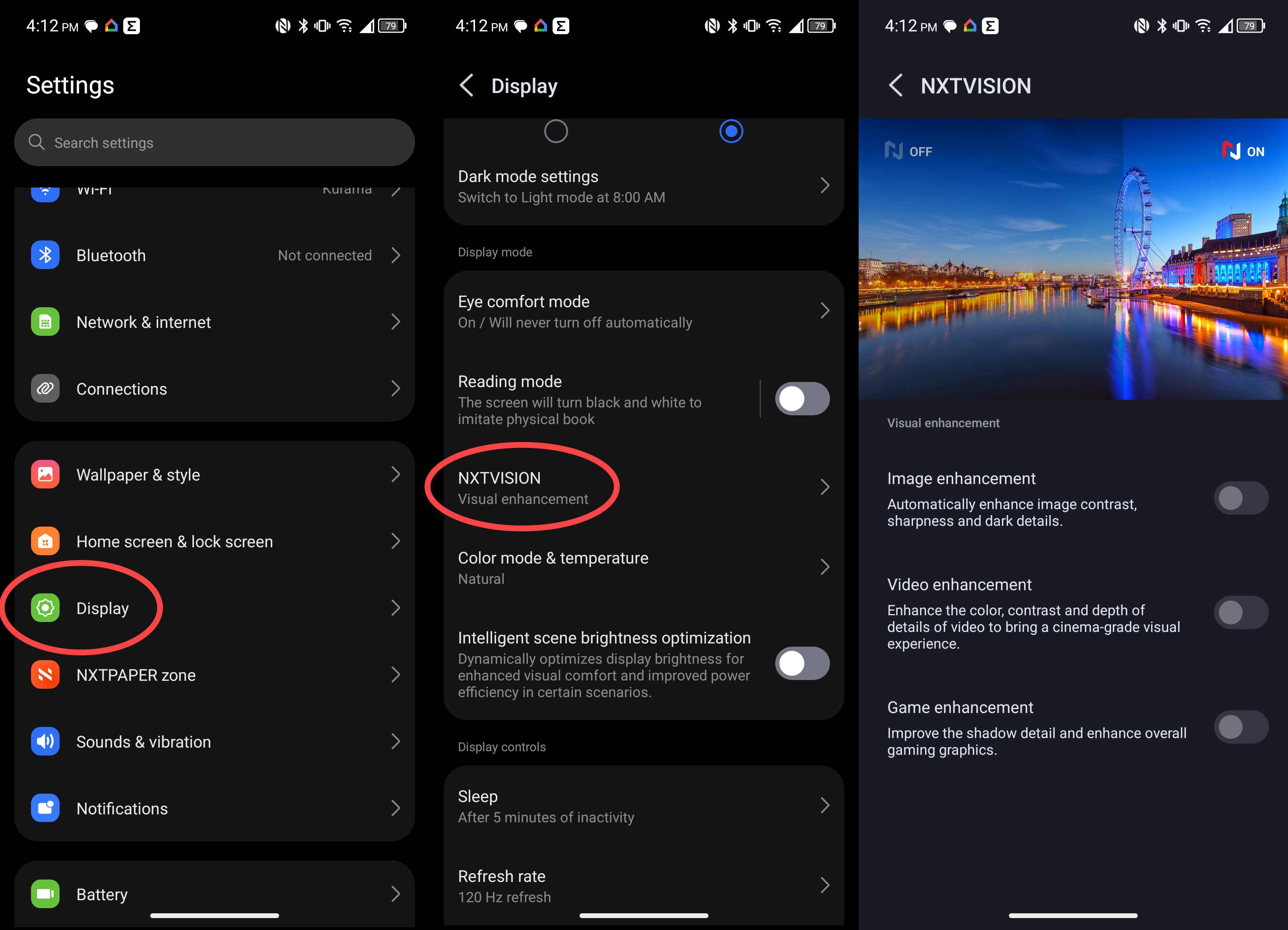
Part one of three, done! Now, you'll want to navigate back to display settings, tap Color mode & temperature, then select Natural from the list. That'll give your display a much more eye-friendly warm hue and block some of the blue light that comes from the LCD backlight on this phone.
Lastly, I find that forcing 120Hz enhances the smoothness of this phone, and that can also be done within display settings. Just scroll down to and tap Refresh rate, then select 120Hz from the list. Now, the phone will stay locked at a liquid smooth 120Hz instead of constantly adjusting the refresh rate. This can use more battery in some instances, but I find the smoothness tradeoff to be worth it.
Read like a pro
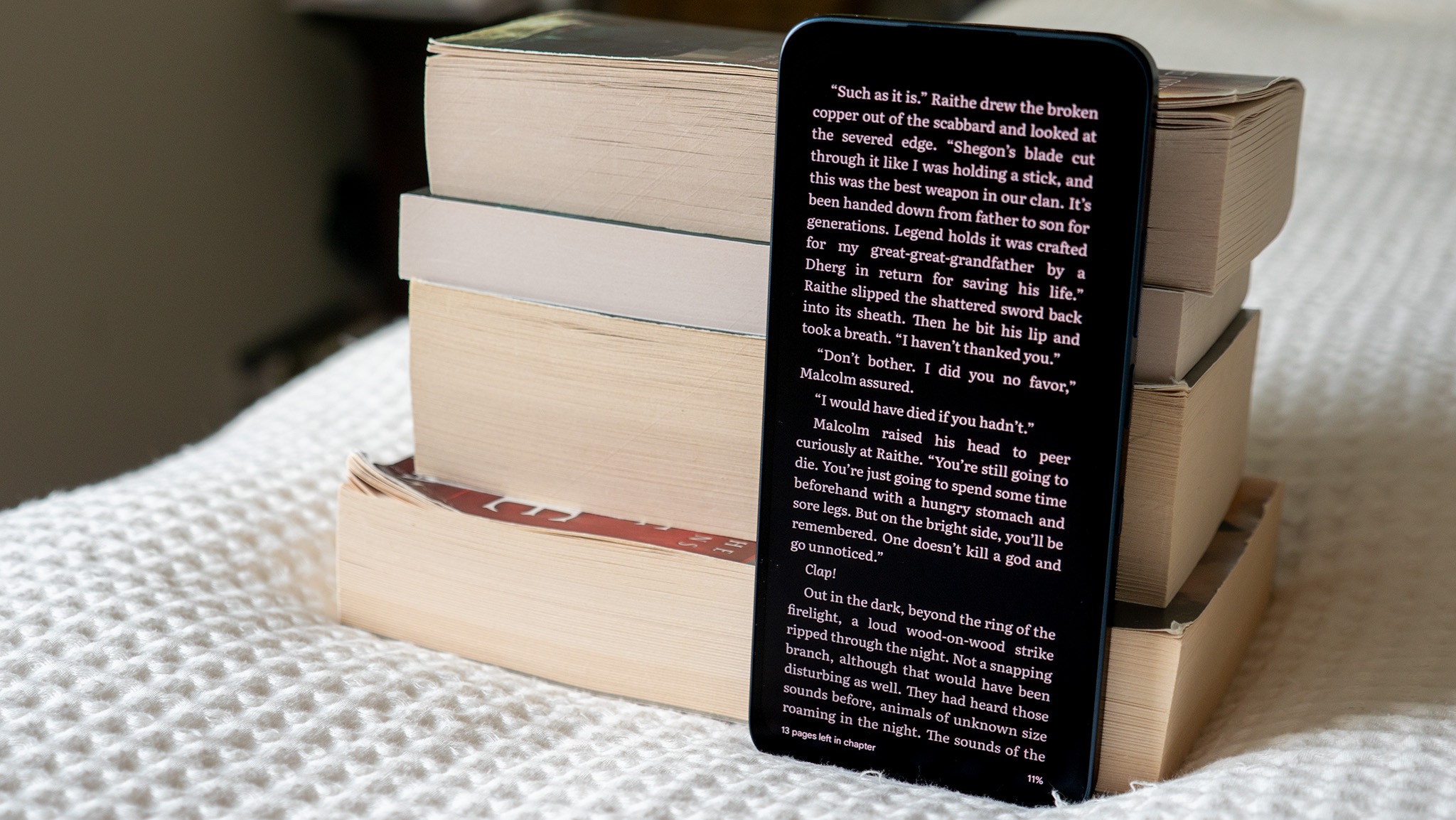
NXTPAPER can't totally replace E Ink devices for reading comfort, but NXTPAPER is a lot more comfortable than a traditional LCD or OLED display. Out of the box, the display looks really good and features a gorgeous anti-glare matte layer.
First off, I don't recommend using a screen protector on this phone as it'll negate any advantages brought by TCL's textured display. Second, you don't have to worry about this display breaking like a traditional glass display. TCL designed this specialized glass to be more resistant to wear and tear than usual, and it even keeps oils and fingerprints away, too.
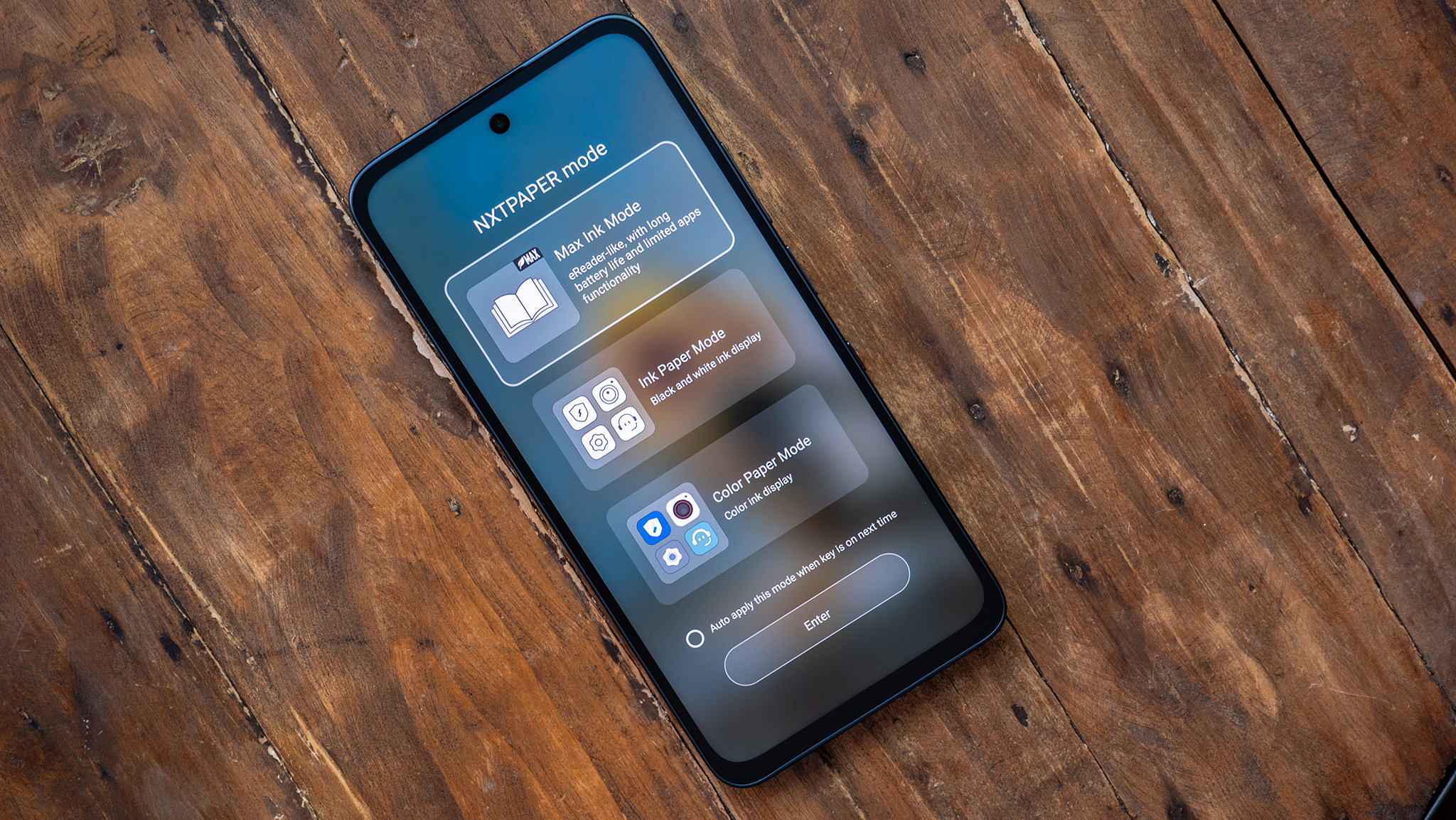
But how about the way the screen shows images? You might not have realized it, but there's a little slider on the right side of the phone called the NXTPAPER Key. Sliding this key up activates it and can put the phone into one of three specialized display settings:
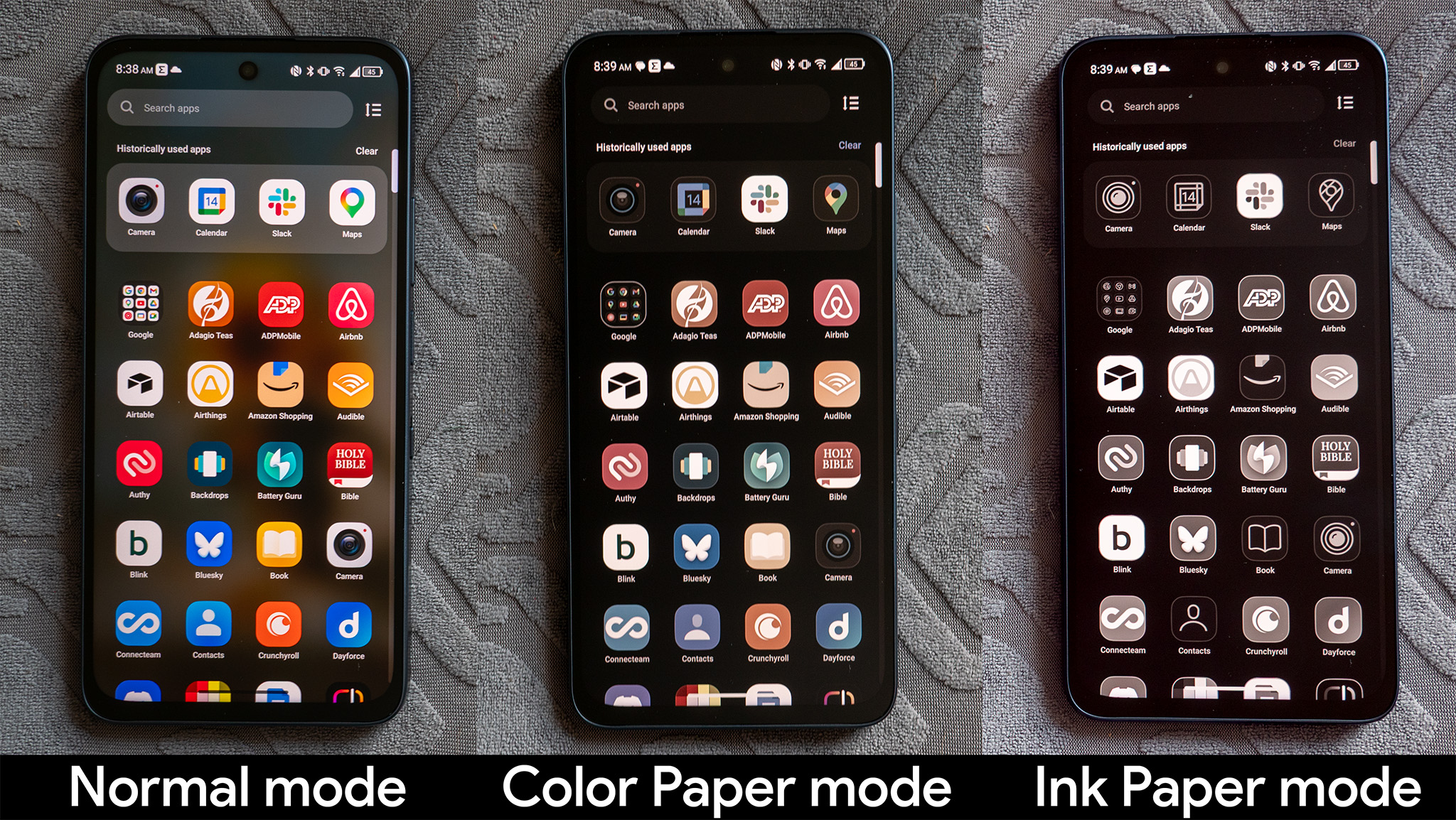
Color Paper mode: Best for comics and manga reading. This mode softens colors and turns the palette decidedly more pastel, lending more authenticity to the look of graphical content.
Ink Paper mode: A good way to get rid of distractions without turning the world off. Ink Paper mode makes everything black & white, which makes the display less addictive to use.
Max Ink mode: When you just want to read and don't want the world to bother you. This one shuts off most apps and prolongs battery life, plus makes the display black & white to encourage you to keep your phone in your pocket more often.
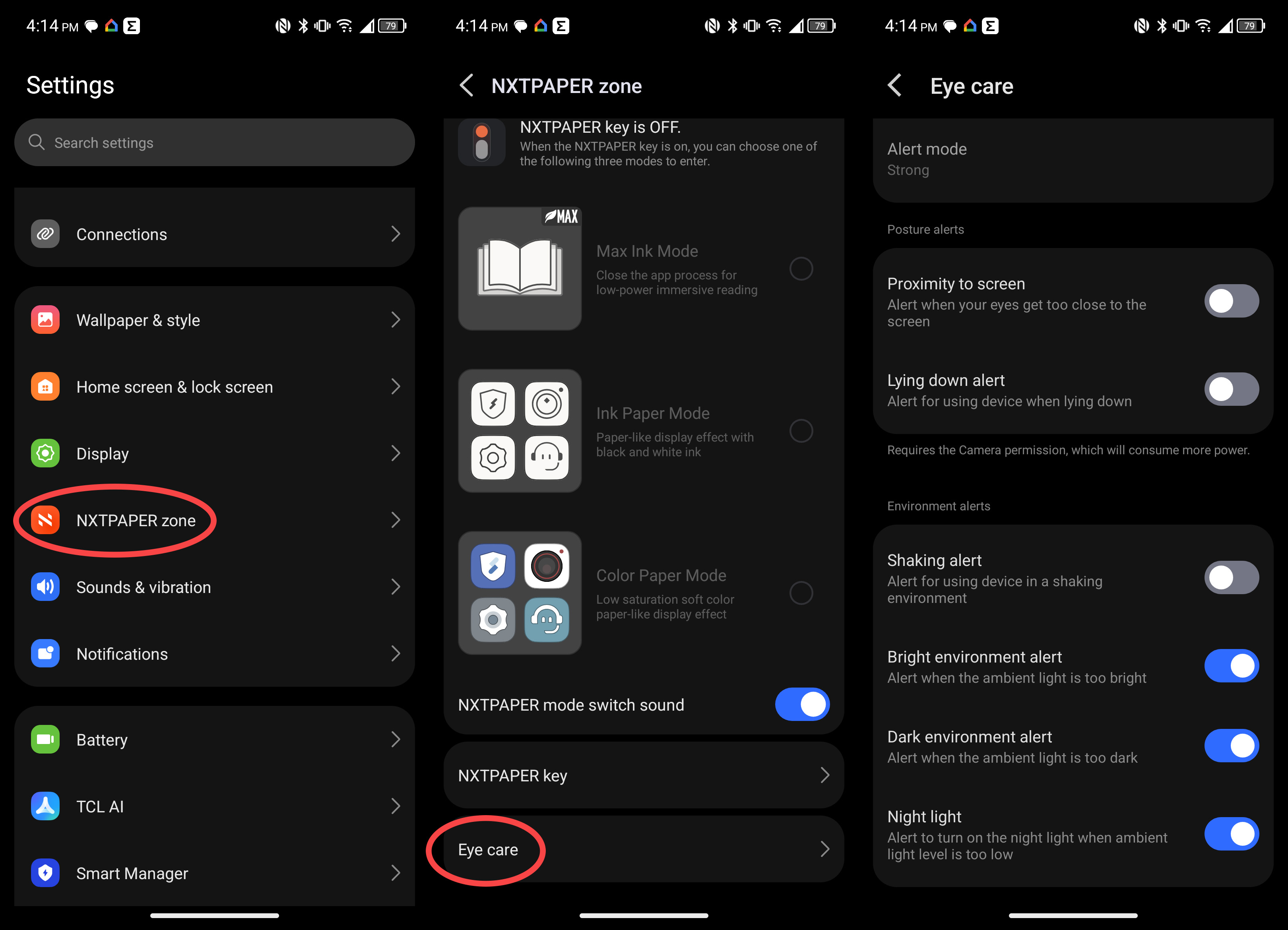
In addition to selecting one of these Ink modes for the right situation, I find it helpful to enable ambient light alerts on the NXTPAPER 70 Pro. The phone will then monitor ambient light and warn you if you might be straining your eyes by looking at your phone too long.
Open System settings, then tap NXTPAPER zone from the list. Scroll down and tap Eye care, then enable the Rest your eyes feature to reduce screen time.
Enable the Bright environment and Dark environment alerts to receive alerts when ambient lighting could cause eye strain. In these situations, you'll want to normalize the ambient light to prevent your eyes from straining when looking at your phone.
Finally, enable Night light to receive notifications about low ambient light, encouraging you to turn on the Eye Comfort mode to further reduce blue light output from the display.
Get that true paper look
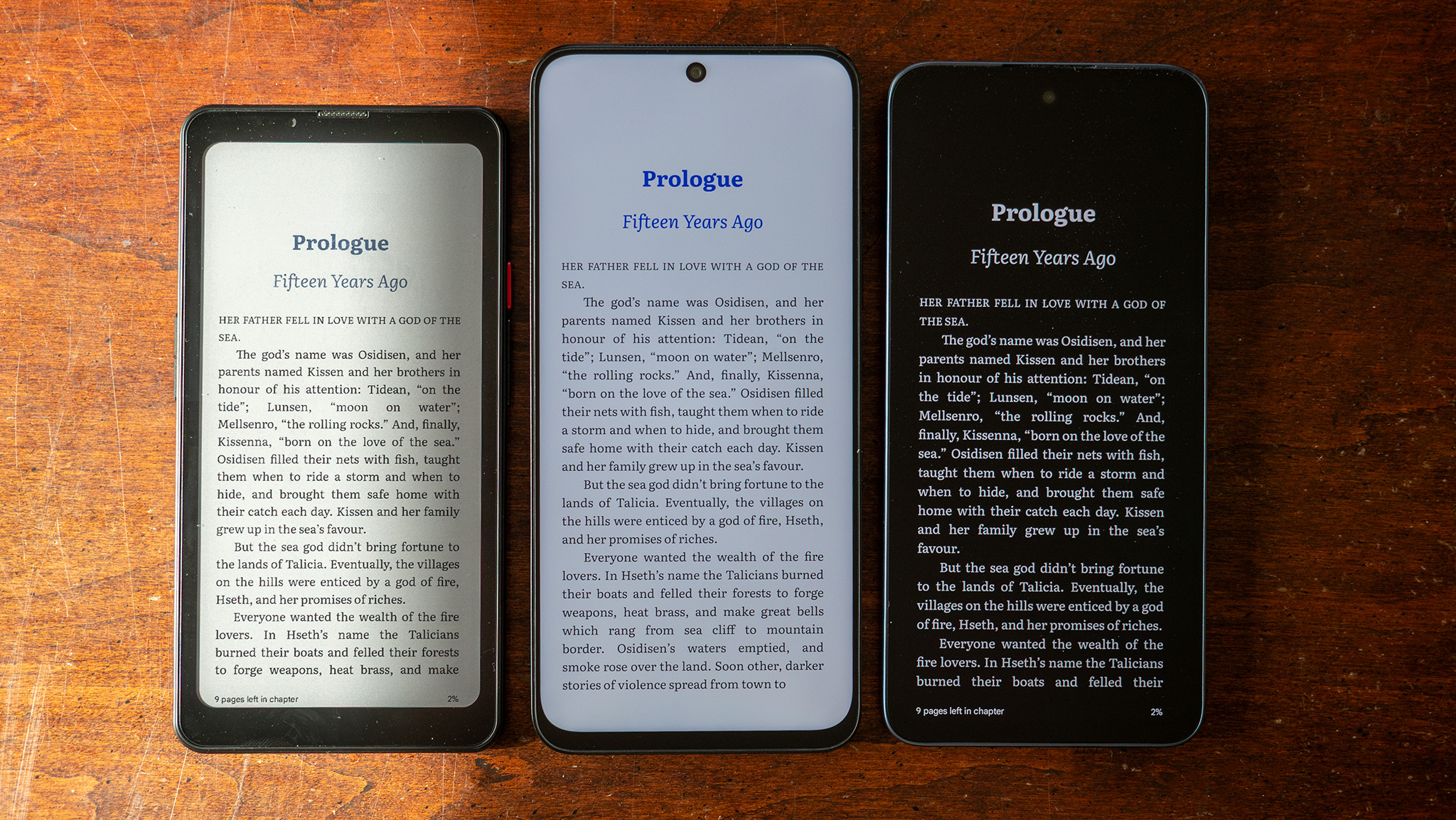
Just as with OLED, using Dark Mode on NXTPAPER displays is a game-changer. Since TCL outfitted the NXTPAPER 70 Pro's display with a matte anti-glare layer and a specialized light-filtering solution beneath it, dark mode looks absolutely exquisite in any light.
While it might seem like a backward concept, dark mode ends up looking more natural than light mode due to the lower light output from the screen. That means you're getting less eye strain in most lighting conditions, especially when reading for long periods on the phone. You may still want to enable light mode in direct sunlight, but I find the matte layer and 900-nit brightness output to be enough for most scenarios.
But TCL has a weird feature that further dims dark apps and can sometimes make it difficult to see while using dark mode. Thankfully, the company added a way to turn off this automatic adjustment, and it's separate from the normal automatic brightness adjustment option.
Open System settings, then in Display settings, scroll down and disable Intelligent scene brightness optimization. Now, you should find that your phone no longer dims arbitrarily when darker content is on the screen. TCL had this enabled by default to enhance contrast and overall aesthetics of the display, but what's the point of having a display if it's too dark to see? That's why I prefer to disable this setting.
Make the most of TCL AI
Modern phones are loaded with AI features, and while many of them can seem superfluous or border on bloatware, TCL has a few extremely clever concepts on the NXTPAPER 70 Pro that I think you'll love using.
The first is found when using gesture-based navigation. Normally, when you navigate back, you swipe inward from the side of the display and immediately let go. Instead of immediately letting go next time, try swiping inward and holding for a second or two. This will bring up the sidebar, which is full of great shortcuts and tools.
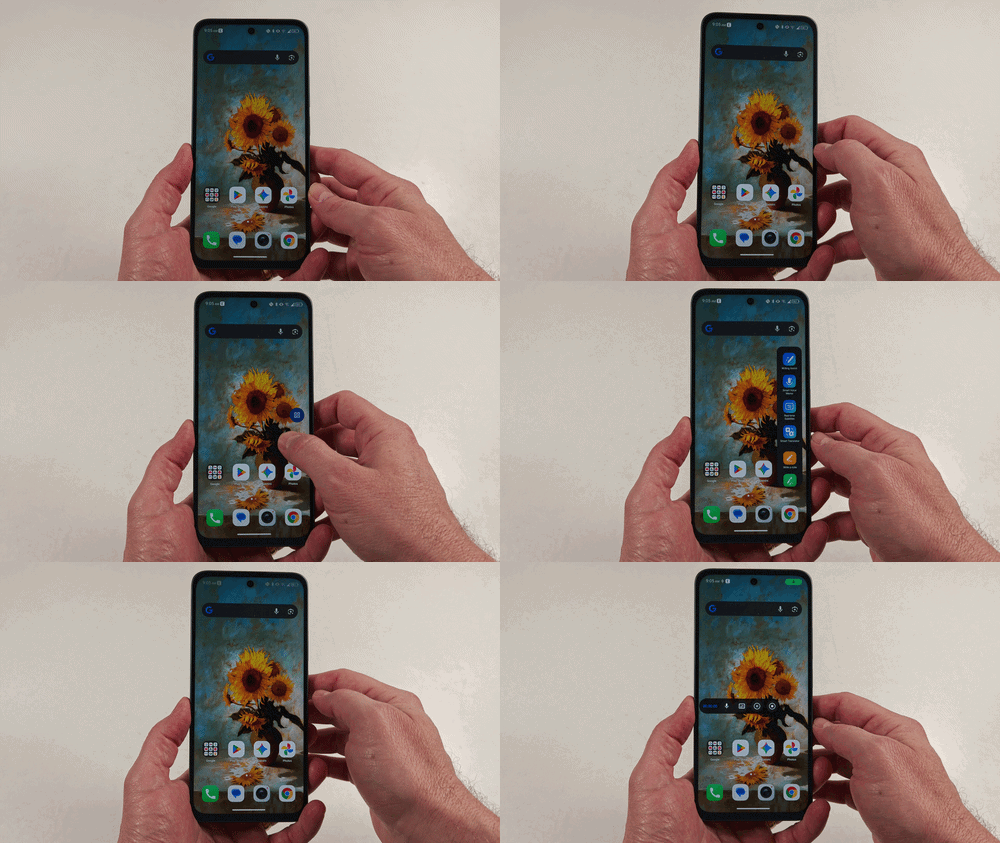
The sidebar is not a new concept, but front-loading the most useful AI tools into the sidebar makes it more useful than the usual app launcher. Personally, I've found the Smart Voice Memo tool to be the most useful option in the sidebar, followed by the Real-time Subtitles option.
Voice Memo is an extremely natural way to dictate ideas to your phone throughout the day and is both more convenient than text notes and more natural-feeling than using text-to-speech typing. Voice memo supports natural language input, so you can say those "ums" and "uhs" without worrying about that being converted into text or misunderstood by a virtual assistant.
And Real-time Subtitles is like enabling closed captions for every audio source on your phone, something that's more than just handy. There are plenty of situations in life where it's not appropriate for sound to come from your phone (or to wear earbuds), and it's this gap where Real-time Subtitles comes most in handy.
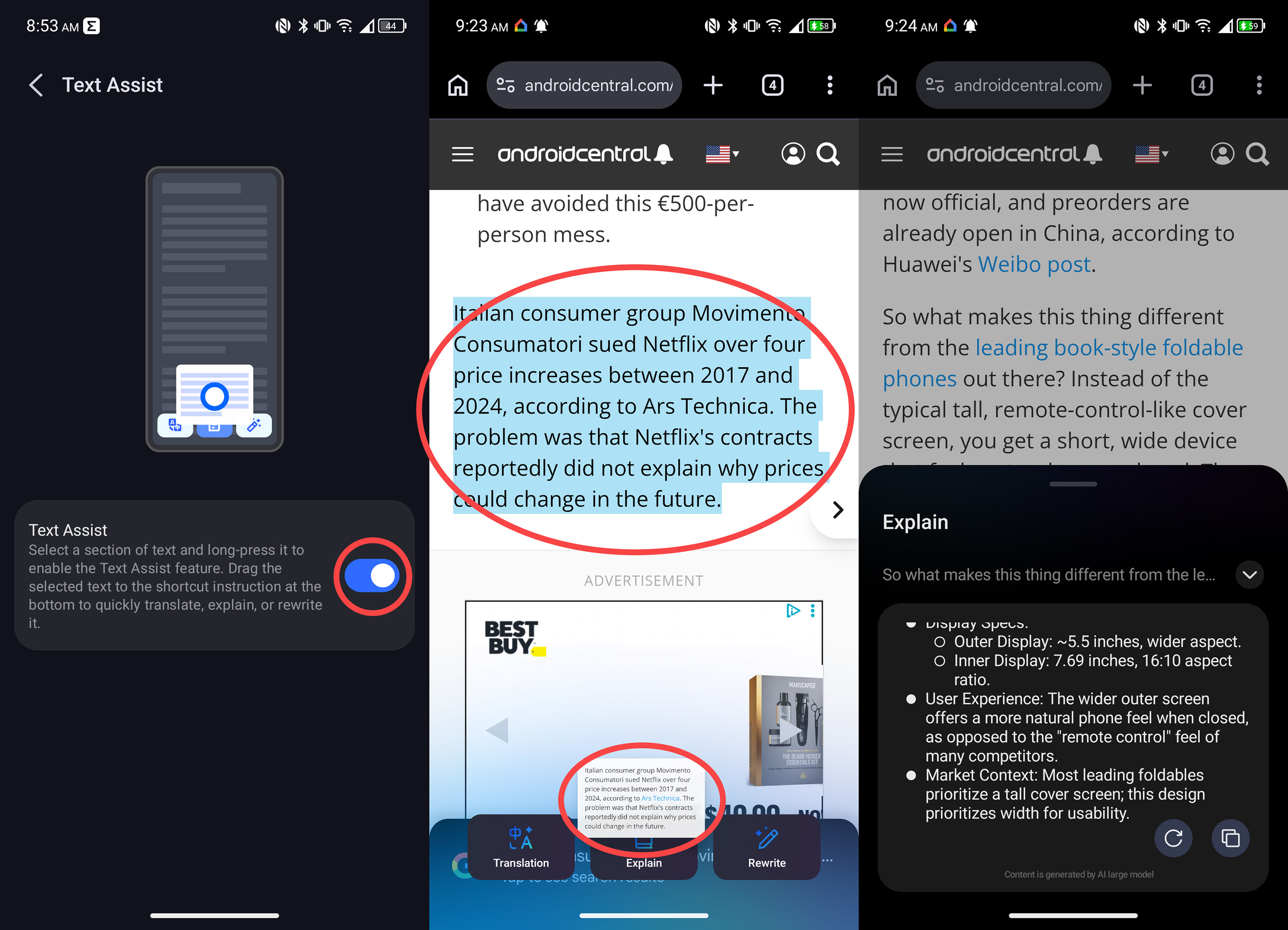
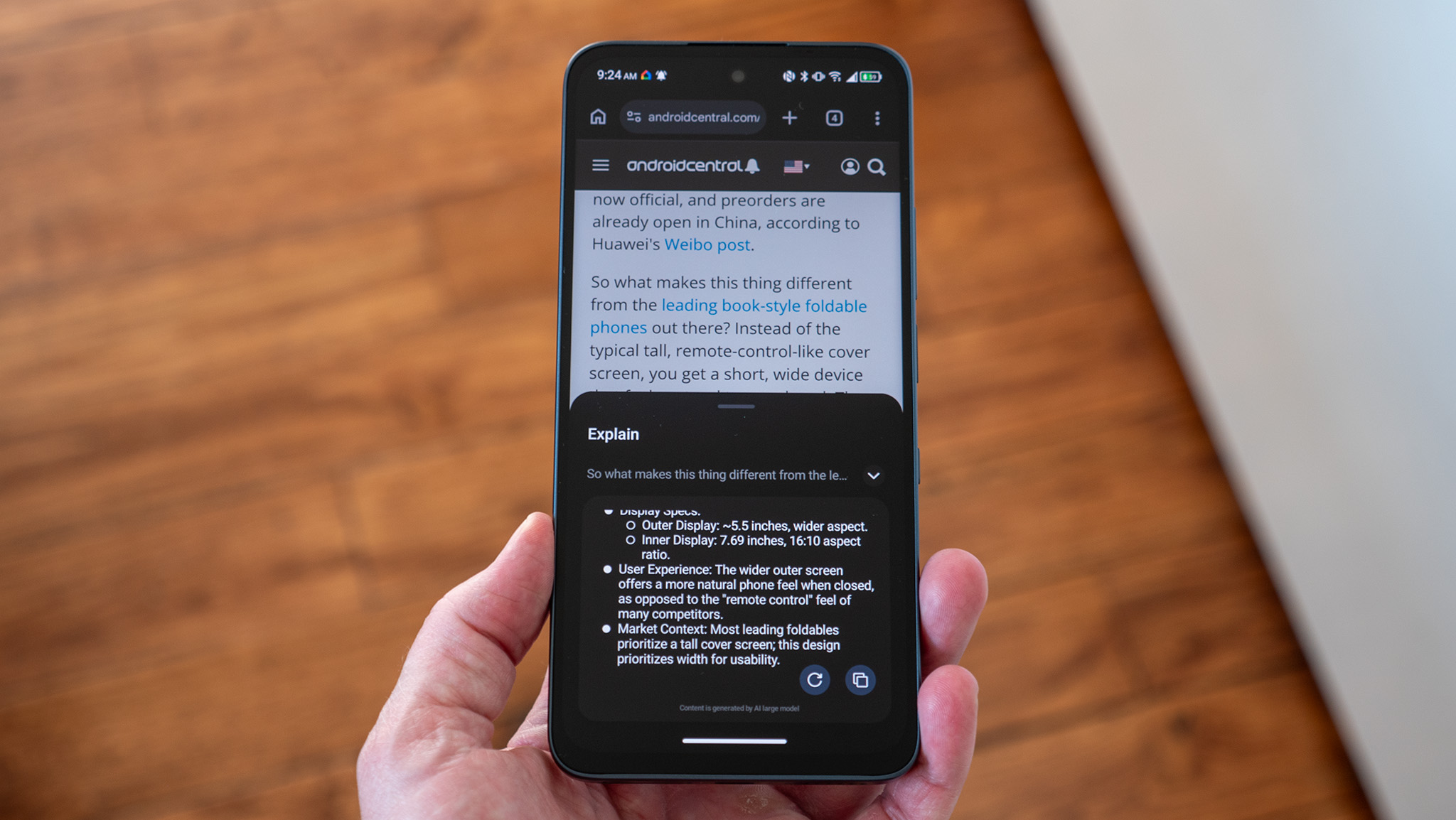
The third TCL AI feature I've found nearly invaluable is the text dragging feature. Next time you need to highlight text for any reason, press and hold on that block of text and then drag it to the bottom of the screen. You'll be presented with three buttons that the text can be dragged to: Translation, Explanation, and Rewrite.
You probably won't use the translation one every day, but the other two options can be incredibly useful in several different scenarios. Explanation is essentially a way to Google a block of text and get a detailed response, while Rewrite is a good way to draft a message to someone and then have TCL AI help you make it sound better.
Most of these kinds of functions are often hidden behind several layers of menus or in separate apps, but the TCL AI design makes it easy to use these features in a pinch.
The paper-like phone you'll love
TCL's NXTPAPER 4.0 technology is even better on the NXTPAPER 70 Pro thanks to its size and the new oleophobic layer. That new layer keeps smudges to a minimum and makes it the most fingerprint-resistant phone I've ever used. I legit haven't had to wipe the display off even once, and that's borderline a modern technological miracle.
The phone is also a much better size than the gargantuan TCL NXTPAPER 60 Ultra, which sports a nearly identical display but in a far more unwieldy size. Plus, the NXTPAPER 70 Pro is available in countries like the U.S., where the Ultra wasn't previously released, making it an easy choice for anyone wanting a modern smartphone that won't strain their eyes and still manages to look good.