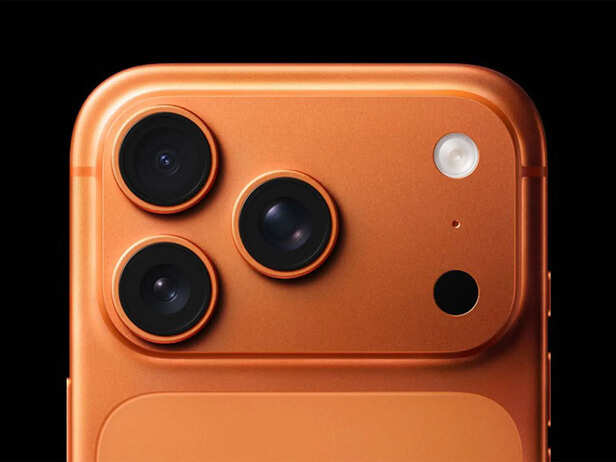
You use your iPhone every day but are you really using it to its full potential? Most people stick to the same apps, the same gestures, and the same settings for years. Meanwhile, Apple quietly adds smart features that make everyday tasks faster, easier, and less frustrating. The surprising part? Many of these tools are already built into your iPhone, waiting to be discovered. If you've ever wished your iPhone could do more without downloading another app, these hidden tricks might completely change the way you use it.
Turn Your Keyboard Into a Precision Trackpad
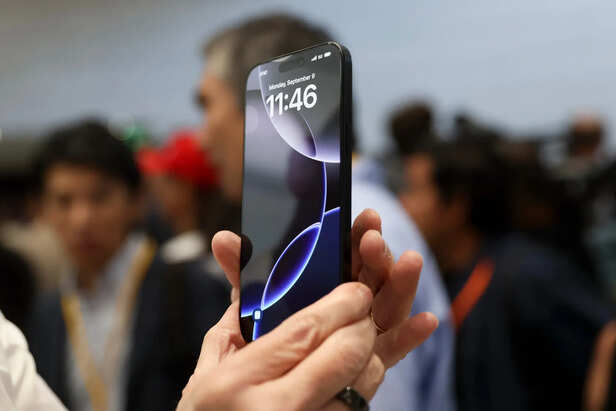
Press and hold the space bar to move the text cursor with greater accuracy.
Editing text on a touchscreen can be frustrating, especially when you're trying to place the cursor between two letters. Apple solved this with a hidden gesture that many users overlook. Simply press and hold the space bar, and the keyboard transforms into a virtual trackpad. Slide your finger to move the cursor smoothly through your text. Whether you're writing emails or editing notes, this feature makes corrections faster and far more accurate.
Silence the Keyboard Without Silencing Your Phone
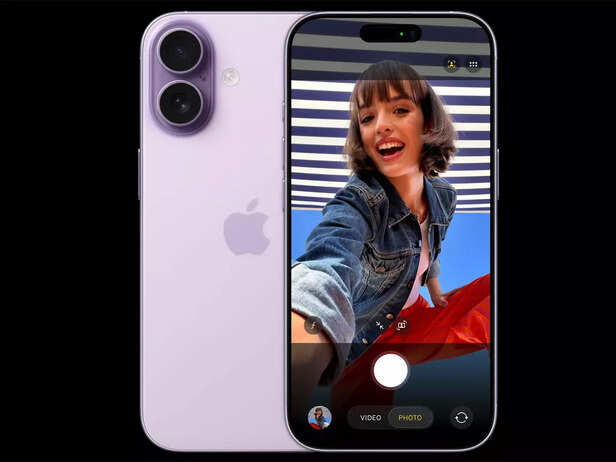
Turn off typing sounds while keeping haptic feedback for a quieter experience.
Typing sounds can become distracting in quiet places, but muting your entire phone isn't always practical. Instead, go to Settings > Sounds & Haptics > Keyboard Feedback and switch off Sound while leaving Haptic enabled. You'll continue to feel gentle vibrations as you type without the constant clicking noise. It's a simple adjustment that makes everyday typing much more comfortable.
The Apple Logo Is Actually a Hidden Button
The Apple logo isn't just part of the design it can act like a shortcut button. By enabling Back Tap in Settings > Accessibility > Touch, you can launch the camera, take screenshots, open Control Centre, or trigger other useful actions with a double or triple tap. Once it's set up, you'll have one of the quickest shortcuts on your entire device without adding any extra buttons.
Control Your Flashlight Like a Pro
Most people use the flashlight in only one mode fully on. But your iPhone lets you adjust its brightness depending on the situation. Open Control Centre, press and hold the flashlight icon, and use the slider to choose the light level. A softer beam is ideal for reading at night, while maximum brightness helps when searching in dark spaces. It's a small feature that adds surprising flexibility.
Clear Away Those Stressful Red Notification Badges
Those little red notification badges may seem harmless, but they often create unnecessary digital clutter. If certain apps constantly display alerts you don't need, visit Settings > Notifications, select the app, and turn off Badges. You'll still receive important notifications while keeping your Home Screen cleaner and less distracting. It's an easy way to reduce visual stress without missing essential updates.
Small Settings That Make a Big Difference
Apple's best features aren't always the ones announced during product launches. Many are quietly built into iOS, waiting for users to discover them. Spending just a few minutes exploring your settings can save time, improve productivity, and make your iPhone feel smarter than ever. Sometimes, the biggest improvements come from the smallest changes.
Unlock insightful tips and inspiration on personal growth, productivity, and well-being. Stay motivated and updated with the latest at My Life XP.