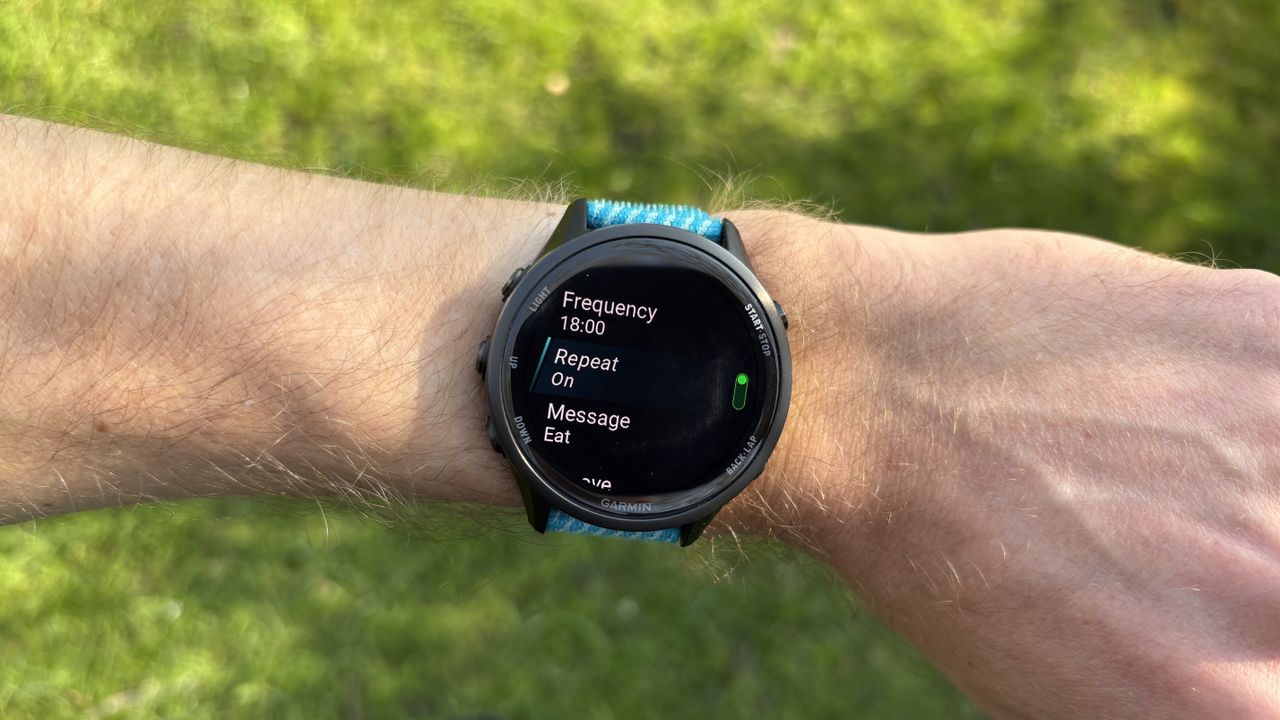
The best running watches go beyond simply tracking your training; they provide active guidance to help you get fitter and perform at your best. Fueling reminders are a great example of this — your watch can help you stay on top of your nutrition so you don’t run out of energy during long workouts and races.
It’s a feature that I think is especially useful for marathoners, because you need to take on carbs throughout your longest training runs and the race itself to avoid hitting the wall and even with a strict nutrition plan in place it’s easy to forget when you’re 15-20 miles into a run.

All of the best sports watches now offer fueling reminders as a standard feature you can set up, but it’s sometimes buried deep within the menus on the watch, while with some smartwatches you need to download a separate app to get fueling alerts.
I’ve explained how to set up fueling alerts on Apple, Garmin, Coros, and Polar watches below, so if you have one of those strapped to your wrist use this guide to plan your nutrition for your longest runs.
How to set up fuelling alerts on a Garmin watch

You can set alerts based on time or distance in the run activity with the best Garmin watches, here’s how.
- Open up the run activity and scroll down to run settings.
- Select ‘Alerts’ and then ‘Add New’
- Choose ‘Custom’ and then select ‘Eat’
- Choose either ‘Time’ or ‘Distance’ and set how often you want to get an alert

You can then customize the alert to say whether you want it to repeat or not and also the message that appears — you could set up several alerts and name them to the exact gel or drink you should take at that point.
How to set up fuelling alerts on an Apple Watch

While there’s no explicit nutrition alert option available natively on the Apple Watch or Apple Watch Ultra, you can set recurring time alerts for an activity in the Workout app, which you can use to remind you to eat.
- Open the ‘Workout’ app and select the running activity you want to use
- Select the bell icon in the bottom left corner of the screen
- Scroll down to’ Time’, turn the alert on and select the time interval you want to use

You can get dedicated nutrition alerts by using third-party apps on the Apple Watch, including my favorite run tracking app WorkOutDoors, which has an eat reminder option in its settings screen under ‘Alerts’.
How to set up fuelling alerts on a Coros watch

It’s quick and easy to set up alerts on a Coros watch, but you can only do them based on time, not distance.
- Open up the run activity and scroll down to ‘Activity Alerts’
- Scroll down and select ‘Nutrition Alerts’
- Choose how often you want to get the alerts and turn them on
How to set up fuelling alerts on a Polar watch

Polar’s FuelWise feature is more advanced than the basic alerts you get on other watches, because the smart carbs reminder it offers can suggest when you need more fuel based on the time and intensity of your run.
You can also set manual alerts based on time if you prefer, as well as setting up a separate drinks reminder.
For the smart carbs reminders:
- Open up the run activity and select ‘Fueling’
- Choose ‘Smart Carbs Reminder’ and set how long your activity will be — the minimum is 30 minutes
- Select the expected intensity of your session based on heart rate zones
- Set the carbs per serving of your fuel — you’ll find this in the nutritional info of a gel or drink
- Hit ‘Next’ to see an overview of your fueling then start your run
- Throughout the run you’ll get alerts to take carbs based on the intensity of your workout
For the manual carbs reminder:
- Open up the run activity and select ‘Fueling’
- Choose ‘Manual Carbs Reminder’ and set the time interval you want between reminders