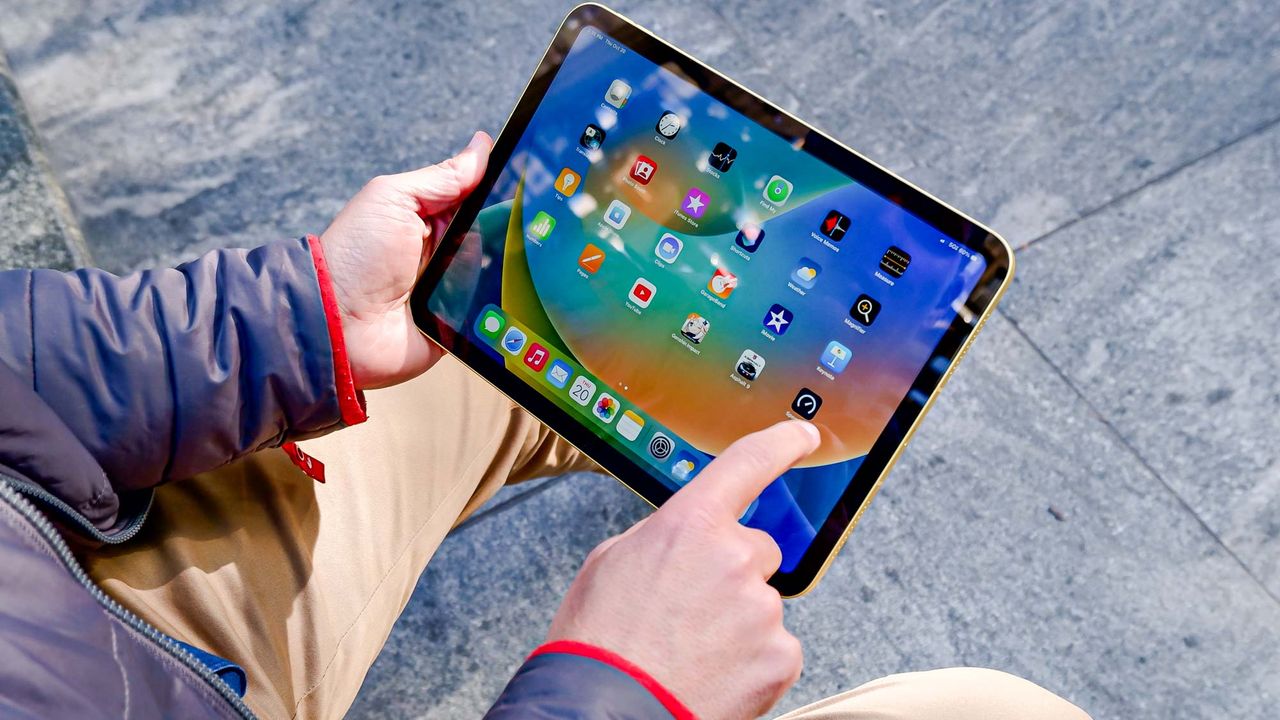
If you've upgraded to one of the best iPads out there, like the Air M3 or the iPad Mini 7, your old tablet is probably sitting in a drawer collecting dust. But even vintage iPads that Apple no longer supports with the latest updates are still capable devices that can handle useful tasks.
Instead of letting it become e-waste or trying to sell it for pennies, repurpose it into something that solves everyday problems and actually gets used. From boosting productivity to managing your smart home to pure entertainment, your old iPad has plenty of life left in it.

Here are five practical ways to give your old iPad a second life.
1. Turn it into a second monitor

A second screen boosts productivity, but new monitors are expensive. Your old iPad can become a wireless display for your laptop in minutes.
Mac users can use Apple's built-in Sidecar feature. Sign both devices into the same Apple account, connect to the same Wi-Fi, open System Settings, go to Displays, and select your iPad. It instantly becomes an extension of your Mac's screen.
Windows users need third-party apps like Duet Display or Spacedesk. Download the app on both devices, connect via Wi-Fi or USB, and you're set. Drag windows between screens like any multi-monitor setup.
This works great for keeping email visible while working, monitoring social feeds, or displaying reference materials. Some apps even let you use the iPad's touchscreen as an input device.
2. Set it up as a smart home control hub

Mount an old iPad in your kitchen or entryway as a permanent touchscreen for your smart home — whether that's managing smart lights, thermostats, cameras, and other connected devices.
For HomeKit devices, use the built-in Home app. Add your devices, organize by room, and create automation routines. Anyone can walk up and control your home with a few taps.
For non-HomeKit devices, use SmartThings, Google Home, or manufacturer apps. The advantage is having a dedicated control panel that's always available without hunting for your phone.
Keep it plugged in constantly. Most iPads handle this fine, and many people set them to never sleep so the interface is always visible.
3. Use it as an e-reader

Your old iPad can replace a $100-$200 Kindle without spending anything. Install Apple Books, Kindle, Libby for library books, or Kobo to access virtually any book you want.
Unlike Kindle devices, an iPad gives you access to multiple book stores simultaneously. You're not locked into one retailer and can switch between apps depending on where you find the best deal.
Enable Reading Mode in Display settings to reduce blue light for longer reading sessions. You could even create a Focus mode that silences notifications and removes distracting apps, so you can read uninterrupted.
To make it even more like a Kindle you could purchase a paper-texture screen protector to reduce glare and give your screen a more book-like feel.
4. Create a digital photo frame

Turn your old iPad into a rotating display of favorite memories. This works well for family photos, vacations, or pictures of kids and grandchildren.
Apps like Skylight Frame, PhotoSync, or Apple's Photos app create slideshows from selected albums. Connect to iCloud Photos, Google Photos, or Dropbox, and it automatically displays your latest photos without manual updates.
You can also by frames designed for iPads on Etsy or Amazon to make it look like a traditional picture frame. Options include wall-mounting hardware or table stands.
Place it in high-traffic areas like the living room or kitchen. The rotating photos are more engaging than static prints, and you can update the collection remotely anytime.
5. Turn it into a dedicated gaming device

Your old iPad might not run demanding games, but it's perfect for casual gaming that keeps your main phone free. Apple Arcade offers hundreds of games that run smoothly on older iPads.
For kids, set up Screen Time restrictions to limit hours, approve downloads, and prevent in-app purchases. Add a rugged case and you have a kid-friendly gaming tablet.
You can also connect a Bluetooth controller for supported games. The larger screen makes gaming more immersive, especially for racing games or platformers.

Follow Tom's Guide on Google News and add us as a preferred source to get our up-to-date news, analysis, and reviews in your feeds. Make sure to click the Follow button!