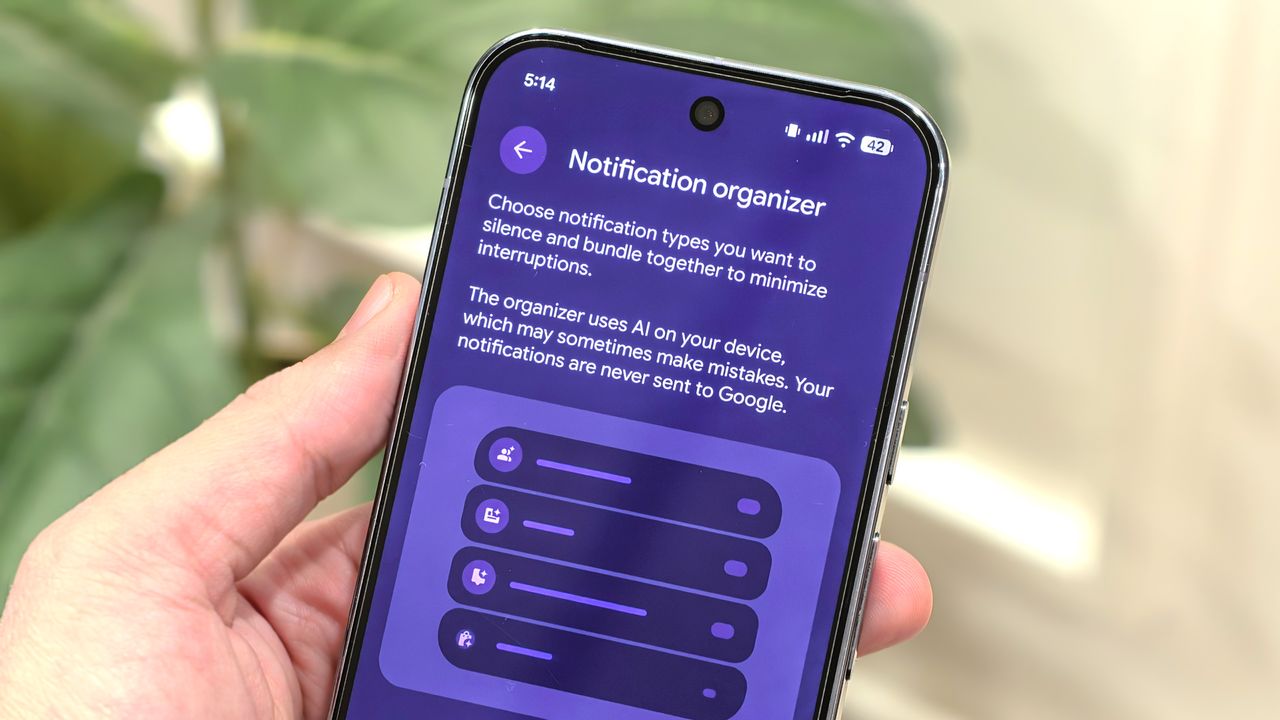
Google has baked AI into almost every part of its Pixel smartphones, whether it's photography with Camera Coach, saving information for later use with Pixel Screenshots, or Magic Cue surfacing relevant info inside messaging apps right when you need it. One area that lagged behind for a while, though, was notifications.
Google has been relatively late in bringing AI into notifications. Apple already offers notification summaries on the iPhone, and Samsung is also planning something similar with One UI 8.5. That said, it's the implementation that matters, and Google has finally brought AI-powered notifications to Pixel phones, arguably doing it better than most.

With recent Pixel updates, Google has introduced AI Notification Summaries that give you a quick overview of what's happening, along with an AI-powered notification categorization system that groups alerts into relevant sections. I've been using these AI notification features on my Pixel 10 Pro, and the experience has been genuinely useful. Here's how you can enable and use them too.
AI notification summaries
AI notification summaries on smartphones are nothing new. As the name suggests, when a long notification comes in or when there are multiple messages in a single thread, the feature uses on-device intelligence to summarize everything into a short, readable format.

This makes it much easier to understand what is going on directly from the notification shade without opening the app. Whenever an AI summary is generated, it is clearly marked with text and a small sparkle icon so you know it is AI-generated.
There are a few prerequisites to keep in mind. Notification summaries currently work only on the Pixel 9 series and Pixel 10 series, excluding the Pixel 9a. The feature also supports English only for now. Additionally, notification summaries are disabled by default on Pixel phones, so you will need to turn them on manually.
1. Open the Notifications menu in the Settings app

Since notification summaries are turned off by default, start by opening the Settings app on your Pixel phone. Once you are in, head to the Notifications section.
2. Enable Notification summaries

From here, tap on Notification summaries. Inside this menu, turn on the toggle labeled Use notification summaries.
3. Manage apps for Notification summaries

After enabling Notification summaries, you will need to choose which apps can use the feature. In the Notification summaries menu, tap Manage apps to see a list of supported apps on your device.
Enable the apps you want, and notifications from those apps will start being summarized going forward.
AI notification organizer
Similar to AI Notification Summaries, Google also offers a handy notification organizer on Pixel phones. Think of this feature as a smart way to categorize your notifications. Much like how Gmail sorts emails into Primary, Updates, Social, and other tabs, the AI Notification Organizer on Pixel phones automatically groups alerts into categories such as Promotions, News, Social, and Suggested.

For example, notifications from apps like Instagram and TikTok are placed under Social, while deals and alerts from apps like Amazon and Walmart land in Promotions. This is especially useful if your notification shade is constantly cluttered, helping you get to what matters first.
Like AI Notification Summaries, the notification organizer is limited to Pixel 9 and Pixel 10 series phones, excluding the Pixel 9a. The feature is also currently restricted to English and is only available in select regions, including Australia, Canada, Germany, Japan, the United Kingdom, and the United States.
You can switch to one of the supported regions to try this feature right now, but Google should expand it to more regions soon. Here is how you can enable the AI Notification Organizer on your Pixel phone.
1. Open the Notifications menu in the Settings app

The first step to enabling the AI Notification Organizer is to, once again, open the Settings app on your phone. Once you are in the Settings app, head over to the Notifications settings.
2. Enable Notification organizer

Under the Manage section, pick the option labeled Notification organizer. Then, turn on the toggle labeled Use notification organizer. Once enabled, you will see different categories such as Promotions, News, Social, and Suggested.
Promotions and News are turned on by default, while Social and Suggested need to be enabled manually if you want to use them.
3. Manage the apps Notification organizer can access

You can also manually control which apps are included in the AI Notification Organizer. If you do not want certain apps to be analyzed by on-device intelligence, head to Manage apps and disable the feature for those specific apps.
That is all you need to enable the new AI-powered notification features on your Pixel phone. These tools are especially useful if you receive a large number of notifications throughout the day and want to keep things organized.
The best part is that everything runs on-device using the Gemini Nano model, which means none of your notification data is sent to Google.

Follow Tom's Guide on Google News and add us as a preferred source to get our up-to-date news, analysis, and reviews in your feeds.