
You come across an interesting passage in a PDF and want to copy it. You select it, right click to copy, and close the window only to find nothing has been copied. Alternatively, you may see a bunch of random text like “osQ kjk Fk Hk”
Copying text from a PDF report should not be this difficult. The nature of a PDF is to be a digital representation of a paper document. As such, it is quite different from a traditional word document.
The good news: There are numerous ways to fix the problem; the problem is figuring out why the copying failed in the first place. This article seeks to explain the three most prevalent cases and solutions.

Why PDF Text Copy Fails
Like a word document, a PDF is made up of text. However, a PDF is really just an electronic version of a printed document. As such, a PDF really doesn’t know what text is.
There are two main types of PDFs:
- Text-based PDFs are similar to word documents in that the text is embedded and can be selected and copied as you normally would.
- Image-based PDFs (scanned copies of a document or pictures of a document) are really just a picture. Your computer can not “read” the picture.
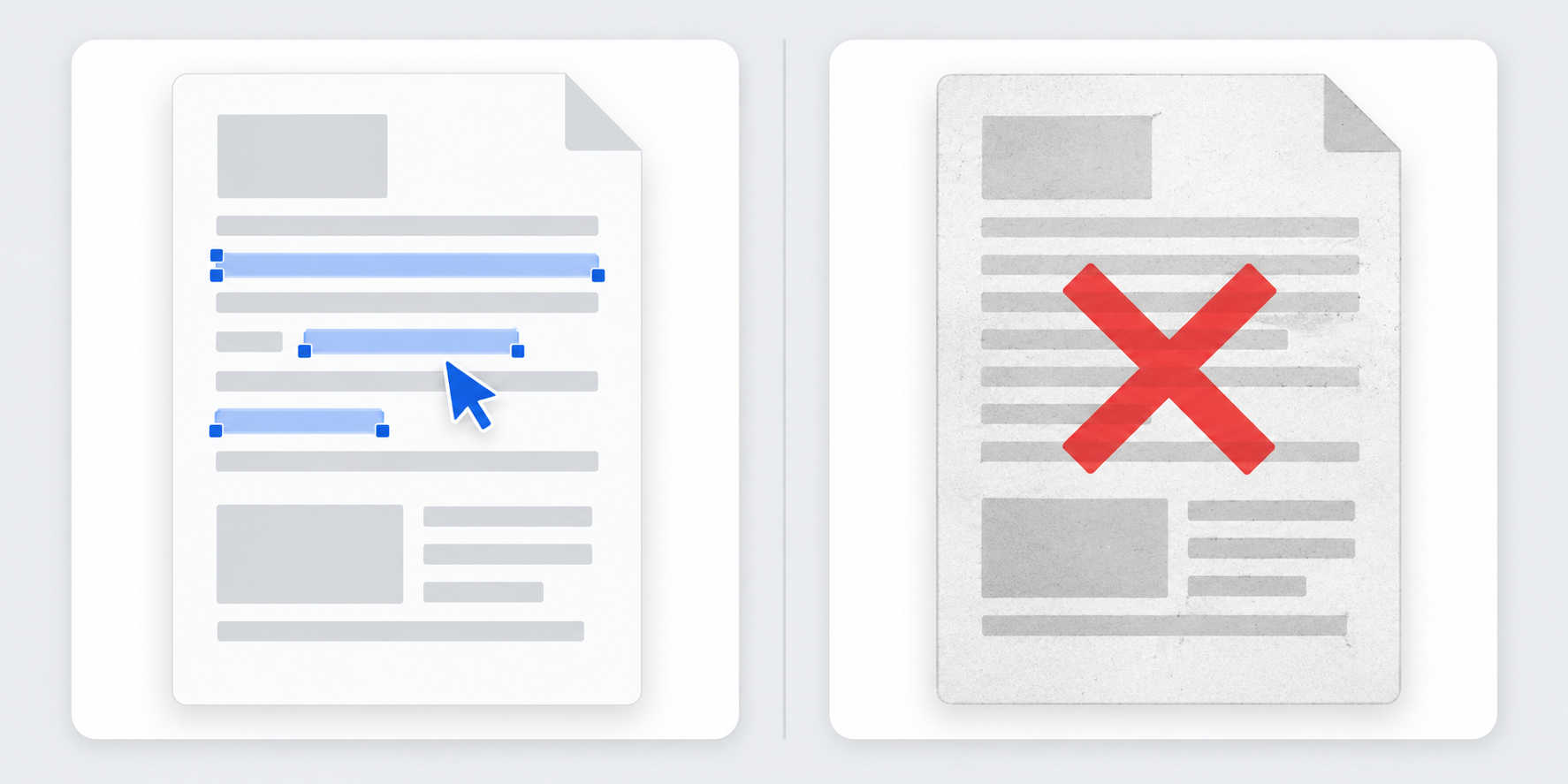
Even if a PDF contains text, you may not be able to copy the text for a number of reasons. First, the font encoding may be broken. This happens when a PDF’s internal mapping, which links each character to its Unicode value, is either missing or incorrect. In this case, when you paste the text, gibberish is pasted. .
Another less complicated reason can be that the platform you are viewing the PDF in blocks copying. Previews shown in Microsoft Teams often show a greyed out copy button.
Scenario 1: Text Selects Fine, but Pastes as Gibberish
This happens when there is a text layer in the PDF, but the font mapping is either broken or uses a non-standard encoding.
What to do:
One of the more reliable methods of fixing this is to convert the PDF to a Word document. You can use a dedicated PDF editor if it doesn't work. The OCR functionality will come to be used to create the text layer that is still editable.
Quick Workaround: First of all paste the gibberish into a plain text editor like Notepad. After that copy it from plain text to final documentation. Sometimes that strips out the bad encoding.
Scenario 2: You Can’t Select Any Text at All
A PDF that is composed of images means that there is no text layer to select. This is commonly seen with PDFs that contain form fields.
What to do:
To fix this you would need to OCR the PDF, which can be done using a PDF editor.
Other apps have OCR. Adobe Acrobat has a "Scan & OCR" tool. Google Lens can do it too. But with longer documents, it is better to use a dedicated PDF editor. UPDF, for example, has OCR built in, and it can do it with a variety of languages, and lets you export the recognized text.
Note: OCR has limitations. Fuzzy scans or funny fonts can throw it off. Always check your work.
Scenario 3: The Copy Button Is Greyed Out (Teams, Browser Preview)
Text is visible. It can even be highlighted. But it can't be copied.
This is common in preview modes like Teams, Slack and browser PDF viewers. It is to prevent the user from saving and sharing the document without permissions.
What to do:
You will need to save the PDF to your computer to access it with a full PDF reader. If the copy option is still not enabled, there are restrictions set on the document. Oftentimes this is done with contracts or other material that is copyright protected. The OCR functionality will come to play to extract text as an image.
Use a Tool Built for It : Whenever You Need to Copy Text Regularly
If you only copy from a PDF once a month, the workarounds above are fine. But if PDFs are part of your daily reading and research reports, academic papers, contracts, ebooks you’ll save hours by using a PDF editor designed for text extraction.
UPDF combines all three solutions in one place. You can now copy text directly from text-based PDFs while retaining the original format. If your PDF is a scan, UPDF’s OCR technology will give you editable, copyable text. You can also convert entire PDFs to Word, Excel or plain text, with one click. All operations are performed on your device, and therefore, no confidential document will be sent to the cloud. Even if you change your device, UPDF Cloud will synchronize your files.
For a step-by-step walkthrough of every method from fixing gibberish to unlocking scanned files this guide on how to copy text from PDF covers the full process with screenshots.
The Bottom Line
Deciphering PDFs is always frustrating and sometimes feels like a game. Usually, there are only three possibilities: broken encoding, image-based files, and locked files. Figuring out which of the three it is determines the course of action to take.
For infrequent use, there are work arounds and free tools to help. However, for recurring use, it’s worth buying the software to skip the annoyance of editing PDFs. PDFs may look like paper, but the right tool can make them behave like any other digital document.