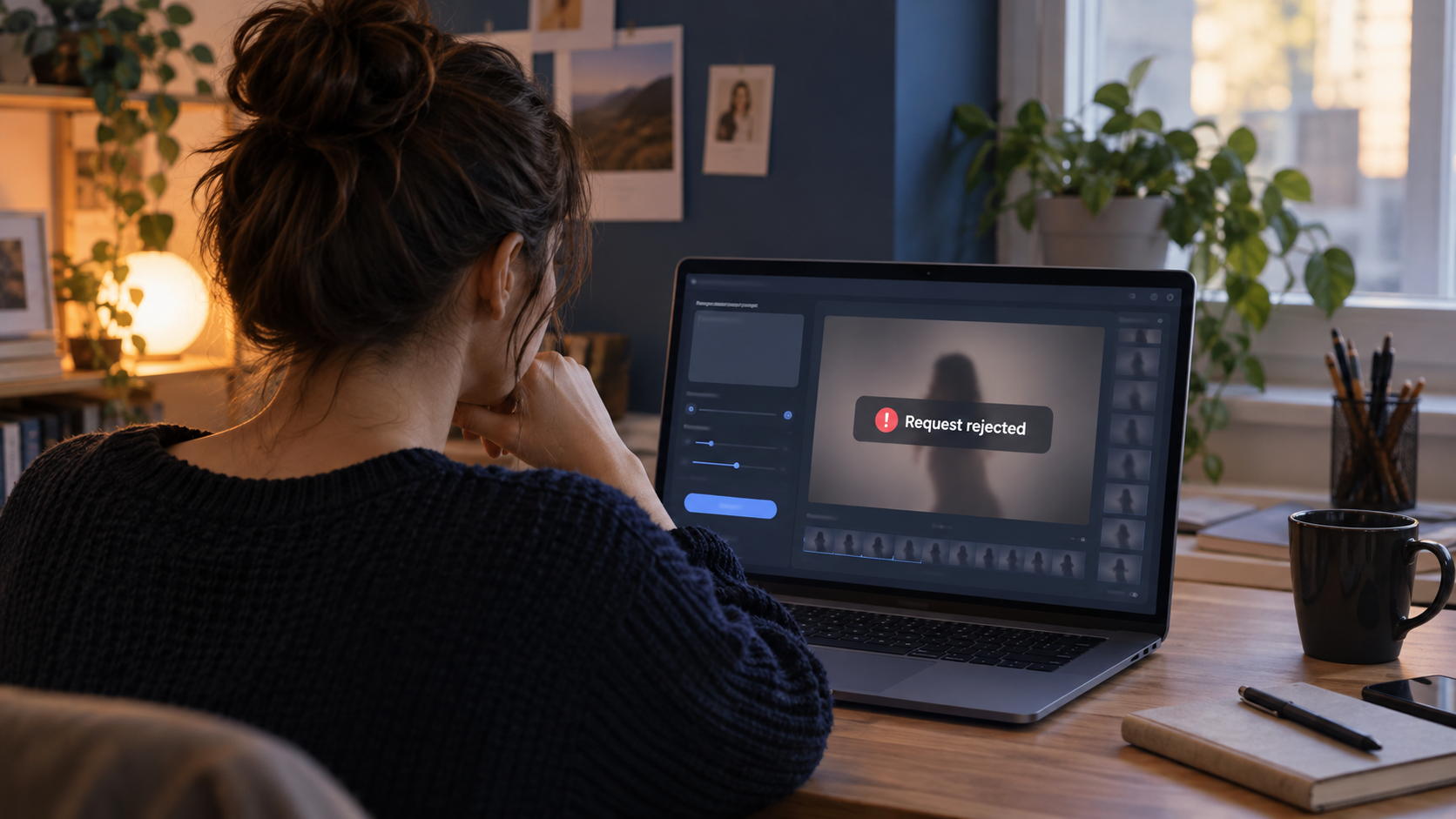
You wrote a careful prompt, uploaded a reference photo, pressed generate, and waited. Then, instead of a video, you got a short message: content not allowed, request rejected, or simply generation failed.
For many people trying AI video for the first time, this is the most confusing part of the experience. The message rarely explains what went wrong, and the request often seemed completely harmless. A birthday clip, a product demo, a short scene with a friend. Why was it blocked?
The answer is usually less mysterious than it feels. Whether you are using a free mobile app or a newer reference-led model such as Seedance 3.0, AI video tools run several automated safety checks, and each one looks for different things. Once you understand where those checks sit and what they are designed to catch, most rejections become easier to understand, and many of them become easy to avoid.
Why AI Video Tools Filter Content at All
Video is one of the most persuasive formats on the internet. A realistic clip can show a person saying something they never said, place a recognizable brand in a context it never approved, or depict events that never happened. That is why AI video providers apply stricter rules than many text or image tools.
Most of these rules exist for three reasons:
- Protecting real people. Generating realistic video of someone without their permission can be used for harassment, fraud, or misinformation.
- Respecting intellectual property. Copyrighted characters, film scenes, logos, and trademarks belong to their owners.
- Preventing harmful material. Graphic violence, sexual content, content involving minors, and dangerous instructions are restricted across almost every platform.
Filters are automated, which means they work on patterns rather than intentions. They cannot tell that your request is for a school project or a family celebration. They only see the words, images, and frames in front of them.
Filters Run at More Than One Stage
One of the most useful things to know is that a request can be stopped at different points. The point where it fails tells you a lot about the cause.
1. The prompt check
Before any video is created, the text you typed is reviewed. Requests that name a public figure, describe explicit or violent acts, or ask for a famous copyrighted character are often stopped here. These rejections usually appear almost immediately.
2. The reference check
If you upload images, video clips, or audio, those files are reviewed too, sometimes before generation begins. A reference photo that contains a clearly identifiable real face, a visible brand logo, or sensitive material can cause a rejection even when the prompt itself is neutral.
3. The output check
Some tools also review the finished result. This is the most frustrating kind of rejection, because it can happen after the system has spent time generating. The prompt and references passed, but the generated frames were judged to cross a line, for example by showing more skin than expected or by producing an unintended resemblance to a real person.
If your rejection arrived instantly, look at the prompt first. If it arrived after you uploaded files, look at the references. If it arrived at the end of a long wait, the output itself was likely flagged.
The Most Common Reasons Videos Get Rejected
Real people and recognizable faces
This is the most frequent cause. Many platforms restrict realistic video of identifiable people, especially public figures, and some apply this to any clear photo of a real face. A selfie or a photo of a friend may be treated the same way as a photo of a celebrity, because the system cannot verify consent.
Uploading a real person's likeness also raises a separate question beyond the filter: do you have that person's permission? Even when a tool allows it, generating video of someone who has not agreed to it is a poor idea.
Copyrighted characters, scenes, and brands
Asking for a well-known cartoon character, a superhero, or "the opening scene of" a famous film often triggers a rejection. The same applies to prominent logos and branded packaging that you do not own. If the video is for your own product, the safest route is to use your own product photos and describe the scene in your own words.
Violence, weapons, and injury
Action scenes are popular, but descriptions of blood, injury, or realistic weapons aimed at people are commonly restricted. Cinematic tension is often still possible; graphic detail usually is not.
Sexual or suggestive content
Explicit material is blocked almost universally. Filters can also be cautious about swimwear, revealing clothing, or intimate scenes, which is why some ordinary beach or fitness clips get flagged.
Anything involving minors
Platforms apply their strictest rules to content that includes children. Even innocent family scenes can be treated with extra caution, particularly when real photos of children are uploaded as references.
Dangerous or illegal activity
Requests that appear to demonstrate drug use, self-harm, or illegal acts are generally refused.
When the Filter Gets It Wrong
Automated filters make mistakes in both directions. A common frustration is the false positive: a harmless request that gets blocked because a word or image resembles something restricted.
Typical examples include:
- Everyday phrases with a second meaning, such as "shoot a scene," "a killer view," or "the crowd exploded."
- Medical, anatomy, or first-aid content that the system reads as graphic.
- Artistic references, such as classical statues or painting styles, that contain nudity.
- A reference photo where a stranger's face or a brand logo happens to be visible in the background.
In these cases, the problem is not your idea. It is the way the idea is being read by a machine.
Case 1: A concert clip blocked by two words
A small music venue wanted a short promotional clip and typed: "Shoot a scene of the crowd exploding at a concert." The request was rejected instantly, which points to the prompt check. Nothing about the idea was harmful, but "shoot" and "exploding" are both words a filter associates with violence.
The rewrite kept the same scene and removed the ambiguity: "Film a scene of a cheering concert crowd under bright stage lights." It went through on the next attempt, and the result was arguably better, because the new prompt described what the crowd should look like instead of relying on a figure of speech.
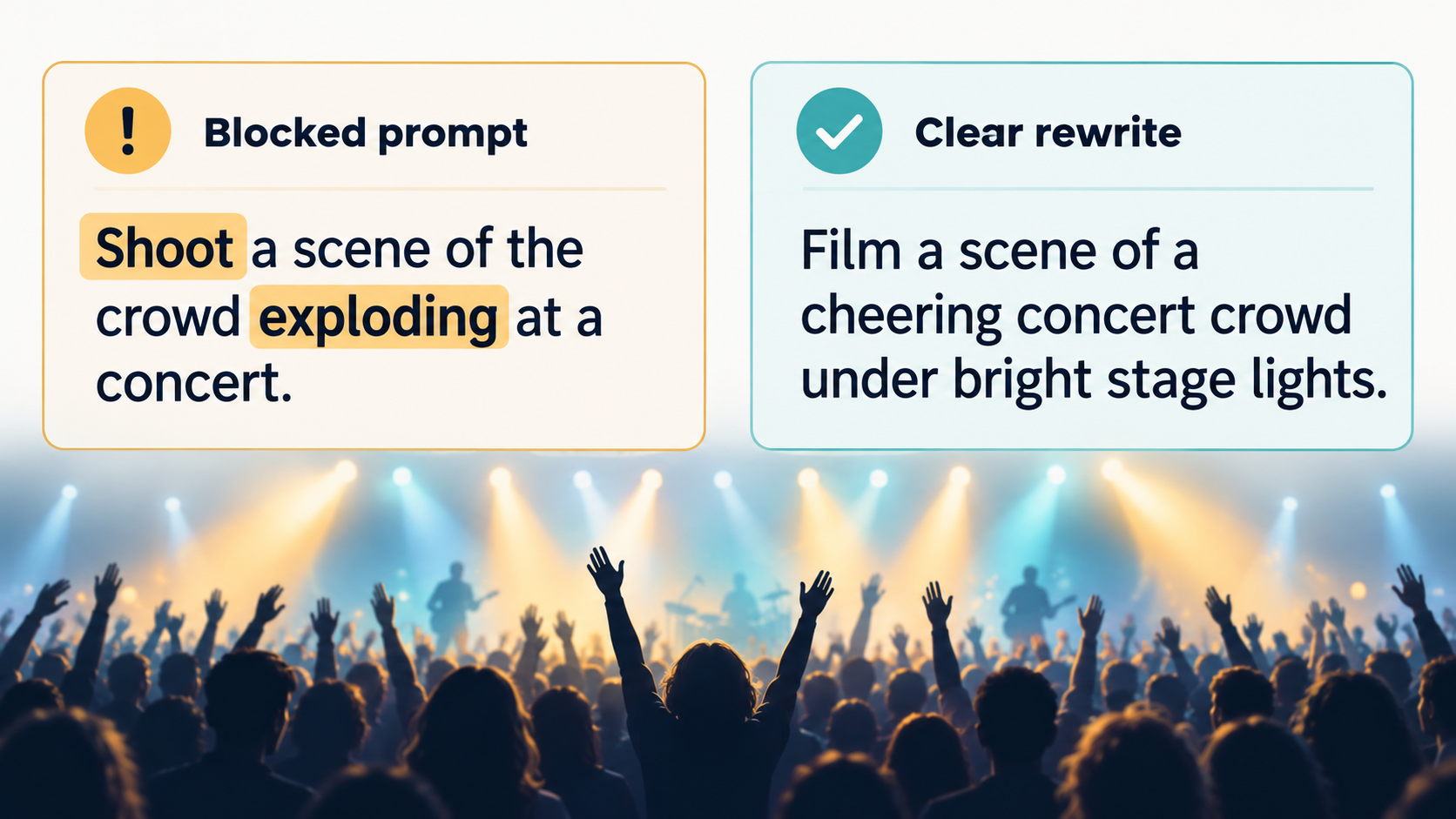
Caption: The same idea, written two ways. Plain, literal language gives the filter and the model less to misread.
What You Can Legitimately Change
The goal here is not to trick a filter into producing something it is designed to stop. If your idea depends on a real person's likeness without consent, someone else's characters, or harmful content, changing the wording is not the answer. The responsible move is to change the idea.
But if your request is legitimate and was blocked by mistake, these adjustments often help:
Use clearer, neutral language. Replace ambiguous words with direct ones. "Film a scene" instead of "shoot a scene." "A breathtaking view" instead of "a killer view."
Describe the character instead of naming a person. "A woman in her thirties with short dark hair and a green coat" gives the model what it needs without pointing to a specific real individual.
Check your references for hidden problems. Crop out background faces, logos, and text. Use images you own or have the right to use.
Choose an illustrated or stylized look when realism is not essential. Animation, 3D, watercolor, or clay styles are often handled with less caution than photorealistic video of people.
Tone down intensity, not the story. Suggest tension through lighting, sound, and camera movement rather than graphic detail. Many great film scenes rely on what is not shown.
Change one thing at a time. If you rewrite everything at once, you will not learn which element caused the rejection.
Reference Files Are Checked Too
As AI video moves toward reference-led creation, more of the work happens through uploaded files rather than text. Tools such as the Seedance 3.0 AI video generator let creators combine images, video clips, audio, and text to keep characters, products, and style consistent across a longer scene. That is a powerful way to work, but it also means every uploaded file is part of the request.
A useful habit is to review your references the way a filter would before you upload them. Ask three questions about each file:
- Does it show a real, identifiable person? If so, do I have their permission, and does the platform allow it?
- Does it contain a logo, character, or artwork I do not own?
- Would any frame look inappropriate if it appeared on its own, out of context?
A clean reference set reduces rejections and usually improves the quality of the result as well.
Case 2: A coffee mug that kept getting flagged
A café owner uploaded a photo of their new ceramic mug to create a short product video. The prompt was simple and neutral, yet the request failed each time after the upload. The mug was not the problem. In the background of the photo, another customer's face was clearly visible, and a shop sign with a logo hung over the counter.
Cropping the image tightly around the mug and blurring the background removed both issues. The next request was accepted, and the video focused more clearly on the product, because the model no longer had to decide what to do with a stranger and a sign.
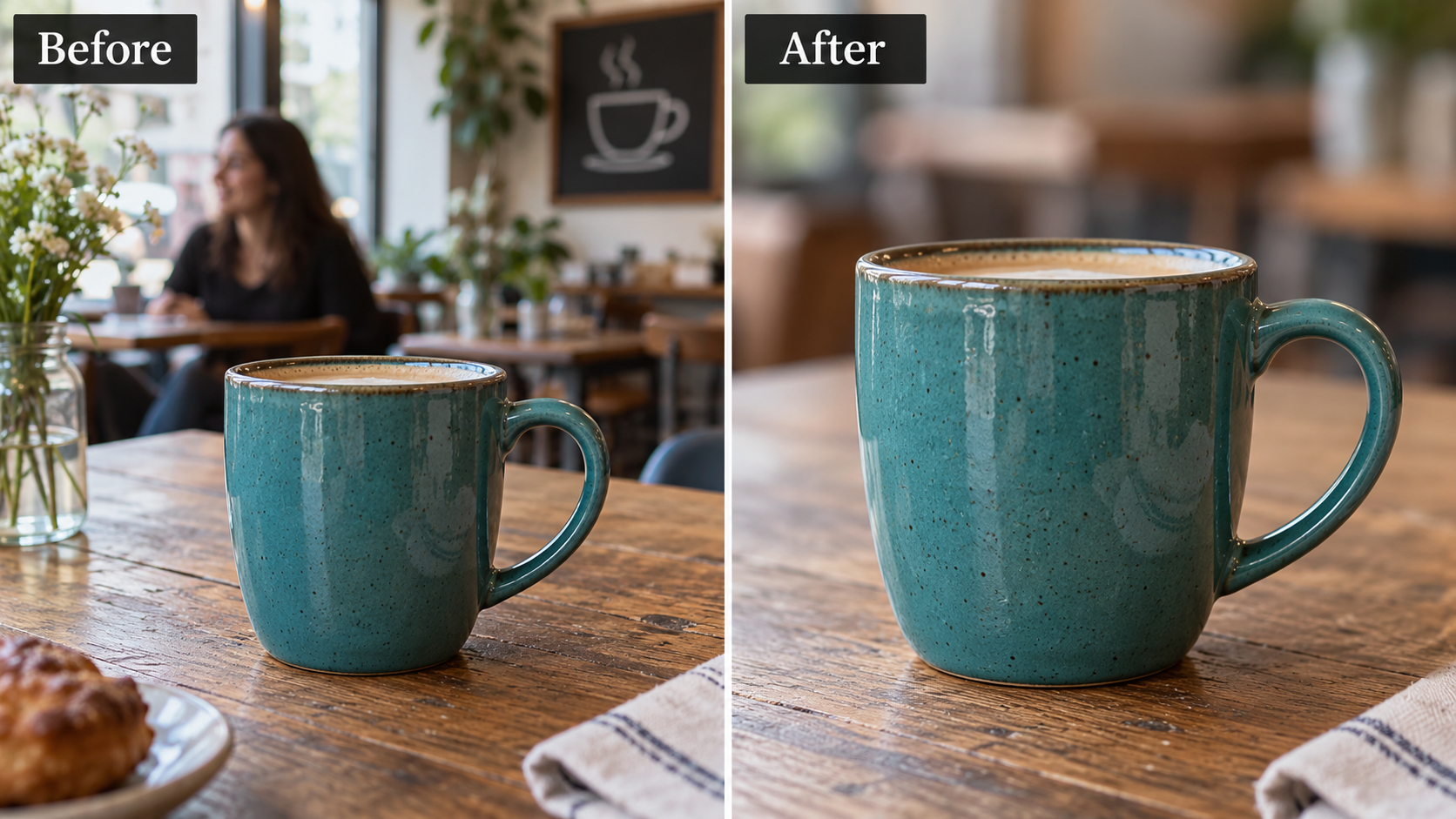
Caption: Before uploading, crop out background faces, logos, and signs. The subject you care about should be the only thing the reference shows.
What to Do After a Rejection
Check whether you were charged. Policies differ between platforms. Some return credits automatically when a request is rejected; others do not. Look at your balance or usage history, and read the platform's refund policy.
Read the full message. Some tools include a short code or reason that points to the prompt, a reference file, or the output.
Do not retry the same request repeatedly. Submitting an identical request again rarely changes the result and may use more credits. Change one element first.
Contact support if you believe it is a mistake. If a clearly harmless request is blocked every time, report it with the prompt and a description of your references. Providers adjust their filters over time, and genuine false positives are useful feedback.
Read the usage policy once. It takes a few minutes and answers most "why was this blocked" questions before they happen.
A Quick Checklist Before You Generate
- The prompt uses plain, unambiguous language.
- No public figures or real people are named.
- Uploaded faces belong to people who have given permission, or have been removed.
- No logos, brand packaging, or copyrighted characters you do not own appear in references.
- Background details in reference photos have been checked.
- Violent or intimate moments are implied rather than shown in detail.
- Content involving children is avoided or handled with extra care.
- You know the platform's refund policy for rejected requests.
Final Thoughts
A rejected AI video can feel like a dead end, but it is usually a signal about one specific part of the request: the words, the references, or the generated result. Filters are imperfect, and some of their decisions will feel overly cautious. Most of the time, however, a clearer prompt, a cleaner reference set, and a little respect for other people's faces and creative work are enough to get a legitimate idea through.
The creators who struggle least with content filters are not the ones who find clever ways around them. They are the ones who plan their videos so there is nothing to trip over in the first place.