
A practical guide to checking software domains, download pages, platform versions, installers, login prompts, and cloud settings
Finding office software through a search engine can be more complicated than it appears. A product page, paid advertisement, third-party tutorial, application-store listing, and repackaged installer may all appear under similar titles.
Several pages may use words such as “official,” “free download,” or “safe installer.” Some may copy product logos, interface screenshots, and familiar color schemes. Others may send users through several redirects before providing a file that does not match the expected operating system.
The risk is greater for users who search in several languages. A person in Hong Kong or Taiwan might use an English product name, the Traditional Chinese term “官網,” the Simplified Chinese term “官网,” or phrases such as “Mac download” and “Windows installation.” Each query can produce a different set of results.
A safe download therefore begins before the download button is clicked. Users should identify the page type, inspect the full domain, select the correct platform, review the downloaded file, and understand what will happen to local and cloud documents after installation.
Why Search Results Are Not Proof of Authenticity
A high search ranking does not confirm that a website is operated by the software publisher. Paid advertisements can appear above organic results, and third-party pages can rank for product names and download-related searches.
- Appearing first in the search results
- Using “official” in the page title
- Displaying a familiar product logo
- Using HTTPS
- Claiming that a download is free or secure
- Offering a “high-speed” installation option
- Showing screenshots that resemble the real application
- Having a professionally designed interface
Search engines organize and display pages, but they do not replace the user’s responsibility to check the destination.
|
Search visibility is not the same as verified ownership. |
The actual domain, redirect path, publisher information, platform details, and download behavior are more useful than the wording shown in a search result.
Identify the Type of Page Before Clicking Download
Not every page mentioning a software product is intended to distribute the application. Before clicking anything, determine what kind of page is being viewed.
|
Page type |
Typical purpose |
|
Brand website |
General company and product information |
|
Product page |
Features and specifications for one application |
|
Download page |
Selection of operating-system versions |
|
App-store listing |
Mobile or desktop application installation |
|
Help article |
Setup instructions or troubleshooting |
|
Third-party guide |
Independent tutorials and summaries |
|
Software portal |
Downloads for products from multiple publishers |
|
Advertisement |
A paid result leading to another page |
A help article may explain an installation process without hosting the installer. A third-party guide may contain useful information but should not automatically be treated as the publisher’s website. A software portal may distribute an original file, an outdated version, or a modified download package.
Application-store listings also require verification. Users should check the developer or publisher name, supported devices, update history, requested permissions, and links displayed within the listing.
Check the Full Domain and Redirect Path
Read the complete address in the browser rather than relying on the page title.
- Check for extra or missing letters in the domain.
- Look for unnecessary words or hyphens.
- Confirm that the product name is not merely being used as a subdomain.
- Review redirects to unrelated websites.
- Check whether downloaded files are hosted on unexpected domains.
- Confirm whether login pages open on another domain.
- Compare the address displayed in an advertisement with the final destination.
Long addresses can hide the registered domain. Read the hostname carefully and identify which organization actually controls it.
HTTPS is still important because it encrypts the connection between the browser and the website. However, it does not prove that the site belongs to the software publisher. A misleading website can also obtain a valid certificate.
HTTPS does not independently confirm that the installer is genuine, the download button is safe, or the platform version is correct.
Review the Website’s Product and Platform Information
A useful software information page should explain what the application does and which devices it supports. It should provide enough detail for users to distinguish between desktop, mobile, browser-based, local, and cloud functions.
- Document, spreadsheet, presentation, and PDF features
- Supported file formats
- Windows, macOS, Linux, Android, and iOS availability
- Differences between desktop and mobile editions
- Local and cloud document support
- Account or login requirements
- Update and support information
- Storage and system requirements
Users comparing document, spreadsheet, presentation, PDF, AI, and cloud functionality can review a WPS Office website guide before choosing a platform-specific page.
The purpose of reviewing such information is not to assume that every feature is identical across devices. It is to understand which product page and operating-system version are relevant before downloading a file.
Choose the Platform Before Choosing the Installer
The device and processor should be identified before the installer is selected.
Windows
- The installed Windows version
- Whether the processor uses x64 or ARM architecture
- Available storage space
- Administrator permissions
- Existing office software
- Security warnings displayed by the system
An installer intended for a standard x64 computer may not be appropriate for a Windows-on-ARM device.
macOS
- The macOS version
- Whether the computer uses an Intel or Apple processor
- Whether the download is a DMG or another expected package type
- Application-folder permissions
- Warnings from macOS security controls
Selecting the correct processor version can affect performance and installation success.
Linux
- Debian- or Ubuntu-based distributions
- RPM-based distributions
- `.deb` and `.rpm` packages
- x86-64 and ARM architectures
- Required system dependencies
A package designed for one distribution may not install correctly on another.
Android and iOS
- Operating-system requirements
- Application-store region
- Developer information
- Available storage
- File and media permissions
- Camera access for scanning
- Cloud and account permissions
A Windows installer, Mac disk image, Linux package, and mobile application are not interchangeable. The correct product name combined with the wrong platform can still result in an unusable or unsafe download.
Verify the Download Behavior, Not Just the Button Text
The text displayed on a button does not prove where the file comes from.
Before downloading, observe what happens after the button is selected. A normal process should lead to an expected installer, application-store page, or clearly explained platform choice.
- Downloads a separate “download assistant”
- Opens multiple advertising tabs
- Requests a browser extension
- Requires an unrelated system optimizer
- Bundles additional applications
- Uses a file extension that does not match the platform
- Displays a file name unrelated to the selected product
- Triggers repeated browser or operating-system warnings
Descriptions such as “high-speed downloader,” “one-click installer,” “premium unlocked,” “modified build,” or “no-login edition” deserve additional scrutiny. They may indicate that the file has been repackaged or changed by a third party.
Even a button labeled “Official Download” is only page text. The file destination and publisher identity still need to be checked.
Separate Local Files From Cloud Documents
After installation, users may see recent files, synchronized folders, team spaces, and online documents in the same interface. These locations should not be treated as identical.
A local document may be stored in a path such as:
|
C:\Users\Username\Documents |
Cloud-based locations may appear under labels such as:
- Cloud Documents
- My Cloud Documents
- Online Documents
- Team Space
- Shared Files
Signing in does not necessarily upload every file stored on the computer. Synchronization depends on the selected folder, account, network connection, storage allowance, and application settings.
Before working with sensitive material, save a test document and verify its actual location. Confirm whether the file exists only on the device, in a synchronized folder, or in a shared online space.
Do Not Remove Existing Software Before Testing
Keep the previous office application until the new installation has been tested with real working files.
|
Back Up Documents |
The test set should include:
- Traditional Chinese and English text
- A spreadsheet with formulas
- A presentation with images
- Headers and footers
- Fonts and paragraph styles
- Comments and hyperlinks
- A PDF export
- A local save and a cloud save
Testing copies rather than original files reduces the chance that an unexpected conversion or synchronization action will damage important work.
Check Login, Membership, and Cloud Prompts Carefully
The first launch may present several requests at once, including account login, QR-code login, membership offers, AI features, cloud synchronization, team spaces, and default-application settings.
These prompts represent different decisions.
Signing in does not always mean that a purchase is required. Local document editing, paid templates, advanced PDF functions, AI tools, cloud storage, and multi-device synchronization may follow different access or payment rules.
- Confirm which account is being used
- Check whether it is personal or work-related
- Review which folders will synchronize
- Confirm who can access shared files
- Identify any paid feature before activating it
- Avoid entering credentials after an unexplained redirect
- Review default file-association requests separately
Cloud access can improve convenience, but it should be enabled deliberately rather than accepted as part of an automatic setup process.
Use a Structured Download Verification Process
A consistent procedure is safer than making a decision based on one visual signal.
Users who need a complete sequence for checking domains, platform versions, installers, login prompts, and file locations can follow a WPS download verification guide before completing the installation.
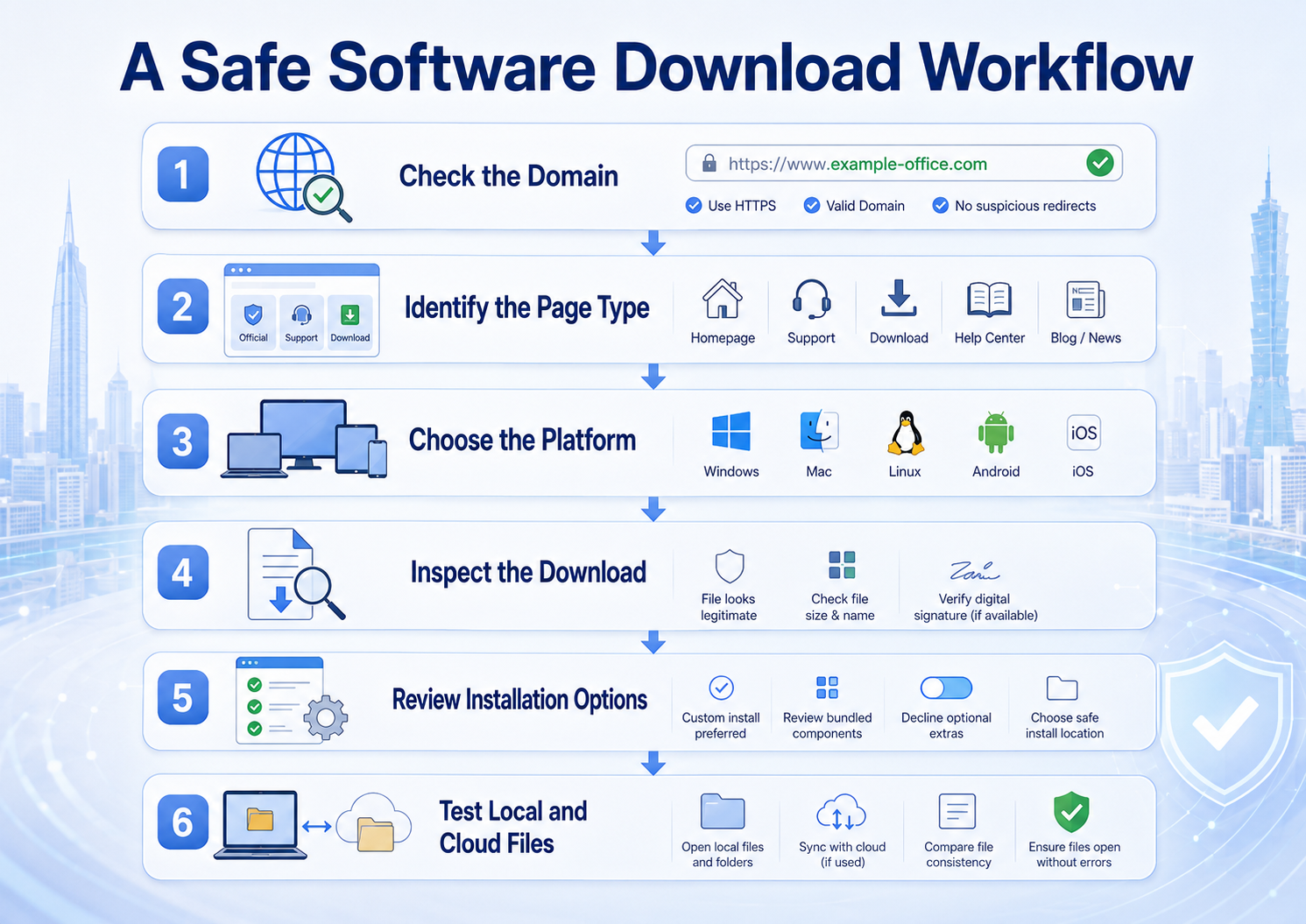
A six-step workflow for checking the domain, page type, platform, installer, installation options, and local/cloud files.
A practical verification sequence is:
- Confirm the exact software name.
- Identify the type of page.
- Inspect the full registered domain.
- Review redirects and file destinations.
- Select the correct operating system.
- Confirm the processor or device architecture.
- Check the installer name and file extension.
- Read each installation option.
- Save and reopen a local test document.
- Review account and cloud synchronization settings.
This process separates website verification, device selection, installer inspection, and post-installation testing into distinct decisions.
Recognize Common Warning Signs
Stop the download or installation when:
- The domain has no clear relationship to the product or publisher
- Several competing download buttons appear
- An unfamiliar download manager is mandatory
- The installer promotes unrelated applications
- The page asks users to disable all security protection
- The file version contradicts the page description
- System requirements are missing
- Contact, privacy, and support information are absent
- Credentials are requested for an unrelated service
- The browser reports a certificate or dangerous-file warning
A polished layout should not override these warning signs.
Website and Download Verification Checklist
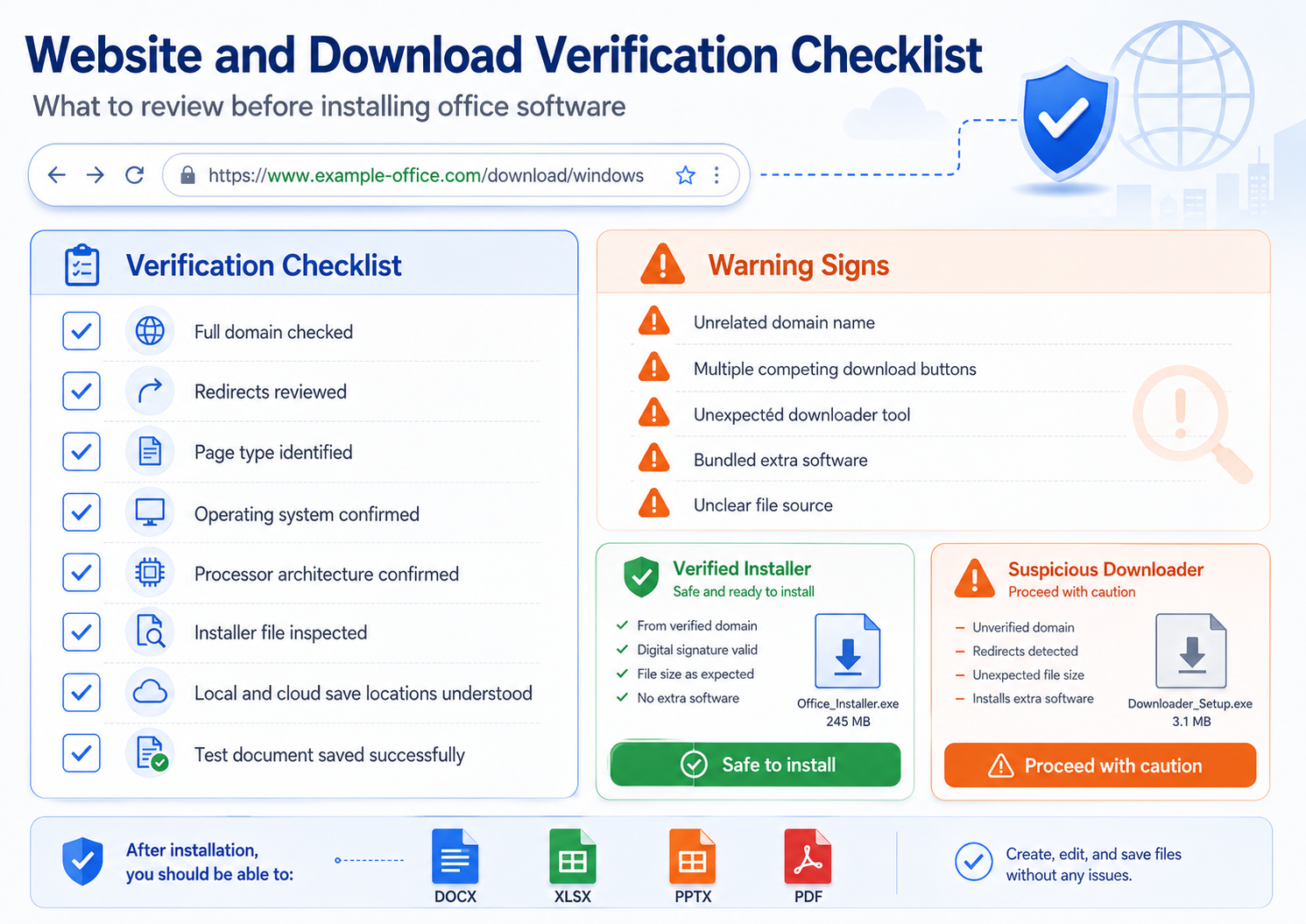
Final verification checklist and warning-sign comparison before installing office software.
|
Verification item |
Status |
|
Full domain checked |
□ |
|
Redirect destination checked |
□ |
|
Page type identified |
□ |
|
Operating system confirmed |
□ |
|
Processor architecture confirmed |
□ |
|
Download file type checked |
□ |
|
Optional bundled software reviewed |
□ |
|
Existing documents backed up |
□ |
|
Local and cloud locations understood |
□ |
|
Test document saved successfully |
□ |
Conclusion
Downloading office software safely requires more than finding a page with a familiar logo or an “official” label. Search position, HTTPS, product screenshots, and button text can provide context, but none of them independently confirms website ownership or installer integrity.
Users should inspect the full domain, identify the page type, review redirects, and select the correct operating system and processor version before opening a file. The installer’s behavior matters more than the wording displayed on the download button.
After installation, local documents, cloud folders, account prompts, and file associations should be reviewed separately. Existing software should remain available until representative documents have been opened, edited, saved, synchronized, and exported successfully.