Get all your news in one place.
100's of premium titles.
One app.
Start reading
Tom’s Guide
Tom’s Guide
Technology
Kaycee Hill

TikTok just discovered you can change your iPhone's charging sound — here's how

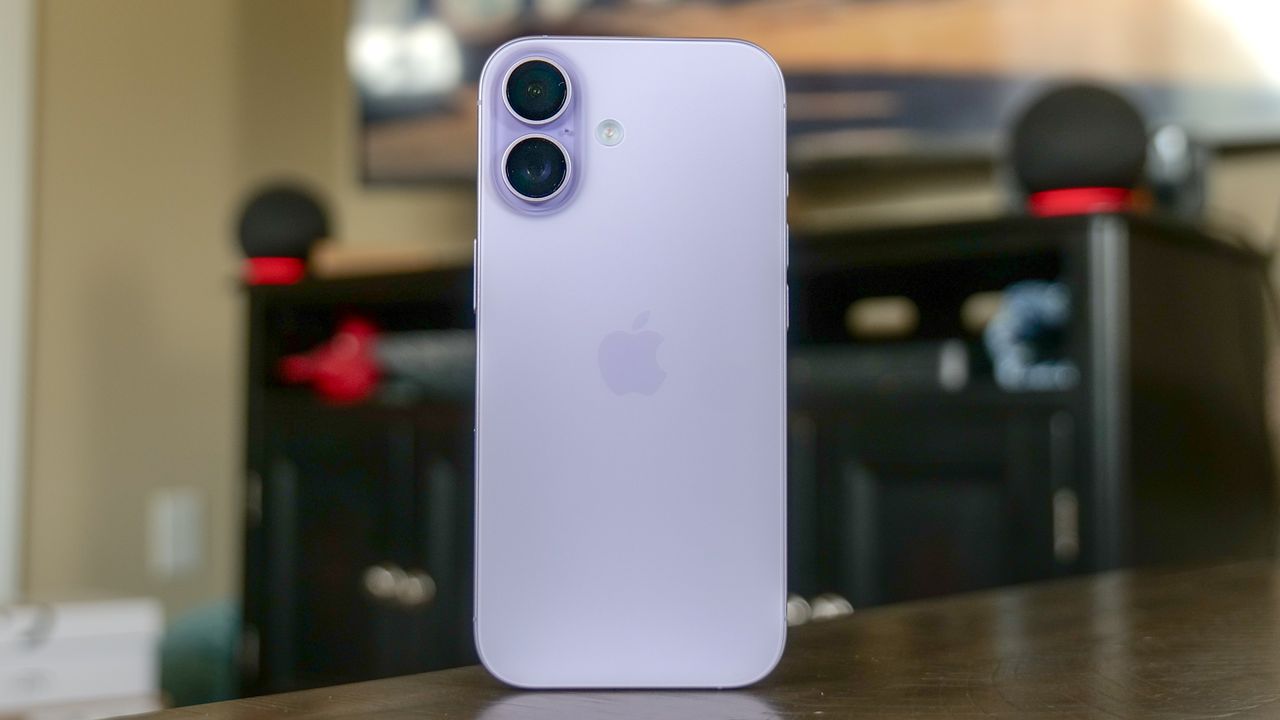
Apple iPhone 17 review.

The default iPhone charging sound is fine. It's also boring. You've heard the same little chime for years every time you plug in your phone. TikTok just discovered you can change it to literally any sound you want — a song clip, a movie quote, a meme, whatever.

The options are endless, and people are getting creative. Some choose calming nature sounds. Others pick unhinged audio clips that make everyone around them question their sanity. The customization happens through iPhone's Shortcuts app, which lets you automate actions based on triggers, in this case, plugging in your charger.

Here's how to set up a custom charging sound on your iPhone.

1. Find and save your audio

Find a video or audio clip you want to use as your charging sound. TikTok, YouTube, Instagram, anywhere works. The clip should be 5-10 seconds long for best results. Longer clips work but can feel excessive for a charging notification.

Save the video to your iPhone. Most apps let you save or download videos directly. If not, screen record the audio playing and save that recording instead.

Open your Photos app and find the video you just saved. Tap the share button (the square with an arrow pointing up) and select "Save to Files."

2. Move the file to your Files app

Next, open the Shortcuts app (it comes pre-installed on iPhones). If you can't find it, search for "Shortcuts" in your app library.

Tap the "Automation" tab at the bottom of the screen. Then tap "New Automation" (the plus sign in the top right corner).

3. Set the charger trigger

Scroll through or the automation trigger options until you find "Charger." Tap it. You can also search for it directly. You'll see options for "Is Connected" and "Is Disconnected."

Make sure "Is Connected" is selected as this triggers the sound when you plug in, not when you unplug. Then tap "Next" in the top right corner.

4. Enable "Run Immediately"

On the next screen, you'll see options for how the automation runs. Turn on "Run Immediately" and make sure "Notify When Run" is toggled off.

This makes the sound play automatically when you plug in your charger without showing a notification or requiring you to confirm the action each time. To continue, tap "Next."

5. Add the "Play Sound" action

You're now on the screen where you add actions. Tap the search bar and type "Play Sound." Then select the "Play Sound" action when it appears.

Tap the search bar again, type "Get File" and select "Get File" from the results. This action will appear above "Play Sound" in your sequence. Tap on "Get File" and navigate through your Files app to find the video you saved earlier. Select the video file. It will now be linked to the "Get File" action.

Then move the video file above the Play Sound action and tap "Done" in the top right corner. Your automation is now active.

Test your custom charging sound

Plug your iPhone into a charger. Your custom audio should play immediately instead of the default charging chime.

If it doesn't work, check these common issues:

  • Make sure "Run Immediately" is enabled in your automation settings
  • Verify the audio file is saved in Files and accessible to Shortcuts
  • Confirm "Is Connected" is selected as the trigger, not "Is Disconnected"

To edit or change your charging sound later, open Shortcuts, go to the Automation tab, tap your charger automation, and replace the audio file with a different one.


More from Tom's Guide

Sign up to read this article
Read news from 100's of titles, curated specifically for you.
Already a member? Sign in here
Related Stories
Top stories on inkl right now
One subscription that gives you access to news from hundreds of sites
Already a member? Sign in here
Our Picks
Fourteen days free
Download the app
One app. One membership.
100+ trusted global sources.