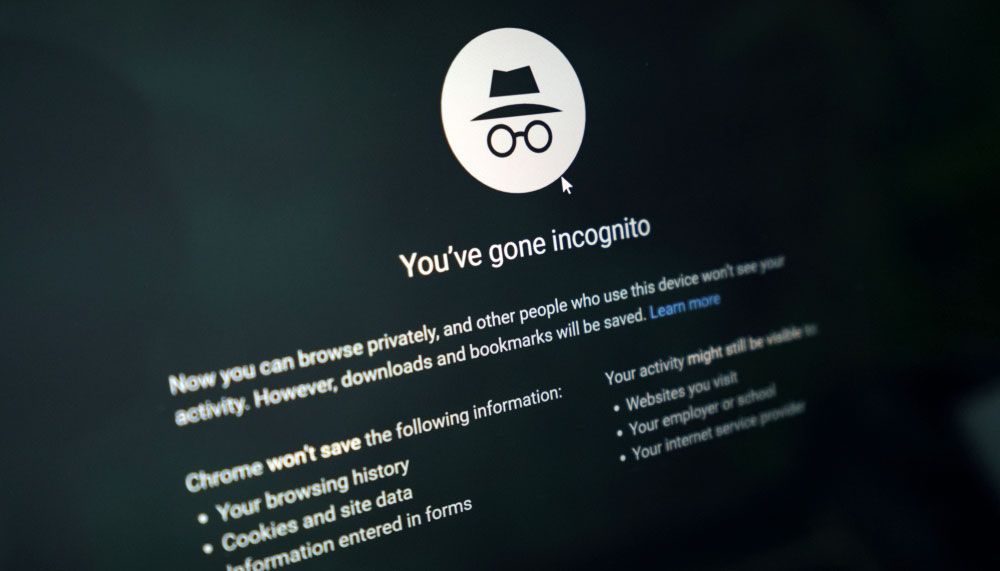
Google's Incognito mode is one of the best means to keep your web browsing private, while also making sure that you're not hindered by prior search data while searching Google. However, the best Android phones can make it even more secure.
While Google Chrome and Incognito mode are available on any device, users with a Samsung or Google Phone can lock their tabs behind their PIN or even Face Recognition. In comparison, iPhones will hide the pages, but you only need to press a button that appears to see all the tabs.

However, to turn on the feature, you do need to navigate Chrome's menus, which can be a bit of a challenge if you don't know what you're looking for. As such, we've compiled this guide to help you find what you need with ease.
How to lock Incognito mode on Android phones
Find the Settings option

The first thing you need to do is access the Google Chrome app, then press the three-dot menu in the top right corner and select the Settings option.
Navigate to the relevant section and find the toggle

Once in the Settings menu, navigate to Privacy and Security. Once you've tapped that, you'll need to scroll until you see the option to toggle "Lock Incognito tabs when you leave Chrome."
Once you have activated the toggle, you'll be asked to confirm your identity using either your Face Recognition, PIN or pattern. From then on, anyone who wants to see your incognito tabs will require the same means each time.
This is the kind of addition that I would want to see more of, as it doubles the security of Incognito mode. For instance, if you're looking to hide your holiday shopping for a family member, then this is just an added layer of security.
However, it is worth noting that, while Incognito mode doesn't store cookies or appear on your history, it doesn't stop websites, employers, or ISPs from tracking your activity, and data may remain in network logs or system caches.
If you want more privacy, then you would be better served investing in one of the best VPNs to help keep your data private and protect important information. If you have any other information or tips and tricks for iPhone and Android phones, then let us know in the comments.

Follow Tom's Guide on Google News and add us as a preferred source to get our up-to-date news, analysis, and reviews in your feeds.