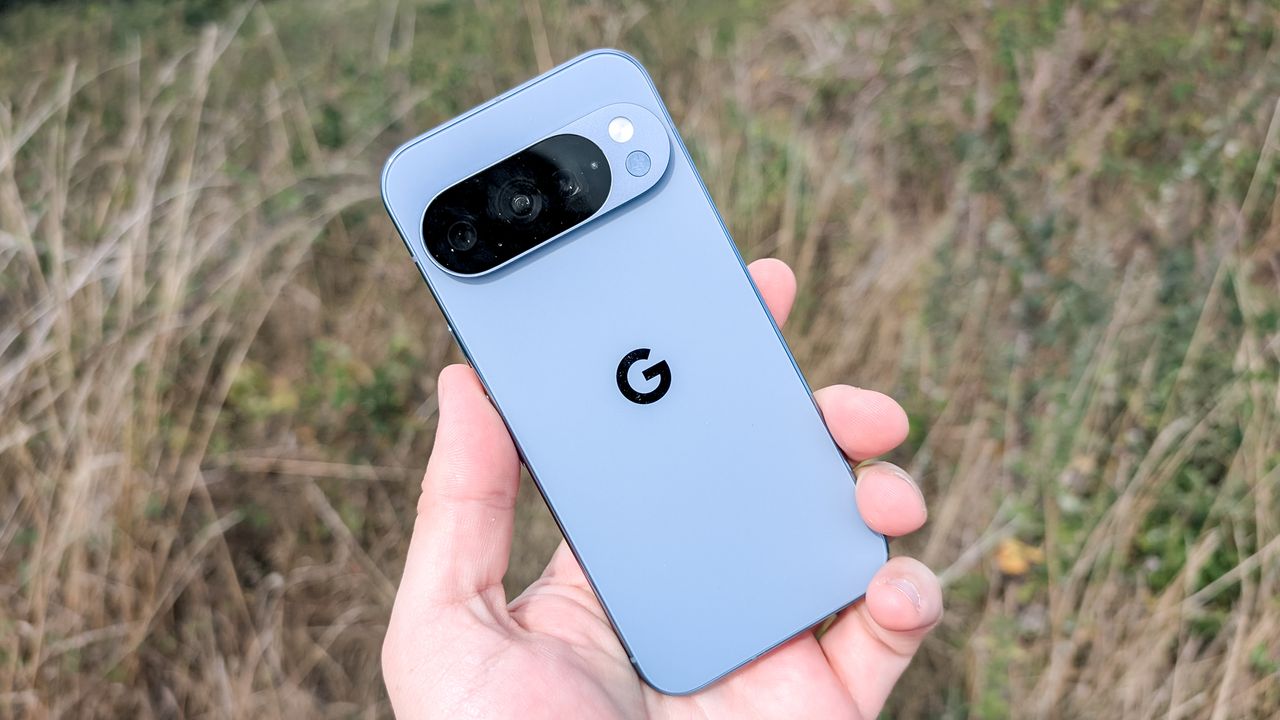
I would wager most people reading this have had to deal with some kind of phone snoop in the past. Someone with the insatiable need to see what's going on in your phone. There are plenty of ways to keep prying eyes out of your phone — including the Privacy Display on the Galaxy S26 Ultra — but you might not have known about this hidden Android feature.
There are times when you might want to hand your phone over to someone and show them something. The last thing you need is for them to swipe off whatever screen you were looking at and go looking elsewhere. You'd think this would be common courtesy, but there are people out there who do this sort of thing. The solution? Pin your app in place and stop them before they make an attempt.
It's a very simple feature, and one you can implement very easily. Here's how it works.
1. Open Security settings
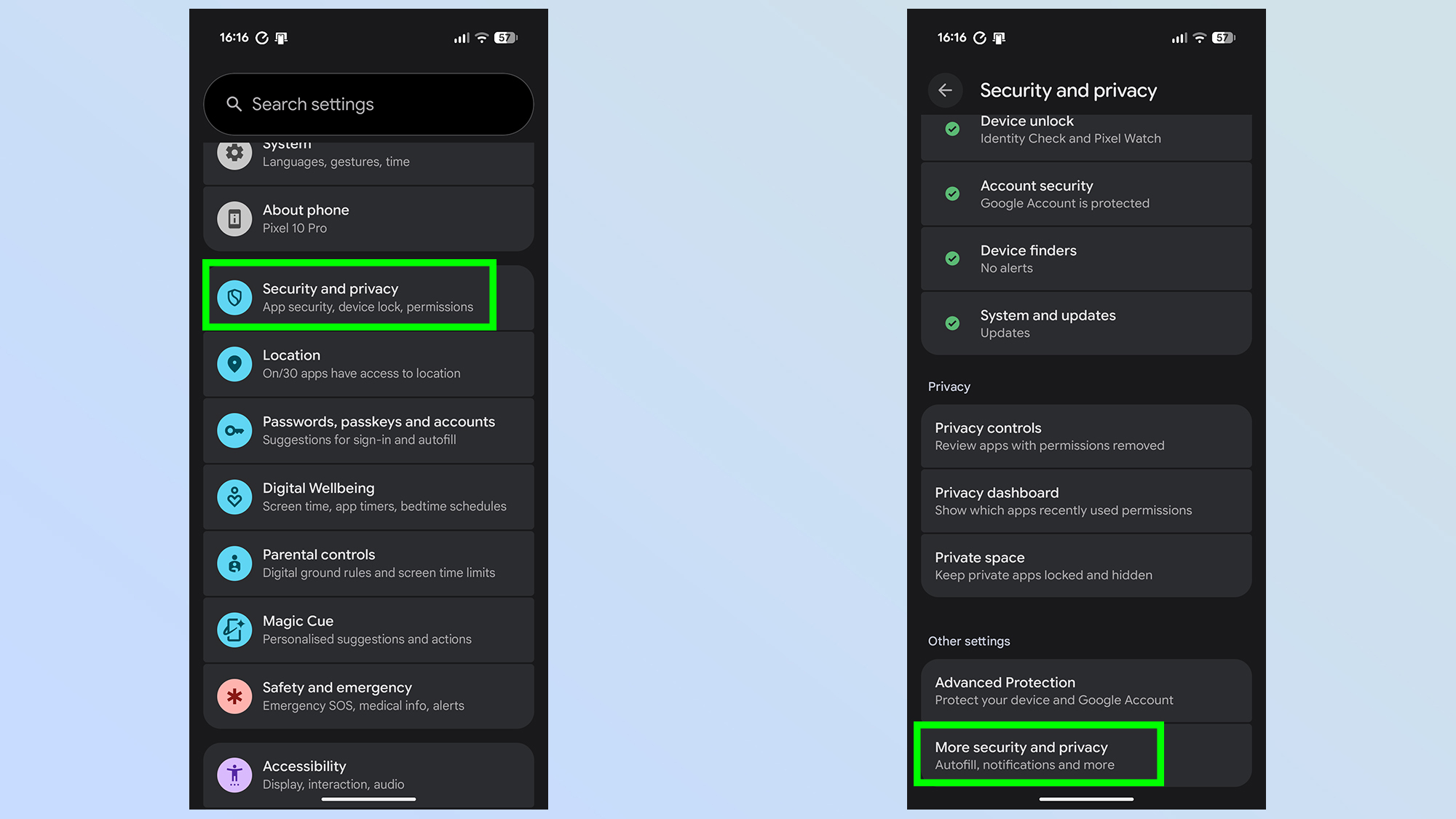
First up you'll need to open the settings menu and find the Security option. Then look for the Advanced option. This could have a different name like "more security and privacy" or something similar.
2. Turn on app pinning
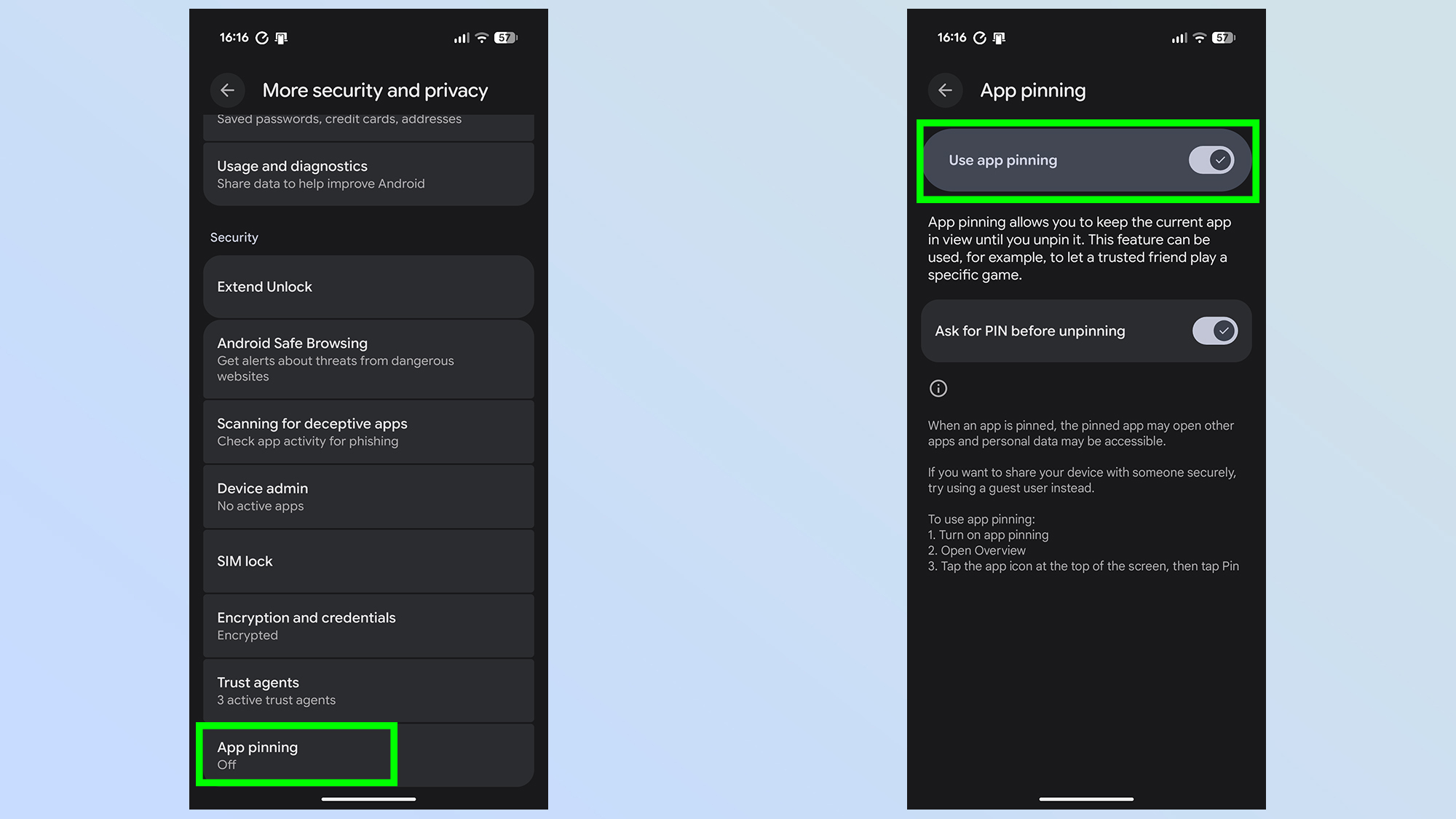
Find the App pinning option, tap it, then toggle on Use app pinning.
Switching this on will also turn on the toggle that will Ask for PIN before unpinning. This will stop people unpinning the app unless they know your passcode. This can be switched off if you desire, but only after you enter your PIN for security.
3. Pin an app
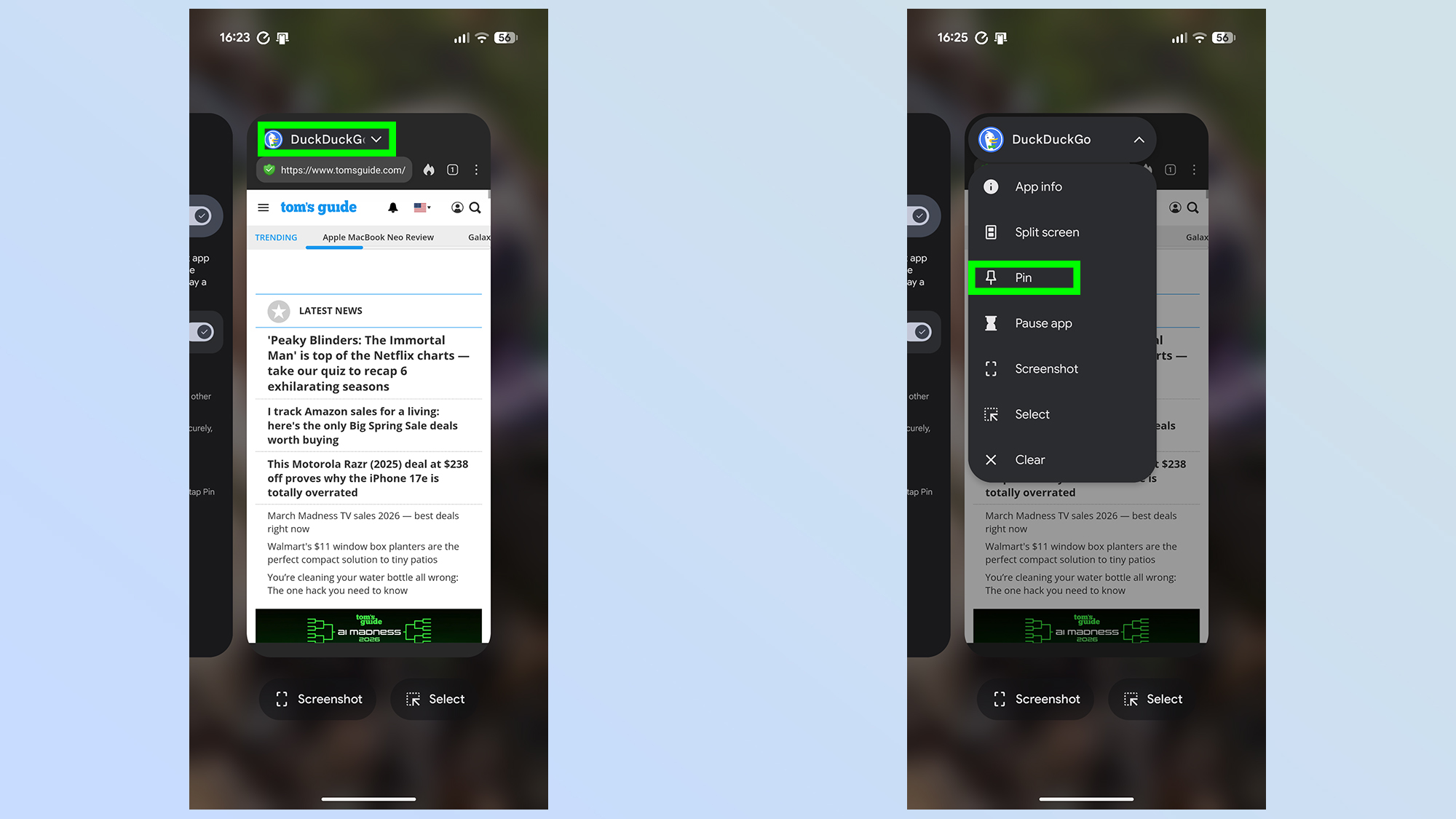
Open the app that you want to PIN, then swipe up from the middle of your screen and hold. Then tap the app icon, which will cause a drop-down menu to appear. Tap the PIN option, which will prevent that particular app from leaving your screen.
While you can use that app as normal, it stops you from pulling down the quick settings menu, opening the recent apps menu and accessing the home screen.
4. Unpin your app
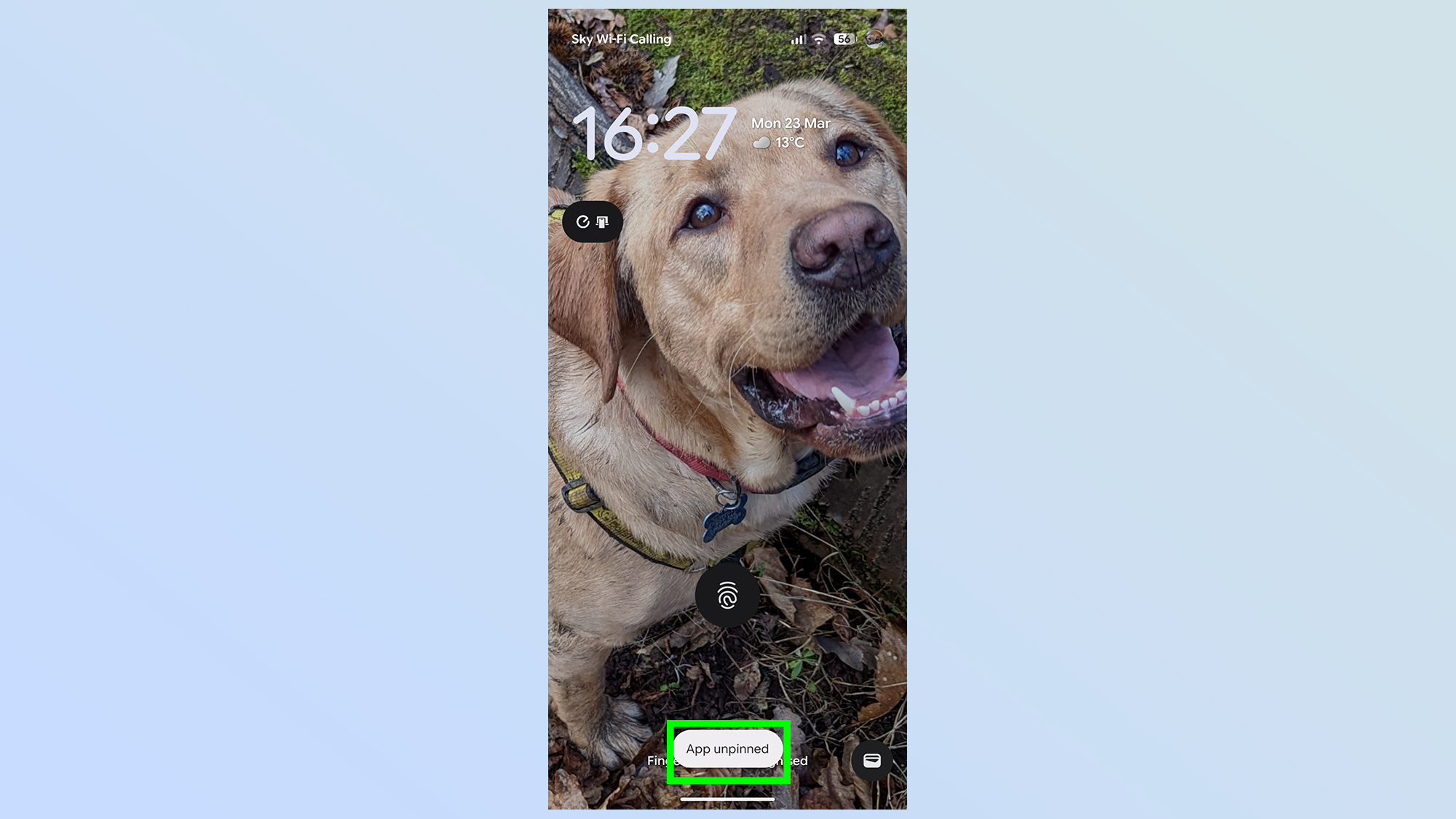
There will come a point where you inevitably want to unpin your app. Doing so is easy, but you have to be patient with the process. Swipe up from the bottom of the home screen and hold.
You will not get any kind of feedback that you're doing it right, but if you are a small icon will pop up saying app unpinned followed by your lock screen. Simply unlock the screen, either with a passcode, pattern or biometrics, and your phone will be restored to normal.
There you have it, a way to hand over your phone to a different person and ensure that they won't be able to go and find something they shouldn't be looking at. Just remember that app pinning doesn't actually stop them from moving through the pinned app, so your nosey grandparent can still swipe through your photo gallery with impunity should you let them.